Google Forms data validation
Last updated September 2026 · ~12 minute read
Short answer: Google calls it Response validation, and it lives in a question's More menu. Only three of Google's twelve question types take a rule: Short answer (Number, Text, Length, Regular expression), Paragraph (Length and Regular expression only) and Checkboxes (Select at least / at most / exactly). Everything else — Multiple choice, Dropdown, File upload, Linear scale, Rating, Date, Time — has no validation rule at all. Count the “Rules for…” headings on Google's own page and you will get five: the two extra ones are the grids, and they are grid options rather than response validation. The section-by-section count is below.
Form+ puts Response validation, every operator and the custom error text in the question menu on iPhone and iPad — on your real Google Forms and your own Google account. Get Form+ free on the App Store.
Most pages about this topic tell you to “add validation to your date question”. You cannot. The single most useful fact about Google Forms validation is which questions accept it, so that is what this guide leads with — followed by every category and every operator, and an honest account of what a rule in a web page can and cannot stop.
How to turn on response validation
This is Google's own click-path, from How to set rules for your form:
- Open a form in Google Forms.
- Click Add.
- To the right of the question title, choose the type of question.
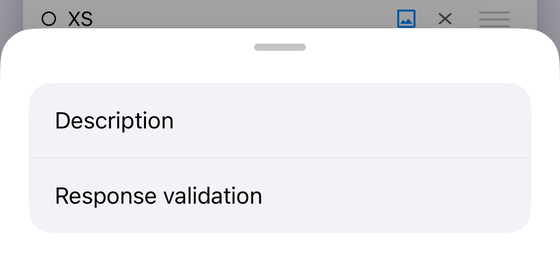
- To set up rules, click More — the three-dot menu at the bottom right of the question card.
- Click Response validation.
- Select first the type of rule you want, then the operator and the value. In Google's words, “the rule options available depend on the type of question chosen.”
The control is called Response validation in the editor. “Data validation” is the phrase Google uses when it links to that page from its question-type help (“Learn how to set rules with data validation”), which is why both names are in circulation for one checkbox.
Custom error text
Every rule can carry its own message. Google: “Optional: To add an error message, on the right, in the ‘Custom error text’ field, enter an error message. Responders will get this message when their answer doesn't follow the rules.” Its own example is You reached the limit of 200 words.
Write one. The default message tells a responder that something is wrong without telling them what would be right, and a blocked responder with no instructions closes the tab.
Every category and operator
A question carries one rule: a category, an operator, and a value. The complete set:
| Category | Operator | What it requires | Available on |
|---|---|---|---|
| Number | Greater than | A number greater than the value | Short answer |
| Greater than or equal to | A number greater than or equal to the value — Google's own example is “A number greater than or equal to 50” | ||
| Less than | A number less than the value | ||
| Less than or equal to | A number less than or equal to the value | ||
| Equal to | A number equal to the value | ||
| Not equal to | A number not equal to the value | ||
| Between | A number between two values, inclusive — Google's own example is “A number between 21 and 42” | ||
| Not between | A number not between two values, inclusive | ||
| Is number | Any number at all — no bound | ||
| Whole number | A whole number — this is the one that rejects 42.5 | ||
| Text | Contains | The answer contains the text you give — Google's example is making sure answers contain the word “candy” | Short answer |
| Doesn't contain | The answer does not contain the text you give | ||
| Email address | The answer is an email address — Google's phrasing: “Make sure the response is in email format text@example.com” | ||
| URL | The answer is a URL | ||
| Length | Maximum character count | At most N characters. Google: “select Maximum or Minimum character count, and the number” | Short answer, Paragraph |
| Minimum character count | At least N characters | ||
| Regular expression | Contains | The pattern is found somewhere in the answer | Short answer, Paragraph |
| Doesn't contain | The pattern is not found in the answer | ||
| Matches | The whole answer matches the pattern | ||
| Doesn't match | The whole answer does not match the pattern | ||
| Checkboxes | Select at least | “Set a minimum number of boxes that can be checked.” | Checkboxes |
| Select at most | “Set a maximum number of boxes that can be checked.” | ||
| Select exactly | “Specify the number of boxes that must be checked.” |
Where these names come from. Google's help page prints four of these lists verbatim: the Regular expression options (“Contains, Doesn't contain, Matches, Doesn't Match”), the Length pair (“Maximum or Minimum character count”) and the three Checkboxes rules. It does not print the Number and Text drop-down labels — for those it gives worked examples only, quoted above. The full Number and Text sets are documented by Google elsewhere, in the Apps Script reference for Forms, which defines one rule per menu option (requireNumberGreaterThan, requireNumberBetween, requireWholeNumber, requireTextIsEmail, requireTextIsUrl and so on). Nothing in the table above is inferred from a third-party blog.
Which question types accept validation
Google lists twelve question types. Its question-type page links “Learn how to set rules with data validation” from exactly two of them — Short answer and Paragraph — and links the rules page from the two grid types; the rules page itself adds Checkboxes. That is the whole of it:
| Question type | Validation available |
|---|---|
| Short answer | Yes — Number, Text, Length, Regular expression |
| Paragraph | Yes — Length and Regular expression only. No Number, no email or URL check |
| Checkboxes | Yes — Select at least, Select at most, Select exactly |
| Multiple choice grid | Not response validation — its “Rules for…” section never uses the phrase. It offers Require a response in each row, “Limit to one response per column” and Shuffle row order, the last two from More. Apps Script models only the middle one, as a GridValidationBuilder with a single method |
| Checkbox grid | Same three options as the multiple choice grid; its builder is CheckboxGridValidationBuilder, also one method |
| Multiple choice | None. You are choosing from options you wrote, so there is nothing to malform |
| Dropdown | None, for the same reason |
| File upload | No validation rules. It has its own limits instead: which file types responders can upload, the maximum number of files, and the maximum file size |
| Linear scale | None. The scale itself is the constraint — it starts at zero or one and ends on a whole number from 2 to 10 |
| Rating | None. A whole number from 3 to 10, shown as stars, hearts or thumbs up |
| Date | None. The picker enforces the mm/dd/yyyy format; you cannot restrict the range |
| Time | None. Time in hh:mm AM/PM, or a duration in Hrs Min Sec |
Why the same page looks like five
This is the one place our count can be checked against Google's and appear to lose. Open How to set rules for your form and the “Types of rules” part has five sections: “Rules for short answer questions”, “Rules for Paragraph questions”, “Rules for checkboxes questions”, “Rules for Multiple choice grid questions” and “Rules for Checkbox grid questions”. Five headings, three rules — because the last two describe something else. Read them: each opens with how to build a grid (“Add the options for the rows… Add the options for the columns”) and then lists the three boxes you can tick — “Require a response in each row”, “Limit to one response per column” and “Shuffle row order”. The phrase Response validation does not appear in either grid section, and Google's own click-path for the last two is “At the bottom right, click More” and check the box — not More, then Response validation.
Google's developer documentation draws the same line, and by a measurable amount. In the
Apps Script reference a Short answer question's
TextValidationBuilder exposes eighteen require-methods and
ParagraphTextValidationBuilder six.
GridValidationBuilder and
CheckboxGridValidationBuilder exist too — so
the grids are not absent from the API — but each has exactly one method,
requireLimitOneResponsePerColumn(), which is the checkbox above. The REST API is blunter
still: validation is a zero-hit string in the
Forms REST reference and in the v1 discovery
document (revision 20260909), which has no validation object for any question type. Its Grid
object carries exactly two properties, columns and shuffleQuestions — so Shuffle
row order survives into the API and “Limit to one response per column” does not.
So: five sections, five item types that can carry something Google calls validation somewhere, and three that take a rule about what the responder typed. Three is the number this guide uses, and the one our date question guide uses too.
Two consequences worth knowing before you design a form. First, there is no date-range validation — if you need “a date in the next 30 days”, Google Forms will not enforce it, and the usual workaround is a Short answer question with a regex, which then accepts 99/99/9999. Second, Paragraph is not a bigger Short answer: move a question from Short answer to Paragraph and any Number, email or URL rule on it has nowhere to go.
Recipes that actually work
A whole number in a range
Number gives you Between and it gives you Whole number, and a question carries one rule — so “an integer from 1 to 100” is not a single rule. Between 1 and 100 accepts 42.5. Whole number accepts 4,000,000. Pick the failure you care about, then name the other half in the custom error text: “Whole numbers from 1 to 100 only.” Google does not document any way to stack two rules on one question.
An email address
Use Text → Email address. It is the rule Google built for this, and it is the one Google's own example reaches for. A hand-rolled regex is almost always worse — the patterns people copy reject valid addresses with a plus sign or a long modern suffix. Note that this checks the shape of an address; nothing here proves the mailbox exists. If you need that, collect emails through the form's own “Collect email addresses” setting instead of a text question.
A phone number
Google's documented example is exactly this: “Response must be a 10-digit phone number, where the range for
each digit is 0–9. Input: Regular expression Matches [0-9]{10}. Expected result:
1234567890.” Be honest with yourself about what that buys. It rejects +1 (555) 010-9999, which is a
real number, and accepts 0000000000, which is not. Either loosen the pattern and accept the mess,
or put the format in the question description and the custom error text so responders type it your way the first
time.
A word-count cap
There is no word-count rule. Length counts characters — Google's own wording is “Maximum or Minimum character count”, even though the example error message it prints on the same page reads “You reached the limit of 200 words.” Set a character maximum, pick a number with headroom, and say “about 200 words” in the custom error text. Anything cleverer means a regex counting whitespace, which breaks on double spaces and line breaks.
What regex support really means here
Google does not name a regex flavour anywhere on this page. What it publishes is a table of expressions
— ., *, +, ?, ^, $,
{A,B}, character sets like [xa5], ranges like [a-z], negated sets like
[^a-fDEF], and \s — introduced as “some of the expressions that Google Docs supports”,
with the note that “There are many other supported expressions you can use.” It also warns that a character with
a special meaning must be escaped with a backslash: to search for $ you enter \$.
Build from the documented pieces. Lookaheads and named groups may well work, but Google has not promised they
will, and a pattern that silently fails is worse than no rule.
Validation is not security
Response validation runs in the responder's browser, on a form you handed them a link to. It is a typo filter, and an excellent one: it catches the mistyped digit, the missing @, the essay pasted into a one-line box, the survey where somebody ticked nine options out of three. It stops none of the following:
- Deliberately wrong data.
[0-9]{10}is satisfied by ten zeroes. An Email address rule is satisfied byno@thanks.com. - Someone submitting twice, or someone submitting as somebody else. That is the respondent-limit and sign-in territory, not validation.
- Anything you need to be true after the fact. If a wrong value costs you money, validate it again where the data lands, not only where it is typed.
Design accordingly: use validation to make the honest responder's life easier, and a separate check to catch the dishonest one.
Setting validation from a phone
The Google Forms editor on a phone browser is where most of this falls apart — the question's More menu is the first thing to go. Form+ keeps Response validation in the question menu on iPhone and iPad for the three types that accept it: Short answer, Paragraph and Checkboxes, with the same four categories, the same operator lists as the table above, and the same Custom error text field. It edits your real form on your own Google account, so a rule you set on the phone is the rule the web editor shows.
Form+ also runs a pre-publish Audit form pass that flags a text question asking for an email, phone number, URL or postcode that has no response validation on it — the exact case where a missing rule costs you a week of unusable answers.
Set response validation from your phone
Form+ puts Response validation, every operator and the custom error text in the question menu on iPhone and iPad — on your real Google Forms and your own Google account.
Get Form+ free on the App StoreFrequently asked questions
What is data validation called in Google Forms?
Response validation. Google's help page How to set rules for your form documents the click-path as Add, choose the question type, click More, then click Response validation. There is no menu item labelled “data validation” in the editor, although Google uses that phrase in its question-type help page.
Which Google Forms question types support data validation?
Of the 12 question types Google lists, only three take a validation rule: Short answer (Number, Text, Length, Regular expression), Paragraph (Length and Regular expression only) and Checkboxes (Select at least, Select at most, Select exactly). Google's rules page carries five “Rules for…” sections, so a section count gives five, but the Multiple choice grid and Checkbox grid sections never mention Response validation: they cover building a grid and ticking “Limit to one response per column”, “Require a response in each row” and “Shuffle row order”. Multiple choice, Dropdown, File upload, Linear scale, Rating, Date and Time have no validation rules documented at all.
Can Google Forms limit an answer to a number of words?
No. The Length category counts characters, not words — Google's wording is “Maximum or Minimum character count”. Google's own example error message reads “You reached the limit of 200 words”, but the rule behind it is still a character count. If you need a word cap, set a character cap and say so in the custom error text.
Can Google Forms validate a phone number?
Only as a pattern. Google's own example is Regular expression, Matches, [0-9]{10}, which accepts
1234567890. That pattern rejects spaces, brackets and a leading +country code, and it happily accepts
0000000000. It is a format check, not a check that the number exists.
Can I set response validation from my phone?
Not in the Google Forms mobile web editor, which is where most people give up. Form+ for iPhone and iPad puts Response validation in the question menu for Short answer, Paragraph and Checkboxes questions, with the same categories, the same operators and the same Custom error text field, writing to your real form on your own Google account.