Google Forms confirmation message: what people see after submitting
Last updated September 2026 · ~8 minute read
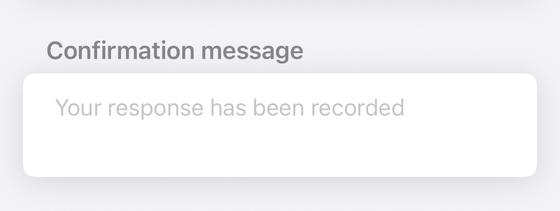
Short answer: the confirmation message lives in Settings → Presentation → Confirmation message → Edit → Save. Google describes it in one sentence — “You can customize the message people get after they submit the form.” It is not the message shown when a form is closed; that one is edited somewhere else entirely, and mixing the two up is the single most common reason a respondent sees the “wrong” text.
Form+ puts the confirmation message in Form settings, and lets the Response Limiter and Form Scheduler each set the message respondents see once the form stops accepting responses — on your real Google Forms and your own Google account. Those last two are Pro tools; the app is free. Get Form+ free on the App Store.
Everything below is checked against Google's own help pages, and where Google documents nothing this guide says so rather than guessing. That matters more than usual here, because the confirmation screen has three separate pieces of furniture on it and only some of them are written down.
How to change the confirmation message
Google's help page for publishing and sharing a form gives the path verbatim:
- At the top of the form, click Settings.
- Next to “Presentation,” click the Down arrow.
- Next to “Confirmation message,” click Edit.
- Enter your message.
- Click Save.
Google's Workspace Learning Center adds the only other framing it offers: “When people submit a form or quiz in Google Forms, they get a confirmation message. You can tailor this message for any form or quiz.” That is the entire documented specification. There is no separate publish step for the text — save it and the next submission gets it.
The two messages people confuse
Ninety per cent of “my confirmation message isn't showing” is this. There are two messages, they are stored in different places, and they fire at opposite ends of the process.
- The confirmation message appears after someone answers and submits. Edited under Settings → Presentation, as above.
- The closed-form message appears instead of the form, before anyone answers anything, when the form has stopped accepting responses.
Google puts the second one on a different page and behind a different control. In a published form, at the top right, click Published, turn off Accepting responses and click Save. Under the text “Responders will see this message when the form is closed for responses,” click Edit, enter a message — Google's own example is “This form is no longer receiving responses. Thanks!” — and click Save.
So if testers report that your carefully written thank-you never appeared, check whether the form was open. A closed form never reaches the confirmation screen at all.
What else is on the confirmation screen
Two further elements can appear alongside your text, and neither is part of the message you typed.
A link to the results summary. This one is documented. Under Presentation there is a View results summary setting; Google's description is “A summary of results is shared with respondents,” and elsewhere on the same page: “After someone fills out your form, they get a link to the results.” Those summaries “show full text responses or charts for each question and are visible to anyone who can respond to the form” — worth reading twice before you turn it on for anything sensitive. If you remember this setting as “See summary charts and text responses”, that was the older label; the current help pages call it View results summary.
A “Submit another response” link. The help centre never mentions it — it describes the
confirmation message and the results summary and stops — but the developer documentation does. Apps
Script's Form class carries
setShowLinkToRespondAgain(enabled) and hasRespondAgainLink(), both described as
governing whether the form displays a link to submit another response. The setting is documented; it is
just documented somewhere no form owner would think to look. It is a real setting — Form+ exposes the switch as
Show link to submit another response — but nothing in Google's documentation states when it
shows or what governs it, so treat any confident claim about it as folklore until you have tested your own
form. What is dependable is the interaction with Limit to 1 response: Form+ makes the
respond-again switch unavailable while that limit is on, because the two settings contradict each other. The rest of this panel is scattered through Google's
documentation in much the same way, which our guide to the
Presentation settings works through control by
control.
What you cannot rely on
This is the part every other guide gets wrong by omission, so it is worth being blunt.
- Clickable links and formatting are undocumented. Google says only “enter your message.” No help page states whether a pasted URL becomes a link, whether bold or italics survive, whether line breaks are kept, or whether HTML does anything. Do not design a hand-off — payment page, calendar booking, download — around a link in the confirmation message until you have submitted a test response to your own form and looked at the result on the device your respondents will use. Behaviour that is undocumented is behaviour that can change without a changelog.
- Edited responses are undocumented. Google documents the Allow response editing setting, but not what a respondent sees when they resubmit an edited answer. Test it if your workflow depends on it. (See editing a response after submitting.)
- Quizzes with grades released later are undocumented. Google documents the two Release grades options, “Immediately after each submission” and “Later, after manual review,” and notes that if you collect email addresses “you can send results immediately or wait until you're ready to share them.” It does not say how the confirmation screen differs between the two.
What to actually write in it
The default text is a receipt, not a message. Since it is often the last thing a respondent reads, spend two minutes on it. A good confirmation message answers three questions:
- Did it work? Confirm the submission in plain words.
- What happens next, and when? A timeframe stops the follow-up emails.
- What if something is wrong? Where to write, who to ask.
Three that work:
- Event signup: “Thanks — you're on the list for Thursday. We'll email joining details by Monday. If you need to change anything, reply to that email.”
- Support intake: “Got it. We reply to everything within one working day. If it's urgent, mention it in a follow-up to support@example.com.”
- Job application: “Application received. We review in batches and contact shortlisted candidates within two weeks. No news by then means we've moved on this round.”
All three say the same words to everyone, because that is the only mode the field has. Anything that has to differ from one respondent to the next is an email, and Google Forms keeps no saved message for one either — Google Forms email templates works through what is actually available. On the third example in particular, Google Forms for job applications covers what an application form does and does not do once someone has submitted.
Because links are undocumented, write any address as plain text a person can copy, and keep the message short enough to read on a phone in one glance.
Which message do you need?
| You want to change… | Where it lives |
|---|---|
| What people see after they submit | Settings → Presentation → Confirmation message → Edit → Save |
| What people see when the form is closed | Published → turn off Accepting responses → Edit the message → Save |
| Whether respondents get a results link | Settings → Presentation → View results summary |
| Whether the respond-again link shows | A presentation setting — “Show link to submit another response” in Form+ |
| The message shown once a response limit is hit | Form+ → editor toolbar → Response Limiter (Pro) → “Message for respondents” |
| The message shown before or after a scheduled window | Form+ → editor toolbar → Form Scheduler (Pro) → “Message for respondents” |
The last two rows carry two conditions the others do not. Response Limiter and Form Scheduler are Pro tools, where the confirmation message and the closed-form message above them are ordinary Google Forms settings the app edits for free. And both are drawn in the editor toolbar only on forms your own account owns: on a form someone else shared with you the buttons are absent rather than locked, so those two messages have to be set from the owner's account.
Edit both messages from your phone
Form+ puts the confirmation message in Form settings, and lets the Response Limiter and Form Scheduler each set the message respondents see once the form stops accepting responses — on your real Google Forms and your own Google account. Those last two are Pro tools; the app is free.
Get Form+ free on the App StoreFrequently asked questions
How do I change the message people see after submitting a Google Form?
Open Settings at the top of the form, click the Down arrow next to Presentation, click Edit next to Confirmation message, enter your message and click Save. Google describes it as the message people get after they submit the form.
Can I put a clickable link in the Google Forms confirmation message?
Google does not document this either way. Its help pages describe the confirmation message only as text you enter, and say nothing about links, bold, line breaks or HTML. Paste a URL into your own form, submit a test response and look at the result before you build a flow that depends on people clicking it.
Why do some people see a different message when they open my form?
Because that is the closed-form message, not the confirmation message. It is edited separately, under the text “Responders will see this message when the form is closed for responses,” and it appears when Accepting responses is off — before anyone answers anything.
Can I remove the “Submit another response” link?
It is governed by a presentation setting rather than by the confirmation message text. In Form+ the same switch is labelled Show link to submit another response, and it is unavailable while Limit to 1 response is on, because one response per person and an invitation to send another contradict each other.