Google Forms scale 1 to 10
Last updated September 2026 · ~9 minute read
Short answer: yes — use Linear scale. Google's question types page states the limits in two sentences: “Your scale can start at zero or one,” and “Your scale can end on a whole number from 2 to 10.” A 1–10 scale sits inside that, and so does 0–10. Ten is the ceiling, so there is no 1–100 scale. The two bits of text under the ends come from one more sentence — “You can set a label for each end of the scale” — and that is the entire published specification.
Form+ adds linear scale and rating questions, imports them in bulk from a spreadsheet, and shows the answers — on your real Google Forms and your own Google account. Get Form+ free on the App Store.
Everything else people believe about a 1–10 scale in Google Forms is inference. Below: exactly what Google permits, what the endpoints are and are not, the two features that do not apply to a scale at all, and why a 10-point Rating is not the same question.
The range Google actually allows
Google publishes three sentences about the Linear scale type and no more. Quoted in full, from the Create, edit & format a form help page:
- What it is: “You can ask responders to provide a rating on a scale.”
- The low end: “Your scale can start at zero or one.”
- The high end: “Your scale can end on a whole number from 2 to 10.”
Read those literally, because the wording is doing precise work. The start has exactly two permitted values — zero and one. Not 2, not −5, not 100. The end is any whole number from 2 to 10, and “whole number” rules out 7.5 as firmly as it rules out 11.
Two consequences follow by arithmetic rather than by anyone's say-so. The longest scale available is 0–10, which is eleven points — one more than most people expect from “a scale up to 10”. And the shortest is two points, 0–1 or 1–2, which is a yes/no question wearing a scale's clothes. If you need a hundred-point slider, a percentage, or a decimal, the Linear scale is not the type; a short answer with number validation is the closest Google gets.
Build a 1–10 scale, step by step
- Open the form and add a question, then choose Linear scale from the question type list.
- Set the start. Pick 1 for a ten-point 1–10 scale, or 0 for the eleven-point 0–10 scale that Net Promoter Score is defined on. Those are your only two options.
- Set the end to 10. That is the highest value Google offers.
- Write the two end labels — the text that appears under the lowest and highest numbers.
- Turn on Required if the question must be answered, then submit one test response and open the responses before you trust anything about how the answer is stored. The next two sections explain why that last step is not optional.
What the endpoint labels are
The labels are the short bits of text under the two extreme numbers — “Not at all likely” under the 1, “Extremely likely” under the 10. Google's whole published sentence about them is: “You can set a label for each end of the scale.”
That sentence is permissive, not mandatory — it says what you can do, and nowhere does Google
state that a scale without labels is rejected, or that labelling only one end is allowed. Both are
undocumented. For what it is worth, the tooling behaves as though they are optional: in
Form+, a scale imported from a CSV with a bare 1-10 in the options column is
built with bounds and no labels at all, while 1-10|Not at all likely|Extremely likely supplies
both. That is a statement about an app, not a promise from Google — if a one-ended scale matters to you,
try it in your own form before you design around it.
What Google does not offer is a label anywhere else. The numbers between the ends carry no text — there is no way to write “neutral” under the 5. Whatever the middle of your scale means, your two endpoints and your question wording have to establish it, because nothing else on the screen will.
What the labels do to your data — and where Google goes quiet
This is the question that sends people looking, and it is the one Google does not answer anywhere. Google's page on viewing and managing responses describes the Summary tab, the charts and the “Link to Sheets” option, but it never states what a linear scale answer becomes — not in the summary, not in a cell of the linked spreadsheet. The question types page does not say either. There is no published sentence connecting an endpoint label to any stored value.
So we will not tell you. Guides that confidently describe the exact contents of that cell are reporting someone's memory of a product that changes, and if your analysis depends on it, memory is not good enough. Send yourself one test response, open the Summary tab, then open the linked sheet and read the actual cell. It takes under a minute and it settles the question for the version of Google Forms you are using today, which is the only version that matters.
Whatever you find, design as though the label may not travel with the answer. Keep the meaning of the scale in the question title or its description — “1 = not at all likely, 10 = extremely likely” — so a column of bare numbers is still readable by a colleague six months from now, and by you.
Two things a scale question cannot do
Both are settled by omission from Google's own lists rather than by trial and error:
- No response validation. Google's How to set rules for your form page has five sections and five only — rules for short answer, Paragraph, checkboxes, Multiple choice grid and Checkbox grid questions. Linear scale is not among them, so there is nothing to validate and no rule to set. Little is lost: a scale can only return a value already on it. See Google Forms data validation for the types that do take rules.
- No branching. Google's branching page is explicit that “Go to section based on answer” is “only available for Multiple choice and Dropdown question types.” A 1 cannot route someone to a follow-up section and a 10 cannot skip them past it. If a low score must change the path through your form, ask it as multiple choice — see conditional logic in Google Forms.
Writing the two labels well
Our advice, not Google documentation — Google stops at “you can set a label for each end.”
- Label both ends. A bare row of numbers asks every respondent to invent the scale for themselves, and they will invent different ones.
- Keep them short. They sit under a number on a phone screen. Two or three words. “Very poor” and “Excellent” beat a sentence every time.
- Make them the true extremes. If your top label is “Good”, nobody can tell you what would have been better, and you have thrown away the top of your own range.
- Avoid agree/disagree wording on a long numeric scale. “Strongly disagree” to “Strongly agree” is an attitude scale, and attitude scales rely on a named midpoint — a “neither” option that a Google Forms linear scale cannot show. On 1–10 with no middle label, one person's 5 is neutrality and another's is mild disagreement, and you cannot tell which you collected. Either drop to a short scale where the ends dominate, or ask agreement as a multiple choice grid with every option named.
- Use the same scale everywhere in the form. A 1–10 in one question and a 1–5 in the next is where scale data usually goes wrong, long before anyone opens the spreadsheet.
1–10 linear scale vs a 10-point Rating
They are different question types and the confusion is expensive. Google documents Rating separately: “Your rating can be a whole number from 3 to 10,” and, on the icon, a stem followed by a list — “You can represent your rating with a:” “Star”, “Heart”, “Thumbs up”. (Google writes those three as bullets, not as a sentence; we keep them apart rather than joining them with an “or” Google never wrote.) Three differences follow directly from that wording. Rating's floor is 3, so the two-point scale a Linear scale allows has no Rating equivalent; Google documents a single number for Rating and no start value at all, so there is no documented zero-based Rating and therefore nothing NPS-shaped; and Rating is drawn as icons with no documented end labels, which means a row of ten stars has to carry its own meaning. If the wording at the ends is the point, use Linear scale. If the icon already says it, see how to add a rating question.
Scale questions on iPhone and iPad
Form+ edits your real Google Forms through your own Google account, and both scale types are in its question picker.
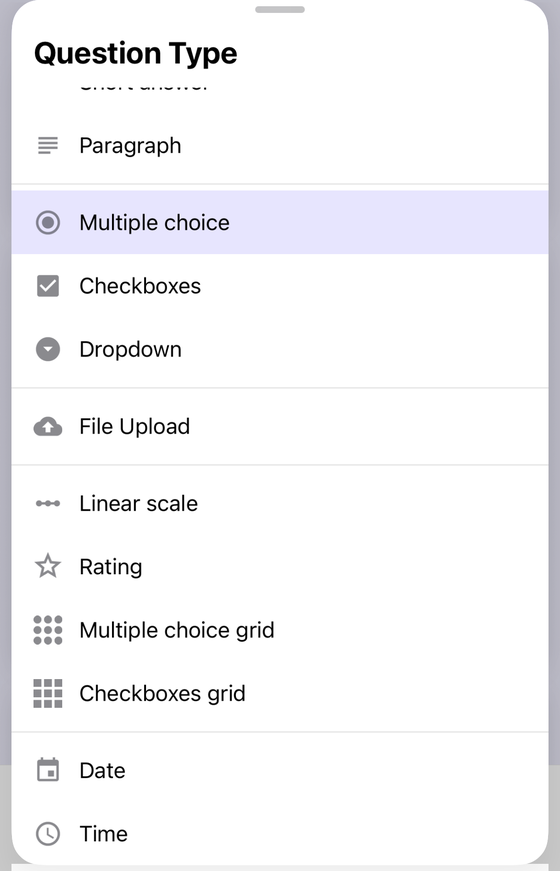
One detail worth knowing if you are building a long survey of scale questions: Form+ can
import questions from a CSV, and a linear scale is written in the options column as
1-10, or 1-10|Not at all likely|Extremely likely when you want the end labels — so
twenty scale questions are one paste rather than twenty trips through the menus. The same import
cannot rebuild a Rating question: a row whose type column says Rating arrives as an ordinary short
answer or multiple choice question instead, and the import reports the substitution rather than pretending
the file came back intact. That asymmetry is a practical reason to write bulk surveys as linear scales.
Build the whole survey from your phone
Form+ adds linear scale and rating questions, imports them in bulk from a spreadsheet, and shows the answers — on your real Google Forms and your own Google account.
Get Form+ free on the App StoreFrequently asked questions
Can you make a 1 to 10 scale in Google Forms?
Yes, with the Linear scale question type. Google documents that your scale can start at zero or one and that your scale can end on a whole number from 2 to 10, so 1 to 10 is inside the permitted range. Ten is the ceiling: there is no 1 to 100 scale.
Can a Google Forms scale start at 0?
Yes. Google's wording is that your scale can start at zero or one, and those are the only two documented start values. A scale beginning at 2, at −5, or at any other number is not offered.
How many points can a Google Forms linear scale have?
Eleven at most. That is arithmetic from Google's own two limits rather than a figure Google prints: the lowest permitted start is zero and the highest permitted end is 10, so 0 to 10 is the longest scale and it has eleven points.
Do the scale labels show up in the responses spreadsheet?
Google does not say. The one sentence Google publishes about labels is that you can set a label for each end of the scale, and its pages on viewing and managing responses do not state what a scale answer becomes in the summary or in a linked sheet. Submit one test response and read the cell rather than trusting anyone's guess, ours included.
Is a 10-point Rating question the same as a 1 to 10 linear scale?
No. Rating is a separate question type. Google documents that your rating can be a whole number from 3 to 10, and lists three icons for it — star, heart, thumbs up. Google documents no start value for Rating at all, so there is no documented zero-based Rating; it is drawn as icons rather than numbers, and Google documents no end labels for it.