Google Forms notifications for collaborators
Last updated September 2026 · ~9 minute read
Google's built-in response notification has no recipient field, so there is nobody to add. Its help page documents a single menu item and never names who gets the mail. The one per-person route Google does document lives somewhere else entirely — in the linked response spreadsheet, where each colleague sets up their own alert in their own account, because Google states outright that “You can only set up notifications for yourself.” Everything beyond that is an add-on or a script.
Form+ puts per-form response alerts on iPhone and iPad, on your real Google Forms and your own Google account — no migration, nothing copied out of Drive. Get Form+ free on the App Store.
This page is about the second person. If you are still switching the basic alert on, start with email notifications for Google Forms; if it is on and nothing is arriving, that is notifications not working. Here the question is narrower and more awkward: three of you share the form, and only one of you ever hears about a response.
How we checked
Every claim about Google's behaviour below comes from a help page we opened, and the URL is in the text. Where Google publishes nothing — and on this topic it publishes nothing more often than you would expect — this page says so rather than filling the silence with a plausible-sounding rule.
The built-in switch is not a mailing list
Google documents response notifications in View & manage form responses, and the whole feature is four steps: open a form, click Responses, click More, click Get email notifications for new responses. That is the entire documented surface, and the thing to notice is what is not in it. There is no address field, no list, no “also notify” row, and the page never names a recipient at all — it does not even state in writing that the mail goes to the person who clicked.
So the honest reading is not “it only notifies the owner”, which Google never actually writes. It is that the feature exposes no way to direct the alert anywhere, and Google acknowledges the ceiling by pointing outward: “To get more notifications options and send customized follow up emails to respondents, download the Form notifications add-on.” When a product's own help page answers “can it do more?” with “install something else”, that is the answer.
Being an editor does not put you on the list
The natural assumption is that collaborators inherit alerts along with access. Google's Share your form with collaborators page walks through adding people as Editor, setting general access and optional expiry dates, and even covers the invitation mail — if the form is published, an email notification goes out when you send it, and you can add a message or switch it off with the Notify people box.
That is the only notification on the page. It says nothing whatsoever about response notifications: not whether an editor can open the Responses menu and turn them on, not whether a co-editor already receives them, not what happens to the setting when access is granted or removed. We are not going to infer it. If it matters to you that a particular collaborator is or is not being emailed, the only reliable check is the one that does not depend on a guess: have that person open the form in their own account and look at the menu item themselves.
Worth separating clearly, because it is the most common mix-up on this topic: the invitation email tells someone they now have access to a form. It has nothing to do with being told a response arrived. Our guide to sharing a form with collaborators covers the access side, including the fact that Google documents no view-only role for a form at all.
The one route Google documents for a second person
It is not in Forms. It is in the spreadsheet the responses flow into, and it is documented in Manage your notifications. Each person opens the linked sheet and sets up their own:
- Open the response spreadsheet in Google Sheets.
- At the top, click Tools › Notification settings › Edit notifications.
- Choose the trigger. Alongside “Any changes are made” there is the one that matters here: “A user submits a form”.
- Choose the delivery: “Email - right away: Send an email for every change”, or “Email - daily digest: Send a daily summary of all changes”.
Google is explicit about the scope, and this is the sentence that decides how a team has to organise itself: “You can only set up notifications for yourself.” You cannot switch a colleague on from your account, and they cannot be added by you from theirs. Three people who all need telling means three people each doing the four steps above, once.
Which makes access to that spreadsheet the real prerequisite, and there is a trap in how it is granted. Google's Choose where to save form responses states that “When you create a new response spreadsheet, form collaborators automatically get access to it” — but also that “Further changes to the permissions of the form won't synchronize automatically.” Access is copied once, at creation, and then the two files drift apart. Somebody added to the form last month is not on the sheet, and so cannot set up the only alert Google documents for them.
And not from a phone
That page carries platform tabs, which is rarer than it sounds on Forms documentation. The iPhone & iPad tab is unambiguous: “This feature is not available on iPhone and iPad. To set notifications, use a computer.” Meanwhile the Forms page that documents the response notification switch has no platform tabs at all, so Google publishes nothing phone-specific about that one either. Practically: the documented way to get a teammate alerted requires somebody to sit at a computer, even though the alert itself will arrive on their phone.
Who can be told, and by what
| The person | Documented way to alert them | Who sets it up |
|---|---|---|
| Whoever switches on the Forms setting | Responses › More › “Get email notifications for new responses” | Themselves, per form |
| A co-editor or anyone with the sheet | Sheets › Tools › Notification settings, triggered by “A user submits a form” | Themselves — “only for yourself” |
| A named colleague who should not touch the form | An add-on, or an Apps Script rule that emails an address | Whoever installs it, in their own account |
| The respondent | Response receipts — a separate feature with its own prerequisites | The form owner, in Settings |
Two of those four are worth a sentence each. Google's own suggested escape hatch, the Form Notify add-on, advertises exactly the missing capability — notifying “one or more recipients” on submission, to the respondent or your team members — at the price of installing third-party code that can send mail as you; Google Forms add-ons covers what that authorisation screen is granting. And building the rule yourself is a well-trodden path with one nasty surprise in it, the daily email quota, which Google Forms notification rules goes through properly. Telling respondents is a different feature again: response receipts.
What Google does not offer a team
Collected in one place, because each of these is something people go looking for in a submenu:
- No shared recipient list. Nothing in Forms holds a set of addresses to notify.
- No role-based alerting. Editor access and notification state are unrelated in every page Google publishes.
- No visibility. There is no documented way to see who on your team currently has notifications on — not for a colleague, and not for yourself across your other forms.
- No routing. The alert cannot depend on an answer, so “send the urgent ones to the on-call address” is not a setting.
- No channel but email from Forms itself, which means every alert to every teammate has to survive their mail filters before it counts as delivered.
Where Form+ fits
Form+ is a native iPhone and iPad client for your real Google Forms, and it is worth being precise about what it does and does not change here, because the shape is the same. Its per-form Options sheet carries two switches — Push notifications and Email notifications — and like Google's setting, neither has a recipient field. They alert the Google account signed in to the app, and the app stores that state per account and per form, so they are a per-person setting in exactly the way the Sheets route is.
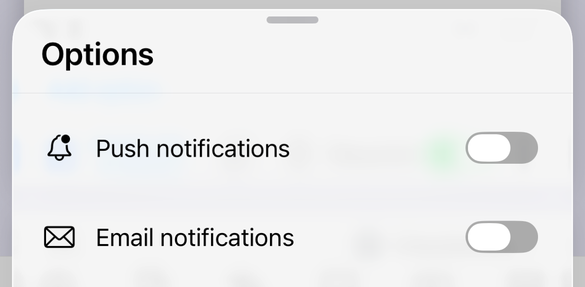
What it does change is the cost of each person setting themselves up. A collaborator with the app opens the form, taps the bell, and turns their own alerts on from the phone. That is a mechanism of its own rather than a way of configuring the Sheets route above — but it removes the sit-at-a-computer step for the person who only needs telling. Response notifications are a PRO feature in Form+; the app is free to download and works on your own Google account, on the forms already in your Drive.
One deliberate detail, since this page is about people being emailed things: switching a notification off is never gated. The upgrade prompt appears when you turn an alert on, never when you turn one off, so nobody is ever asked to pay to stop being emailed.
For alerts aimed at other people rather than at you — a rule that emails a named address when an answer matches — that is a separate screen with its own conditions and its own quota story, covered in Google Forms notification rules rather than repeated here.
Each person, on their own phone
Form+ puts per-form response alerts on iPhone and iPad, on your real Google Forms and your own Google account — no migration, nothing copied out of Drive.
Get Form+ free on the App StoreWhen a teammate says they get nothing
Before treating it as a permissions problem, rule out the boring causes, because on a shared form they are even likelier than usual: the setting is per form and a duplicated form starts with it off, the person may be signed into a different account in the same browser, and Google publishes no delivery-time commitment for these emails at all, so “late” and “never” look identical from an inbox. Each of those is worked through in Google Forms notifications not working.
Frequently asked questions
Can a Google Form notify more than one person when a response arrives?
Not with the built-in setting. Google's help page documents one menu item, “Get email notifications for new responses”, and never names a recipient or shows an address field, so there is no list to add anyone to. For more than that, Google's own page sends you to the Form notifications add-on, and the other documented routes are the linked spreadsheet's own notification settings or an Apps Script rule.
Do form editors get response notifications?
Google does not say. Its page on sharing a form with collaborators covers adding editors and the invitation email that goes out, and says nothing at all about response notifications. Because nothing is published either way, do not assume an editor is notified and do not assume they are not. Have each person open the form and check the setting in their own account.
How does each collaborator set up their own alert?
Through the linked response spreadsheet. In Google Sheets, each person opens Tools, then Notification settings, then Edit notifications, and picks “A user submits a form” as the trigger with “Email - right away” or “Email - daily digest” as the delivery. Google states the scope plainly: “You can only set up notifications for yourself.” Everyone who needs telling does this once, in their own Google account, and needs access to that spreadsheet first.
Can collaborators set up response notifications from a phone?
Not by Google's documented route. The iPhone and iPad tab of Google's notification settings page states: “This feature is not available on iPhone and iPad. To set notifications, use a computer.” The Forms help page that documents the response notification switch has no platform tabs at all, so Google publishes nothing phone-specific about it either.