How to export Google Forms to Excel
Last updated September 2026 · ~7 minute read
Short answer: Google Forms has no “export to Excel” button. The two-step route is the real one: in the Responses tab click Link to Sheets, then in the spreadsheet click File → Download and choose the Microsoft Excel file type — Google's export reference lists that format as Microsoft Excel, extension .xlsx. The one-step alternative, Download responses (.csv), gives you a text file Excel can open, which is not the same thing.
Form+ exports responses as CSV, XLS, PDF or Google Slides straight from the Responses tab — on your real Google Forms and your own Google account. Get Form+ free on the App Store.
The difference matters more than it sounds, and not only because of file formats: one of these two files keeps updating itself and the other never changes again.
Route 1 — Sheets, then download as .xlsx
This is the route that ends in a genuine Excel workbook.
- Open the form in Google Forms. At the top of the form, click Responses.
- At the top right, click Link to Sheets. (To choose the destination yourself, Google's instructions are to click More → Select destination for responses, then pick Create a new spreadsheet — “Creates a spreadsheet in Google Sheets” — or Select existing spreadsheet, and click Create or Select.)
- Open that spreadsheet in Google Sheets.
- At the top, click File → Download, then, in Google's words, “Choose a file type”. Pick the Excel one: Google's export-format reference lists a spreadsheet's Excel export as Microsoft Excel, file extension .xlsx.
The file lands in your downloads folder and opens in Excel, Numbers or LibreOffice with its cells intact — text as text, numbers as numbers, one sheet per tab.
Route 2 — CSV straight from Forms
- Open the form in Google Forms. At the top of the form, click Responses.
- Click More → Download responses (.csv).
Two clicks, no spreadsheet in between, and none linked afterwards either — which makes this the route
for a form that has no spreadsheet at
all. But be clear about what you have: a CSV is a plain text file
of comma-separated values. Excel opens it; Excel did not make it. There are no cell
types, no formatting, no formulas and no second sheet in there, and if you edit it and save, Excel will
ask whether you really want to keep it as CSV. If what you needed was an .xlsx to hand to
someone, take Route 1.
Live sheet vs frozen file — the bit people get wrong
The linked spreadsheet is live. Google describes the effect of breaking that link plainly: unlink a spreadsheet from your form and “New responses won't be sent to the spreadsheet, but your current data remains intact.” While it is linked, in other words, responses keep arriving in it on their own.
A downloaded .xlsx or .csv has no such connection. It is a copy of the
data as it stood at the second you downloaded it, sitting on your disk. Nobody's later submission will
appear in it, and no amount of reopening it in Excel will change that. Every “my export is missing the
newest responses” question is this, and only this.
So: if the number is going into a report you send once, download. If you want a spreadsheet that is still right next week, work in the linked sheet and download only when you need a hand-off copy.
What the columns look like
Google does not publish a column specification for either export, so treat this as a description rather than a contract:
- One row per submission, oldest first.
- A timestamp column at the left — when the response was submitted, not when you exported.
- One column per question, with the question's own title as the header. Untitled questions give you a blank or placeholder header, which is worth fixing in the form rather than in the spreadsheet.
- Multi-select answers land in one cell. A checkbox question where someone ticked three boxes does not become three columns; all three options sit in a single cell, separated. If your analysis needs them split out, that is a job for the spreadsheet, not the export.
- If email collection is on, or the form is a quiz, you get the extra columns those settings produce — an email address, a score.
One documented quirk worth knowing before you build anything on top of the CSV: Google notes that if your downloaded responses “aren't sorted by the timestamp when users submit them, it can be because your form has more than 10,000 responses.”
When the export looks wrong
Accented or non-Latin characters come out mangled. This shows up on the CSV route,
not the .xlsx one. Google publishes no character-encoding guarantee for the Forms CSV
download — no stated character set, no stated separator — so there is no documented setting to point
you at, and anyone who tells you exactly which box to tick is guessing. The dependable fix is to stop
using the CSV for that form: take the linked spreadsheet and download it as Microsoft Excel, where the
text is stored as cells rather than left to Excel's interpretation of a text file.
Only the first tab came across. When you export a spreadsheet as CSV rather than
Excel, Google's own export reference labels the format “Comma Separated Values (first-sheet only)”. A
multi-tab workbook needs the .xlsx download.
The sheet stopped filling up. Google documents hard limits here: “If your form's responses aren't synced with Sheets, it can be because your form has more than 100,000 responses,” and the response summary disappears past 50,000. Our guide to Google Forms response limits covers what still works at that size — the CSV download does.
Doing it from an iPhone
Both Google routes assume you are at the desktop web editor. Form+ keeps the export in the Responses tab on iPhone and iPad, on your real Google Forms and your own account:
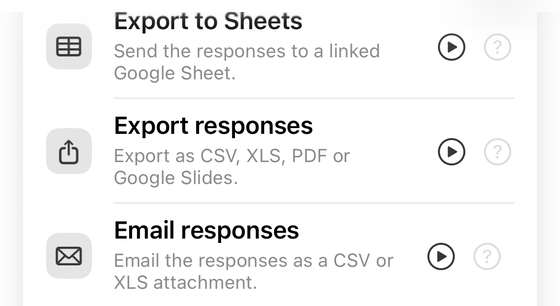
- Open the form and switch to Responses.
- Tap Tools, then Export responses.
- Choose XLS — “Download responses as an Excel file” — and share or save it from the share sheet.
The XLS option writes a real .xlsx workbook, cell by cell, rather than renaming a text
file. Email responses, in the same tools sheet, sends that file straight out as a CSV
or XLS attachment. Exporting responses is a PRO feature.
Which file do you actually want?
| You want… | Take |
|---|---|
| A real Excel workbook to send someone | Link to Sheets → File → Download → Microsoft Excel (.xlsx) |
| The raw data, fastest, format not fussy | Responses → More → Download responses (.csv) |
| A spreadsheet that keeps updating itself | The linked sheet — do not download at all |
| An .xlsx without a computer | Form+ → Responses → Tools → Export responses → XLS |
| A formatted document rather than a grid | The PDF routes |
Export to Excel from your phone
Form+ exports responses as CSV, XLS, PDF or Google Slides straight from the Responses tab — on your real Google Forms and your own Google account.
Get Form+ free on the App StoreFrequently asked questions
Can you export Google Forms straight to Excel?
Not from Google Forms itself. Google's help page for form responses documents two export options —
Link to Sheets and Download responses (.csv). The .xlsx
comes from the linked spreadsheet, via File → Download in Google Sheets.
Is a CSV the same as an Excel file?
No. A CSV is a plain text file of comma-separated values that Excel can open — no formatting, no
formulas, no multiple sheets, no cell types. An .xlsx is an Excel workbook, which is what
the Sheets download produces.
Does a downloaded Excel file update when new responses arrive?
No — it is a snapshot of the moment you downloaded it. The linked spreadsheet is the live copy: Google documents that unlinking it means “New responses won't be sent to the spreadsheet”, which is exactly why a still-linked sheet keeps filling up.
Why do accented characters look wrong when Excel opens the CSV?
Google publishes no character-encoding guarantee for the Forms CSV, so there is no documented setting to change. Skip the CSV for that form and download the linked spreadsheet as Microsoft Excel instead — a workbook stores its text as cells rather than leaving Excel to interpret a text file.
Can I get an Excel file from my phone?
Google's instructions assume the desktop editor. Form+ has an Export responses panel in the Responses tab — CSV, XLS, PDF or Google Slides — and can email the file as an attachment. The export formats are a PRO feature.