How to pre-fill a Google Form
Last updated September 2026 · ~8 minute read
Short answer: open the form, click More (top right) and select Pre-fill form. Answer the questions you want filled in, click Get link, then copy and share the link at the top. Everyone who opens it sees those answers already entered — and can change any of them.
Form+ pre-answers your fields and hands you a link or a QR code — on your real Google Forms and your own Google account. One link, or a whole list from a CSV. Get Form+ free on the App Store.
Pre-filling is the least-known useful thing in Google Forms. It turns a form into something closer to a personalised document: the fields you already know are answered, and the respondent only fills in what you actually need from them. It is also widely misunderstood, because a pre-filled answer looks fixed and is not.
What Google calls it
The label has moved around, which is why search results disagree. Google's current wording in the editor's More menu is Pre-fill form — it sits alongside Make a copy, Move to trash, Embed HTML, Print and Unpublish form. The button at the end of the flow is labelled Get link. Older guides and Google's own community threads still call the whole feature “Get pre-filled link”, which was the earlier name. Same feature; if you are following a tutorial that says Get pre-filled link, look for Pre-fill form.
The steps
Google's own steps are:
- Open a form in Google Forms.
- In the top right, click More — the three-dot menu.
- Select Pre-fill form. Google opens your form the way a respondent sees it.
- Fill in any answer fields you want to pre-populate. Leave the rest blank — anything you skip here is simply blank for the respondent.
- Click Get link.
- Copy and send the link at the top.
That is the whole flow. Nothing you do here changes the form itself: you are not editing questions or setting default answers, you are producing one link that carries a set of answers with it. The form keeps working normally for everyone using the plain share link.
Which question types can be pre-filled
Google's help pages do not publish a list. Neither the Forms help page for the editor menus nor the Workspace Learning Center article on sending a form with pre-filled answers enumerates supported or unsupported question types — so treat any list you find elsewhere, including this one, as a description of what the flow demonstrates rather than a documented guarantee.
What the flow shows is straightforward: you answer the form as a respondent would, so the ordinary answerable question types carry through — short answer, paragraph, multiple choice, checkboxes, dropdown, linear scale, date and time. Checkboxes can carry more than one selection.
The obvious exception is file upload. A link is text; it cannot carry a file, and file upload questions require the respondent to be signed in and to pick a file themselves. Do not plan around pre-filling one. Purely decorative elements — section headers, images, video blocks — have no answer to pre-fill in the first place.
A pre-filled answer is a suggestion, not a lock
This is the point most people get wrong, and it is worth being blunt about: the respondent can change every pre-filled value. Google's documentation does not state this either way — it says nothing about editing pre-filled answers — but it follows directly from what a pre-filled link is. You are sending someone an ordinary form with some boxes already typed into. Nothing about those boxes is read-only, and nothing stops the respondent clearing one and entering something else.
So pre-filling is excellent for saving typing and reducing mistakes, and useless as a control. If a value genuinely must not be altered — a price, an employee ID, an audit reference — do not put it in a question at all. Either keep it outside the form and match it up afterwards, or accept that what comes back is what the respondent chose to send. Treat every field in a submitted response as respondent-supplied, pre-filled or not. If you need the answer merely to be well-formed rather than fixed, data validation is the tool for that.
What ends up in the URL
The answers travel in the link itself. They are appended to the form's address as query parameters, in readable form — if you pre-fill a name, the name appears in the URL, and anyone who can see the link can read it without opening the form.
Usually this does not matter. It matters when the pre-filled value is about a person. A link with someone's email address, phone number, student number or account reference baked into it is a small piece of personal data that travels wherever the link travels: forwarded emails, group chats, screenshots, a browser history on a shared computer, a help-desk ticket. None of that is a flaw in Google Forms — it is just what a link is — but it does set two sensible habits:
- Send personalised links individually. One link per person, by direct message or a mail merge. Never post a link containing one person's details somewhere a group can see it.
- Pre-fill the boring fields freely. Campaign names, site codes, dates, department, equipment ID — nothing about them is sensitive, so a shared link is fine.
If the values are sensitive enough that the URL bothers you, the honest answer is that pre-filling is the wrong mechanism. Ask the respondent for the value instead.
What pre-filling is actually good for
Per-person links
Pre-fill the name and email of each recipient so they confirm rather than type. Fewer typos, faster completion, and the response arrives already matched to the right person. This is the highest-value use and the one that most needs the one-link-per-person rule above.
A fixed campaign or source field
Add a question like “Where did you hear about us?” and generate one pre-filled link per channel — newsletter, Instagram bio, printed flyer, partner site. Every response arrives tagged with its source without asking the respondent anything. Because nobody is asked to identify themselves, these links are safe to publish openly. Set the question to a dropdown so the values stay consistent.
A repeated log entry
Inspection logs, maintenance checks, daily stock counts, attendance: the location, the shift, the piece of equipment and the person filling it in are the same every time. Pre-fill those and the form drops to the two or three fields that actually change. Bookmark the link, or print it as a QR code and stick it on the thing being inspected.
Pre-filling and your other form settings
Google does not document any interaction between pre-filling and the response settings, and there is no mechanism by which one would exist — a pre-filled link is the same form, at the same address, carrying answer values. So:
| Setting | What pre-filling changes |
|---|---|
| Limit to 1 response | Nothing. Sign-in is still required and each account still gets one response. A pre-filled link is not a second ticket. |
| Collect email addresses | Nothing. The address is collected by the setting, not by a question, so it is not something you pre-fill. |
| Required questions | Nothing — except that a pre-filled required question already has an answer, so it will not block submission. |
| Response validation | Still applies. A pre-filled value that fails validation is rejected like any other. |
| Accepting responses (open/closed) | Nothing. A closed form is closed whether the link is pre-filled or not. |
| Edit after submit | Unrelated. That is the respondent's own edit link, issued after submission. |
Doing it from a phone
The steps above describe the desktop web editor, which is the only place Google documents them. Form+ has a Prefilled link & QR tool (a Pro feature) that builds the same kind of link on iPhone and iPad: you pre-answer the fields, then share the result as a link or as a QR code — useful for the log-entry case, where the link's destination is a sticker on a wall. It can also build a batch of links at once from a CSV, one row per recipient, which is the per-person case done properly.
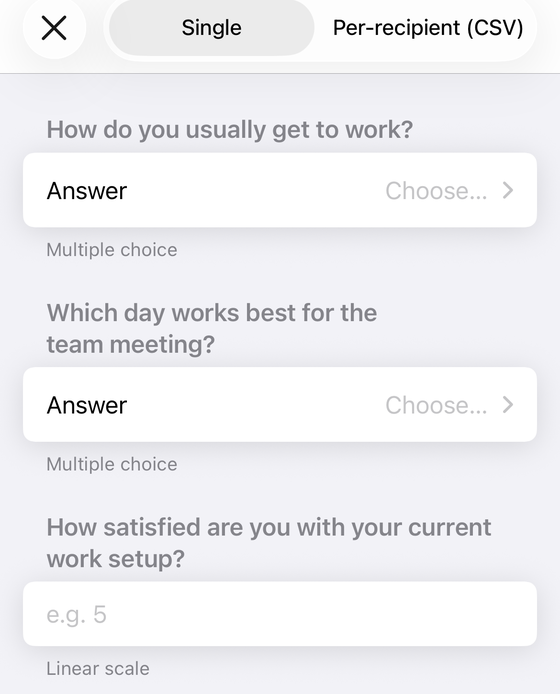
Build pre-filled links without a laptop
Form+ pre-answers your fields and hands you a link or a QR code — on your real Google Forms and your own Google account. One link, or a whole list from a CSV.
Get Form+ free on the App StoreFrequently asked questions
What is the pre-fill option called in Google Forms?
Google's current label is Pre-fill form, in the More menu at the top right of the editor. The button you click at the end of the flow is labelled Get link. Older guides call the whole thing Get pre-filled link, which was the previous wording.
Can respondents change a pre-filled answer?
Yes. A pre-filled link opens an ordinary form with some boxes already filled in, and every one of those boxes is still editable. Pre-filling saves typing; it does not lock an answer. If a value genuinely must not change, do not put it in a question.
Which question types can be pre-filled?
Google's help pages do not publish a list. In the flow itself you answer the form as a respondent would, so the ordinary answerable question types — short answer, paragraph, multiple choice, checkboxes, dropdown, linear scale, date and time — carry into the link. A file upload question is the clear exception: a link cannot carry a file.
Are the pre-filled answers visible in the URL?
Yes. The values ride in the query string of the link, so anyone who receives, forwards or screenshots it can read them. That matters when you pre-fill a person's name, email address or ID number — send those links individually rather than posting one to a group.
Does pre-filling bypass Limit to 1 response or email collection?
No. Google does not document any interaction between pre-filling and those settings, and there is no reason to expect one: a pre-filled link is the same form URL carrying answer values. Limit to 1 response still requires sign-in and still counts one response per account, and email collection still collects the address itself.