How to embed a Google Form in an email
Last updated September 2026 · ~10 minute read
Short answer: Google can send a form so the questions sit inside the message rather than behind a link. In the send dialog the control is labelled Include form in email; in Google's newer Publish/Share flow the same job is done by the box next to Notify People. It switches itself off for four things — Google's words: “You can't embed a form in an email when it contains: File upload question · Rating question · Image in a question or an option · Secured quiz.” Google names no mail clients, so send yourself a copy before you send it to 200 people.
Form+ puts sharing, QR codes and the publish state in one sheet on iPhone and iPad — on your own Google account, on the forms you already have. Get Form+ free on the App Store.
This one page-level decision — questions in the message, or a link to a page — is worth getting right, because the embed is quietly conditional. Most write-ups repeat a checkbox label and a client list that Google has never published. Below is what Google's own documentation actually says, quoted, including the parts where it says nothing at all.
Two Google pages, two different dialogs
Before the steps, a wrinkle that explains most of the conflicting advice you will find. Google documents emailing a form in two places, and they describe different versions of the interface.
“Email your quiz: Open a quiz in Google Forms. In the top right, click Send. Add the email addresses you want to send the form to, along with the email subject and message. To include the quiz in the email, select Include form in email. Note: This option isn't available if your quiz includes a file upload question. Click Send.” Google Workspace Learning Center — Create a quiz with Google Forms
“Email a form: To automatically send the form in an email notification when you share a form, click the box next to “Notify People.” If you notify responders when you publish the form, the email sent to them includes the form.” Google Docs Editors Help — Publish & share your form with responders
So the phrase people search for — Include form in email — is genuinely Google's, but it lives on the Learning Center's quiz page. The main help page has been rewritten around Publish and Share, and there the form is included in the notification email that Notify People sends. Look for whichever of the two your editor is showing you; do not assume the other one is broken.
Step 1 — Publish the form, or the email is a dead letter
Google is blunt about this: “Before responders can access your form, you need to publish it,” and “If the form is unpublished, responders with the link can't access it.” Publishing is Publish at the top right. Everything below assumes a published form.
Step 2 — Check the form against the four blockers
Do this before you compose, because the control simply will not be there and the dialog does not explain why. The list is in the next section.
Step 3 — Open the email route
- Open the form in the Google Forms editor on the web.
- In the send dialog version: click Send at the top right, then add the addresses, the subject and the message.
- In the Publish/Share version: click Share, enter the names or groups, leave their access on Responder, and leave the box next to Notify People ticked. Google notes the opposite too: “If you don't want to send a notification, uncheck the box next to ‘Notify People.'”
Step 4 — Turn on the in-message copy
- Select Include form in email.
- If your editor has no such control, you are in the Publish/Share flow, where Google says the notification email “includes the form” on its own.
- Click Send.
Add a line of message text either way. An email that opens with a bare grid of questions and no sentence explaining who is asking gets deleted.
The four question types that break an email embed
This is the heart of the feature, and the part that sends people looking for a checkbox that is not there. Google's wording, verbatim:
“Tip: You can't embed a form in an email when it contains: File upload question · Rating question · Image in a question or an option · Secured quiz” Google Docs Editors Help — Publish & share your form with responders
Four notes on that list, because the detail matters:
- “Image in a question or an option” is the one that catches people. It is not about a header image or a theme — it is an image attached to a question, or to an individual multiple-choice option. One decorative screenshot in one question is enough to take the whole form out of the message body.
- “Secured quiz” is not defined on that page. Google names it and moves on, so we will not guess at what it covers here.
- The two Google pages disagree in scope. The Learning Center's quiz page names only the file upload question. The Docs Editors page names all four. Check against the list of four — it is the stricter one, and the one on Google's main help page.
- Google does not say what the recipient gets instead. Its pages say the embed “isn't available” and that you “can't embed” — neither describes a fallback message, so do not plan around one. Plan around sending the link, which is the section below.
The first item has a knock-on worth knowing: a file upload question already requires respondents to sign in to a Google Account. If your form has one, the in-message embed was never on the table.
Which mail clients actually render it?
Honest answer: Google does not say. Neither the Docs Editors help page nor the Workspace Learning Center page names a single mail client — not Gmail, not Outlook, not Apple Mail, in either direction. There is no published compatibility list to quote.
What can be said without inventing anything:
- An embedded form is interactive HTML in the message body, and how much of that survives is decided by the recipient's client and its image and script settings, not by Google Forms.
- Because Google publishes no list, any blog that gives you one is reporting its own testing at some point in the past, on some client versions, not Google's policy. Treat it as a hint, not a guarantee.
- The only test that binds is your own: send the message to yourself, in the client your recipients actually use, before the real send. Check it on a phone as well as a desktop.
If your audience is mixed — a customer list, a parent mailing list, a whole school — assume some of them will see a link and nothing else, and write the message so it still makes sense to them.
What Google says about responses sent from inside an email
Nothing specific, which is itself the answer: Google documents no separate destination, no source tracking, and no different limits for responses submitted from a message. They are ordinary responses.
The rules that are documented are the form's own settings, and they apply wherever the form is rendered:
- One response per person. Turn on Limit to 1 response under Settings → Responses, and Google attaches a condition to it: “To access and fill out the form, users must sign in to their Google Account.”
- Anonymity. From the same page: “Their usernames won't be recorded unless you turn on the ‘Responses' setting to collect email addresses.”
- Editing after the fact. Allow response editing is a form setting, not a property of how you sent it.
Where Google is silent is how the in-message embed behaves when sign-in is required. It does not say, so neither will we — but a form that demands a signed-in Google Account is a poor candidate for an embed aimed at people reading mail on a phone.
When to send the link instead
The embed is not always the better option, even when it is available:
- The form is long. A twenty-question form inside a message is a wall. A link plus two sentences of context reads better and converts better.
- You are sending to a list, not to named people. Google's email route is built around addresses you enter in the dialog. For a newsletter, a class group or a customer blast, you want the responder link in your own mailing tool.
- The form has any of the four blockers — or is likely to grow one. A form that will pick up an image or a file upload next month is a form whose embed will silently disappear.
- You want the same form on a web page. That is a different mechanism entirely —
Google's Embed HTML and an
iframe. It has its own sizing traps and its own guide: how to embed a Google Form on a website.
Embedded in an email vs a plain link vs a website embed
| Embedded in an email | Plain link | Website embed | |
|---|---|---|---|
| Where the questions appear | Inside the message body | On Google's page, after a tap | Inside your own web page, in an iframe |
| Google's control | Include form in email, or the Notify People box | Copy responder link (plus Shorten URL) | Embed HTML from the More menu |
| Restricted by form content | Yes — file upload, rating, image in a question or option, secured quiz | No | No |
| Rendering guaranteed? | No — Google publishes no mail-client list | Yes, it is a URL | Yes, in any browser that allows the frame |
| Works from a phone | No — web editor control | Yes | Only if you can edit the site |
| Best for | A short form to a handful of named people | Everything else, including lists and chat | A form that should live on your site |
Sending the form from an iPhone
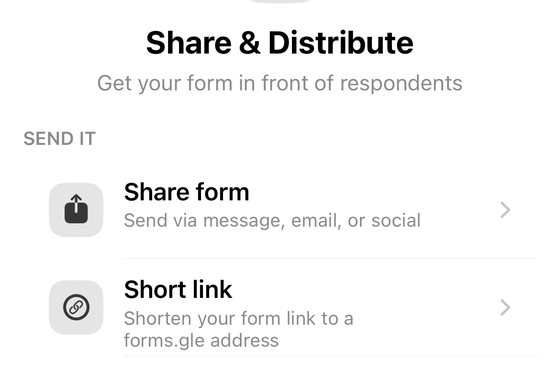
The in-message embed is a desktop web-editor control, so from a phone the practical route is the responder link. Form+ keeps that in one sheet — Share & Distribute, “get your form in front of respondents”:
- Open the form and tap Share & Distribute.
- Under Send it, choose Share form — “send via message, email, or social”.
- Edit the invite message once; it is saved for next time. Then send it straight to Mail, Messages or WhatsApp, or hand it to the iOS share sheet.
The sheet checks the publish state first: if the form is not published yet, it offers to publish rather than letting you hand out a link that goes nowhere. Form+ works on your real Google Forms through your own Google account — it does not copy them anywhere.
Share your real Google Forms from your phone
Form+ puts sharing, QR codes and the publish state in one sheet on iPhone and iPad — on your own Google account, on the forms you already have.
Get Form+ free on the App StoreFrequently asked questions
What is the checkbox for embedding a Google Form in an email actually called?
Google's Workspace Learning Center gives the label as Include form in email: “to include the quiz in the email, select Include form in email.” The Docs Editors help page has been rewritten around the Publish and Share flow and does not use that label at all — there, the email goes out through the box next to Notify People, and Google says “the email sent to them includes the form.”
Why is Include form in email greyed out?
Because of something in the form. Google's list is: “You can't embed a form in an email when it contains: File upload question, Rating question, Image in a question or an option, Secured quiz.” The Learning Center's quiz page names only the file upload question, so the Docs Editors list is the one to check against.
Does an embedded Google Form work in Outlook or Apple Mail?
Google does not say. Neither of its pages on sending a form names a single mail client, in either direction — so there is no published compatibility list to quote, and claims that it is Gmail-only are not Google's. The practical test is to send yourself a copy in the client your recipients actually use.
Do responses submitted from inside an email go somewhere different?
Google documents no separate behaviour for them — no separate destination, no source tracking, no different response limits. The documented rules are the form's own: with Limit to 1 response turned on, “to access and fill out the form, users must sign in to their Google Account,” and “their usernames won't be recorded unless you turn on the ‘Responses' setting to collect email addresses.”
Can I embed a Google Form in an email from my iPhone?
Not through Google: the in-message embed is a control in the desktop web editor's send dialog. From a phone you send the responder link instead. Form+ has a Share & Distribute sheet whose Share form row hands the live link to Mail, Messages, WhatsApp or the iOS share sheet, with an invite message you can edit once and reuse.