Google Forms notifications not working
Last updated September 2026 · ~8 minute read
The most likely cause is that nothing is wrong with the switch — it is scoped more narrowly than you think, and the mail has no promised arrival time. The setting lives inside one form's Responses tab and notifies the account that turned it on, so a second form, a co-editor's inbox and a transferred form are all outside its reach. And Google publishes no delivery-time commitment for these emails at all — which is why “it never arrived” and “it arrived late, or in spam” look identical from where you are standing.
Form+ pushes new responses to your phone, per form, on your real Google Forms and your own account. Get Form+ free on the App Store.
This page is for notifications that were already set up and are not arriving. If you have not switched them on yet, start with email notifications for Google Forms; if the form itself is misbehaving in some other way, the symptom index for Google Forms not working is the broader list.
How we checked
Every cause below is tied to something Google states in its own help documentation, and each one names the restriction it comes from. Where Google documents nothing — delivery speed being the big one — this page says so instead of inventing a number. The unsourced folk remedies are quarantined into one short section at the end, clearly labelled, rather than padded out into the body.
Symptom → documented cause
“It works on one form but not my others”
The path Google documents is Responses → More → “Get email notifications for new responses”, reached by opening a form first. The switch is a property of that single form, not of your account, so a new form starts with it off — including a form you created by duplicating one where it was on. This is far and away the most common reason people believe notifications broke: they did not break, they were never on for the form in question.
“I turned it on but the alerts go to someone else — or to nobody”
Google's help page documents the click path and stops there: it does not state that the alert can be addressed to a chosen recipient, and for anything beyond the basic alert it sends you elsewhere — “To get more notifications options and send customized follow up emails to respondents, download the Form notifications add-on.” So the built-in setting is not a mailing list you can edit. If the address you want notified is not the account that opened that menu, the built-in feature has no documented way to reach it.
“My co-editor gets them and I don't” (or the reverse)
Editors share the form, not each other's mail. The route Google does document for per-person alerts is the linked response spreadsheet: in Google Sheets, Tools → Notification settings → Edit notifications, with “A user submits a form” as a trigger. Google is explicit about the scope there: “You can only set up notifications for yourself. You won't get notifications when you make changes on your spreadsheet, but you'll get notifications when others make changes.” Each person who needs an alert sets up their own, in their own account.
“Nothing since Tuesday”
A notification is generated by a submission, so a form that has stopped accepting responses, or that was never published, produces silence rather than errors. Google's response help puts the control at the Published button, top right: “Turn off Accepting responses”, after which responders who open the link see “Form is no longer accepting responses.” Check that first — if the form is closed, the notification setting is working perfectly and has nothing to report. The “stopped accepting responses” entry in the troubleshooting index covers why a form closes on its own.
“Ownership moved and the emails stopped”
Google documents the transfer itself — “Before you transfer ownership of your form to someone, you need to give them editor access” — and documents nothing about what happens to an existing notification setting when the form changes hands. There is no published guarantee either way, so do not assume it followed the form. After a transfer, open the Responses tab in the account that now needs the mail and confirm the setting there.
“One email per response is drowning me”
The Forms setting documents no digest, no batching and no frequency control — it is on or off. The linked spreadsheet is where Google documents a choice: “Email - daily digest: Send a daily summary of all changes” versus “Email - right away: Send an email for every change.” If you wanted a summary and are getting a flood, you are using the feature that does not offer one.
Does Google promise a delivery time?
No — and this is the single most useful thing to know here. Across the pages that describe response notifications and response receipts, Google explains how to turn each one on and says nothing whatsoever about how fast the email arrives, whether delivery is retried, or what counts as too long. There is no published service level to hold a late email against.
That absence is why the diagnosis is so slippery. Without a documented window, a response that landed twenty minutes ago and a notification that was filtered into spam an hour ago look exactly the same: an empty inbox. Google supplies exactly one hint about mail going astray, and it is about receipts rather than owner alerts — “In certain circumstances, responders may not receive expected response receipts due to spam filters or other counter-abuse measures.” It is a fair reminder that these are ordinary emails crossing ordinary filters. Before concluding the feature is broken, confirm a response actually arrived by opening the Responses tab. A response present with no email is a mail problem; no response at all is a form problem, and a different page.
The two things called “notifications”
A large share of “notifications not working” reports are really the wrong feature switched on. They are separate settings, with separate recipients, in separate parts of the form.
| New-response notification | Response receipt | |
|---|---|---|
| Who receives it | You, the person running the form | The respondent |
| Where it is set | Responses tab → More | Settings → Responses |
| Exact wording | “Get email notifications for new responses” | “Send responders a copy of their response” |
| Prerequisite | None | Collect email addresses: Verified or Responder entry |
| Options | On or off | When requested, or Always |
| Documented failure mode | None published | Spam filters and counter-abuse measures |
So: if a respondent says they got no confirmation, the owner notification setting is irrelevant to their complaint, and vice versa. Fix the one whose recipient matches the person complaining.
General checks
Honest labelling: Google documents none of these. They are the ordinary email checks, kept short because guessing at length does not make a guess more true.
- Look in spam and in any tabbed inbox category before anything else.
- Confirm which Google account you are signed in as — several accounts in one browser is the classic trap.
- Check whether a mail rule you set up months ago is filing them somewhere you no longer look.
- Submit a test response yourself, then check the Responses tab and the inbox in that order.
A channel that is not email
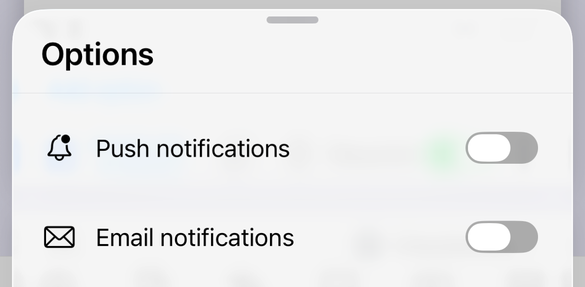
Every failure above is ultimately the same failure: the only channel Google offers is an email, and an email has to survive a mail system before it can reach you. Form+ is a native iPhone and iPad client for your real Google Forms, and it treats alerting as a per-form setting of its own, with Push notifications and Email notifications as independent toggles. A push lands on your lock screen without a round trip through an inbox — nothing to filter, nothing to miss. A Response digest email is available too, for the opposite problem, when one message per submission is too many. Response Notifications is a PRO feature; the app is free to download and works on your own Google account, on the forms already in your Drive.
Stop waiting on an inbox
Form+ pushes new responses to your phone, per form, on your real Google Forms and your own account.
Get Form+ free on the App StoreFrequently asked questions
How long do Google Forms notifications take to arrive?
Google publishes no delivery-time commitment for form notification emails. Its help pages describe how to switch the setting on and say nothing about how quickly the mail arrives, so there is no documented figure to measure a late email against. In practice that makes “it arrived late” and “it was filtered” indistinguishable from the outside.
Why is my collaborator not getting Google Forms notifications?
The switch is inside one form's Responses tab and Google's help documents no way to add another address to it — for anything beyond the basic alert it points you to the Form notifications add-on. The documented per-user route is the linked spreadsheet: in Google Sheets, Tools → Notification settings, where Google states “You can only set up notifications for yourself.” Each collaborator sets their own.
Why did my respondent not get a confirmation email?
That is response receipts, a separate feature from the owner alert. It requires Collect email addresses set to Verified or Responder entry, then “Send responders a copy of their response” set to When requested or Always. Google also warns that “In certain circumstances, responders may not receive expected response receipts due to spam filters or other counter-abuse measures.”
Can Google Forms send a daily summary instead of one email per response?
Not from the Forms setting itself — Google documents no digest or batching option there. The linked response spreadsheet does have one: Sheets notification settings offer “Email - daily digest” alongside “Email - right away”, and can be triggered by “A user submits a form”.
Do notifications keep working after I transfer ownership of a form?
Google documents how to transfer ownership — the person needs editor access first — but publishes nothing about what happens to an existing notification setting when ownership moves. Treat it as unverified: after a transfer, open the form's Responses tab and check the setting in the account that now needs the mail.