How to use Google Forms for attendance
Last updated September 2026 · ~12 minute read
Short answer: there are two attendance designs and they are not interchangeable. Default to the teacher-operated register — one submission per session, from a Checkbox grid listing your roster, which you tick yourself. It needs no attendee devices, no sign-in, and produces one clean row per class. Switch to self check-in — one submission per person — only when you genuinely need a separate arrival time for each attendee, and accept that the only documented way to stop repeat submissions is Limit to 1 response, which Google says means “To access and fill out the form, users must sign in to their Google Account.”
Form+ opens your real Google Forms on your own account — tick the grid in the room, watch self check-ins arrive, scan attendees in at the door, and export the term's register when you need it. The app is free; the kiosk stand and the export are part of Form+ Pro. Get Form+ free on the App Store.
Google Forms has no attendance question type. Every attendance form is an ordinary form used in one of two shapes, and almost all the difficulty in this topic comes from articles that describe one shape without ever mentioning the other. Pick the shape first; the click-path is the easy part.
The decision: one row per person, or one row per session?
That one question decides everything downstream; the table at the foot of this page compares the two designs row by row.
- Design A — one submission per person. Each attendee opens the form and submits. It gives you a submission timestamp per individual, and hands you two problems: stopping duplicates, and knowing who is who.
- Design B — one submission per session. You open the form once, tick everyone present on a grid, and submit. Nothing to hand out and nothing to de-duplicate, at the cost of a roster baked into the form.
Design A — one submission per person (self check-in)
- Create a form and title it for a single occurrence — Thursday rehearsal, 12 March — or add a Date question if one form will serve every session. That choice — one long-lived form, or a fresh copy each time — is weighed up in reusing a Google Form every week.
- Add the question that identifies the attendee. On a school or work account this may already be handled for you (see below); otherwise add a Short answer question for the name, or a Dropdown or Multiple choice question listing the roster so nobody can spell their own name three different ways.
- Open Settings → Responses and decide Collect email addresses deliberately rather than leaving it as you found it.
- Turn on Limit to 1 response if repeat submissions would corrupt the register — and read the next section before you do.
- Use Link to Sheets so responses accumulate in a spreadsheet.
- Distribute the link. For a door or a reception desk, a printed QR code pointing at the form link saves everyone typing a URL.
Stopping duplicates costs you sign-in
Google's help page for publishing and sharing a form documents Limit to 1 response with its consequence attached: “To access and fill out the form, users must sign in to their Google Account.” The same page adds that “Their usernames won't be recorded unless you turn on the ‘Responses’ setting to collect email addresses.”
So the only documented repeat control forces a Google sign-in, and on its own still does not tell you which account submitted which row. If your attendees are members of the public, under-13 pupils whose accounts are restricted, or anyone you cannot compel to sign in, there is no documented middle setting: accept duplicates and clean the sheet afterwards, or move to Design B.
It is also not a lock. A determined attendee can sign out, use another account, or open the link in a private window; Google describes the setting as limiting responses per account, not per person. Limiting responses on Google Forms covers what the various limits do and do not enforce.
Knowing who is who — and what your account already collects
Google's Forms API reference documents three email-collection modes, and which one you get by default depends on the account that owns the form:
- Do not collect (
DO_NOT_COLLECT) — “The form doesn't collect email addresses.” Described as the “Default value if the form owner uses a Google account.” - Verified (
VERIFIED) — “The form collects email addresses automatically based on the account of the signed-in user.” Described as the “Default value if the form owner uses a Google Workspace account.” - Responder input (
RESPONDER_INPUT) — “The form collects email addresses using a field that the respondent completes on the form.”
Read that middle line twice if you are a teacher. A school or district account is a Google Workspace account, so your attendance form is very likely collecting verified email addresses whether or not you chose to — which conveniently identifies every submission, and simultaneously means you are holding identifiable data about minors in a spreadsheet. Check the setting before you share the link; do not assume it is off. Making a Google Form anonymous goes through every setting that quietly forces a sign-in.
Design B — one submission per session (you tick the register)
Here the form is an instrument you operate, not something you hand out. Nobody but you ever opens it.
- Create a form named for the group rather than the date — Year 9 French register.
- Add a Date question, required, for the session date. This is the column you will sort and filter by later, and it is the reason one form can serve a whole term.
- Add the register itself. Two shapes work, and they behave differently:
- Checkbox grid — one row per attendee, and a single column such as Present. You tick the people who showed up and leave the rest blank. Fastest to operate.
- Multiple choice grid — one row per attendee, with columns such as Present, Late and Absent. Google documents that “In multiple choice grid questions responders can only choose one column per row”, which is exactly the behaviour you want for a status: each person gets one and only one state.
- Type the roster into the grid's rows. Google's own description of both grid types is identical — “You can create a grid where responders can select one or more answers per row” — so the one-column-per-row restriction above is the whole difference.
- Open the grid's rules. Two documented options matter for a register:
- Require a response in each row — forces a status for every name. Google says that if a responder skips one, “they get an error message and can't continue.” On a Multiple choice grid with a Present / Late / Absent column set, this is what stops you accidentally submitting a half-finished register.
- Limit to one response per column — Google says that if you check multiple rows in a column, “they get an error message.” This is designed for ranking, where each column may be used once. For an attendance register you almost always want it off, because many people are present at once.
- Add an optional Paragraph question for notes — cover teacher, trip, fire drill.
- Link to Sheets, then bookmark the form's response link on whatever device you will carry into the room.
One thing grids cannot do: the number, text, length and regular-expression response validation that Google documents for Short answer and Paragraph questions does not exist for grids. Grid questions have their own rules — the two above, plus row shuffling — and that is the whole set. If you were hoping to validate the contents of a grid cell, you cannot; Google Forms data validation covers what validation can actually constrain and where.
The other cost of Design B is maintenance: the roster lives inside the form, so a new member means editing the grid. Make that edit between sessions, never mid-term in a hurry.
A form records a submission, not a person
A Google Form captures what was typed and when it was submitted. It does not capture who was in the room. With sign-in off, anyone holding the link can type any name on the roster — including a name that is not their own, from anywhere in the world. With Limit to 1 response or Collect email addresses: Verified on, the row is tied to a Google Account, which is a stronger claim but still not the same claim: an account can be signed in on a friend's phone, and a pupil at home can submit the same form as a pupil at a desk. Google documents no location check, no device check and no proof-of-presence mechanism of any kind.
Two consequences worth designing around:
- If attendance carries a consequence — pay, credit, a certificate, a compliance record — the form should be the record, and a human glance around the room should be the evidence. Design B does this naturally, because the person operating the form is the person looking at the room.
- If you use self check-in anyway, narrow the window. Open the form at the start of the session and close it a few minutes later — scheduling a Google Form to open or close shows how — so a late submission is visible as a late submission rather than blending into the register.
One smaller capability people assume exists: there is no documented per-question or per-row timestamp. In a grid register, ticking a latecomer at 10:40 and submitting at 10:45 records 10:45 for the whole class.
Reading the register afterwards
Google documents where responses live: “When responders fill out your form, you can find a summary of the responses in the form or you can store the responses in a linked Google Sheet.” Use the second one. A register's whole value is in the accumulation, and the in-form summary is built for surveys — it will happily tell you that Present was chosen 412 times this term, which is not a thing anybody needs to know.
From the Responses tab, Link to Sheets creates the spreadsheet, and Google notes that “If you store your responses in a spreadsheet, Google Sheets automatically puts your data in a table.” Each submission lands as a row, with the submission time in the first column.
How you read it depends on which design you chose:
- Design A — sort by the submission timestamp. That column is your arrival order, and the gap between the session start and the last row is your late list. Sort by the name or email column instead to spot the same person appearing twice.
- Design B — sort or filter by your Date question, not by the timestamp. The timestamp tells you when you pressed Submit, which may be during the session, at lunch, or the following morning. The Date question is the fact you care about, which is precisely why step 2 above makes it required.
One caution if the register runs for years rather than weeks: Google warns that “If you download your responses in a CSV file and the responses aren't sorted by the timestamp when users submit them, it can be because your form has more than 10,000 responses.” Past that point, sort the file yourself rather than trusting its row order. Google Forms response limits lists the other thresholds where large forms start behaving differently.
Running the register from the room, not from a desk
Both designs assume you are in front of the desktop web editor, which is the one place a register is never taken. Form+ opens the same real Google Form on your own Google account from an iPhone or iPad, so the form you tick in the room is the form in your Drive. Some of what that puts within reach of a register:
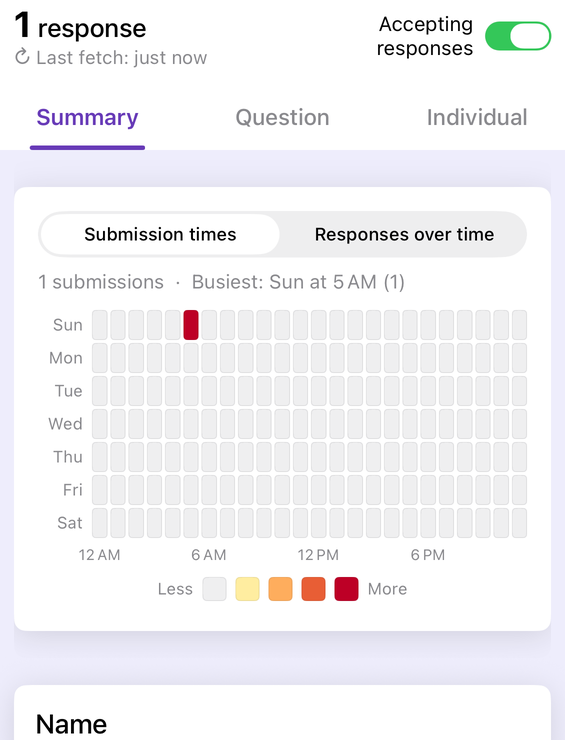
- Responses as they arrive. The Responses tab reads the live form, so a self check-in register fills in front of you. Response Notifications (Pro) push a notification when a submission lands, which is the difference between watching a door and watching a screen.
- Event check-in scanner (free). For Design A at a door: attendees show a QR code containing their email or a unique answer they gave, the camera matches it against the form's responses, and already-scanned codes are flagged so nobody is counted twice.
- Kiosk / QR stand (Pro). Leave a spare device at the entrance showing the form as a full-screen QR code with a live response counter, and attendees scan it with their own phones.
- Duplicates & spam (Pro). Finds likely duplicate and spam submissions — repeat addresses, bursts of near-identical rows — which is the clean-up job you inherit whenever you decide against forcing sign-in. Findings are suggestions; you choose what to remove.
- Export responses (Pro). Download the register as CSV or Excel when it has to leave Google's world for an office system.
Seeing Google Forms responses on your phone covers the reading side in more detail.
Design A vs Design B
| A — one submission per person | B — one submission per session | |
|---|---|---|
| Who submits | Each attendee | You, once |
| Spreadsheet shape | One row per attendee per session | One row per session |
| Arrival time per person | Yes — the submission timestamp | No — one timestamp for the whole session |
| Attendees need a device | Yes | No |
| Attendees need a Google Account | Only if Limit to 1 response or Verified email collection is on — and you need one of those to stop duplicates | No |
| Duplicate risk | Real; needs Limit to 1 response, or clean-up afterwards | None — you submit once |
| Absences recorded | Only by inference from who is missing | Explicitly, if you use a Multiple choice grid with an Absent column |
| Roster changes | Nothing to edit | Edit the grid rows; the sheet's columns shift |
| Best for | Events, drop-ins, conferences, shifts with staggered arrivals | Classes, clubs, recurring sessions with a stable roster |
Take the register on the device you carry
Form+ opens your real Google Forms on your own account — tick the grid in the room, watch self check-ins arrive, scan attendees in at the door, and export the term's register when you need it. The app is free; the kiosk stand and the export are part of Form+ Pro.
Get Form+ free on the App StoreFrequently asked questions
Can Google Forms take attendance?
Yes, in two different ways. Either every attendee submits the form, which gives one row and one submission timestamp per person, or you submit the form once per session with a grid listing the roster, which gives one row per session. Google Forms has no attendance question type; both designs are ordinary questions used in a particular shape.
How do I stop people submitting the attendance form twice?
Turn on Limit to 1 response. Google's help page documents what that costs: “To access and fill out the form, users must sign in to their Google Account.” There is no documented way to limit repeat submissions without sign-in, so the alternative is to let duplicates arrive and clean them up in the spreadsheet afterwards.
Can I take attendance in Google Forms without people signing in?
Yes, if you use the teacher-operated design: you sign in, your attendees do not, and you tick a grid on their behalf. Self check-in without sign-in is also possible but then nothing prevents duplicate or mistaken entries, because Limit to 1 response is the only documented repeat control and it requires a Google Account.
Does Google Forms record the time each person arrived?
Only if each person submits their own response. A submission timestamp belongs to the response as a whole, and Google documents no per-question or per-row timestamp. In a grid register the whole session shares one submission time, so ticking a late arrival an hour later still records the time you pressed Submit.
Are email addresses collected on a school Google Forms account?
Very likely yes, by default. Google's Forms API reference documents
VERIFIED as the “Default
value if the form owner uses a Google Workspace account”, meaning “The form collects email addresses
automatically based on the account of the signed-in user.” On a school or work account, check the
Collect email addresses setting rather than assuming it is off.
Can I run an attendance register from my phone?
Google Forms' response tools assume the desktop web editor. Form+ on iPhone and iPad opens the same real form on your own Google account, shows responses as they arrive, has a free Event check-in scanner that scans attendees' QR codes against the form's responses and, as Pro tools, a Kiosk / QR stand with a live response counter and CSV or Excel export.