Google Forms form settings
Last updated September 2026 · ~11 minute read
The Settings tab is one checkbox and three collapsible groups — Responses, Presentation and Defaults — and the group a setting sits in tells you very little about what it changes. Two members of Responses decide who may answer at all. One member of Presentation publishes every respondent's answers. And Defaults is a group Google names twice and never once lists.
Form+ signs in to your own Google account and edits the forms already in your Drive — email collection, response limits, presentation and quizzes. No migration, no copies. Get Form+ free on the App Store.
This page is the cross-cutting map: what each group really contains, which settings have consequences outside their own group, and where Google publishes nothing. Every claim is sourced to a Google page and linked to it.
The only page that lists all three groups
There is no Google help page called “Form settings”. The tab is described piecemeal across at least six articles, each naming a control or two while explaining something else. The one page that enumerates all three groups is one you would never open on purpose: Use Google Forms with a screen reader. Under a heading called Adjust settings it gives this:
- Manage response: Collect email address · Allow response editing · Limit to a single response
- Manage presentation: Show progress bar · Shuffle questions · Provide a confirmation message · Provide a summary
- Manage default settings: Form and question defaults
Read the group names again. Manage response, Manage presentation and Manage default settings are three labels the editor never shows you — the panels read Responses, Presentation and Defaults. The drift continues inside them: Limit to a single response is what the editor calls Limit to 1 response, and Collect email address is singular where the product says addresses. It is Google's most complete inventory of the tab, and each of its three lists is short by at least one member.
Group 1: Responses, assembled from scattered help pages
The screen reader guide names three controls here. Google documents at least five, no two of them on the same page as a complete set:
| Control | What it actually governs | Where Google documents it |
|---|---|---|
| Collect email addresses | Whether an address is recorded — and, on Verified, whether the respondent must be signed in | Help centre + REST reference |
| Send responders a copy of their response | An email receipt; needs email collection on | Help centre only |
| Limit to 1 response | Who may answer: sign-in becomes mandatory | Help centre + Apps Script |
| Allow response editing | A link on the page the respondent sees after submitting | Help centre + Apps Script |
| Restrict to users in [domain] and its trusted organizations | Who may answer, by organisation | Workspace help pages only |
That last row is worth pausing on. Google documents it under a different feature's help page — an article about sharing a form outside your organisation, whose instruction is to “Turn off Restrict to users in [your-company.com] and its trusted organizations”. It is a Responses-group member that appears only in Workspace documentation, and no Google page we found says whether a personal Google Account sees the row. See restricting a form to one domain.
Two of these are not about responses at all
The group's name promises settings about answers coming in. Two of its members instead decide who is permitted to send one.
Limit to 1 response carries the sharpest sentence Google has written about the
tab, filed as a tip on the publishing page rather than anywhere you would look for it: “To
access and fill out the form, users must sign in to their Google Account. Their usernames won't be
recorded unless you turn on the ‘Responses’ setting to collect email addresses.”
(Publish & share your
form with responders.) One switch, two effects in opposite directions: it makes
an account compulsory, and it explicitly does not record who that account belongs to.
Apps
Script adds the default: “The default for new forms is false”. More in
limiting responses.
Collect email addresses is the other one: the clearest case on the tab of a setting that changes a respondent's identity requirements rather than a form's behaviour. The REST reference defines the Verified mode as one where “The form collects email addresses automatically based on the account of the signed-in user”, and adds that it is the “Default value if the form owner uses a Google Workspace account” — so a work or school form may already be demanding a sign-in that nobody switched on. Collecting email addresses walks through the three modes.
It reaches outward twice more. It gates the receipt control — “If you collect responder
emails, you can choose whether respondents get a copy of their answers”, per
Google's page on response
receipts — and it changes the shape of your data, because the REST reference states that when a
form collects addresses, “the values are populated in the
formResponse.respondentEmail field”. One toggle, with consequences in the response
schema, in a second setting, and in the sign-in requirement.
Group 2: Presentation, and the member that publishes your data
Four of the five controls here really are presentational, and the presentation settings guide takes them one by one. The exception is View results summary, which Google routes through Presentation — “Next to ‘Presentation,’ click the Down arrow. Turn on View results summary. A summary of results is shared with respondents”, on the publishing page — while what it does is hand every respondent the whole response set. Apps Script calls the underlying property one that “Determines whether the form displays a link to view a summary of responses after a respondent completes the form”. A setting filed under appearance that decides who reads other people's answers is the most consequential misfiling on the tab; the audience question is covered in response charts and editors and responders.
Group 3: the one Google never lists
Everything Google publishes about the Defaults group fits in two fragments. The screen reader guide calls its contents “Form and question defaults”, and Edit your form says, in full: “Under ‘Default,’ any setting you turn on will be the default for any new form.”
That is the entire documentation. Google does not list which settings the group contains, does not say whether the defaults are stored per account or per form, and does not say whether changing them touches forms you already made. We checked the desktop-specific variant of that help page in case the detail was hidden behind the platform switch, as it is on some Forms articles; it is not — the text is identical. Two smaller oddities: the product heading is Defaults where Google's label is the singular “Default”, and the instruction says “At the top of the quiz” on a page about forms.
The quiz checkbox sits above all three
Make this a quiz is in no group. Google's steps put it before the panels open — “At the top of the form, click Settings. Turn on Make this a quiz”, per Create & grade quizzes — and it is the only control on the tab with a documented destructive consequence, spelled out in the REST reference and not in the help centre: making a quiz and releasing grades cover it. Note also what is not on this tab: publishing. That button lives at the top right of the editor, a separate subject — published vs accepting responses.
Where the API boundary actually falls
If you are automating any of this, the boundary is sharp. The Forms REST API v1
FormSettings object has exactly two properties, quizSettings and
emailCollectionType — confirmed against both the reference page and the published
discovery document, revision 20260909. Mapped onto the tab that is one control from the
Responses group, plus the quiz checkbox, and nothing else: zero of Presentation and zero of
Defaults.
Google's own code samples make the boundary concrete. The
Forms API
overview prints a complete worked quiz whose entire settings block is
"settings" : { "quizSettings" : { "isQuiz" : true } }, and the
grading
guide describes the whole of settings work as “you create a form, then update the form's
settings to define it as a quiz”. Two further edges: settings cannot be set at creation time,
because the reference says the object “must be updated with UpdateSettingsRequest”, and
publishing has its own forms.setPublishSettings method. Apps Script reaches further —
setters exist for the progress bar, shuffling, the confirmation message, response editing and the
summary — but not everywhere: its login setter is marked “This function is deprecated and should
not be used in new scripts”, so the sign-in requirement is no longer something a script sets
directly. Forms API limits has more on the gap.
Where Google is silent
- The contents of the Defaults group, and whether its defaults are per account or per form.
- Whether Restrict to users in [domain] exists for personal Google Accounts.
- Any single page inventorying the tab. The nearest is an accessibility guide, and its three lists are incomplete.
- What happens when two settings conflict — Limit to 1 response against the respond-again link is undocumented in both directions.
The same tab on an iPhone
Form+ is a native iPhone and iPad client for the real Google Forms in your Drive, and its Form Settings screen reorganises the same material into six sections: Response Notifications, Responses, Presentation, Confirmation message, Quizzes and Editors. Six is what the screen builds, not always what you see: on a form someone else shared with you the first section is emptied, heading and all, unless your account is on the app’s trigger-based path — so that form usually shows five. Two differences from Google's grouping. View results summary sits with the Responses rows rather than under Presentation, where Google's help page files it. And the app resolves one conflict Google leaves open: turning on Limit to 1 response switches Show link to submit another response off and greys it out.
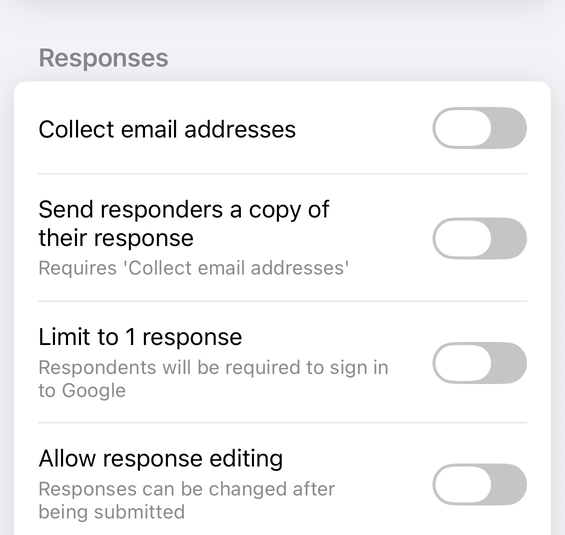
Most of the screen is free. Collect email addresses, Limit to 1 response, Allow response editing, View results summary, Show progress bar, Shuffle question order, Show link to submit another response, the confirmation message field, Make this a quiz and the Editors list all save without a paywall. At most five rows are PRO: Push notifications and Email notifications in the first section, the app's own Send responders a copy of their response row — not Google's native receipt control, which Form+ keeps behind Advanced response settings — and the two disclosure rows Advanced response settings and Advanced quiz settings. Four of those five are conditional. Email notifications and both Advanced rows need the app’s newer-features flag, and several separate things can switch that flag off — your region, a remote switch, and, unless that test is itself disabled remotely, an install dating from before 2024. Advanced quiz settings additionally needs the form to already be a quiz. And Send responders a copy is drawn only on accounts running the app’s own Apps Script response trigger, which is a property of the account rather than of the form.
What none of that touches is the spine of the screen. Collect email addresses, Limit to 1 response, Allow response editing and View results summary are drawn on every account, in that order, so the Responses group is four rows at its narrowest and six at its widest; and the Presentation, Confirmation message, Quizzes and Editors sections below are unaffected by any of this. On an account where the flag is off and the response trigger is absent, Push notifications is the only PRO row on the screen — and every other row still saves.
The free list is every row the switch handler writes straight to the form with no gate, and the PRO list is every paywall the screen can raise: four of them from the settings screen itself and the fifth, Push notifications, from the shared notification service that row calls into. Neither list is the app’s feature registry, which misses the two Advanced rows because they carry no feature identifier. Both are complete as lists of what the screen can show. Neither is a count of what any one person sees, because this screen is assembled per account.
Change your form settings from your phone
Form+ signs in to your own Google account and edits the forms already in your Drive — email collection, response limits, presentation and quizzes. No migration, no copies.
Get Form+ free on the App StoreFrequently asked questions
What are the three groups in Google Forms settings?
Responses, Presentation and Defaults, with a Make this a quiz checkbox sitting above all three. The only Google page that names all three at once is the screen reader guide, which calls them Manage response, Manage presentation and Manage default settings — three labels the editor itself never shows you.
Which Google Forms settings change who is allowed to answer?
Two of them, and both live in the Responses group. Limit to 1 response requires a Google Account: Google's tip is that to access and fill out the form, users must sign in to their Google Account. And Collect email addresses set to Verified collects the address automatically from the signed-in account, which means there has to be one. A third, Restrict to users in your domain and its trusted organizations, is documented only on Google Workspace help pages.
What is in the Defaults section of Google Forms settings?
Google never says. The entire published description is two fragments: the screen reader guide calls the group Form and question defaults, and the Edit your form page says that under Default, any setting you turn on will be the default for any new form. No Google page we could find lists which settings the group contains, and the desktop variant of that help page carries no extra detail.
Can the Google Forms API change form settings?
Barely. The FormSettings object in the Forms REST API v1 has exactly two properties,
quizSettings and emailCollectionType, which is one control from the
Responses group plus the quiz checkbox. Nothing from Presentation and nothing from Defaults exists
in it. Publishing is not in FormSettings either — it has its own method,
forms.setPublishSettings.
Does turning on a Google Forms setting affect anything outside its own group?
Often. Collect email addresses gates the response receipt setting and decides whether the respondentEmail field appears in your API data. Allow response editing puts a link on the confirmation page, which the Presentation group owns. View results summary sits under Presentation but publishes every respondent's answers. And turning off Make this a quiz deletes the grading on every question.