How to duplicate a Google Form
Last updated September 2026 · ~8 minute read
Short answer: open the form, click More in the top-right corner, choose Make a copy, name it, optionally pick a Drive folder, and optionally tick “Share it with the same people”. The copy brings the questions and the design. It does not bring the responses — a duplicate starts empty, and the original keeps everything that was submitted to it.
Form+ duplicates, edits and publishes your real Google Forms on your own Google account — no desktop required. Get Form+ free on the App Store.
That last sentence is the whole reason people search for this. Duplicating is easy; knowing what silently did not come along — responses, the linked spreadsheet, who can see it, whether it is published — is what stops a copy going out half-configured.
The click-path, from Google's own documentation
Google's Workspace Learning Center documents copying a form as six steps:
- In Google Forms, open the form or quiz you want to copy.
- In the top-right corner, click More ⋮ and then Make a copy.
- Name the copy.
- (Optional) “To change the file location in Google Drive, click the folder and specify the new location.”
- (Optional) “To share the copy with the same collaborators, check the ‘Share it with the same people’ box.”
- Click OK.
That More menu is the same one Google's accessibility documentation lists for the Forms editor: Make a copy · Move to trash · Pre-fill form · Embed HTML · Print · Unpublish form. If you are hunting for it, it is the three-dot button beside Send, not anything inside the Settings tab.
What carries over, and what doesn't
Google documents the action in detail and the contents barely at all. So the table below marks each row for where the claim comes from: documented means Google states it in its own help pages; inferred means it follows from something Google does document, and we say from what.
| Thing | Comes with the copy? | Documented or inferred |
|---|---|---|
| Questions and answer options | Yes | Inferred — Google names the action “Make a copy” of the form and never qualifies it; the questions are the form. |
| Sections and page breaks | Yes | Inferred — part of the same form file that is being copied. Google does not enumerate it. |
| Branching / “go to section based on answer” | Yes | Inferred — branching is stored on the questions and sections being copied. Google does not enumerate it; worth a look in the copy if your logic is complicated. |
| Theme — colours, header image, font | Yes | Inferred — same form file. Not enumerated by Google. |
| Settings — quiz mode, collect email, required questions | Yes | Inferred — same form file. Not enumerated by Google. Check the ones with consequences before you share. |
| Responses | No — the copy starts empty | Inferred, but firmly. Google never states it in the copy instructions. It does document that responses belong to the form and that “if you store responses in a spreadsheet, you have a separate file in Google Drive” — a separate file that Make a copy on the form does not touch. |
| The linked response spreadsheet | Not the original one | Partly documented. Google documents that the spreadsheet is “a separate file in Google Drive” and that “you can delete the spreadsheet and not delete the form”. What the copy's response destination ends up being is not documented — open its Responses tab and look. |
| Collaborators / sharing | Only if you ask for it | Documented — the copy dialog carries a “Share it with the same people” box. Leave it unticked and the copy is yours alone. |
| Published state | Check it — do not assume | Not documented. Google documents only that “if the form is unpublished, responders with the link can't access it”. Since publishing became the gate for responders, a copy's state is the first thing to verify. |
| Add-ons, Apps Script triggers, notification rules | Assume not | Inferred — these are attached to a form by separate installation or authorisation, not carried in the copy dialog Google documents. Re-check anything that was automating the original. |
If what you actually want is one form you copy again and again for each new event, class or client, that reuse pattern has its own page: Google Forms templates covers using a master form as a stand-in for the template feature Forms doesn't have. And if you want the same block of questions again inside one form rather than a second file, duplicating a section is the smaller operation.
The other standing reason to copy a form is language. Google Forms has no translate command, so one copy per audience, each retyped in that language, is the usual route — and the copy inherits the same split response sets described above. How to translate a Google Form weighs that against the two alternatives that keep a single response set.
Duplicating to hand it to someone else
“Send them a copy” and “make it theirs” are different operations with different consequences. Pick deliberately.
Give them a copy (you stay the owner of yours)
- Make the copy as above.
- Share that copy with them as an editor, or let them run Make a copy on it themselves — which lands a form in their Drive, owned by them, with no responses.
This is the right route when you want to keep your version, when the other person is outside your organisation, or when you are handing the same starting point to several people.
Transfer ownership (it stops being yours)
Google documents this in two places, and the Forms one is easier to reach. Share your form with collaborators has a Transfer ownership of your form section: “Before you transfer ownership of your form to someone, you need to give them editor access”, then on the form click Share, and under “People with access” click the Down arrow next to the person's name and select Transfer ownership. Drive's own documentation gives the equivalent path from Drive — find the file, right-click, Share → Share, then the Down arrow next to the recipient's name — plus the constraints that catch people out:
- “You can only transfer ownership to someone you shared the file or folder with.” Share first, then transfer.
- On a work or school account, “you can only transfer ownership of files and folders to someone in your organization.”
- It is a request, not an instant change: “The pending owner is notified by email that if they accept the transfer request, they become the file owner. Until then, you remain the owner.”
- Afterwards you do not keep control: “If the pending owner accepts, you're downgraded to Editor. The new owner can remove you.”
Note what this means for responses. Transferring the original hands over the form and every response already on it. Copying hands over the questions and nothing else. If the reason you are handing it over is “you run next year's intake”, the copy is almost always the one you want.
Check these before you share the copy
- Is it published? An unpublished form's link does nothing for responders — see sharing a Google Form.
- Where do responses go? Open the copy's Responses tab and confirm the destination before real submissions arrive.
- Response caps and cut-offs. Anything enforced by an add-on rather than by Forms itself needs re-doing on the copy — see limiting responses and scheduling a form to open or close.
- Notifications. Confirm the alerts you rely on exist on the copy — see email notifications.
- Email collection and anonymity. Re-read that setting on the copy if the audience has changed — see making a form anonymous.
- Who can see it. If you ticked “Share it with the same people”, the old collaborators are on the new form too. That is occasionally exactly wrong.
Duplicating a form from an iPhone
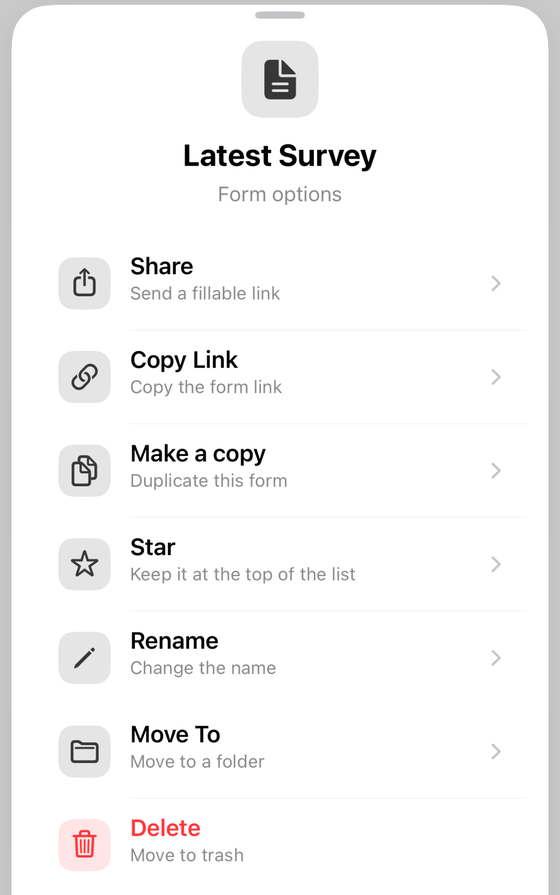
Google has no Forms app for iPhone or iPad, so every step above assumes a desktop browser. Form+ is a native client for your real Google Forms, and it keeps the same operation on the phone: in the forms list, open a form's options menu and choose Make a copy (“Duplicate this form”). It asks for a name, then duplicates the form in your Drive — the same Drive copy the web editor performs, not an export or a re-typed imitation. When the app already holds that form's downloaded responses, the same dialog can additionally offer to carry a read-only snapshot of them into the copy's Responses tab; the copy's live Google responses still start at zero either way.
Two things Form+ deliberately does not pretend to do: it will not transfer ownership — that stays a Drive action, in a browser — and while its Manage access screen lists everyone with access and can add or remove editors, ownership is shown, never changed.
Copy, edit and share your forms from your phone
Form+ duplicates, edits and publishes your real Google Forms on your own Google account — no desktop required.
Get Form+ free on the App StoreFrequently asked questions
Does duplicating a Google Form copy the responses?
No — a copy starts empty. Google does not spell this out in the copy instructions, but its own documentation treats responses as belonging to the form and, when you store them in a spreadsheet, to a separate file in Google Drive. Make a copy duplicates the form file, so the submissions on the original stay on the original.
Does the copy get its own response spreadsheet?
Google does not document what a copy's response destination is, so do not assume either way. Google does document that a spreadsheet of responses is “a separate file in Google Drive”, and that “you can delete the spreadsheet and not delete the form”. Open the copy's Responses tab and look before you collect anything real.
Is the copy published automatically?
Google does not document the published state of a fresh copy, and since 2026 it matters: “if the form is unpublished, responders with the link can't access it.” Open the copy and look at the Publish button before you send the link to anyone.
How do I copy a Google Form to someone else's account?
Two different jobs. To give them an editable copy, make the copy yourself and share it with them as an editor — or let them run Make a copy themselves. To make them the owner, use Google Drive: “you can only transfer ownership to someone you shared the file or folder with”, and on a work or school account “you can only transfer ownership of files and folders to someone in your organization”.
Can I duplicate a Google Form on my phone?
Google Forms has no iPhone app, so the click-path above assumes the desktop web editor. Form+ puts Make a copy on the form's options menu in the forms list: it asks for a name and duplicates the form in your Drive, the same operation the web editor performs.