How to add a linear scale to Google Forms
Last updated September 2026 · ~7 minute read
Short answer: add a question, then pick Linear scale from the type menu. Google documents its limits precisely: “Your scale can start at zero or one,” “Your scale can end on a whole number from 2 to 10,” and “You can set a label for each end of the scale.” But Google Forms has two scale questions, not one — Rating is a separate type that uses a star, heart or thumbs up and runs from 3 to 10. Neither can be validated, neither takes an answer key, and neither can branch.
Form+ adds linear scale and rating questions, imports them in bulk, and charts the answers — on your real Google Forms and your own Google account. Get Form+ free on the App Store.
Most guides to this question stop at the first sentence and never mention the second type at all. The choice between them, and the length you pick, matter more for your analysis than the two minutes of clicking.
Add a linear scale, step by step
- Open the form in Google Forms and click Add.
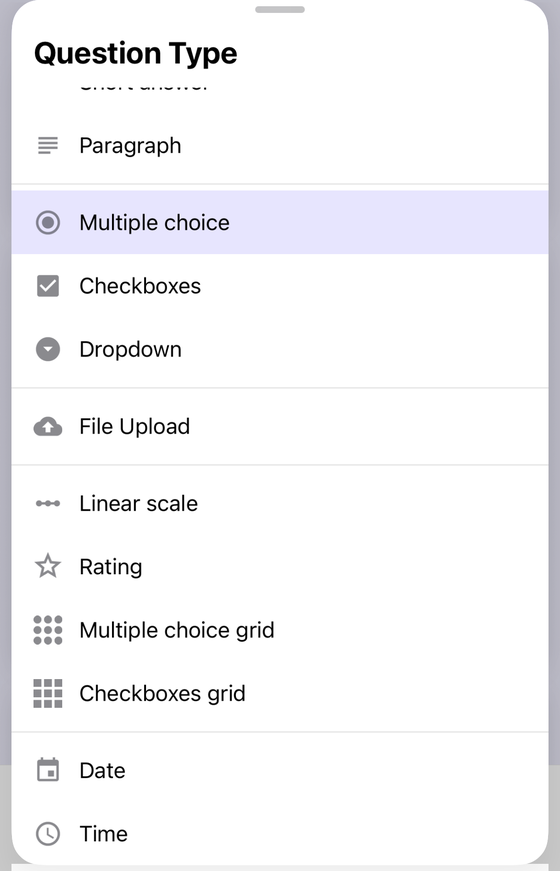
- To the right of the question title, choose the type of question — pick Linear scale. Google's description of the type is one line: “You can ask responders to provide a rating on a scale.”
- Set the start. Google documents exactly two permitted values: “Your scale can start at zero or one.” There is no scale that starts at 2.
- Set the end: “Your scale can end on a whole number from 2 to 10.” Ten is the ceiling, so an eleven-point or hundred-point scale is not available — a 1 to 10 scale is the longest Google allows.
- Type a label for each end — “You can set a label for each end of the scale.” This is the whole of what Google documents about labels: two of them, one at each extreme.
- Optionally turn Required on, so the question cannot be skipped.
Linear scale vs Rating
Both types are listed on the same help page, and the differences are documented rather than a matter of taste:
| Linear scale | Rating | |
|---|---|---|
| Google's description | “You can ask responders to provide a rating on a scale.” | “You can ask responders to provide a rating.” |
| Lowest value | Zero or one | Not separately documented; the range is given as a single number |
| Range | Ends “on a whole number from 2 to 10” | “Your rating can be a whole number from 3 to 10.” |
| Shown as | A row of numbers | “You can represent your rating with a:” Star, Heart or Thumbs up |
| End labels | Yes — one at each end | Not documented |
| Response validation | No | No |
| Quiz answer key | No | No |
| Branching | No | No |
The practical split: Linear scale when the wording at each end carries meaning — “Not likely” to “Very likely”, “Strongly disagree” to “Strongly agree”. Rating when the icon already says it, as in five stars for a product or a visit, and no end labels are needed.
What lands in the spreadsheet
This is the difference people ask about most, and it is the one Google does not answer. Google's help pages describe both question types and describe linking responses to a spreadsheet, but they do not document what value is stored for either type — nothing on the question-type page, and nothing on the response pages, states what a chosen star or a chosen scale point becomes in the linked sheet. We are not going to guess on your behalf. If your analysis depends on the exact stored value, collect one test response into a linked sheet and read the cell before you build anything on top of it.
What a scale question cannot do
Three limits, each confirmed by omission from Google's own lists rather than by trial and error:
- No response validation. Google's rules page has exactly five sections of rules — short answer, paragraph, checkboxes, multiple choice grid and checkbox grid. Neither scale type appears, so neither can be validated. That is not much of a loss, since a scale can only return a value that is already on it. See Google Forms data validation for the types that can.
- No answer key. Answer keys are documented for short answer, multiple choice, checkboxes, dropdown, multiple choice grid and checkbox grid. A scale question is not auto-gradable. Google does add that you can assign points and add feedback on all question types, so you can still mark one by hand in the Responses tab.
- No branching. Google's branching page is explicit: “Go to section based on answer” is only available for Multiple choice and Dropdown question types. If a low score must route someone to a follow-up section, ask it as multiple choice — see conditional logic in Google Forms — or as a drop-down.
Which one, and how long? (our recommendation)
Everything below is our opinion, not Google documentation. Google documents the bounds and stops there.
- Default to 1–5. Most people cannot reliably distinguish a 6 from a 7 about their own feelings, so a longer scale mostly buys you noise wearing the costume of precision. Five points is enough to separate “bad”, “fine” and “good” with a step either side.
- Use 0–10 only for Net Promoter Score. NPS bands — detractors, passives, promoters — are defined on 0–10. If you are not computing NPS, that range is inherited habit, not a reason.
- Avoid even-numbered scales unless you mean it. A 1–4 or 1–6 scale removes the middle option and forces a lean. That is a legitimate design choice; it is not a neutral one, so make it deliberately.
- Label both ends, always. An unlabelled scale is just numbers, and “3” means nothing on its own.
- The honest caveat: because Google only lets you label the two ends, every point in between is interpreted by each respondent privately. One person's 4 out of 5 is another's 5. Keep the scale short, keep the wording at the ends plain, and use the same scale across every question in the form so at least your respondents are consistent with themselves. Comparing a 1–5 in one question against a 0–10 in the next is where scale data usually goes wrong.
Asking the same scale about several items
If you want to rate six things on one scale, do not add six linear scale questions. Use a Multiple choice grid, which Google describes as a grid where responders select one or more answers per row and notes is “often used to rate a category of options”. Put your items in the rows and your scale points in the columns. Unlike either scale type, the grid does take rules — “Require a response in each row” and “Limit to one response per column” — and it can carry an answer key.
Scale questions on iPhone and iPad
Form+ works on your real Google Forms through your own Google account, and both scale types are first-class in it: you can add a linear scale or a star rating on the phone, and the Responses tab charts the results as bars rather than dumping a column of numbers.
Two shortcuts worth knowing if you are building a survey of scale questions:
- Dictate question — say “add a rating from 1 to 5” and Form+ drafts the question for you to review before it is added.
- Import questions from CSV — a scale is written in the options column as
1-5, or1-5|Not likely|Very likelywhen you want the end labels, so a twenty-question survey is one paste rather than twenty menus.
Build the whole survey from your phone
Form+ adds linear scale and rating questions, imports them in bulk, and charts the answers — on your real Google Forms and your own Google account.
Get Form+ free on the App StoreFrequently asked questions
What is the maximum linear scale in Google Forms?
Ten. Google documents that a linear scale can start at zero or one and can end on a whole number from 2 to 10. A Rating question has a different range: a whole number from 3 to 10.
Can you label the middle points of a linear scale?
No. Google documents one thing about labels: you can set a label for each end of the scale. The points in between show as bare numbers, so respondents interpret them for themselves.
Can you set an answer key on a linear scale or rating question?
No. Google lists the question types that can carry an answer key: short answer, multiple choice, checkboxes, dropdown, multiple choice grid and checkbox grid. Neither scale type is on that list, so neither is auto-graded. Google does note that you can assign points and add feedback on all question types, which means a scale question can be graded by hand.
Can a linear scale send people to a different section?
No. Google's branching page states that “Go to section based on answer” is only available for Multiple choice and Dropdown question types. If a scale answer has to change the route through your form, ask it as multiple choice instead.
Should I use a 1 to 5 or a 1 to 10 scale?
Our recommendation, not Google documentation: use 1–5 for satisfaction and agreement questions, because most people cannot reliably tell a 6 from a 7. Use 0–10 only when you specifically want the Net Promoter Score bands, which are defined on that range.