How to add a checkbox grid in Google Forms
Last updated September 2026 · ~10 minute read
Short answer: Click Add, type the question, choose Checkbox grid, then fill in the rows (the things being asked about) and the columns (the options offered against each one). Google documents three settings for it — Require a response in each row, Limit to one response per column and Shuffle row order. What Google does not document, anywhere, is the one thing a checkbox grid is for.
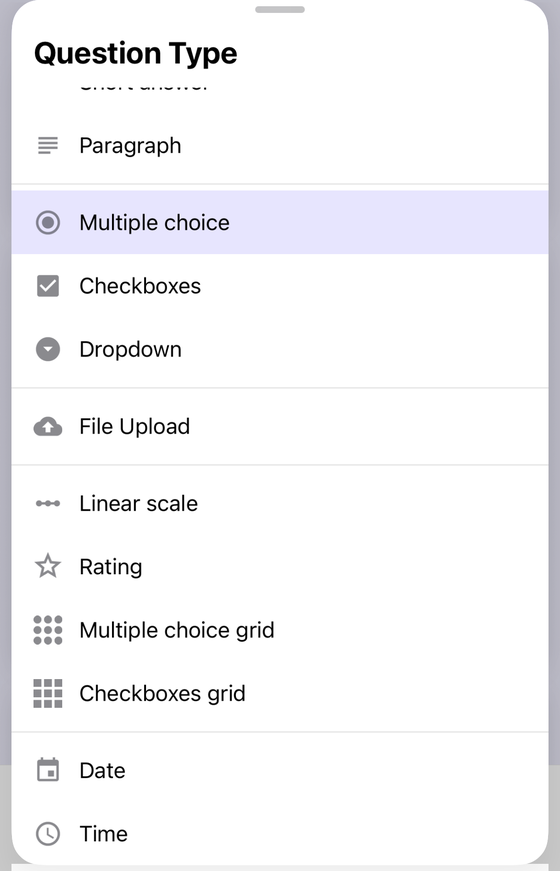
Form+ edits your real Google Forms on iPhone and iPad. Checkboxes grid sits in the question type picker beside Multiple choice grid; on a grid question the Required switch relabels itself to Require a response in each row, and Shuffle row order and Limit to one response per column live under More options. Get Form+ free on the App Store.
A checkbox grid is “select all that apply”, repeated once per row. It is the most compact question type in Forms and the most demanding one to answer — and it is the worst documented. Google describes it in exactly the same words as the multiple choice grid, on two separate help pages, and we can show you both.
Add a checkbox grid, step by step
These steps are Google's own, from How to set rules for your form:
- Open your form and click Add to insert a question.
- Add your question to the Question field. This text carries the instruction for the whole grid — “tick every option that applies” — because nothing else will.
- To the right of the question title, choose Checkbox grid.
- Add the options for the rows. Google's worked example is A, B, C. Rows are the things being asked about: the items, the days, the people.
- Add the options for the columns. Google's worked example is 1, 2, 3. One set of columns serves every row in the grid.
- Open More and turn on only the rules you actually mean. They are covered below.
If one of your rows needs a different set of columns, it is not a row in this grid — it is a separate question.
Google describes both grid types in identical words
On Choose a type of question for your form, Multiple choice grid and Checkbox grid carry the same two bullets, word for word: “You can create a grid where responders can select one or more answers per row.” and “This type of question is often used to rate a category of options.” Not similar — identical.
The usual next move is to say the real difference is documented on the rules page instead. We checked, and it is not. On How to set rules for your form, the section headed Rules for Multiple choice grid questions opens with “In multiple choice grid questions responders can only choose one column per row.” The section headed Rules for Checkbox grid questions opens with that same sentence, unchanged — still saying multiple choice grid.
So the position is this: Google nowhere publishes that a checkbox grid accepts more than one answer per row. One page says both grids take “one or more”. The other says both take one. They contradict each other, and neither ever singles the checkbox grid out.
| Google's published text | Multiple choice grid | Checkbox grid |
|---|---|---|
| Question-type description | “You can create a grid where responders can select one or more answers per row.” — the same sentence under both | |
| Rules-page opening line | “In multiple choice grid questions responders can only choose one column per row.” — also the same sentence under both | |
| Documented settings | Require a response in each row · Limit to one response per column · Shuffle row order | |
| Answer key in a quiz | Yes | Yes |
What you can rely on is the name and the control Forms draws. Before you send a grid to anybody, open the published form and try to tick two boxes in the same row. It takes ten seconds and it is better evidence than either help page. If you only need one “select all that apply” question rather than a matrix of them, the checkbox question guide covers the plain version, and our multiple choice grid guide covers the one-per-row sibling.
The settings Google does document
Require a response in each row
Google's wording: “To make sure responders choose an option from each column, turn on ‘Require a response in each row.’ If they don't, they get an error message and can't continue.” On a checkbox grid this means every row needs at least one tick before the form will submit.
Note the slip in Google's own sentence — it says column where the toggle it names says row. One more reason to test rather than trust. And think twice on a long grid: a fifteen-row wall that refuses to submit is a common place for people to abandon a form outright.
Limit to one response per column
This is the one people switch on by mistake. It is offered on both grid types — Google documents it in identical wording under both headings, under More. It does not mean “one answer per row”. It means a column can only be used once in the whole grid.
Google publishes a worked example. Input: rows A, B, C and columns 1, 2, 3. “Result: Responders can choose one row item (A, B, C) for each column (1, 2, 3). If they check multiple rows in a column, they get an error message.”
On a checkbox grid that is a narrow instrument: the point of the type is that a respondent may tick freely, and this rule then claims each column for one row only. Useful for allocation — one person per shift, one item per slot — and wrong for anything shaped like “tick all that apply”, where two rows are obviously allowed to share a column. If that is your grid, leave it off.
Shuffle row order
The third option under More, documented for both grids: it shuffles the row order “every time the survey is open”, which helps with order bias in a long list. It also makes your form harder to talk about — “row three” stops meaning anything — and harder to follow non-visually.
Where grids sit on Google's validation list
Google's rules page covers exactly five question types: Short answer, Paragraph, Checkboxes, Multiple choice grid and Checkbox grid. Grids are on the list — but “rules” means something different for them.
- Short answer gets Number, Text, Length and Regular expression rules.
- Paragraph gets Length and Regular expression.
- Checkboxes gets Select at least, Select at most and Select exactly.
- Both grids get the three settings above, and nothing else.
That gap matters if you hoped to say “tick at least two per row”. Select at least is a Checkboxes rule; a checkbox grid does not get it, and Google publishes no per-row minimum or maximum for a grid of any kind. Our data validation guide covers the rules that do exist.
What a checkbox grid writes to your spreadsheet
A grid is not one spreadsheet column, and beyond that Google is silent. Its View & manage form responses page does not mention grids or spreadsheet columns at all, and no Google page states what a row with two columns ticked gets written as. The multi-tick value is undocumented. We are not going to invent a separator for you.
The one-minute version of certainty: build a grid with two rows and two columns, link the form to a sheet, submit one response with both columns ticked in row one, and read the cell. That tells you the shape of your data before a hundred responses arrive in it. Our guide to responses in Google Sheets covers linking the sheet.
A grid counts as one piece of content
Google documents the ceiling plainly: “you can add and edit up to 300 pieces of content, like questions, descriptions, images, and videos. To organize your form by topic, you can add up to 75 sections.” A grid is one piece of content regardless of its size — ten rows by six columns costs you one, not sixty.
Which is exactly the trap. Grids are cheap against Google's limit and expensive for the person answering, so the limit quietly rewards the wrong instinct.
When a checkbox grid is the wrong tool
This section is ours, not Google's. Google documents the checkbox grid as a question type and offers no guidance on when it is a bad idea. What follows is our recommendation.
If your respondents may use a screen reader, split it
A grid is the hardest control on a form to operate without sight, and a checkbox grid is the harder of the two: nothing announces how many boxes in a row are already ticked, so the respondent has to hold that count themselves while moving in two dimensions. Split it into separate checkbox questions, each carrying its full row wording in the title. The form gets longer and much easier to answer, and your data does not change. Our Google Forms accessibility guide goes into this properly.
A wide grid scrolls sideways on a phone
Six columns that look balanced on a laptop become a grid that scrolls horizontally on a phone, with the row label sliding out of view as the respondent reaches for the far column — so they tick from the wrong row. Keep columns to about five, preview on a real phone, and cut a column rather than shrink the text.
It will not survive a CSV round trip
If you move questions between forms as CSV, a grid does not come back. In Form+, the exporter writes the question's true type into the Type column — Checkbox grid — and the importer reports that it cannot rebuild it, rather than quietly downgrading it to a short answer. Honest, but it still means a grid is a question you rebuild by hand at the far end.
Build grid questions from your phone
Form+ edits your real Google Forms on iPhone and iPad. Checkboxes grid sits in the question type picker beside Multiple choice grid; on a grid question the Required switch relabels itself to Require a response in each row, and Shuffle row order and Limit to one response per column live under More options.
Get Form+ free on the App StoreFrequently asked questions
Does Google document that a checkbox grid takes more than one answer per row?
No. Google's question-type page gives Multiple choice grid and Checkbox grid the same two bullets word for word, and its rules page opens the Checkbox grid section with the sentence “In multiple choice grid questions responders can only choose one column per row.” Neither page singles the checkbox grid out, and the two contradict each other. The name and a ten-second preview of the published form are the only reliable evidence.
Is Limit to one response per column available on a checkbox grid?
Yes. Google documents it under More for both grid types in identical wording, with the same worked example. Its published result is that responders can choose one row item for each column, and “If they check multiple rows in a column, they get an error message.” It constrains columns, not rows, so it is right for allocating slots or seats and wrong for a select-all grid.
How does a checkbox grid appear in Google Sheets?
Google does not publish this. Its page on viewing and managing form responses does not mention grids or spreadsheet columns at all, and no Google page states what a row with two columns ticked is written as. Build a two-by-two grid, link it to a sheet, submit one response with two boxes ticked in the same row, and read the cell. That answer is true of your form, which is the only form that matters.
Can a checkbox grid be graded in a Google Forms quiz?
Yes. Google lists Checkbox grid among the question types you can make an answer key on, alongside Short answer, Multiple choice, Checkboxes, Dropdown and Multiple choice grid. Google does not publish how points divide across rows or how a partly correct grid scores, so set the key, submit one test response, and read the score before anyone else does.
Does a large grid eat into the 300 item limit?
No. Google documents that you can add and edit up to 300 pieces of content, like questions, descriptions, images and videos, plus up to 75 sections. A grid is one piece of content however many cells it has, so ten rows by six columns costs you one, not sixty. Grids are cheap against that ceiling and expensive for the person answering, which is the opposite trade to the one the limit suggests.