How to scan a paper form into Google Forms
Last updated September 2026 · ~8 minute read
Short answer: Google Forms has no scanner and no OCR. The only import built into Forms is Import questions, and Google documents that as picking another Google Form and reusing its questions. So every route from paper converts the page to text somewhere else first: Google Drive will OCR a photo or PDF into a Doc, which you then rebuild as questions by hand. On paid plans, Gemini's Help me create can generate a quiz from a Drive file you reference. Or you skip the round trip — Form+ on iPhone has Scan to Form, which photographs the page and adds the detected questions to your real Google Form.
Form+ photographs a printed form and turns the recognized text into real questions on your own Google account — with a review step before anything is written. Get Form+ free on the App Store.
The search results for this are full of click-paths that do not exist. There is no “upload a PDF to Google Forms” button and never has been. Below is what Google actually ships as of September 2026, with the dates, plus the honest limits of every route — including ours.
What Google Forms can and cannot import
Worth being precise, because this is where most guides go wrong:
- Import questions — real, but narrow. Google's help page describes clicking the form whose questions you want to import. It reuses questions from another Google Form. It does not accept a document, a PDF, or an image.
- Uploading a PDF or photo to build a form — does not exist in Google Forms.
- OCR — lives in Google Drive, not in Forms, and it produces a Doc, not questions.
That is the whole picture. Everything below is a way of working around it.
Route 1 — OCR the page with Google Drive (free, all accounts)
Drive converts an image of text into an editable Google Doc. Google's own instructions are three steps:
- On your computer, go to Google Drive, and upload the photo or scan.
- Right click the file.
- Click Open with and then Google Docs.
Google states the constraints plainly: you can convert PDFs (multipage documents) or photo files
(.jpeg, .png and .gif); “The file should be 2 MB or
smaller”; “Text should be at least 10 pixels high”; and “Documents must be
right-side up.” Drive detects the document's language on its own.
What survives the conversion is also documented: “Bold, italics, font size, font type, and line breaks are likely to be retained”, while “Lists, tables, columns, footnotes, and endnotes are not likely to be detected.” Read that second sentence twice if your paper form is a grid — it is the single most useful sentence on this page.
You now have text. Forms cannot ingest that Doc, so open a blank form and add each question, pasting the wording across. Tedious, free, and it works on any account.
Route 2 — Gemini's “Help me create” (paid plans, quizzes)
On 30 July 2026 Google announced that a Help me create prompt in Google Forms can reference Google Drive files — Docs, Slides or PDFs — as sources for a generated quiz, with quiz settings and a correct answer per question. Google lists the supported output as multiple choice, grid and checkboxes question types, and says you can preview the quiz before inserting it and adjust it afterwards.
Two limits matter for paper, and both are limits of what Google actually claims:
- It references Drive files, not photographs. Google's post does not mention scanning, photos, images or OCR at all. So this is not a scanner — the page has to already be a Doc, Slides or PDF in your Drive, which usually means Route 1 first.
- It builds a quiz. The announcement is about quiz creation. If you want a plain intake form rather than a graded one, this is the wrong tool.
Rollout: gradual from 24 July 2026 for Rapid Release domains and 5 August 2026 for Scheduled Release, up to 15 days for the feature to appear. Availability is paid tiers only — Business Standard and Plus, Enterprise Standard and Plus, Education Plus, the Google AI Pro and Ultra consumer plans, and the Google AI Pro for Education and Teaching and Learning add-ons. Google also notes that Gemini in the side panel needs smart features and personalization turned on.
What else the Help me create prompt does inside Forms, and which accounts have it, is using Gemini in Google Forms.
Route 3 — Scan straight into a form on iPhone
This is the step Google leaves out: going from the photograph to actual questions without the Doc in the middle. Form+ does it on the phone that already has the camera.
- Open the form you want the questions added to.
- Tap Scan to Form in the editor toolbar — it is listed as Scan to import in the Tools sheet, described there as “Use the camera to scan a paper form or document and turn it into questions.”
- Photograph the page, then crop to the text block and tap Next.
- Check the Review Text screen. This is the recognized text before anything is created — fix anything the camera misread here, not afterwards.
- Confirm, and the detected questions are added to your real Google Form on your own account.
You can also share a photo to Form+ from the iOS share sheet rather than shooting it in the app.
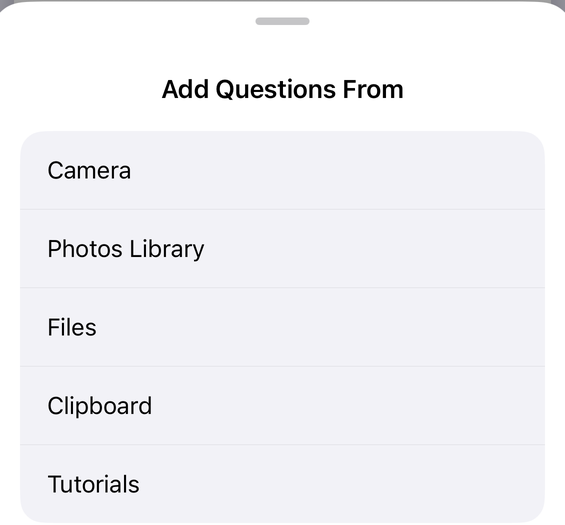
What it reads well is a printed, numbered question list. The parser treats a line starting
1., 5., Q3: or Question 2: as the start of a new
question, takes lettered lines such as a) and b) as answer choices, and recognises
lines marked Answer, Ans, Solution or Key. Worksheets, quizzes and
printed questionnaires fit that shape. Scan to Form is a Form+ PRO feature.
What OCR gets wrong
No route here is a photocopier for forms, and anyone telling you otherwise has not tested one. The failures are predictable, so plan for them:
- Checkbox grids and tables. The weakest case, for every tool on this page. The meaning of a grid lives in where a cell sits, not in a run of words, and text recognition returns a run of words. Google says the same of Drive: “Lists, tables, columns, footnotes, and endnotes are not likely to be detected.” Rebuild grids and linear scales by hand.
- Multi-column layouts. A two-column page can be read straight across the fold, which interleaves two unrelated questions into one. If the page has columns, photograph one column at a time.
- Handwriting. Text recognition of this kind is built for printed type. Filled-in handwritten answers are not what you should expect to capture — scan the blank master copy of the form, not a completed one.
- Unnumbered questions. If the page has no numbering and no lettered options, there is nothing marking where one question ends and the next begins, and the text will tend to merge.
- Answer types are not on the paper. A blank ruled line does not say whether it wants a short answer, a paragraph, a date or a number. Expect to set question types afterwards whichever route you used.
- Photo quality. Shadows, angle and skew cost more accuracy than anything else. Shoot square on, flat, in even light. Google's floor for Drive — text at least 10 pixels high, page right-side up — is a good rule for any of these tools.
Which route to pick
| You want | Use | What you get |
|---|---|---|
| Text off a page, free, any account | Drive → Open with → Google Docs | A Doc of text. You rebuild the questions yourself. |
| A graded quiz from a document you already have in Drive | Help me create in Google Forms | A generated quiz with answer keys. Paid plans only; references Drive files, not photos. |
| Questions on a form, from paper, on a phone | Scan to Form in Form+ | Detected questions added to your real Google Form, with a Review Text step first. |
| A grid, matrix or table reproduced faithfully | Retype it | Honestly the fastest route. No OCR tool reconstructs grids reliably. |
Scan a paper form into questions from your phone
Form+ photographs a printed form and turns the recognized text into real questions on your own Google account — with a review step before anything is written.
Get Form+ free on the App StoreFrequently asked questions
Can Google Forms scan a paper form?
No. Google Forms has no camera and no OCR of its own. The only import built into Forms is Import questions, which Google documents as picking another Google Form and reusing its questions. Converting paper always happens outside Forms first.
Does Gemini in Google Forms build a form from a scanned document?
Only indirectly, and only as a quiz. Google announced on 30 July 2026 that a Help me create prompt can reference Google Drive files such as Docs, Slides or PDFs as sources for a generated quiz. Google's post does not mention scanning, photos or OCR, so a paper page must already be a Drive file. It reached Rapid Release domains from 24 July 2026 and Scheduled Release from 5 August 2026, on paid plans only.
How do I OCR a paper form with Google Drive?
Upload the file to Drive, right click it, then choose Open with and Google
Docs. Google supports PDFs and .jpeg, .png and .gif photos,
asks that the file be 2 MB or smaller, that text be at least 10 pixels high, and that documents be
right-side up. You get a Doc of text, which you then rebuild as questions by hand.
What does Scan to Form in Form+ actually produce?
It photographs the page, runs on-image text recognition, and turns the recognized text into questions on
your real Google Form. It reads numbered questions such as 1., 5.,
Q3: or Question 2:, treats lettered lines such as a) and
b) as answer choices, and picks up lines marked Answer, Ans,
Solution or Key. A Review Text screen shows the recognized text before
the questions are created. Scan to Form is a Form+ PRO feature.
Why did my checkbox grid not come through?
Grids are the weakest case for any text recognition, because the meaning lives in the position of a cell rather than in a run of words. Google says of its own Drive conversion that lists, tables, columns, footnotes, and endnotes are not likely to be detected. Expect to rebuild grid and linear scale questions by hand whichever route you take.