How to restrict a Google Form to one domain
Last updated September 2026 · ~10 minute read
Short answer: this needs a Google Workspace account — a work or school one. The control lives in the publish flow: open the form, Publish (top right), then Manage — Google's own wording is “To select who can respond to the form, click Manage.” From there you pick the audience, because “Before owners publish a form, they can restrict the access to a domain, trusted audience, or group of users.” On a personal @gmail.com account there is no organisation behind you, so there is no audience to pick and no way to do this.
Form+ shows the live Drive file sharing and the accepting-responses state of your real Google Forms, on your own Google account — so you can spot a form left open to anyone with the link before it matters. Get Form+ free on the App Store.
That last point is the whole answer for a lot of people searching this, so it is worth being blunt about it before anything else.
Why this is a Workspace-only feature
Google does not spell this out in one tidy sentence on the Forms help page — so this is reasoning from what the options are, not a quotation. Every audience Google offers is scoped to an organisation: a domain, a trusted audience, or a group of users. A personal Google account is not a member of a domain that Google can gate on, is not covered by any audience an administrator has defined, and has no directory of groups behind it. There is nothing for the control to point at, so it is either absent or inert.
Google's nearest plain statement of it is on the page for people who hit the restriction, which tells them to sign in with their Google Account for work or school because “forms created through work or school accounts are only accessible to people within the organization.”
The steps
- Confirm you are signed in to the work or school account that owns the form. If the
address ends in
@gmail.com, stop here and read the personal-account section below. - Open the form. At the top right, click Publish.
- Click Manage. This is the audience control — Google describes it as selecting who can respond to the form.
- Under General access, move the responder audience off anyone with the link and on to your organisation, a defined audience, or a named group.
- Publish and send the link. Then test it: open the link while signed in to a personal account, or in a private window. If the restriction took, you will not reach the questions.
Do this before you circulate the link rather than after. The audience is part of publishing, and a link that went out unrestricted may already have been forwarded.
What you can restrict to
The whole domain
The broad option: anyone signed in with an account in your organisation gets in, and everyone else does not. This is the one most people mean by “restrict to my organization.” It is also the one with a wrinkle worth knowing — Google's help documents that from 8 September 2025, responders from trusted domains (other domains an administrator had marked as trusted) can no longer open or submit forms set to “Restrict to users in [Domain name]”. Your own domain still works; the extra reach into partner domains does not. Google's suggested replacements are a Google Group, a target audience, or sharing with those people individually.
A trusted audience
The Forms page uses the phrase “trusted audience”, but does not define it there. The defined term sits on the Workspace admin side, as a target audience, and Google's definition is: “Target audiences are groups of people—such as departments or teams—that you can recommend for users to share their items with.” They are built and applied by an administrator from the Admin console, and Google lists specific supported editions — so if you are in a Workspace organisation and see no audiences offered, that is the likely reason. Google's own documentation currently lists target audiences as available for the Drive and Docs and Chat services, so treat the Forms surface as the one to trust over the admin page's service list.
A group of users
The narrow option: instead of the whole company, you name the people or groups who may respond. Google's steps are to enter the names of the people or groups, then set the level of access next to each name to Responder. This is the right choice when the form is for one department, one class, or one committee — and it is the option Google now recommends when the people you need are outside your own domain.
Can an administrator set the default for everyone?
Partly. An administrator can set which audience appears first: Google documents that “You can set the default—or primary—target audience, which appears first in a user's list of sharing recommendations.” It shapes the default rather than forcing a choice, and Google notes that removing a target audience makes the default sharing option Restricted.
If you are on a personal Google account
There is no honest equivalent, and you should be suspicious of any guide that offers one. The two settings people reach for are both worth turning on and neither is a restriction:
- Limit to 1 response — Settings → next to “Responses”, the Down arrow → turn on Limit to 1 response. This forces a sign-in and stops the same account answering twice. It does nothing about which accounts answer. See limiting responses on Google Forms.
- Collect email addresses — records who each response came from, which lets you filter out addresses you did not expect. That is cleanup after the fact, not a gate. See collecting email addresses.
Together they give you an audit trail. If you genuinely need only one organisation to be able to respond, the form has to live on a Workspace account. And if the reason you came looking for a restriction was junk submissions rather than confidentiality, narrowing the audience is only the first of four levers — stopping spam responses on Google Forms prices the rest.
What it does not do
Restricting the audience gates access. It does not police content, and the distinction matters more than it sounds:
- A colleague who can open the form can forward what it asks to anyone.
- A signed-in colleague can paste in answers that came from someone outside the organisation entirely. Every response will still be stamped with an internal address.
- It does not stop a screenshot, and it does not stop the link being posted somewhere public — outsiders simply hit the wall when they click.
So it answers “who may submit”, not “where did this information come from”. Treat it as the front door, not as a chain of custody.
What a blocked respondent sees
This one is documented. Someone without access gets a You need access page with a Request access option, and Google's help for that person tells them to contact the owner: “I received a Google Form from you, but I can't open it because it's restricted to people within your organization. If you want me to fill it out, share the form with me or my organization.” Expect that email — it is the normal outcome when the link reaches a personal account by mistake.
Checking it from your phone
Form+ has a Manage access screen — “Choose who can respond to and co-edit your form” — and it is careful about a distinction the web is not. Its File access (editors) and File access (link viewers) rows read Restricted or Anyone with the link, and they are Drive permissions: who may open the form's file. The screen says so underneath them — “Who can open this form's file in Google Drive. This does not control who can answer the form.” A separate, read-only Who can respond section shows exactly two rows — Accepting responses and Published — each reading a plain Yes or No. That is the entire section; there is no third row, and no audience or domain value anywhere on the screen. The owner is listed as Owner. One caveat worth knowing: that section is conditional. When the screen is opened the usual way, from the form editor, it is there; opened from somewhere that cannot supply the publish state, it is hidden outright rather than guessed at, so a missing section is not the same as a No.
That separation matters more than it sounds. A published form is answered through its
/viewform link, which needs no Drive permission at all, so a form can read
Restricted in Drive and still be answerable by anyone who has the link.
Which leads to the blunt part: you cannot check a domain restriction from the app. The audience you picked under Publish → Manage is not shown anywhere in Form+ — not as a row, not as a label, not in the Who can respond section, which only ever reports whether the form is accepting responses and whether it is published. The Drive rows do not carry it either: they look only for an anyone-with-the-link grant, so a file shared with a whole domain or a group still reads Restricted there, and neither grant is listed among the named people. If you want to confirm the restriction took, there are two places that can tell you, and both are outside the app: reopen Publish → Manage in a browser and look at the audience you set, or run the test from the steps above and open the link from an account that should be blocked. The second is the stronger check — it measures the outcome rather than the setting.
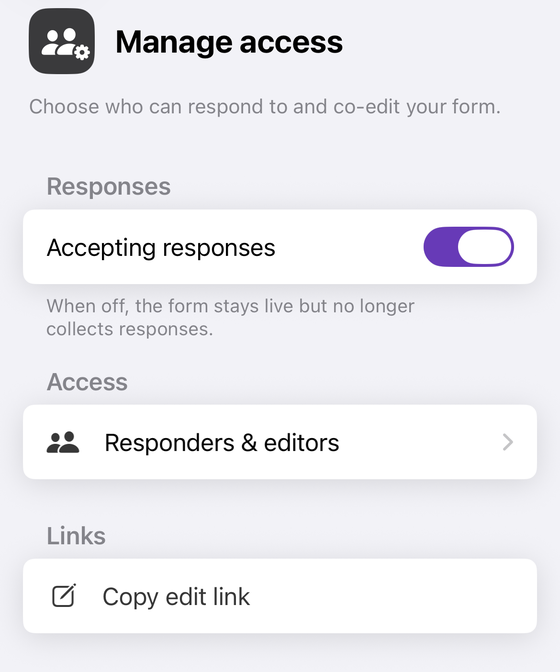
Two honest limits. Only the form's owner can change sharing — the app says so plainly rather than failing silently — and the screen shows the owner but offers no way to transfer ownership. Picking a domain or a target audience is still a Workspace admin-side choice made in the browser; the app is where you confirm a form is not sitting on Anyone with the link when you thought otherwise.
Which option do you want?
| You want… | Use |
|---|---|
| Only staff at your company or school | Publish → Manage → restrict to your domain |
| One department or team | A trusted (target) audience, set up by your administrator |
| A named handful of people | Add them by name, with access set to Responder |
| Partners in another domain | A Google Group, or share with them individually |
| One answer per person, on a personal account | Limit to 1 response — not a restriction |
| To know who answered | Collect email addresses |
| To confirm the domain restriction itself | A browser — Publish → Manage. Form+ does not show the audience |
| To check from your phone that the form is still open | Form+ → Manage access → Responders & editors → Who can respond |
Check who can reach your form, from your phone
Form+ shows the live Drive file sharing and the accepting-responses state of your real Google Forms, on your own Google account — so you can spot a form left open to anyone with the link before it matters.
Get Form+ free on the App StoreFrequently asked questions
Can I restrict a Google Form to my organization with a personal Gmail account?
No. The audience options are organisation-scoped — a domain, a trusted audience, or a group inside your organisation. A personal Google account has no organisation behind it, so there is no audience to pick. The nearest substitutes are Limit to 1 response and collecting email addresses, and neither one keeps outsiders out — the same gap that makes password-protecting a form impossible in Google Forms itself.
What is a trusted audience in Google Forms?
The defined term on Google's admin side is a target audience. Google's definition: “Target audiences are groups of people—such as departments or teams—that you can recommend for users to share their items with.” They are created and applied by an administrator in the Admin console, and availability depends on the Workspace edition.
What do people outside my organization see if they open the form?
Google documents a You need access page with a Request access option. Its help page tells the blocked person to sign in with their Google Account for work or school, because forms created through work or school accounts are only accessible to people within the organization.
Does restricting the form also collect their email addresses?
It forces a sign-in but does not record anything by itself. Google states that users must sign in to their Google Account to access and fill out the form, and that their usernames will not be recorded unless you turn on the “Responses” setting to collect email addresses. Restriction makes the collected address trustworthy; it does not switch collection on.