Google Forms quiz feedback
Last updated September 2026 · ~8 minute read
Short answer: feedback is the explanation a respondent reads about an answer; the score is the number. They are different things with different reach. Google lets you build an answer key on six question types — but the same page notes that “You can assign points and add feedback on all question types.” Feedback is the wider of the two.
Form+ edits your real Google Forms natively on iPhone and iPad — quiz mode, answer keys, points and per-question feedback, on your own Google account. Get Form+ free on the App Store.
That asymmetry is the whole point of this page. Most quiz guides treat feedback as a footnote to the answer key. It is the other way round: auto-marking is the narrow feature, and feedback is the one you can attach to a paragraph answer, a file upload or a date — none of which Google will ever mark for you.
Feedback is not the score
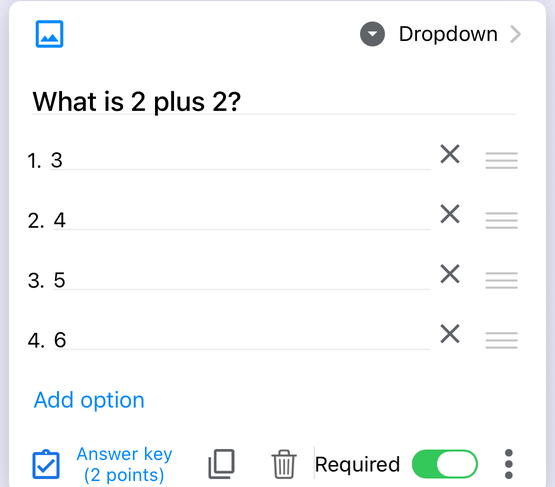
A Google Forms quiz produces two separate artefacts per question. One is a point value, rolled into a total. The other is a block of text — optionally with a link or a YouTube video — that explains something about the answer. Google's help centre calls the second one answer feedback, and the control that creates it is Add answer feedback, reached from the Answer key link in the bottom left of a question.
The reason the distinction matters in practice: the score tells a respondent they got 7 out of 10. Only the feedback tells them why question 4 was wrong. If you build a quiz with answer keys and no feedback, you have built a marking machine, not a teaching one.
The asymmetry Google publishes
On Create & grade quizzes with Google Forms, under the heading “Make an answer key, assign points & add automatic feedback,” Google writes “You can make an answer key on certain question types” and then lists exactly six:
- Short answer
- Multiple choice
- Checkboxes
- Dropdown
- Multiple choice grid
- Checkbox grid
Paragraph and Rating are not on that list, and neither are Date, Time, File upload or Linear scale. Then, a few lines later, the same page adds a note: “You can assign points and add feedback on all question types.”
Both halves are literally on the page, and together they say something useful: the set of questions you can comment on is strictly larger than the set Google will mark. A paragraph essay question can carry a written model answer that every respondent sees, even though Google will never award it a point automatically.
| Answer key (auto-marking) | Answer feedback | |
|---|---|---|
| Question types | Six, named by Google | “All question types” |
| Paragraph | No | Yes |
| Rating | No | Yes |
| Produces | A number | Text, plus optional link or video |
| Needs a correct answer set | Yes, by definition | Not for general feedback |
Three kinds of feedback, not one
The help centre describes a single “Add answer feedback” button, but Google's
Forms API reference
is more specific about what is actually stored. A question's grading object holds the point
value, the answer key, and three distinct feedback slots:
whenRight— “The feedback displayed for correct responses. This feedback can only be set for multiple choice questions that have correct answers provided.”whenWrong— “The feedback displayed for incorrect responses,” with the same restriction.generalFeedback— “The feedback displayed for all answers,” which Google says is “commonly used for short answer questions when a quiz owner wants to quickly give respondents some sense of whether they answered the question correctly before they've had a chance to officially grade the response.” The same entry adds that “General feedback cannot be set for automatically graded multiple choice questions.”
So the correct/incorrect split is not available everywhere. Where a question is an auto-graded multiple choice, you get the pair; everywhere else you get one block of general feedback that everybody sees regardless of how they answered. That is worth knowing before you write two carefully opposed paragraphs for a question type that can only hold one of them.
What you can put inside feedback
The help page says you can add “a written or YouTube video explanation to an answer.” The API
reference is broader: a Feedback object is a required text string plus optional
material, described as “additional information provided as part of the feedback, often used
to point the respondent to more reading and resources.” Each piece of material is either a
link (a URI and its display text) or a video (a YouTube URI and display
text).
So plain links are supported, even though the help article mentions only writing and YouTube. If you want a wrong answer to point at the relevant page of a textbook site, that is a documented capability — just not a documented one on the page most people read.
When the respondent sees it
Google publishes one control here, and it is about grades, not feedback. Under Settings › Release grades, the two options are:
- Immediately after each submission
- Later, after manual review
Google states the default plainly — “By default: Grades will release immediately” — and adds that “If you collect email addresses in your form, you can send results immediately or wait until you're ready to share them.” Delayed release is then done by hand: open Responses › Individual, click Release score, tick the people you want, and click Send emails and release.
Google does not separate feedback release from score release. There is one setting, it is called “Release grades,” and nothing on the help page describes feedback appearing at a different moment from the score, or a way to release one without the other. If you choose “Later, after manual review,” assume your feedback is held back with the grade — Google does not say otherwise.
There is a second, separate visibility setting. Under Respondent settings, Google says you “can choose if people can see missed questions, correct answers, and point values.” Note what is not in that list: feedback. Google does not publish a switch that hides feedback while showing the score, or the reverse.
What Google does not publish
Three questions come up constantly, and on all three the help centre is silent. Saying so is more useful than guessing:
- Does a respondent who scores full marks see the feedback? Undocumented. The API's
description of
whenRightas “feedback displayed for correct responses” implies yes, but Google never states what a perfect-score results screen contains. - Does a respondent who never opens their results ever see feedback? Undocumented. Google documents releasing grades and emailing results; it does not describe what happens to feedback for someone who closes the tab and never looks.
- Is feedback included in the emailed results? Undocumented. The published flow is “Send emails and release,” which Google describes in terms of releasing scores. Whether the email body carries your feedback text is not stated anywhere on that page.
If any of these matter to your quiz, the honest answer is to submit one test response yourself and look. That takes two minutes and beats a confident answer from a blog.
Where feedback does not live
Two common mental models are wrong, and both send people looking in the wrong place.
It is not a comment on a spreadsheet row. Feedback is stored on the question,
inside that question's grading object, alongside the point value and the answer key. It is not
attached to a response. Google documents no mechanism that copies answer feedback into the linked Google
Sheet, so if you are scanning
your responses sheet for it you will
not find it — and a collaborator reading only the sheet never sees it at all.
It is not an email. Answer feedback is not a notification and has no delivery mechanism of its own. The only email Google documents in the quiz flow is the release of results, and that requires you to have collected email addresses in the first place. Feedback written into a question does not reach anybody until a respondent views their result.
There is a third, genuinely different thing that is per-response: manual feedback while grading. Google's instructions are to open Responses › Individual, find the question, and “Under the answer, click Add feedback.” That comment applies to one person's paper. It is not the answer feedback you set up in the editor, and it is only available “if you collect email addresses,” in Google's own words.
Writing feedback on an iPhone or iPad
All of the above is authored in the question editor, which on a phone means pinching around the Google Forms web app. Form+ is a native iOS client for your real Google Forms, on your own Google account, and it exposes the same three slots as native screens: an Add answer feedback row on the question, a Feedback for all answers field for the general slot, and an Add feedback editor with Correct answers and Incorrect answers tabs for the multiple-choice pair. Its Links section offers Add new link and Add new video, matching the link-or-video material the API defines.
Because it writes through Google's official Forms API to the form already in your Drive, the feedback you type on the train is the feedback the next respondent reads — there is no separate copy of the quiz.
Write quiz feedback from your phone
Form+ edits your real Google Forms natively on iPhone and iPad — quiz mode, answer keys, points and per-question feedback, on your own Google account.
Get Form+ free on the App StoreFrequently asked questions
Can I add feedback to a question that has no answer key?
Yes. Google's quiz help page lists six question types that can take an answer key, then notes separately that “You can assign points and add feedback on all question types.” A paragraph question cannot be marked automatically, but it can still carry general feedback that every respondent sees.
Do respondents see feedback if they answer everything correctly?
Google's help centre does not say. The Forms API documents whenRight as “the feedback
displayed for correct responses,” which implies a full-marks respondent is shown it, but Google publishes no
statement about what a perfect-score results screen contains. Submit a test response and check before relying
on it.
Does answer feedback appear in the responses spreadsheet?
Google documents no mechanism that copies answer feedback into the linked Google Sheet. Feedback is stored on the question inside the form's grading object, not on a response row, so it is not a spreadsheet comment and nothing published would put it in a cell.