Google Forms regex validation
Last updated September 2026 · ~9 minute read
Short answer: pick Response validation on a Short answer or Paragraph question, choose Regular expression, and then one of four operators — Google writes them as “(Contains, Doesn't contain, Matches, Doesn't Match)”. The catch: Google never names the regex dialect and publishes only a partial token list, so any pattern beyond the basics has to be tested in the live form rather than trusted.
Form+ gives you the same Regular expression option, the same four operators and the same custom error text on iPhone and iPad — on your real Google Forms and your own account. Its pre-publish audit also flags text questions that ask for an email, phone, URL or postcode with no validation set. Get Form+ free on the App Store.
This page is about the regex option on its own. For the other validation categories — Number, Text, Length, and the checkbox rules — see Google Forms data validation.
How to set a regular expression rule
- Use a Short answer or Paragraph question. Google documents regular expression validation for those two types only.
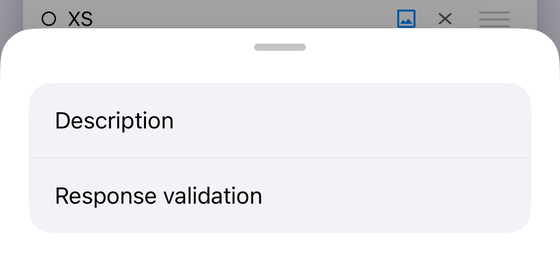
- Open the question's three-dot menu and choose Response validation. A rule row appears beneath the question.
- In the first dropdown, choose Regular expression rather than Number, Text or Length.
- Choose the operator, then type your pattern into the field beside it.
- Fill in Custom error text. Skip this and a rejected respondent gets a generic complaint with no idea what you wanted.
- Open the live form and submit a good answer and a bad one. This step is not optional — see below.
The four operators
Google's help page lists them in one parenthesis, capitalisation and all: “(Contains, Doesn't contain, Matches, Doesn't Match)”. The stray capital on the last one is Google's, not a typo here. They split into two pairs that behave quite differently.
- Contains and Doesn't contain ask whether the pattern is found
somewhere in the answer. The rest of the answer is not examined.
Containswith the patterncataccepts “cat”, “concatenate” and “my cat ate the form”. - Matches and Doesn't Match are the ones people reach for when they want a format — an ID, a code, a reference number.
Here is where the documentation stops short. Google's worked example
gives the input as “Regular expression Matches [0-9]{10}” and the
“Expected result: 1234567890” — a ten-digit pattern beside a ten-digit answer. That example is consistent with Matches requiring the whole answer to
match, and equally consistent with it merely searching for ten digits anywhere. Google does not
document which. That single unstated detail is the most common source of a rule that looks like
it works: you test 1234567890, it passes, you publish — and call 1234567890 now
passes too.
The defensive habit costs nothing: anchor the pattern yourself with ^ at the front and
$ at the end whenever you mean "the entire answer, nothing else". Both tokens are on
Google's published list, so you are not relying on anything undocumented. Then test a deliberately
over-long answer in the live form and confirm it is rejected.
Google does not tell you which regex dialect this is
This is the honest core of the topic, and almost nobody says it out loud.
Regular expressions are not one language. RE2, PCRE and ECMAScript differ on things people use
constantly — whether \d is a digit shorthand, whether lookaheads like (?=…)
exist, whether backreferences such as \1 are supported, whether matching is case-sensitive
by default. Google's page for form rules names none of
them. It presents its token table as “some of the expressions that Google Docs
supports” and adds that “There are many other
supported expressions you can use” — an open set with no specification behind it.
So when a generator, a forum post or a chatbot hands you a pattern with a lookahead in it, there is no Google document you can consult to find out whether it will work. Other Google products do publish a dialect for their own features — the Workspace admin help says “We support RE2 Syntax only” about Gmail content compliance rules — but that page is about Gmail, never mentions Forms, and is not a statement about form validation. We are not going to assert a flavour on Google's behalf, and you should be wary of any page that does.
What this means in practice:
- Stay inside the published tokens where you can. They are documented, so they are the closest thing to a guarantee you have.
- Test every pattern in the live form, not in a regex tester. A tester runs your browser's engine, which may not be the engine Google runs. Preview the form, submit a valid answer and an invalid one, and watch what happens.
- Treat exotic syntax as unproven until your own test says otherwise. Lookaheads,
backreferences,
\d, inline flags like(?i)— some may work, but no documentation entitles you to expect it.
The expression table Google publishes
These are the tokens Google lists, with what the page says each one does. Everything beyond this list is undocumented territory.
| Token | What Google says it does |
|---|---|
. | Any character in the given position |
* | The preceding character zero or more times |
+ | The preceding character one or more times |
? | Makes the previous expression optional |
^ | The string starts with the characters after it |
$ | The string ends with the characters before it |
{A, B} | The previous expression repeated A to B times |
[x] | One of the given characters occurs |
[a-z] | A character within the given range |
[^a-fDEF] | A character not in the given set |
\s | Any white space character |
To match a character that has a special meaning — a literal dollar sign, dot or question mark — put a
backslash in front of it: Google's example is \$. Note what is absent from this
list: no \d, no \w, no grouping parentheses, no alternation with |.
They may well work. They are simply not promised.
Patterns that are worth writing
These are our recommendations, not Google documentation, built only from the tokens above. Each one carries the way it fails, because every format rule rejects somebody.
A fixed-length numeric code
^[0-9]{6}$ with Matches — a six-digit staff PIN, order number or
verification code.
Fails when: the code has ever been written with a leading letter, a hyphen, or spaces
from a copy-paste. It also silently accepts 000000. This is the safest pattern on the page,
precisely because a six-digit code is a rule you control rather than a fact about the world.
A student or employee ID with a prefix
^EMP-[0-9]{4,6}$ with Matches, for IDs like EMP-40127.
Custom error text: “Use your staff ID, for example EMP-40127.”
Fails when: someone types emp-40127 in lower case. Case handling is not
documented here, so either spell both cases into a character class — ^[Ee][Mm][Pp]-[0-9]{4,6}$
— or test lower case in the live form before you rely on it. It also fails the moment your organisation
issues a second prefix, which organisations reliably do.
A postcode-shaped string
US ZIP, five digits with an optional four-digit extension:
^[0-9]{5}(-[0-9]{4})?$. UK, loosely:
^[A-Za-z]{1,2}[0-9][A-Za-z0-9]?\s?[0-9][A-Za-z]{2}$.
Fails when: anyone outside that one country answers. This is the classic trap. A UK
pattern rejects 75008; a ZIP pattern rejects SW1A 1AA. Both use grouping and
optional parts that Google's token list does not promise, so both must be tested. If your form
can reach more than one country, do not validate the postcode at all — a required field plus a
clear label collects better data than a rule that turns a real customer away at the door. How to shape the
address around it, given that Google Forms has no address type at all, is in
add a map or location question.
A phone-shaped string
Google's own example is the whole story: [0-9]{10}, ten digits, no spaces, no country
code, no punctuation. A more forgiving version that accepts a leading +, spaces and hyphens:
^[+]?[0-9][0-9\s-]{7,15}$.
Fails when: almost any international number arrives. Phone formats vary by country in length, grouping and prefix; strict patterns reject legitimate numbers constantly, and loose ones accept so much that they were never validation to begin with. Our honest recommendation for phone numbers is a Length rule or no rule at all, plus a label that shows the format you want. Validate the shape only when every respondent is in one country and you can say so in the question.
Email addresses — use Google's operator, not a pattern
Do not hand-write one. Google already ships an Email address operator under the Text validation category; select that instead. Hand-written email patterns are a well-known way to reject real addresses — subdomains, plus-addressing, apostrophes in a name, and the newer long top-level domains all fall foul of the patterns people copy from the web. A built-in operator that Google maintains will outlive anything you paste into that box.
Validation is not security
Response validation runs in the respondent's browser as they fill the form. It is a courtesy that stops honest people making honest mistakes, and it is exactly as strong as their willingness to cooperate. A regex will not stop deliberate abuse, will not authenticate anybody, and will not keep a determined person from submitting whatever they like.
The consequences are practical. Never treat a validated field as proof of anything — a staff ID that
matched ^EMP-[0-9]{4,6}$ is a well-shaped string, not a verified employee. Check the values
again wherever the data lands. And if the field genuinely needs to be trustworthy, the answer is a
sign-in requirement or a check downstream in Sheets, not a cleverer pattern.
Which operator do you want?
| You want… | Use |
|---|---|
| A word or phrase present anywhere in the answer | Regular expression → Contains |
| A banned word blocked | Regular expression → Doesn't contain |
| The whole answer in one exact format | Regular expression → Matches, anchored with ^ and $ |
| A format explicitly rejected | Regular expression → Doesn't Match |
| An email address | Text → Email address (no pattern needed) |
| A number in a range, or a character count | Number or Length validation |
| A phone number from more than one country | No validation — label the format instead |
Write validation rules from your phone
Form+ gives you the same Regular expression option, the same four operators and the same custom error text on iPhone and iPad — on your real Google Forms and your own account. Its pre-publish audit also flags text questions that ask for an email, phone, URL or postcode with no validation set.
Get Form+ free on the App StoreFrequently asked questions
Does Google Forms support regular expressions?
Yes, on Short answer and Paragraph questions. Choose Response validation, then Regular expression, then one of four operators: Contains, Doesn't contain, Matches, Doesn't Match.
Which regex flavour does Google Forms use?
Google does not say. The help page for form rules names no dialect — not RE2, not PCRE, not ECMAScript — and publishes only a partial token list, introduced as “some of the expressions that Google Docs supports”. Anything beyond those tokens has to be tested in the live form.
Does Matches have to match the whole answer?
Google does not document this. Its own example pairs Matches with [0-9]{10} and a
ten-digit answer, which does not settle whether a longer answer containing ten digits would pass. Anchor
the pattern with ^ and $ and test it rather than assuming.
Why does my Google Forms regex reject a valid answer?
Usually spaces, punctuation or case. A pattern built for one country's phone or postcode format rejects a legitimate visitor from anywhere else, and a pattern that does not allow spaces rejects a pasted answer. Test against real answers before publishing.
Can I set a regex validation rule from my phone?
Not comfortably in the Google Forms mobile web editor. Form+ exposes the same Regular expression option, the same four operators and the same Custom error text field on iPhone and iPad.