How to recover a deleted Google Form
Last updated September 2026 · ~9 minute read
Do this now: go to drive.google.com, click Trash in the left sidebar, right-click the form and click Restore. You have 30 days from the moment it was binned — Google's help page states that “Files remain in Trash for 30 days, then they're deleted forever.” If the Bin is empty, jump to what is still possible; and if you ever linked a response spreadsheet, that is a separate file that was not deleted with the form.
Form+ snapshots your form each time you save it in the app, so an edit that went wrong has somewhere to go back to — on your real Google Forms and your own Google account. Deletion recovery still belongs to the Drive Bin. Get Form+ free on the App Store.
Almost nothing is actually lost in the first 30 days. The part worth slowing down for is what happened to the responses — which is where the real risk sits, and which most articles skip entirely.
Do this first
- Open drive.google.com on a computer. Google's own recovery article gives this path: “Go to drive.google.com,” then “On the left, click Trash.”
- Find the form. Sort by the date it was binned, or type its name into the search box at the top. A Google Form carries the purple Forms icon, which makes it easy to pick out of a bin full of documents.
- Right-click the file and click Restore. Those are Google's exact words: “Right-click the file,” then “Click Restore.” The file goes back to where it was.
- Open the restored form and switch to Responses before you do anything else. Confirm the submissions are there with your own eyes.
- If it is not in the Bin at all, do not assume the data is gone. Check whether the form had a linked spreadsheet — see the next section — and then read past the window.
On a phone, the Google Drive app has the same Bin with a Restore action, though the desktop Bin is easier to search when you are not certain of the form's name.
What about the responses?
This is the question that actually matters, and it has two separate answers because a form with a linked spreadsheet is two files, not one.
Responses stored in the form
Google describes it like this: “When responders fill out your form, you can find a summary of the responses in the form or you can store the responses in a linked Google Sheet.” The summary is part of the form file, so it went into the Bin with the form and it comes back out with it.
Being straight with you: Google does not publish a sentence that explicitly promises responses survive a bin-and-restore round trip. The mechanism says they should, because they are not a separate object. But open the Responses tab and check the count yourself before you tell anyone it is fine.
The linked spreadsheet is a different file with a different fate
Google is unusually direct about this one: “If you store responses in a spreadsheet, you have a separate file in Google Drive. You can delete the spreadsheet and not delete the form, or you can delete the form and not delete the spreadsheet.”
So if you ever used Link to Sheets, deleting the form did not delete your data. The spreadsheet is still sitting in Drive with every response collected up to that point. Go and find it before you panic — for a lot of people this guide ends here.
It cuts the other way too. If what you deleted was the spreadsheet, the form is untouched, and restoring the sheet from the Bin is the same three clicks.
Deleting responses is not the same as deleting the form
Clearing submissions from inside a form — More then Delete all responses — is a different act, and it does not go through the Bin. Google's wording is blunt: “If you delete any responses in a form, it can't be undone.” There is no 30-day grace period for that one. If a linked spreadsheet already held those rows, the spreadsheet copy is your only remaining record.
If it is past the retention window
Once an item leaves the Bin — because 30 days elapsed, or because someone emptied it — the answer depends entirely on which kind of Google account you are on.
Google Workspace (a work or school account)
An administrator has a second window. Google's admin help states that an admin can recover deleted items “within 25 days after a user empties their trash”, and that afterwards “Google purges those items from its systems and they can't be recovered.” The admin console path is Menu → Directory → Users, then point at the user and choose More options → Restore data.
Two things to tell your admin so they are not surprised. The restore works on a date range, not a picker: Google states “You can't restore individual files or folders.” Everything the user removed in that range comes back together. And the 25 days run from when the trash was emptied, so this is a same-week request, not a next-month one.
A personal Google account
There is no admin console, and no second window that Google documents. Google's own wording for items that have left the Bin is that permanently deleted files cannot be recovered. We are not going to soften that: if the form was permanently deleted from a personal account and there was no linked spreadsheet, we could not find any Google-documented route that gets it back. Anything that tells you otherwise is guessing on your behalf.
What is still worth trying, in order: search Drive for the linked response spreadsheet, check whether a collaborator still has the form in their Bin or Shared with me, look for an old response notification email that contains the form link, and check whether anyone ever downloaded the responses as a CSV.
Google Forms has no version history — which surprises people
Docs, Sheets and Slides all let you roll a file back to an earlier state. Forms does not. Google's version history help page describes it as “You can see changes that have been made to a document in Google Docs, Sheets, Slides, or Vids” — Forms is not in that list, and there is no File → Version history menu in the Forms editor.
That is why a form someone gutted rather than deleted is the harder case. The Bin can restore a whole file; nothing in Google restores yesterday's version of a form that still exists.
What Form+ does here — and what it does not
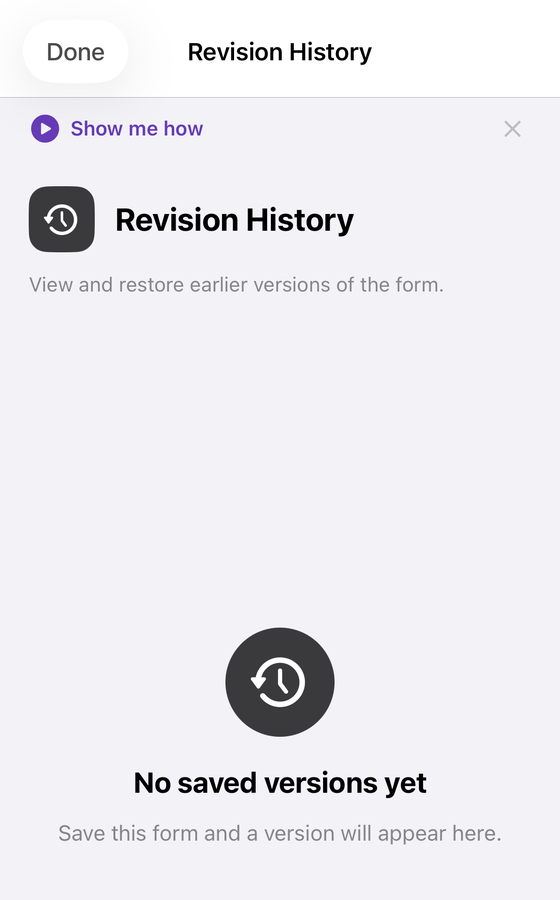
Form+ keeps a Revision History for forms you edit in the app. Being precise, because the difference matters when you are already panicking:
- It is not deletion recovery. It restores an earlier version of a form that still exists. If the form is in the Drive Bin, the Bin is your route, not this.
- It is a Pro feature. The app is free to download and to edit your forms with, but opening Revision History without Form+ Pro shows the upgrade prompt rather than the history — so it is not something to reach for first on the day something goes wrong.
- A version is saved automatically each time you save that form in Form+, and the app keeps the most recent 20 per form. Saves made in Google's own web editor are not captured.
- The history is stored on your device, per form. It is not a cloud backup, and it is not a second copy of your responses.
- When a form is removed from the app, its saved versions are released with it — so it is not something you can fall back on after a deletion.
- Restore makes the form match that version. Recover instead adds that version's questions to the form you are editing and leaves everything else alone.
- One honest limitation from the app itself: Google Forms does not allow File upload questions to be created through the API, so a version containing one cannot be fully rebuilt. Form+ refuses the restore outright in that case rather than removing your newer questions in exchange for questions that cannot come back.
- Removing questions removes the answers given to them. The app warns before it does this, and that part cannot be undone.
How to not be here again
- Link a spreadsheet on day one. It is the single highest-value habit on this page. It makes your responses a second Drive file with its own fate, which is exactly what saved the people who got lucky above.
- Download a CSV at milestones. A copy that lives outside Google cannot be deleted by anyone inside it.
- Be careful with collaborators. Anyone with edit access can bin the form, and a shared form can end up in someone else's Bin rather than yours.
- Do not count on version history. Forms has none. If you want a rollback point before a big edit, take one deliberately — duplicate the form, or save it in an app that snapshots each save.
Which situation are you in?
| What happened | What to do | Time limit |
|---|---|---|
| Form binned by you, recently | Drive → Trash → right-click → Restore | 30 days from binning |
| Bin already emptied, work or school account | Ask your admin: Directory → Users → More options → Restore data | 25 days after the trash was emptied |
| Bin already emptied, personal account | No Google-documented route; look for the linked spreadsheet or a CSV | No stated window |
| Form gone, but a spreadsheet was linked | Find the spreadsheet — it is a separate file and was not deleted | None; it was never binned |
| Responses deleted from inside the form | Only a linked spreadsheet or CSV copy will have them | Google states it can't be undone |
| Form still exists but was gutted or overwritten | Forms has no version history; use an app that snapshots saves | Depends on your own backups |
Keep a version of every form you save
Form+ snapshots your form each time you save it in the app, so an edit that went wrong has somewhere to go back to — on your real Google Forms and your own Google account. Deletion recovery still belongs to the Drive Bin.
Get Form+ free on the App StoreFrequently asked questions
How long do I have to recover a deleted Google Form?
30 days. Google's Drive help page states: “Files you move to the Trash are deleted forever after 30 days.” The recovery article puts it the same way: “Files remain in Trash for 30 days, then they're deleted forever.” The clock starts when the form was binned, not when you noticed.
Are the responses still there when I restore the form?
The response summary lives inside the form file itself, so it goes into the Bin with the form and comes back with it. Google does not publish a sentence that explicitly promises responses survive a bin-and-restore round trip, so open the Responses tab and check before you rely on it.
Does deleting the form delete the linked spreadsheet?
No. Google states: “If you store responses in a spreadsheet, you have a separate file in Google Drive. You can delete the spreadsheet and not delete the form, or you can delete the form and not delete the spreadsheet.” If you linked a sheet, your response data probably survived the deletion.
Does Google Forms have version history?
No. Google's version history help page covers Docs, Sheets, Slides and Vids, and does not mention Forms. There is no File → Version history route in Google Forms, so a form edited or emptied in place cannot be rolled back through Google.
I emptied the Bin. Can an administrator still get it back?
Only on a Google Workspace account, and only for a limited time. Google's admin help states that an administrator can restore items “within 25 days after a user empties their trash”, after which “Google purges those items from its systems and they can't be recovered.” Personal Gmail accounts have no equivalent admin console.
Can I recover a deleted Google Form from my iPhone?
The restore itself happens in Google Drive, and the Drive app on iPhone has a Bin with a Restore action. Form+ does not restore deleted files; its Revision History — a Pro feature — restores earlier versions of a form that still exists.