How to convert Google Forms responses to PDF
Last updated September 2026 · ~8 minute read
Short answer: Google Forms has no PDF export. Its help page lists exactly two export options — Link to Sheets and Download responses (.csv). To get a PDF you either print the page from your browser, download the linked spreadsheet as a PDF, or use something that builds one — Form+ has a PRO Print all tool that does it from your phone.
Form+ prints or saves every response as a PDF straight from the Responses tab — on your real Google Forms and your own Google account. Get Form+ free on the App Store.
First, though, decide which PDF you actually mean. Most of the confusion around this question comes from three different jobs sharing one phrase.
Three different things people call “responses to PDF”
- A report of all responses — one document summarising everything, for filing, printing or sending to someone who will not be opening a spreadsheet.
- One document per response — an invoice, receipt, certificate or signed consent form, generated per submission, usually with your branding.
- The blank form itself — the questions with nothing filled in, for handing round on paper. People search for this with the same words.
Google Forms produces none of the three on its own, and the routes to each are different. Pick your row below.
What Google actually publishes about this
Much of the advice on this question describes a menu item that does not exist. The Forms API overview states the whole remit in one sentence: “The Google Forms API is a RESTful interface that lets you create and modify forms and quizzes, retrieve form responses and quiz grades, set up quiz answer keys with automatic feedback, and receive push notifications.” Rendering, printing and exporting are absent.
Drive is the other place to look, because a form is a Drive file:
application/vnd.google-apps.form sits in Drive’s
supported MIME types. Yet
Drive’s Export MIME
types table — the definitive list of what Drive converts — has rows for Documents, Spreadsheets,
Presentations, Drawings, Apps Script and Vids, and none for Forms. Docs, Sheets, Slides and Drawings each
map to application/pdf; a form maps to nothing.
Route 1 — Print the page (quickest report)
- Open the form's Responses tab.
- Use your browser's print command.
- Choose Save as PDF as the destination.
You get the summary as it is laid out on screen — charts included. It is a screenshot of a web page in PDF clothing, not a designed report, but it takes ten seconds and needs nothing installed.
Note whose feature this is: Save as PDF belongs to Chrome, Safari or your operating system, not to Google Forms. Turning Background graphics on is usually the difference between a readable chart and a page of white rectangles.
Summary, Question and Individual print differently
The Responses tab is three views, not one, and printing captures whichever one you are standing in — the most common reason people get a PDF that is not the one they wanted.
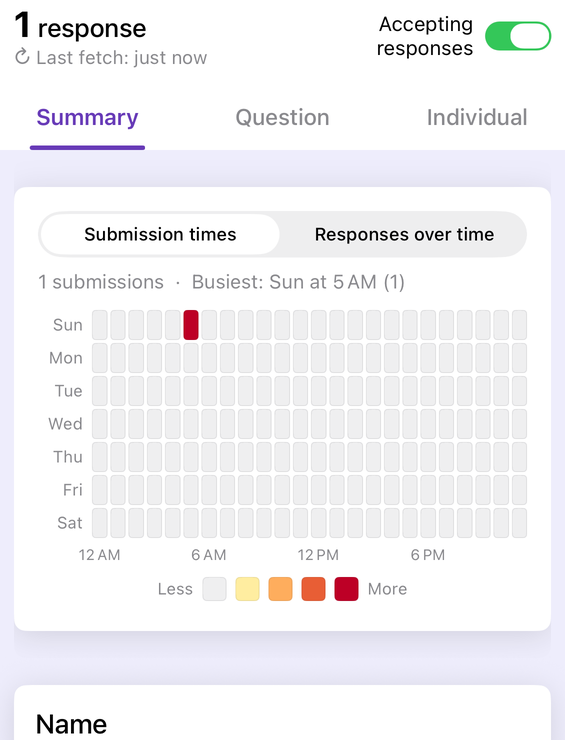
- Summary gives aggregates: counts, percentages and charts across everyone. Print this for a one-document overview.
- Question walks one question at a time across all respondents, and printing captures only the question you are on — so it rarely produces the document people expect.
- Individual shows one submission at a time, laid out like a filled-in form. This looks most like “a PDF of a response” — but you get one per print, so a hundred responses is a hundred trips through the dialog. That is the whole reason the bulk routes exist.
Route 2 — Through the linked spreadsheet (the raw data)
- In the Responses tab, use Link to Sheets.
- In the resulting spreadsheet, download it as a PDF.
This gives you the response table. Good for records and audits; poor for anything anyone has to read. If a spreadsheet is what you were after, Download responses (.csv) from the same menu is one step shorter.
The detour works for a reason worth knowing: spreadsheets are on Drive’s export list, mapping
to application/pdf. Forms are not. Linking to Sheets moves your data into a file type Google
will convert. Set landscape and fit-to-width first, or a form with more than about six questions spills its
right-hand columns onto pages of their own.
Printing the blank form is a different job
If what you want is the questions on paper, that is not a response export at all, and it is the one
version of this question with a clean answer. Open the form in the editor, use the overflow menu’s print
command, and choose Save as PDF: you get the questions with empty answer fields. See
how to print a Google Form. Sections break sensibly here,
because the Forms API models one as a
PageBreakItem whose “title and description of this item are shown at the top of the new
page”.
Route 3 — A PDF from your phone
Every route above assumes you are sitting at the desktop web editor. Form+ keeps it in the Responses tab on iPhone and iPad:
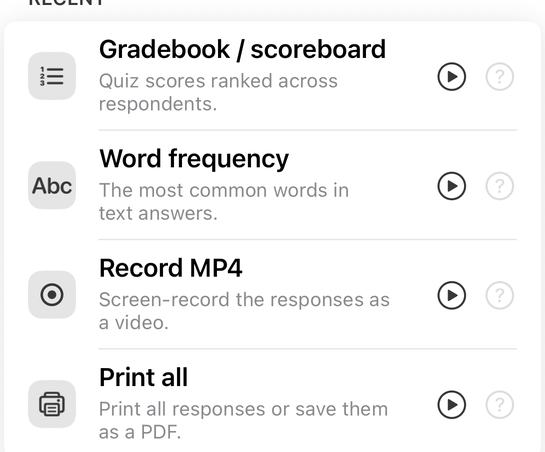
- Open the form and switch to Responses.
- Tap Tools.
- Choose Print all, then print or save the PDF from the share sheet.
Print all is a PRO feature. On a free account it opens the upgrade screen, not the printer — and so does printing one response from the Individual view. The same holds for the two tools people usually want next, so here they all are rather than one tap at a time:
- Print all — PRO. Prints every response, or saves them as a PDF.
- Print on one response in the Individual view — PRO, under the same feature.
- Export PDF report — PRO. A summary report of the responses, charts included, as a PDF to share or print: the designed report the browser print is not.
- Documents (mail merge) — PRO. Fills a template once per response, producing one personalised page per respondent, generated on the device.
Reading the responses is free: the Summary, Question and Individual views open without an upgrade, as do Answer rate and Word frequency. That is not an exhaustive list of the app’s free tools, only the ones relevant here — if a tool is not named, do not assume either way.
What the Forms API can and cannot do here
Developers ask whether the API can just hand them a PDF. No — and it is easy to check. The Forms API
publishes a machine-readable
discovery document, about 69 KB
of JSON listing every method and schema the service has. Search it for export and you get
zero matches — the concept is not in the surface at all. The only occurrences of
PDF in the whole document are in the file types a file-upload question may accept.
What it exposes is eleven methods: create, get, batchUpdate and setPublishSettings on a form; get and
list on its responses; four for watches. Google’s own sample,
retrieve_all_responses.gs,
does what that shape suggests: calls /v1/forms/{formId}/responses with an OAuth token and logs
the JSON. Turning it into a document is left to you.
Apps Script says the same from the other end. The
FormResponse class has
twelve methods — getItemResponses(), getTimestamp(), toPrefilledUrl()
and so on — none of which returns a file. There is no getAs() on Form or
FormResponse, so
MimeType.PDF,
which every Docs-to-PDF script relies on, has nothing to bite on. The scripted route is indirect: read the
responses, write them into a Doc, convert that. Which is why every add-on here is a document-merge
add-on.
What tends to break in the printed version
Four things go wrong often enough to plan around:
- File-upload answers do not print. In the API a submitted file is a
FileUploadAnswercarrying only afileId,fileNameandmimeType— “the ID of the Google Drive file”, not the file. On screen it is a link; on paper a filename with nowhere to go. Collect attachments from the Drive folder separately. - Images can go missing. Google describes an image’s
contentUrias “a URI from which you can download the image; this is valid only for a limited time.” Cache a page and print it later and those URLs can have expired. - Long paragraph answers get clipped. Printing inherits the on-screen layout, and that layout was built to scroll, not to paginate.
- Sections flatten. A multi-page form prints as one long document, and the logic routing respondents between sections has nothing to say on paper.
Which route do you want?
| You want… | Use |
|---|---|
| A quick report, right now | Browser print → Save as PDF |
| The raw data for records | Link to Sheets, or Download responses (.csv) |
| A PDF without a computer | Form+ → Responses → Tools → Print all (PRO) |
| A designed report with the charts | Form+ → Tools → Export PDF report (PRO) |
| One branded document per response | An add-on, Apps Script, or a document-merge app |
| The blank questions on paper | Editor → print → Save as PDF |
| A PDF straight from the API | Not available — build it from the JSON yourself |
Turn responses into a PDF from your phone
Form+ prints or saves every response as a PDF straight from the Responses tab — on your real Google Forms and your own Google account.
Get Form+ free on the App StoreFrequently asked questions
Does Google Forms have a PDF export?
No. Google documents two export options — Link to Sheets and Download responses (.csv). Every PDF route goes through printing, the spreadsheet, or a third-party tool.
How do I save one Google Forms response as its own PDF?
Not possible in Google Forms alone. One formatted document per response needs an add-on, Apps Script, or an app that merges responses into a branded template.
Can I make a PDF of Google Forms responses on a phone?
Not through Google Forms, whose export options assume the desktop editor. Form+ has a Print all tool in the Responses tab — a PRO feature.
Can the Google Forms API export a PDF?
No. The API’s discovery document,
which lists every method and schema the service has, contains zero occurrences of the
string export. It creates and modifies forms, retrieves responses and grades, sets answer keys
and sends push notifications. Turning the JSON into a document is left to the caller.
Should I print the Summary view or the Individual view?
Summary for aggregates — counts, percentages and charts across everyone. Individual for one submission laid out like a filled-in form. Printing captures whichever view you are on, and Individual prints one response per pass, so bulk jobs need a different route.
Why do images and file uploads disappear from my printed form?
A file-upload answer is stored as a Drive file ID and file name, not the file itself, so it can only print as a filename. Form images come from a content URI Google documents as valid only for a limited time, so a cached page printed later can lose them.