How to reorder questions in Google Forms
Last updated September 2026 · ~8 minute read
Short answer: you drag it. Google's instruction is one line — “To move a question, at the top of a question, click Drag” — and the same handle moves a question into another section. The part nobody writes down is what the drag doesn't move: your linked spreadsheet's columns, your branching destinations, and your shuffle setting. Those three are where a tidy-up turns into a bug.
Form+ opens your real Google Forms on iPhone and iPad, with a drag-to-reorder question list and a Move section action — your account, your Drive, no copies. Get Form+ free on the App Store.
Reordering is the cheapest edit in the Forms editor and one of the most expensive to get wrong, because every consequence is silent. Nothing errors. The form still submits, the responses still arrive, the charts still draw. Here is the mechanic, and then the three things to check afterwards.
The mechanic: drag the handle
Google documents the move in a single sentence in Create your first form in Google Forms: “To move a question, at the top of a question, click Drag.” The handle sits at the top edge of the question card. Grab it, drag up or down, and the questions around it move aside.
There is no “move up” menu item on the question card, no numbering field and no sort. But dragging is not the whole feature — Google documents a keyboard path, on a page most people never open. Its screen-reader guide gives it under Reorder questions: tab to a non-edit field in the question, then “To move the question up, press Ctrl + Shift + k (Command + Shift + k on Mac)” and “To move the question down, press Ctrl + Shift + j”. It adds the edge case too: “When the question is already at the top or the bottom of the form, these shortcuts have no effect.” That is far less tedious than dragging on a hundred-question form, and it works whether or not you use a screen reader.
Moving a question into another section
The same handle does this job too. Google's wording, again verbatim: “To move questions into a section, at the top of a question, click Drag.” You are not choosing a section from a menu; you are dragging the card past a section boundary, and which side of that boundary it lands on is what assigns it.
Whole sections work differently. They are not dragged by that handle: “To reorder sections, at the top of a section, click More and then Move section.” A section move takes every question inside it along for the ride, which is usually what you want and occasionally a surprise — if you meant to move one question and moved its section, you moved ten.
It is worth knowing the ceilings before you restructure anything. Google states that “To organize your form by topic, you can add up to 75 sections” and that “you can add and edit up to 300 pieces of content, like questions, descriptions, images, and videos.” Splitting a long form into more sections to make dragging easier is a real tactic, and 75 is a long way off for most forms. Our guide to Google Forms sections covers adding, titling and deleting them properly.
Break #1 — the spreadsheet columns do not follow
This is the one that costs people real money, and it is also the one where Google publishes nothing at all. We checked. Edit your form describes moving questions and says nothing about the linked sheet. The help page covering where to find your responses covers linking to Sheets, unlinking, and deleting responses — and says nothing about what the columns do when the form changes underneath them. Google's community forums are full of people asking exactly this question. Google has not answered it in documentation.
So the honest position is: column order after a reorder is undefined as far as Google's documentation is concerned. Do not predict it. Verify it, and build so that you do not care.
- Open the linked sheet and read the header row after any structural edit. Ten seconds, and it is the only ground truth you have.
- Never address a response column by letter. A formula that reads
C:C, an import that maps “column 4”, a Zap or an Apps Script that indexes by position — all of these read whatever happens to be sitting there. Match on header text instead. - Do your reading in a second sheet. Leave the response sheet as the raw landing strip and build your reports, pivots and lookups in another tab that pulls columns by name. Then the response sheet can rearrange itself and nothing downstream notices.
- Assume old responses keep their old shape. Rows submitted before an edit were written against the form as it was then, so a reorder cannot retroactively reshape history — but it can make the sheet's header row a poor description of the rows above.
The reason this deserves a whole section is the failure mode. Nothing throws. Your dashboard keeps rendering, your monthly total keeps totalling, and it is simply the wrong column. That kind of bug is found weeks later, by somebody who trusted a number.
Break #2 — branching sends people somewhere else now
Branching in Google Forms is the “Go to section based on answer” option, which Google offers on Multiple choice and Dropdown questions. Google also notes that “At the bottom of each section, you can choose which section people go to next.”
So there are two orderings in your form at once: the physical order of sections and questions, and the routing graph laid over it. Dragging changes the first. The second keeps pointing at the sections it always pointed at. The result is that the journey a respondent takes can change completely without a single rule being edited — sections get skipped, or repeated, or reached in an order that no longer makes sense.
There is also a precedence rule, and it is documented in an unexpected place. Google's Apps Script reference for PageBreakItem states: “If the previous page contained a MultipleChoiceItem or ListItem with a navigation option, that navigation overrules this navigation.” In plain terms: a section's own “where to next” setting loses to a per-answer rule on the page before it. Move a branching question across a section boundary and you have not just moved a question — you may have transferred control of the route to, or away from, that question.
The only reliable check is behavioural. After any move that crosses a section boundary or touches a branching question, open the live form and submit a test response down each answer path. Reading the rules in the editor will not catch a precedence problem; walking the form will. If you want the underlying model first, our conditional logic guide goes through it.
Break #3 — shuffle means nobody sees your order anyway
If Shuffle question order is switched on, the careful sequence you just dragged into place is not what respondents get. Google is unusually blunt about this on the same Edit your form page: “Important: If you want your questions to appear in a specific order, you should not shuffle your questions.”
The setting lives under Settings → Presentation. It is worth checking before you spend twenty minutes reordering, not after — and worth remembering that shuffle and branching are an awkward pair, since a shuffled order and a hand-built route are trying to control the same thing. Our shuffle question order guide has the detail.
Reordering from your phone
Google Forms has no iPhone or iPad app, so the drag handle above assumes you are at a desktop browser. Form+ edits your real Google Forms on your own account, and its editor shows the form as a list of question cards:
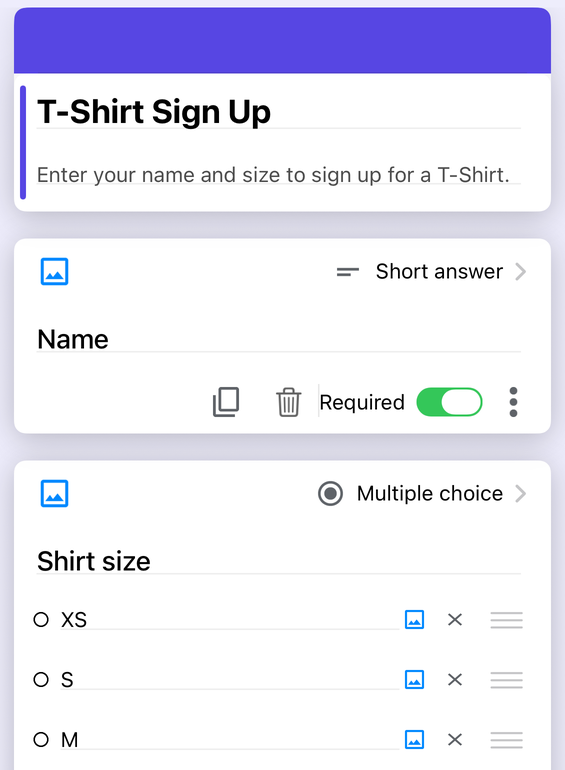
- Open the form in the Form+ editor.
- Tap Reorder questions. The list switches into reordering mode.
- Drag a question card to its new place.
- Tap Reorder questions again to leave the mode.
To move an entire section rather than one question, use the Move section action on the section itself — the same drag mode opens, and the whole section travels together.
A safe order of operations
| Before you drag anything | Why |
|---|---|
| Check whether Shuffle question order is on | If it is, your ordering is decorative |
| Note which questions carry “Go to section based on answer” | These are the ones whose position changes behaviour |
| Move whole sections rather than lots of questions | One move instead of ten, and branching stays inside |
| Open the linked sheet afterwards and read the headers | Google documents nothing here — look, don't assume |
| Submit a test response down each branch | The only check that catches a routing precedence problem |
Rearrange a form without a laptop
Form+ opens your real Google Forms on iPhone and iPad, with a drag-to-reorder question list and a Move section action — your account, your Drive, no copies.
Get Form+ free on the App StoreFrequently asked questions
Does reordering questions change the columns in the linked spreadsheet?
Google does not publish an answer. Its help pages on editing a form and on linking responses to Sheets say nothing about column order after a reorder. Treat it as something to verify, not predict: open the sheet, read the header row, and build every formula, import and automation to match columns by header text rather than by column letter.
Does moving a question break branching?
It can change where people land without any rule being edited, because “Go to section based on answer” points at sections rather than at positions. Google's Apps Script reference for PageBreakItem also notes that “If the previous page contained a MultipleChoiceItem or ListItem with a navigation option, that navigation overrules this navigation” — so moving a branching question across a section boundary can hand control of the route to a different question.
Can I reorder Google Forms questions on a phone?
Google Forms has no iPhone or iPad app, so its drag handle assumes the desktop web editor. Form+ has a Reorder questions control in its editor that turns the question list into a drag-to-reorder list, and a Move section action for moving a whole section.