How to add a file upload question to Google Forms
Last updated September 2026 · ~11 minute read
Short answer — read this first: a File upload question forces every responder to sign in. Google's own wording is “To answer this question, responders need to sign in to a Google Account.” There is no setting that turns that off, so a form with a file upload can never be anonymous or fully public. Once you accept that: open the form, click Add, click the Down arrow next to the question and select File upload, then click Continue on the notice. If the option is missing, it is almost always because the form lives in a shared drive or an admin has turned on Data Loss Prevention.
Form+ adds and configures File upload questions on your real Google Forms — file types, file count and size limits, and a shortcut to the Drive folder where the uploads land. Get Form+ free on the App Store.
File upload is one of Google Forms' twelve question types, and comfortably the most conditional one. It is the only type that changes who is allowed to answer your form, the only one that writes to your Google Drive, and the only one Google will quietly withhold depending on where the form is stored. That combination is why “Google Forms file upload not working” is such a common search — usually nothing is broken.
Before you start: the three conditions
Google's Choose a type of question for your form help page (checked 13 September 2026) puts an Important block directly under the File upload description. Verbatim:
- “You can’t use this question type, if: The form is stored in a shared drive.”
- “You can’t use this question type, if: Your administrator turns on Data Loss Prevention.”
- “To answer this question, responders need to sign in to a Google Account.”
- “For the form owner, uploaded files are stored in a new folder on Google Drive.”
The first two decide whether you can add the question at all. The third decides who can answer it. The fourth decides where the files — and the storage bill — end up.
The sign-in requirement, and what it costs you
This is the fact worth front-loading, because it is usually discovered after the form has already been sent out. Adding a file upload silently converts an open, anonymous form into a sign-in-only one. Everyone who opens your link now needs a Google Account, and everyone who does not have one — or is signed into a work account that cannot reach your form — simply cannot submit.
Practical consequences:
- Anonymous surveys and file uploads are mutually exclusive. If anonymity matters more than the attachment, ask responders to paste a link instead, or collect files through a separate channel. See how to make a Google Form anonymous for what “anonymous” actually means in Forms.
- Public audiences will drop off. A general-public form behind a Google sign-in wall loses responses that never show up as errors — they just never arrive.
- Signing in is not the same as collecting the email address. Sign-in is forced by the question type; whether the email is recorded is a separate form setting.
- You cannot pre-empt it in the question text. The prompt appears at Google's end, not yours.
If responders complain that they “can't answer” or are being asked to log in to a form that used to be open, the file upload question is the first thing to look at.
Add the question, step by step
- Open a form in Google Forms. Check first that it is not sitting in a shared drive — see the troubleshooting section below.
- On the right, click Add. A new question appears with the default type selected.
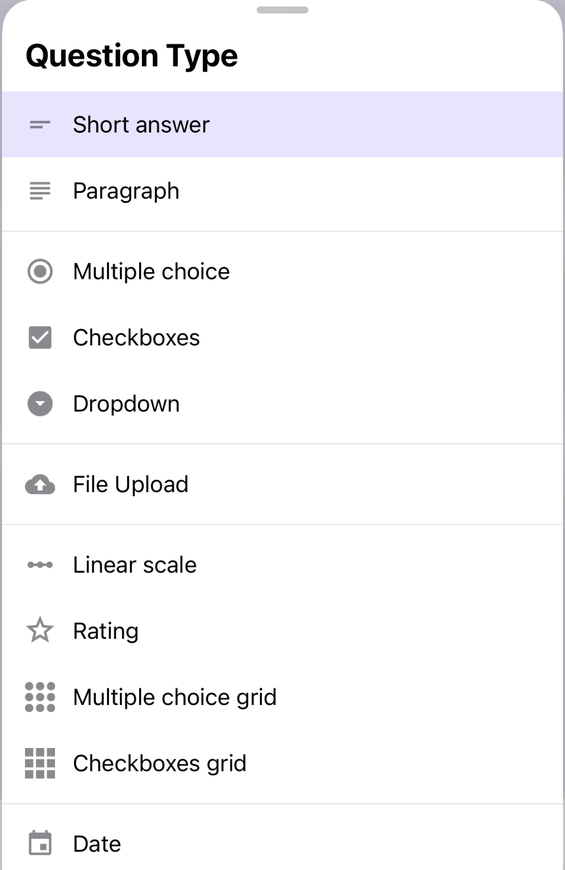
- Next to the question, click the Down arrow and select File upload. This is Google's own wording for the type picker.
- If prompted, review the uploading information and click Continue. Google shows this notice once per form; it is the point at which you accept that files will be written to your Drive.
- Set the upload rules. Google documents four: turn on Allow only specific file types and select the types; change the maximum number of files people can upload; change the maximum file size; and set a maximum size for all files collected via the form.
- Mark it Required only if you mean it. A required upload plus a forced sign-in is a steep ask — for an optional attachment, leave it off.
Why your file upload question is missing or greyed out
If File upload does not appear in the question type list, or appears and refuses to be selected, Google gives exactly two documented reasons. Work through them in this order.
1. The form is stored in a shared drive
Google's wording: “You can’t use this question type, if: The form is stored in a shared drive.” This is the single most common cause, and it catches teams hardest, because putting shared work in a shared drive is exactly what you are supposed to do. The reason is ownership: files uploaded to a form need an owner's Drive to live in, and a shared drive is owned by the organisation rather than a person.
The fix: build the form in My Drive instead. If the form already exists in a shared drive, make a copy in My Drive, add the file upload question there, and share that copy. Note that moving the form later can take the question with it or break it — decide where the form lives before you add the upload.
2. Your administrator has turned on Data Loss Prevention
Google's wording: “You can’t use this question type, if: Your administrator turns on Data Loss Prevention.” This applies to managed Google Workspace accounts, where DLP rules govern what can leave or enter the organisation. Google also notes that uploads can trigger DLP at response time, so responders may be warned or blocked when submitting sensitive content.
The fix: there isn't one you can apply yourself. Only a Workspace administrator can change the policy. If you are on a work or school account and the option is absent while a personal account shows it, this is your answer.
3. Everything works, but responders say they can't submit
Not a bug. See the sign-in requirement above — responders who are not signed into a Google Account, or are signed into an account without access to your form, cannot answer a file upload question.
4. You are on a personal account with an unusual setup
Google does not document any other blockers. If none of the three above apply, check that you are actually the form's owner and editing the form itself rather than a response view — and be sceptical of blog posts quoting extra restrictions that Google's own page does not list.
Where the files go, and whose storage they use
Google is explicit about the destination: “For the form owner, uploaded files are stored in a new folder on Google Drive.” Its Workspace guidance adds the shape of that folder — “In Drive, there’s a folder for each form. Files from respondents are stored by question in subfolders.”
To open them: in Forms, click Responses, click Summary to see all the files received, then click View folder to see them in Drive. For an individual submission, use the Individual tab and click the file.
The quota point matters. Google does not spell it out in a single sentence on the file upload section, but the two published facts combine unambiguously: the files sit in the form owner's Drive, and Google states that “Your Google storage is shared across Google Drive, Gmail, Whatsapp backups, and Google Photos.” So every megabyte a responder uploads is charged against your account, not theirs. On a personal account sharing 15 GB across Drive, Gmail and Photos, a form collecting videos will fill that faster than anyone expects — and when the account is full, Gmail stops accepting mail too. Set the form-wide size cap before you send the link, not after. Uploads are only one of the things a form charges to that account, and Google Forms and Drive storage works through the rest of them.
One more ownership consequence: because the files belong to the form owner's Drive, an editor who is not the owner may be able to see that a file was submitted without being able to open it. If several people need the attachments, the owner has to share the Drive folder as well as the form.
What Google states, and what it doesn't
A lot of advice about upload limits is repeated confidently and sourced from nowhere. Here is the split, as of September 2026.
| Setting | Google's published wording | Numeric value |
|---|---|---|
| Allowed file types | “Specify which file types responders can upload.” / “Turn on Allow only specific file types and select the types.” | Types are listed in the picker (document, presentation, spreadsheet, drawing, PDF, image, video, audio). Google's help page does not enumerate them. |
| Maximum number of files | “Set up the maximum number of files responders can upload.” | Not stated by Google. The picker offers 1, 5 or 10; the default is 1. |
| Maximum file size | “Choose the maximum file size responders can upload.” | Not stated by Google. The picker offers 1 MB, 10 MB, 100 MB, 1 GB or 10 GB; the default is 10 MB. |
| Total size of all files | “Set a maximum size for all files collected via the form.” | Not stated by Google. This is a form-wide ceiling; once reached, further uploads are refused. |
| Who can answer | “To answer this question, responders need to sign in to a Google Account.” | Non-negotiable. No setting disables it. |
| Where files are stored | “For the form owner, uploaded files are stored in a new folder on Google Drive.” | Owner's Drive, one folder per form, subfolders per question. |
The values in the right-hand column marked “not stated” are what the Forms picker presents in practice — useful for planning, but not a published guarantee, and Google can change them without updating a help page. If a limit is load-bearing for your project, verify it in your own form. The allowed-types row is the one with a published list behind it, though not in the help centre — which file types a Google Form can accept sets out where Google prints it and what it leaves unsaid.
Doing this from an iPhone or iPad
Google Forms has no native iOS app, and its mobile web editor is awkward for exactly this kind of multi-step setting. Form+ is a native client for your real Google Forms, and it handles file upload questions directly:
- Add a File upload question, or convert an existing question to one, on the real form.
- Set allowed file types, the maximum number of files and the maximum file size from a native sheet.
- Jump to the Drive folder holding the uploads.
- Read file answers in the Responses tab as Drive links, and carry them through CSV, Excel and PDF exports.
Two honest limits, so you are not surprised. First, the form-wide “maximum size for all files collected via the form” cap is not exposed in Form+ — set that one in the Google Forms web editor. Second, Form+ is an editor and response client, not a responder app: submitting a file as a respondent happens on Google's own form page, signed in, exactly as described above. It is also worth knowing why this question type is special for any third-party tool at all — Google's Forms API cannot create or update a File upload question, so Form+ carries it out through the real Google Forms editor on your behalf.
Add file upload questions from your phone
Form+ adds and configures File upload questions on your real Google Forms — file types, file count and size limits, and a shortcut to the Drive folder where the uploads land.
Get Form+ free on the App StoreFrequently asked questions
Can people upload files to a Google Form without signing in?
No. Google's help page states plainly: “To answer this question, responders need to sign in to a Google Account.” There is no setting that turns this off, so a form containing a File upload question cannot be anonymous or open to the general public.
Why is the File upload option greyed out or missing?
Google lists two blockers: the form is stored in a shared drive, or your administrator turns on Data Loss Prevention. Moving a copy of the form out of the shared drive and into My Drive resolves the first. The second is an admin policy and only an administrator can change it.
Where do the uploaded files go?
For the form owner, uploaded files are stored in a new folder on Google Drive. In Drive there is a folder for each form, and files from respondents are stored by question in subfolders. You can reach it from Responses by clicking Summary, then View folder.
Whose Google Drive storage do the uploads consume?
The form owner's. The files land in the owner's Drive, and Google states that your Google storage is shared across Google Drive, Gmail, WhatsApp backups and Google Photos. Responders give up none of their own quota, so a busy upload form eats into the owner's account.
What are the file size and file number limits?
Google's help pages describe the four controls — file types, maximum number of files, maximum file size, and a maximum size for all files collected via the form — but do not publish the numeric values for any of them. In practice the picker offers 1, 5 or 10 files and per-file caps of 1 MB, 10 MB, 100 MB, 1 GB or 10 GB, with 1 file at 10 MB as the default. Treat those as observed rather than a published guarantee.
Can I add a file upload question from my iPhone?
Yes, with Form+, which adds or converts a File upload question on your real Google Form and sets the file types, maximum number of files and maximum file size. Google's Forms API cannot create this question type at all, so Form+ drives the real Google Forms editor for you. The form-wide cap on all files collected, and the act of submitting a file as a responder, still happen on Google's own pages.