Google Forms autosave and drafts
Last updated September 2026 · ~8 minute read
“Draft” means two different things in Google Forms, depending on which side of the form you are standing on. If you are building the form, Google saves your changes as you type and there is no Save button. If you are filling one in, Google saves your unfinished answers as a draft for 30 days — but only while you are signed in to a Google Account, only if the owner has not switched it off, and not at all offline.
Form+ edits your real Google Forms on iPhone and iPad — your account, your Drive, no migration. Get Form+ free on the App Store.
Almost every confusion about saving in Google Forms comes from mixing those two up. Below is what Google actually publishes about each, quoted, with the places Google says nothing at all called out as exactly that.
Three different things can be “saved”
| Your edits to the form | A response in progress | A submitted response | |
|---|---|---|---|
| Belongs to | The owner and editors | The person filling it in | The form |
| Saved automatically? | Yes, as you type | Yes, as a draft — with conditions | Yes, on submit |
| How long | Permanently, it is the file | 30 days from the last edit | Until deleted |
| Undo available | Current editing session only | Responder can clear the form | Only if the owner allowed editing after submit |
The editor side: there is no Save button
Google's Docs Editors help page on creating and viewing files — which lists Forms among the file types it covers — puts it in one line: “When you're online, Google automatically saves your changes as you type. You don't need a save button.”
Worth noticing what the Forms-specific Edit your form help page says about saving: nothing. It never mentions saving at all. The one recovery control it documents is Undo — “At the top right of your form, click Undo.” That is the whole published story for reversing an edit on the web.
Two consequences follow, and both bite people in practice:
- A shared form is live while you edit it. There is no draft-then-publish step for the form itself. If you are halfway through restructuring a question at the moment somebody opens your link, they see the halfway version.
- There is no save point to return to. Undo is a session-and-tab affair. Close the tab, and the thing you undid is no longer undoable.
The responder side: the 30-day response draft
This is the half that actually has rules. Google's page is Autosave your response progress on a Google Form, and its opening sentence is the whole feature:
“When you fill out a Google Form in your Google account, your progress is automatically saved as a draft for 30 days. This means if you can't complete a form or need to switch devices, you don't have to start over the next time you open the form.”
The retention wording is stated more precisely on the Edit your form page: “draft responses to forms are autosaved for 30 days after a responder's last edit or until the form is complete, whichever comes first.” The clock runs from the last edit, not the first — so a responder who comes back on day 25 buys themselves another 30 days.
The rest of Google's published conditions, in its words:
- Signed in. Google scopes every sentence to an account: the draft is saved when you fill the form in “in your Google account”, and the 2021 launch note phrases it as “Your draft responses will automatically be saved when logged in to your Google account.”
- Online. “Important: If you're offline, autosave doesn't work.”
- You get told. “When you save a draft, ‘Draft saved’ appears at the top of the form.”
- The owner can switch it off. “If you sign in to a Google Account and ‘Saving disabled’ is at the top of the form, the creator may have disabled draft response autosaving on their form. If you want to turn on autosaving, contact the form owner.”
- You find it by reopening the link. “To find a draft response for a form, reopen the form URL in the same Google Account you used to create the draft.” There is no list of your drafts anywhere.
- You clear it from the bottom of the form — scroll down and use Clear form.
What can quietly destroy a draft
Google lists these as “factors that may impact saved responses”, and every one of them is an editor action landing on a responder who is halfway through:
- “If you lose access to a form, you also lose access to your draft.”
- If the form owner deletes a question, “your answer to that question is deleted.”
- If the owner makes a change to a question option you've selected, “it's no longer selected in your draft.”
- If the owner makes changes to branching logic, “you may lose access to certain pages of a form.”
Google's one reassurance: “If the form owner changes the question stem or other answer options, your answer won't be affected.” In other words, rewording is safe; deleting and re-adding is not. If your form is long and live, fix a typo rather than replacing the question.
Turning response drafts off — and when you should
The control is Settings → Presentation → Disable autosave for all respondents, one of the switches grouped under that Down arrow — our guide to the Presentation settings traces each of the others to the page that documents it. Google's own list of forms worth switching it off for is short and sensible: forms “used for repeated data entry”, forms “embedded in websites”, and forms “used for registration or sign-ups on shared devices”. The shared-device case is the important one — a kiosk or a library machine where the next person should not inherit the last person's half-typed answers.
Where Google is silent
Two gaps are worth naming rather than guessing at, because people fill them in with folklore:
- Signed-out responders. Google never publishes a sentence saying “if you are not signed in, nothing is saved.” What it publishes is a mechanism with nowhere to put an anonymous draft: the draft belongs to an account, and you retrieve it by “reopening the form URL in the same Google Account”. Treat “no account, no draft” as the implication of Google's wording, not as a documented rule.
- Whether owners can see drafts. Google does not publish anything saying a form owner can read an unsubmitted draft, and nothing in the responses interface exposes one. An unsubmitted response is not a response.
Version history: Google Forms does not have it
People reach for version history the moment they realise there is no Save button, and it is not there. Google's Find what's changed in a file help page opens by naming exactly which editors it applies to: “You can see changes that have been made to a document in Google Docs, Sheets, Slides, or Vids.” Forms is absent from that list, and Google publishes no Forms equivalent.
So for the form itself there is no “restore this version”, no record of which collaborator changed what, and no way to see how the form looked last week. The documented remedy for an edit you did not mean to make is Undo, in the session you made it in. If you need a real fallback on the web, the usual workaround is to duplicate the form before a big restructure and keep the copy. (Deleting a form is a different problem with a different answer — see recovering a deleted Google Form.)
What this means if your form is long
Put the two halves together and a practical rule falls out. A long form with response drafts is one a person can start on the bus and finish at their desk. A long form without them — because you disabled autosave, or because your audience is not signed in, or because they are on a flaky connection — is a form people abandon halfway and never come back to. If you cannot guarantee drafts, the fix is not a longer form with a plea at the top; it is a shorter form, or a form split so that the essential questions come first.
Saving in Form+
Form+ is a native iPhone and iPad client for your real Google Forms, and it takes a deliberately different line on the editor side: it has a Save button. Edits you make in the app stay local until you save them, and leaving the editor with unsaved work raises a warning rather than silently pushing a half-finished question to a live form.
Three things follow from that, all of which the web editor has no equivalent for:
- Preview unsaved changes. A read-only rendering of your current, unsaved draft as a respondent would see it — no Submit button, nothing written back. The editor's Preview tab does the opposite job: it loads the form as it is published on Google right now, without your unsaved edits.
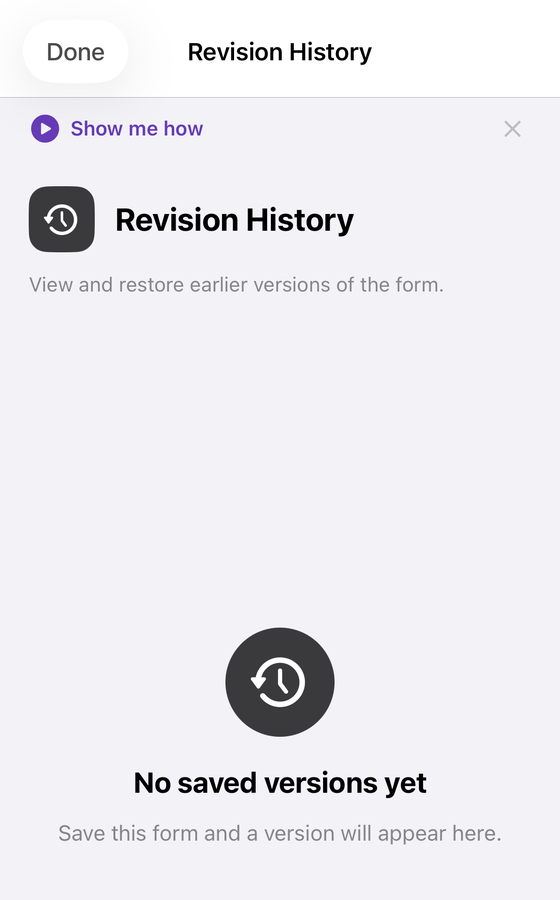
- Revision History — the one Pro tool of the three; the Save button, the draft preview and draft recovery below are free. Each time you save a form in Form+, the app keeps a snapshot of it on your device. You can browse those saved versions, see what each one looked like, restore one, or pull individual questions out of an older version back into the form you are editing. It is a per-device record of saves you made in the app — not a cloud history, and it does not record edits made on the web.
- Draft recovery. If the app goes away unexpectedly with unsaved work, the next launch offers it back (“Resume your draft?”) for up to seven days.
None of this changes what Google does on the responder side. The 30-day response draft is Google's feature, governed by Google's conditions above, on whichever device your respondent uses.
A Save button, and a way back from a bad edit
Form+ edits your real Google Forms on iPhone and iPad — your account, your Drive, no migration.
Get Form+ free on the App StoreFrequently asked questions
Does Google Forms save my answers if I close the form?
If you are signed in to a Google Account and the owner has not disabled autosave, yes — Google saves your progress as a draft for 30 days, and you get it back by reopening the same form URL in the same account. Offline, Google states that autosave does not work.
How long does a Google Forms draft response last?
30 days. Google's wording is “30 days after a responder's last edit or until the form is complete, whichever comes first”, so the clock restarts every time the responder touches the draft.
Does Google Forms have version history?
No. Google's version history page covers Docs, Sheets, Slides and Vids; Forms is not on the list and there is no Forms equivalent. Undo, in your current editing session, is the only recovery Google documents.
Why does a Google Form say Saving disabled?
The owner turned off draft autosave for that form, using Disable autosave for all respondents under Settings → Presentation. Google's advice to responders is to contact the form owner if they want it back on.