How to add a multiple choice question in Google Forms
Last updated September 2026 · ~6 minute read
Short answer: click Add, set the question type to Multiple choice, and type one option per row. But the radio button is not the reason to pick this type. Multiple choice is one of only two types in Google Forms that can send a respondent to a different section — and Google's help centre contradicts itself about that. Its developer reference does not, so we quote both and show which one holds.
Form+ adds, reorders and branches questions on your real Google Forms — including per-option destinations — without opening a laptop. Get Form+ free on the App Store.
It is worth knowing what you are actually picking here, because the choice group in the type list — Multiple choice, Checkboxes, Dropdown — looks like three flavours of one control and behaves like three different question types. Only one of the three can both carry an “Other” box and decide where the respondent goes next.
Add the question, step by step
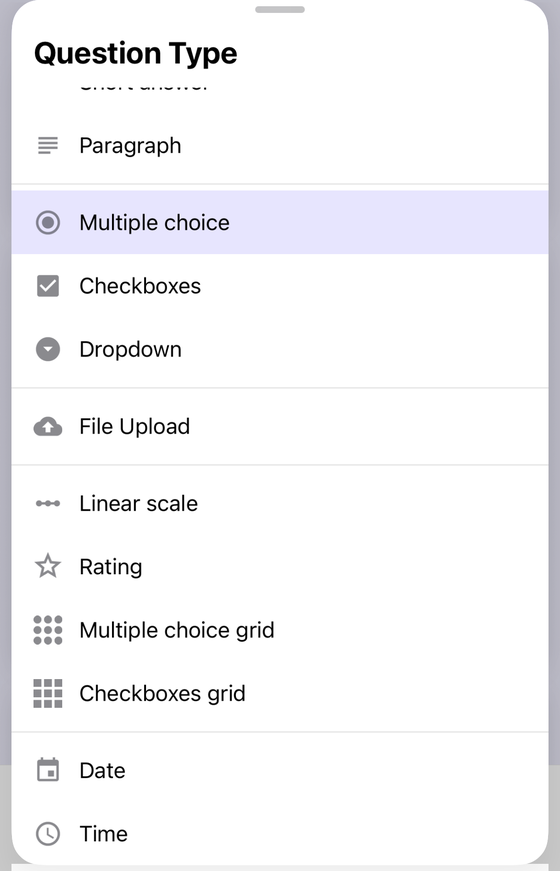
- Open the form. Google's own instructions begin the same way: “Open a form in Google Forms. On the right, click Add.”
- To the right of the question title, choose the question type and pick Multiple choice.
- Write the question, then add one option per row. Google publishes no maximum here — see the multiple choice limit for what actually breaks first.
- Decide whether you want an “Other” row. It adds a short free-text box to the question; what “Other” costs you is a guide of its own.
- Decide whether the question routes. Click More, then Go to section based on answer, and give every option a destination.
- Turn Required on if the answer is mandatory. On a routing question this matters more than usual: a blank answer picks no destination.
Three capabilities that are not obvious from the picker
- It can carry “Other”. Google's question types page lists that under Multiple choice
and under Checkboxes, and not under Dropdown. The API agrees more precisely: the
isOtherfield on an option is documented as “Currently only applies toRADIOandCHECKBOXchoice types, but is not allowed in a QuestionGroupItem.” - It cannot be validated. Google's rules page says “The rule options available depend on the type of question chosen,” and then documents rules for Short answer, Paragraph and Checkboxes only. A Multiple choice question has no Response validation row — the full matrix is here.
- It can route. Which is the interesting one, and the rest of this page.
Which question types can actually drive branching?
Google's page on showing questions based on answers carries an unambiguous tip:
“‘Go to section based on answer’ is only available for Multiple choice and Dropdown question types.”
Google's page listing the question types says this in the Checkboxes entry:
“Based on a responder's answers, you can send them to a certain section of the form.”
Both are live on support.google.com today, and they cannot both be read as written. Our
checkbox guide raised this and stopped
there, because no other help centre page takes a side. There is a source outside the help centre
that does.
The developer reference breaks the tie
Google's Apps Script reference documents a Choice object shared by CheckboxItem, ListItem
and MultipleChoiceItem. Its navigation methods are scoped explicitly:
“Gets the PageNavigationType that occurs if the responder selects this choice and completes the current page. This method applies only to choices associated with MultipleChoiceItems; for other choices, it returns
null.”
The method list backs it up. MultipleChoiceItem and ListItem — dropdown —
each publish a createChoice(value, navigationType) overload. CheckboxItem
publishes only createChoice(value) and createChoice(value, isCorrect). There is
no way to attach a destination to a checkbox choice, because no method takes one.
That is two Google surfaces for the narrow reading — the branching page and the developer reference — against a single sentence on the question types page. Build on the narrow one: Multiple choice and Dropdown route; Checkboxes does not. Treat the Checkboxes sentence as an editing slip that has not been corrected, and do not design a form around it.
Where the REST API is genuinely silent
The fourth place worth looking is the Forms REST API, and it deserves an honest note rather than a vote. In its
discovery document the Option schema carries goToAction (“Section navigation
type”) and goToSectionId (“Item ID of section header to go to”) with no restriction
on which choice type may use them — even though the neighbouring isOther field in the same
schema does state one. The author restricted where they meant to and did not restrict here. That is not
permission; it is silence, and on a REST field silence usually means the server rejects what the UI never
offers. If you are writing against the API rather than the editor, test it before you depend on it.
Setting up the routing, and checking it
Branching is easy to build and hard to read back, because the destinations live one at a time inside each question rather than anywhere you can see them together. Two habits that save time:
- Give every option a destination, including the ones that should just carry on. An option left on “Continue to next section” is a decision, and it should be a deliberate one.
- Close each branch at the end of its section, or a respondent routed into section three will keep walking into section four. The mechanics are in conditional logic in Google Forms.
On iPhone and iPad, Form+ edits real Google Forms on your own account. A Multiple choice question's own menu there holds three entries — Description, Go to section based on answer and Shuffle option order — and the same menu on a Checkboxes question shows Response validation in place of the routing row. That is one client reading the API, not a ruling from Google, but it is the same split the reference describes.
Build multiple choice questions from your phone
Form+ adds, reorders and branches questions on your real Google Forms — including per-option destinations — without opening a laptop.
Get Form+ free on the App StoreFrequently asked questions
Can a Multiple choice question send someone to a different section?
Yes. Google's branching page names exactly two types that can: “‘Go to section based on answer’ is only available for Multiple choice and Dropdown question types.” Each option gets its own destination, or Submit form to end the response there.
Does Google's documentation contradict itself about which types can branch?
Yes, inside the help centre. The branching page limits routing to Multiple choice and Dropdown; the
question types page says under Checkboxes that you can send responders to a certain section. The Apps
Script reference settles it the narrow way — page navigation “applies only to choices associated with
MultipleChoiceItems” and returns null for other choices.
Can I put a response validation rule on a Multiple choice question?
No. Google documents rules for Short answer, Paragraph and Checkboxes only, and a Multiple choice question has no Response validation row at all.
Can I add a Multiple choice question from an iPhone?
Yes. Form+ edits real Google Forms on your own Google account, and its question type list carries the same choice group — Multiple choice, then Checkboxes and Dropdown — under Short answer and Paragraph. On a Multiple choice question, the question's own menu there holds three entries: Description, Go to section based on answer and Shuffle option order.