Google Forms for event registration and RSVPs
Last updated September 2026 · ~12 minute read
Short answer: Google Forms makes a perfectly good RSVP form, and since January 2026 a published form can close itself after a number of responses or on a date. But that cap applies to the whole form. Google documents no per-option capacity — you cannot give “Saturday session” 40 places and “Sunday session” another 40 inside one form. If your event has separately-filling slots, that gap decides your whole design, so read the capacity section before you build anything.
Form+ caps registrations, schedules the window open and closed, prints a QR poster and scans attendees in at the door — on your real Google Forms and your own Google account. Get Form+ free on the App Store.
Registration is one of the few form jobs with a hard edge. A survey that over-collects is merely untidy; a registration form that over-collects has promised seats to people who do not have one. So this guide is organised around the thing that can actually go wrong — counting — rather than around the questions, which are the easy part.
Build the RSVP form
From a blank form to a published one that people can answer:
- Name it for the event, and put the details in the description. Date, time, place, and what “registering” commits someone to. The form description is the last thing a respondent reads before deciding, and you cannot assume the invitation that brought them here is still open in another tab.
- Ask only what you will act on. A name, one contact detail, and then one question per operational decision you have to make. If nobody will ever filter the sheet by it, it is not a question — it is a column.
- Add the RSVP questions. The usual three, and the validation each one supports:
- Guest count — a short answer question with a number rule, so “12” cannot be typed into a dinner with 30 covers left. Number rules include greater than, less than and between.
- Dietary requirements — checkboxes for the common ones plus a short answer for the rest. Checkboxes take Select at least, Select at most and Select exactly, which cap how many boxes one person ticks. They do not cap how many people tick a box; see below.
- Session or time slot — multiple choice, one per slot. This is the question the capacity gap lands on.
- Turn on email collection if you want anything emailed back. At the top of the form click Settings, then under Responses turn on Collect email addresses and pick Verified or Responder entry. Without this there is no address to send a receipt to.
- Write the confirmation message before you publish, not after. Details in the confirmations section below.
- Publish, then share the link. Nobody can respond to an unpublished form, and the closing controls do not exist until it is published. See how to share a Google Form for the responder link, the shortened URL and the embed.
- Set the cap or the deadline last. It is a property of the published form, so it is genuinely the final step.
If people are paying to attend, that is a separate problem with its own routes — Google Forms has no built-in payment field, and collecting payments with Google Forms covers the four approaches that work. A fundraiser, an open day or an AGM is this same form with a donation handled elsewhere; Google Forms for nonprofits is the companion read for a charity running one.
Capping numbers: what Forms can and cannot do
What it can do: close the whole form
Google announced automatic closing on 12 January 2026 for Rapid Release domains and 29 January 2026 for Scheduled Release, as a gradual rollout. The announcement's own description: “Set a specific date and time to close the form, or set a certain number of responses that will trigger the form to close automatically.” It is available to “all Google Workspace customers, Workspace Individual subscribers, and users with personal Google accounts”, and — the part that catches people out — “This feature will be OFF by default and can be enabled by form creators after they publish a form.”
Google's help page documents it under Stop collecting responses:
- In a published form, at the top right, click Published.
- Under Accepting responses, click Set close date or response limit.
- For a deadline, under On a date, click Choose date and time. For a cap, select After a number of responses.
- Under “Responders will see this message when the form is closed for responses”, click Edit and write something better than the default — a late registrant reads this and nothing else.
- Click Save. To change it later, under Accepting responses click Manage; to clear it, Remove Expiration.
Two caveats Google states plainly, and both matter for a room with a fire limit. “If the form already has responses, the number you enter must be greater than the number of responses received.” And: “If multiple people respond at the exact same time, the form accepts responses regardless of the response limit.” The cap is a soft stop, not a turnstile. If your venue holds exactly 100, cap the form at 95.
What it cannot do: a capacity per option
This is the headline, and it is worth being blunt about because a great deal of advice on the web implies otherwise. A response cap is not a per-option capacity. It counts submissions to the form. It has no concept of which answer someone chose.
So the ordinary shape of an event with sessions — Saturday: 40 places. Sunday: 40 places. — cannot be enforced inside one Google Form. A cap of 80 lets all 80 people pick Saturday. There is nothing to set, no advanced setting to find, and no quiz-mode trick that gets there.
We checked the three places such a feature would live if it existed. Google's page on setting rules for a form enumerates every validation available: number, text, length and regular expression rules on short answer; length and regex on paragraph; Select at least, Select at most and Select exactly on checkboxes; and on grids, require a response in each row, limit to one response per column, and shuffle row order. Every one of those constrains a single respondent's own answer. None of them counts the population. The response-settings page documents the form-level limit and nothing narrower, and the January 2026 announcement mentions no per-question quota at all. The only material on Google's domain about capping a single choice is in the community forums, where people ask for it.
The route that uses only documented features is one form per session. Publish a separate form for Saturday and one for Sunday, give each its own response limit, and link to both from your invitation page. It is clumsier, and you merge two sheets afterwards, but each cap then means what it says. Anything cleverer — greying out a full option in real time — requires an add-on or Apps Script sitting on top of Forms, not Forms itself.
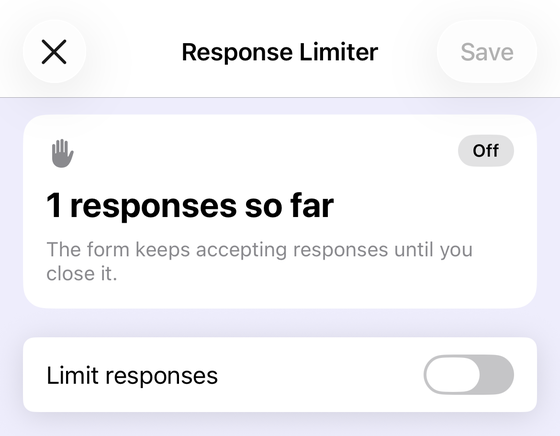
On iPhone and iPad, Form+ sets that whole-form cap from the editor: its Response Limiter shows the running count first and then the switch, and closes the form when the maximum is reached. Both it and the Scheduler below are Pro tools, and both are drawn only on a form you own — on a form a colleague shared with you the app removes those toolbar buttons rather than locking them, which matters here because handing a registration form over is the normal case. Its Form Scheduler handles the other half of a registration window — Google can close a form on a date but has no documented way to open one, so “registration opens Monday at 9am” is manual unless something else does it. Details in limiting responses and scheduling a form to open or close. Neither adds a per-option capacity: that gap is in Forms, and honest tools do not paper over it.
Confirmations, and what counts as one
“Did my RSVP go through?” is the single most common email an organiser gets. Google gives you two instruments, and it is worth knowing which is which.
The confirmation message — everyone sees it
This is the screen shown the moment someone submits. Google's help page says only: “You can customize the message people get after they submit the form.” The path is Settings → next to Presentation click the Down arrow → next to Confirmation message click Edit → enter your message → Save.
Write it as though it is the only confirmation, because for anyone who did not give an email address it is. Say the event name, the date, and what happens next. Google does not document whether this field supports links or formatting, so do not design around a clickable link there — put anything essential in words that survive as plain text.
A copy of their response — only with email collection
The closest thing Forms has to a confirmation email is a receipt of the answers someone gave. It has a hard prerequisite. Google's steps: open the form, click Settings, turn on Collect email addresses (choosing Verified for verified email collection or Responder entry for manual), then next to Responses click the Down arrow and next to Send responders a copy of their response select When requested or Always.
Two things to be clear-eyed about. It sends back their answers — it is not a message you write, so it will not carry your parking instructions or a map. Nor is there anywhere in Forms to keep a message you wrote earlier and send it again next time, which is the whole of Google Forms email templates. And Google notes that responders may not receive receipts in some circumstances, for instance because of spam filters. It is a courtesy, not a ticket.
Reminders: there are none
Google documents no reminder feature in Google Forms. There is nothing that chases people who have not replied, and nothing that nudges registrants the day before. If your plan involves the form reminding anyone of anything, the plan needs a mailing list, a Marketplace add-on or Apps Script — the form will not do it, and no setting is hiding anywhere.
“Limit to 1 response” — and who it shuts out
The obvious defence against one person booking five times is Limit to 1 response. Google documents it under “Limit users to one response”, and attaches the consequence in the same breath: “To access and fill out the form, users must sign in to their Google Account.”
For a staff event or a school, that costs nothing — everyone is signed in already. For a public event it is a real filter. It excludes anyone without a Google account, which is a larger share of a general audience than most organisers expect, and it produces the confusing case of two people in one household who cannot both register from the same phone without signing out. It also does not stop the thing you probably feared most: one person registering under two email addresses.
For a public RSVP, a guest-count question plus a validated number rule usually protects the count better than forced sign-in does, and costs you no registrations.
The day itself
Sign-up in advance and the register on the day are different jobs; if what you actually need is a roll call, Google Forms for attendance is the guide for that. Two things do bridge the two, though:
- A QR code on the door. Google Forms has no QR generator — every QR code for a form is made elsewhere from the responder link. Form+ has QR Studio, which builds one from the form's own link with a scannability check, and a Kiosk / QR stand that turns a spare device into a full-screen code with a live response counter, for walk-ups you did not pre-register. Both are Pro tools, like the Limiter and the Scheduler above.
- Checking registrants in. Form+ has an Event check-in scanner — this one is free in the app — that scans an attendee's QR code against the form's own responses, so the list you registered people onto is the list you check them off.
What Google Forms does and does not do for an RSVP
| You need… | Google Forms | How to actually get it |
|---|---|---|
| Close after N registrations | Yes, since January 2026 | Published → Accepting responses → Set close date or response limit → After a number of responses. Off by default. |
| Close on a deadline | Yes | Same panel, On a date → Choose date and time |
| A separate cap per session or option | No — not documented at all | One published form per session, each with its own limit; or an add-on / Apps Script |
| Open registration on a schedule | No | Publish it yourself, or a scheduler on top of Forms |
| On-screen confirmation | Yes | Settings → Presentation → Confirmation message → Edit |
| Emailed copy of the registration | Yes, conditionally | Collect email addresses on, then Send responders a copy of their response → When requested / Always |
| A confirmation email you write yourself | No | Apps Script, an add-on, or your mailing list |
| Reminders before the event | No | Nothing in Forms does this — use a mailing list |
| One registration per person | Partly | Limit to 1 response, at the cost of requiring a Google Account |
| A QR code for the door | No | A QR generator on the responder link, or QR Studio in Form+ (Pro) |
Run the registration from your phone
Form+ caps registrations, schedules the window open and closed, prints a QR poster and scans attendees in at the door — on your real Google Forms and your own Google account.
Get Form+ free on the App StoreFrequently asked questions
Can Google Forms cap the number of event registrations?
Yes, since January 2026. In a published form, under Accepting responses, click Set close date or response limit and choose After a number of responses. Google notes two caveats: if the form already has responses the number you enter must be greater than the number received, and if multiple people respond at the exact same time the form accepts responses regardless of the response limit. Treat it as “about this many”, not as a turnstile.
Can I set a separate capacity for each session or time slot?
No. Google's response limit applies to the whole form. Nothing in Google's documentation caps how many respondents may choose a particular answer option, so 40 places on Saturday and 40 on Sunday cannot be enforced by one form. The route that uses only documented features is one form per session, each published with its own response limit.
Does Google Forms send a confirmation email to people who register?
Only if you collect email addresses first. With Collect email addresses on, the Responses settings offer Send responders a copy of their response, set to When requested or Always. That copy is a receipt of what they submitted, not a written confirmation you compose. Everyone else sees only the on-screen confirmation message.
Can Google Forms send reminders to people who registered?
No. Google documents no reminder feature in Google Forms — nothing that chases people who have not replied, and nothing that nudges registrants before the event. Reminders come from your mailing list, a Marketplace add-on, or Apps Script, never from the form itself.
Should I turn on Limit to 1 response for a public event?
Usually not. Google's help page is explicit about the cost: with Limit to 1 response on, “To access and fill out the form, users must sign in to their Google Account.” For an internal event that is free. For a public one it silently excludes anyone without a Google account, and it also stops two members of one household registering separately from the same device.