How to share Google Forms responses with someone
Last updated September 2026 · ~10 minute read
Short answer: there are four routes and they hand over four different amounts. View results summary (Settings › Presentation) shows the results to every respondent — Google's wording is “visible to anyone who can respond to the form”. Sharing the linked spreadsheet gives one named person the data and nothing else, which is usually what you actually want. Adding an Editor gives them the responses and the form. A CSV or PDF export hands over a snapshot that stops updating the moment it is made.
Form+ puts the Responses tab, the export formats and the Drive access controls on iPhone and iPad — on your real Google Forms and your own Google account. Get Form+ free on the App Store.
The mistake almost everybody makes is picking a route by how easy it is to click rather than by how much it gives away — and two of these four are irreversible in practice, because you cannot un-see data or un-download a file.
Start by answering three questions
Before you touch a setting, settle what you are handing over. Every route below answers these three differently, and the answers are what make one right and the other three wrong:
- Who? One named person, or everybody who can open the form.
- For how long? A live view that keeps updating, or a fixed file.
- Just the answers, or the form too? Only one route hands over the ability to change the questions — and people reach for it by accident constantly.
Route 1 — Turn on the results summary
This is the built-in “let people see the results” switch, and it is the one with the surprise in it. Google's path, from Publish & share your form with responders:
- At the top of the form, click Settings.
- Next to Presentation, click the Down arrow.
- Turn on View results summary.
Google describes the effect in one sentence: “A summary of results is shared with respondents.” And it describes the contents and the audience in another, which is the sentence to read twice:
“Response summaries show full text responses or charts for each question and are visible to anyone who can respond to the form.”
Two things are packed in there. Full text responses — not just charts and counts, but what people typed, verbatim, in your paragraph questions. And anyone who can respond — the audience is defined by who can answer the form, not by a separate list you control. If your form is public, “anyone who can respond” means anyone with the link, including people who have not answered it yet and people you have never heard of. Google publishes no way to give one person the summary without giving them responder access, and no way to revoke it from one person while leaving the switch on. It is a single toggle for the whole audience.
Use it when the results genuinely belong to the group who answered — a team poll, a vote on a name, a sign-up sheet whose whole point is seeing who else is coming. Do not reach for it to show one colleague the numbers.
Route 2 — Share the linked spreadsheet (usually the right answer)
For a colleague who needs the data, this is the route. Google documents linking a spreadsheet in Choose where to save form responses, and the key fact is what that spreadsheet is:
“If you store responses in a spreadsheet, you have a separate file in Google Drive.”
A separate Drive file has its own sharing dialog, its own roles and its own audience. You can give someone Viewer on the spreadsheet — Drive's sharing roles let a Viewer view and download but not comment, edit or share — and they will see every response as it arrives without ever reaching your form. That is the combination the other three routes cannot produce: live, named, read-only, answers only. Setting up the link is covered step by step in seeing Google Forms responses in Google Sheets.
One warning Google publishes about that file. Access is seeded from the form once and then diverges: “When you create a new response spreadsheet, form collaborators automatically get access to it”, but “Further changes to the permissions of the form won't synchronize automatically.” The remedy is manual — “To change or remove access, update permissions on both the form and the linked sheet separately.” Removing someone from the form does not remove them from the data.
And do not set that spreadsheet to Anyone with the link out of convenience. Drive's own description of the option is the reason: “Anyone who has the link can use your file, without signing in to their Google Account.” An unauthenticated link to a response sheet cannot be revoked from one person and survives every forward.
Route 3 — Add them as an editor of the form (the heaviest option)
Say this one plainly: adding someone as an Editor in the form's Share dialog is the biggest thing on this page. They get the Responses tab — and, being an editor, the questions, the settings and the response destination as well. Drive's role table is explicit that an Editor can change the file; the whole point of the role is that it is not read-only.
Google's Share your form with collaborators gives the path — open the form, click Share, enter the names or groups, click the Down arrow and choose Editor, then Send — and our guide to sharing a form with collaborators goes through what Google does and does not document about that role, including the fact that there is no view-only role for a form.
Use it when you genuinely want a co-owner of the form. If somebody only needs to read the answers, route 2 does that without handing them the ability to rewrite your questions halfway through a collection.
Route 4 — Export a file (a snapshot, not a view)
The last route hands over a file rather than access. Google's View & manage form responses documents two export options — Link to Sheets and Download responses (.csv) — and there is no native PDF export at all; the workarounds are in converting Google Forms responses to PDF, and the Excel route is in exporting Google Forms to Excel.
A file is the right answer when the recipient should see the data as it stood — a board pack, an audit trail, a report to a client. It is also the only route where you get to edit what you hand over: delete the columns they do not need before you send it. The trade-off is that a file is beyond recall. The moment it leaves, it exists in someone else's mailbox, unaffected by any permission you change later.
Which route hands over what
| Route | Who can see it | Live or snapshot | Can they change the form? |
|---|---|---|---|
| Results summary | “Anyone who can respond to the form” — everyone, on a public form | Live | No |
| Linked spreadsheet | Whoever you share that Drive file with, by name or by link | Live — new responses append | No |
| Editor on the form | The people you invite | Live | Yes — questions, settings and where responses are saved |
| CSV / Excel / PDF export | Whoever you send the file to, and whoever they forward it to | Snapshot, frozen at export | No |
The part this page really exists for: whose data is it?
Every route above shares other people's answers. If your form collected identities, every route above shares those too. Google's line on that, from the same publishing page, is about respondents:
“Their usernames won't be recorded unless you turn on the ‘Responses' setting to collect email addresses.”
Read it as a fork. Leave that setting off and the answers are unattributed, and sharing them is a decision about data. Turn it on — see collecting email addresses in Google Forms — and every share is a decision about people: who said what, disclosed to an audience the respondent never agreed to. That is not a settings question, and nothing in the Share dialog will prompt you about it.
The sharpest version of this is routes 1 and 3 on a form that collects email addresses. A results summary on a public form shows full text answers to anyone with the link; an editor sees the individual responses beside the addresses that identify them. If either of those makes you hesitate, that hesitation is the correct signal.
And there is no dial to turn it down. Google's help pages document no per-question control over a shared results summary — no “hide this question from the summary”, no redaction, no way to show the ratings but not the free-text box. View results summary is one switch for the whole form. Community threads asking for exactly this exist, and questions in a product forum are not documentation; where Google is silent, we are not going to invent a setting for it. The documented way to share less is to share a file you have edited down — route 4 — or to not share at all and answer questions yourself. If you also need to keep anonymity on the collecting side, that is making a Google Form anonymous, which is a different decision made earlier.
Doing this from an iPhone or iPad
Every instruction above assumes the desktop web editor. Form+ opens your real Google Forms on your own Google account from iOS, and keeps the sharing routes in the same place as the data:
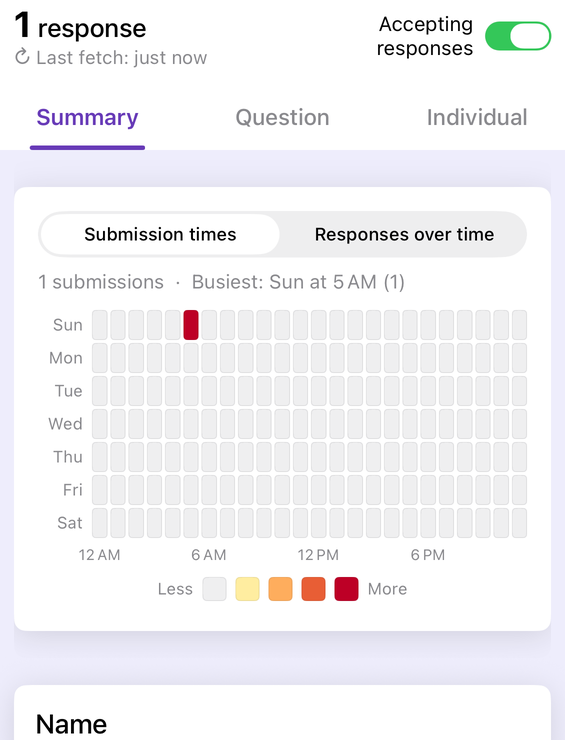
From the Responses tab, Export responses opens a sheet with CSV, XLS, PDF and Google Slides under “Export As”, and an Export to Sheets tool links, switches or unlinks the response spreadsheet from routes 2 and 4 without a laptop. Those exports are PRO features.
On newer installs the same sheet carries a Privacy section — the closest thing any of this has to a redaction control. Redact personal info masks detected personal data in exported files: emails, phone numbers, dates of birth, card and ID-shaped numbers, and answers to questions whose titles look like they collect personal data. It applies to what leaves the device as a file — the CSV and Excel exports, the PDF report, the gradebook CSV, the GDPR subject-data export — and not to printed certificates, name badges, Drive backups or a synced Sheet, each of which says so on its own screen. The app makes you acknowledge that the masking is best-effort before it switches on, because pattern-matching cannot promise it caught everything: review the file before you send it. If you do not see a Privacy section at all, your install predates it. None of this changes what Google's own results summary shows; that is still one switch, on Google's side.
Read, export and share responses from your phone
Form+ puts the Responses tab, the export formats and the Drive access controls on iPhone and iPad — on your real Google Forms and your own Google account.
Get Form+ free on the App StoreFrequently asked questions
Can someone see Google Forms responses without being able to edit the form?
Yes — share the linked spreadsheet instead of the form. Google documents that a response spreadsheet is “a separate file in Google Drive”, so you can give someone Viewer access to it and they never reach the form editor. The other read-only route is the results summary, but that one is not per-person: Google states it is “visible to anyone who can respond to the form”.
Does the results summary show email addresses?
It shows whatever the form collected. Google states that respondents' “usernames won't be recorded unless you turn on the ‘Responses' setting to collect email addresses” — so if you did turn that on, the identities are in the data, and every route that shares the data shares them too.
Can I hide one question from a shared results summary?
Google's help pages document no per-question control over the shared summary. View results summary is a single on/off switch for the whole form. If one question must not be seen, the documented option is to leave the summary off and hand over a copy of the data you have edited down.
How do I send someone the responses from my phone?
Google's instructions for every route on this page assume the desktop web editor. Form+ has an Export responses sheet in the Responses tab that produces a CSV, an Excel file, a PDF report or a linked Google Sheet from your own account; those exports are PRO features.