How to add a map or location question in Google Forms
Last updated September 2026 · ~8 minute read
Short answer: you cannot, because Google Forms has no location, map or address question type. Google's question type page names exactly twelve types and not one of them is a place, and the Forms REST API says the same thing independently. Collecting a place means a Short answer for free text, several Short answers when you need the parts separately, or a Dropdown when the list of places is already known.
Form+ puts the question type picker and a question's Response validation options — Regular expression on Short answer included — on your phone, working on your real Google Forms and your own Google account. Get Form+ free on the App Store.
The useful question is not which workaround to use but what you intend to do with the place afterwards. Read it, sort it, or map it? Those three answers lead to three different builds — and one of them leads out of Google Forms entirely.
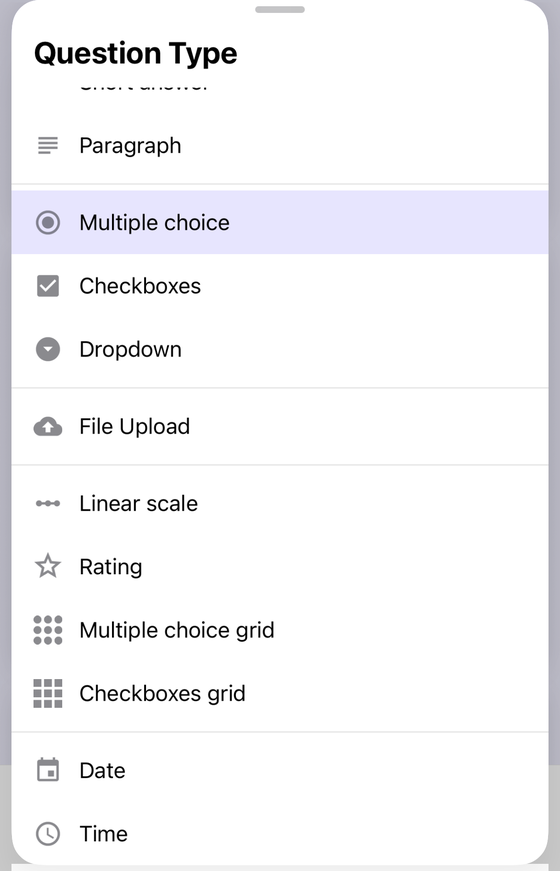
The twelve types, and what is not among them
Google's Choose a type of question for your form page lists the complete set: Short answer, Paragraph, Multiple choice, Checkboxes, Dropdown, File upload, Linear scale, Rating, Multiple choice grid, Checkbox grid, Date and Time. Twelve. There is no Location, no Map, no Address, no Place, and no Country — and Google publishes nothing describing such a type anywhere else, either.
The API agrees, and there is a trap in it
A help page can lag a product, so it is worth checking the machine-readable side. The Forms API's
REST discovery document defines a
Question object whose kind is exactly one of eight things: textQuestion,
choiceQuestion, scaleQuestion, dateQuestion,
timeQuestion, ratingQuestion, fileUploadQuestion and
rowQuestion (a row inside a grid). Nothing geographic.
Search that document for the word location, though, and you do get a hit — a schema actually
named Location. It is a false friend. Its description reads “A specific location in
a form”, and it has a single property: index, the position of an item in the form.
It is what the API uses to say put the new question third. There is no latitude, no longitude, no
address, no postal code and no country field anywhere in the schema set. Two independent sources, one
answer.
Three shapes that actually work
Every real answer to this question is one of three builds. Work through them in order and stop at the first one that fits.
- Decide whether the set of places is already known. If respondents can only be in one of a handful of places — five branches, twelve wards, thirty schools — then the place is a choice, not an address. This is the single decision that determines everything below.
- For a known, short list, use Dropdown. Add a question, set its type to Dropdown, and enter one option per place. Every answer is then spelled identically, counts cleanly in the summary charts, and can route respondents to a different section — something a typed address can never do.
- For a free-text address, use Short answer. Set the type to Short answer and state the format you want in the question text itself: “House number and street, then town, then postcode.” Paragraph works too, but Short answer keeps the answer to one line and one spreadsheet cell.
- For anything you will sort or filter, split it into several Short answers. One question each for street, town, postcode or ZIP, and country. Four narrow columns can be sorted, filtered and pivoted in the linked spreadsheet. One wide column cannot.
- Mark the parts you actually need as Required. Turn on Required for the fields you cannot process without — usually the postcode. Required is the only real enforcement Google Forms applies to an address, for the reason in the next section.
Validation will not rescue a free-text address
This is where most people expect a safety net, and there is not one. Google's Use response validation page covers exactly five question types — Short answer, Paragraph, Checkboxes, Multiple choice grid and Checkbox grid — and for Short answer it offers four families of rule: Number, Text, Length and Regular expression. There is no address rule, no postcode rule and no ZIP rule. The nearest thing Google itself offers as an example is a regular expression for a ten-digit phone number.
So a regular expression is the only tool you have, and it is worth being precise about what it buys you. A regex checks a shape. It can insist that an entry looks like a UK postcode, or that a field is five digits for a US ZIP. It cannot confirm that the postcode has ever been issued, that the street exists in that town, that the town is in the country the next question claims, or that the flat number is real. Regex is a format checker, not a gazetteer. A respondent who types a perfectly-shaped postcode for an address that does not exist will sail straight through.
One further limit, if you were hoping to bolt validation on programmatically: the word validation does not appear anywhere in the Forms API discovery document. These rules are an editor feature that the public API does not expose, so you cannot read or set them from code either.
What a typed address costs you downstream
The reason to care about all this is not the form — it is the spreadsheet afterwards. A free-text address column is one of the messiest things you can create in a response sheet, and the damage is only visible once responses arrive.
| You will want to… | What a free-text address column gives you |
|---|---|
| Count responses per town | Nothing usable. “London”, “london”, “Lndon” and “London, UK” are four different values. |
| Sort by area | Alphabetical order on whatever the respondent typed first, which is usually the house number. |
| Put pins on a map | No coordinates. Google Forms performs no geocoding of any kind, so the text stays text. |
| Spot duplicate households | Manual reading. Two spellings of one address do not match. |
| Post something to it | Usually fine — a human reads it. This is the one job free text is genuinely good at. |
That last row matters. If the address is only ever going to be read by a person — a delivery note, a callback, a site visit — one Short answer is the right answer and the rest of this guide is over-engineering. The split-field build only earns its extra questions when a machine has to process the result. You can see the difference immediately in the linked response sheet.
Does a file upload help?
A reasonable idea: ask for a photo instead, and read the location out of the image's EXIF metadata, which phone cameras often write. Does a Google Forms file upload question preserve that?
Google does not say. Its file upload documentation covers who may upload — respondents must sign in to a Google account — and which file types, how many files and what size the form owner may allow. On metadata, EXIF and photo location data it is completely silent, in both directions: it does not promise the data survives and it does not say it is stripped. The API is no more forthcoming. Each uploaded file comes back with exactly three fields — a Drive file ID, a file name and a MIME type. Nothing else.
Treat this as unverified rather than as a feature. If your process depends on photo coordinates, test it with your own phone and your own form before you rely on it, and remember that many phones and messaging apps strip location data before the file ever reaches the upload dialog. Also note the trade: a file upload question requires a signed-in Google account, so it rules out an anonymous form.
When Google Forms is the wrong tool
Two honest exits, both better than fighting the question types:
- Collect plain text, then look it up afterwards. Keep the form simple — split fields, a Required postcode — and do the cleanup in the linked Google Sheet, where you can normalise spellings and match against a reference list of your own. The form stays a form; the spreadsheet does the thinking.
- Use a tool built for places if geocoding is the point. If you need an autocompleting address box, coordinates, a distance calculation or a map of submissions, that is a mapping product's job, not a survey product's. No arrangement of twelve question types will produce a latitude.
And if you only need the place to steer the rest of the form — different questions for different branches — the Dropdown route plus section logic does that today, with no location type required.
Build the address block from your phone
Form+ puts the question type picker and a question's Response validation options — Regular expression on Short answer included — on your phone, working on your real Google Forms and your own Google account.
Get Form+ free on the App StoreFrequently asked questions
Is there a location or map question type in Google Forms?
No. Google's question type page names exactly twelve types, and none of them is a location, map, address or place. The Forms REST API agrees independently: a question can be one of eight kinds, and not one of them is geographic.
How do I collect an address in Google Forms?
A Short answer question for a free-text address, several Short answer questions when you need the parts separately, or a Dropdown when the set of places is small and already known.
Can response validation check that an address is real?
No. The validation families for Short answer are Number, Text, Length and Regular expression — there is no address or postcode rule. A regex can check that an entry matches a pattern, but never that the place exists.
Does Google Forms capture the location of an uploaded photo?
Google does not say. Its file upload documentation is silent on metadata, EXIF and location data, and the API returns only a file ID, a file name and a MIME type. Treat it as unverified in both directions.