How to collect email addresses in Google Forms
Last updated September 2026 · ~8 minute read
Short answer: open the form, click Settings, click the Down arrow next to Responses, and under Collect email addresses pick Verified or Responder entry. Before you touch it, read what it already says: Google's API reference calls Verified the “Default value if the form owner uses a Google Workspace account”, so a work or school form is probably collecting verified addresses already.
Form+ shows Google's own three modes on iPhone and iPad, and tells you in plain words which one forces respondents to sign in — on your real Google Forms and your own Google account. Get Form+ free on the App Store.
This is not one switch with an on and an off. It is a three-way choice, and the two “on” settings differ in a way that decides who is even able to submit your form.
Where the setting lives
- Open a form in Google Forms.
- At the top, click Settings.
- Next to “Responses,” click the Down arrow. The control is inside that section, not on the tab's top level — which is why people report they cannot find it.
- Read what Collect email addresses currently says. Do this before changing anything; see the next section for why.
- Select Verified or Responder entry. Google saves the change as you make it.
The three modes, and which one you are already using
Google's help pages and its Forms API name the same three states differently, and the help pages are not even internally consistent — one page says Responder input in the steps for collecting addresses manually and Responder entry a few paragraphs later, in the steps for sending response receipts. They are the same option. Here is the full mapping, so you can recognise it wherever you meet it:
| API value | Label in the editor | What the respondent gets |
|---|---|---|
DO_NOT_COLLECT |
Do not collect | No email question, no sign-in prompt from this setting. The response arrives without an address. |
VERIFIED |
Verified | Must be signed in to a Google account, and must confirm the address is collected — the confirmation shows on every page of the form. |
RESPONDER_INPUT |
Responder input / Responder entry | An email field to fill in. No account needed, and nothing checks the answer. |
Now the part that catches people. Google documents the default twice, in the enum description for
EmailCollectionType, and it is not the same default for everyone:
VERIFIED— “The form collects email addresses automatically based on the account of the signed-in user. Default value if the form owner uses a Google Workspace account.”DO_NOT_COLLECT— “The form doesn't collect email addresses. Default value if the form owner uses a Google account.”
So the same blank form behaves differently depending on who made it. If you built it on a work or school account, it is very likely already collecting verified addresses and forcing sign-in, without you having chosen that. If you built it on a personal Google account, it is collecting nothing, and the confused colleague asking where the email column went is on the other side of this line. Going the other way — you want no addresses at all — is a different job, covered in how to make a Google Form anonymous.
Verified means they must sign in
This is the setting people turn on without reading, and it is the one with a real cost. Google's description of the option is blunt: “Collect verified email addresses. Users must be signed in to a Google account.” Its help page adds what the respondent sees: “Respondents must confirm their Google Account email address gets collected with their response. The confirmation displays on each page of the form.”
Read “must be signed in” literally. It is not a nudge or an extra tap. Someone with no Google account cannot complete the form, full stop. On a phone or a shared computer, someone signed into the wrong account submits under the wrong address — or has to sign out, switch, and start again. If you are posting the link publicly, on a poster, in a newsletter, to a customer list, Verified silently narrows your audience to Google account holders, and the people it excludes never appear in your response count. You find out from the low numbers, not from an error.
What you get in exchange is genuine: the address is the one Google has authenticated, so it cannot be mistyped and cannot be someone else's. If you are running an internal form where everyone already has a Workspace account, that is a real gain at no real cost — nobody is excluded, because everybody is signed in anyway. That, and not general best practice, is the case Verified is for.
One check settles it. Open your form's link in a private or incognito window, signed out. What you see there is what a stranger sees. If it asks you to sign in, so will they.
Responder entry means the address is whatever they typed
Responder entry — the same option the help pages elsewhere call Responder input — is described by Google as prompting “users to manually input their email address in the form.” That is the whole mechanism. It adds a field. Nobody signs in, nobody is turned away, and nobody checks the answer.
Which means the address is unverified in the plainest sense: it can be anything. A typo, a colleague's address, a deliberate throwaway, or a blank-looking string that happens to pass a format check. Google Forms can validate the shape of what was typed, but shape is not existence and existence is not ownership. If your workflow is “email a receipt to this address”, that is usually fine — a wrong address just bounces. If your workflow is “this address identifies the person who submitted”, Responder entry does not support it, and no amount of validation will make it.
The trade is clean, and it is the only trade here: Verified is trustworthy and exclusionary, Responder entry is inclusive and untrustworthy. There is no third setting that is both.
What collecting an address unlocks
The main thing that becomes available is the response receipt. In the same Responses section, next to “Send responders a copy of their response,” you can select When requested or Always. It is greyed out until an address is being collected, for the obvious reason.
“When requested” puts a checkbox on the form and lets the respondent decide; “Always” sends every time. Either way the copy is what makes a submission auditable from the respondent's side, and it pairs with letting them go back and fix it — see how to make a Google Form editable after submitting.
Where the address ends up
The address is attached to the response itself rather than filed as an ordinary answer. In the Forms
API it is a top-level field on the response, respondentEmail, documented as “Output only.
The email address (if collected) for the respondent.” — sitting alongside responseId,
createTime and the answers, not among them.
In the editor you will see it with each individual response, and in the linked spreadsheet it appears as its own column rather than as a question you added. Google's help pages describe the linked sheet without specifying that column's exact placement or heading, so check your own sheet rather than assuming a position — particularly if a script or import is reading columns by index.
Before you turn it on
Worth being clear-eyed about, in one paragraph. An email address is the thing that converts a submission from a data point into a person. Once it is collected, every response is attributable, and that holds for the copy in the linked spreadsheet, the copy in anyone's downloaded export, and the copy in any integration you have wired up. It also changes how people answer: respondents who know they are identified answer identified questions, which is a real effect on feedback and survey data, not a hypothetical one. None of that is an argument against collecting addresses — you often need one, and this whole page is about how. It is an argument for the choice being deliberate rather than a default you inherited from your account type. What you are then obliged to tell people, and what you may keep, depends on where you are and what you are doing; that is a question for your own legal or privacy advisor, not for a settings page.
Changing it from your phone
All of the above assumes the desktop web editor, where Google's settings live. Form+ puts the same controls on iPhone and iPad, using Google's own names:
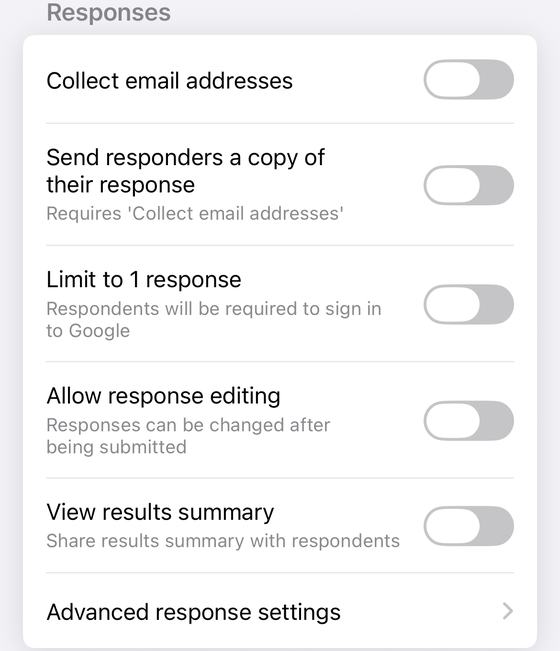
- Open the form and go to Advanced response settings, at the foot of the Responses group. Several things decide whether that row is drawn for you — your region, a remote switch, and, unless that test is itself disabled remotely, whether your install dates from before 2024 — so if it is not there, it is not hiding further down the list.
- In the COLLECT EMAIL ADDRESSES section, choose Do not collect, Verified or Responder input.
- The SEND A COPY OF THE RESPONSE section below it offers Never, When requested and Always. Pick one of the latter two while collection is off and the app offers to turn collection on for you — and asks which of the two modes you want, rather than picking the sign-in-forcing one on your behalf.
Changes are written to your real Google Form on your own Google account. Whichever tool you use, finish with the signed-out private-window check above: that tests the live form, not the switch.
Set email collection from your phone
Form+ shows Google's own three modes on iPhone and iPad, and tells you in plain words which one forces respondents to sign in — on your real Google Forms and your own Google account.
Get Form+ free on the App StoreFrequently asked questions
Does Google Forms collect email addresses by default?
It depends on the account that owns the form. Google's API reference calls Verified the “Default value if the form owner uses a Google Workspace account” and Do not collect the “Default value if the form owner uses a Google account”. A work or school form is very likely already collecting verified addresses.
Do respondents need a Google account to answer my form?
With Verified, yes. Google's own description of the option is “Collect verified email addresses. Users must be signed in to a Google account.” Anyone without one cannot submit at all. Responder entry and Do not collect impose no sign-in.
Can I trust an address collected with Responder entry?
No. Responder entry prompts users to manually input their email address in the form, so the value is whatever they typed. Format validation can reject a malformed string, but nothing proves the mailbox exists or belongs to the person answering.
Where does the collected email address end up?
It is attached to the response itself rather than stored as an ordinary answer. In the Google Forms API
the field is respondentEmail, documented as “Output only. The email address (if
collected) for the respondent.”