How to move a Google Form to a shared drive
Last updated September 2026 · ~10 minute read
Short answer: yes, a Google Form can live in a shared drive — Google establishes it sideways, by listing “The form is stored in a shared drive” as a condition that disables file upload questions. Move it and the file stops belonging to a person: “Files in shared drives are owned by your organization, rather than an individual.” The price is that one question type, and the fact that the linked spreadsheet is a second file that does not travel with it. Shared drives exist only on work and school accounts.
Form+ opens the forms already in your Google account — build, brand, manage access and read responses on iPhone and iPad. Get Form+ free on the App Store.
This page is about a form that belongs to a team rather than to whoever happened to create it. Everything below is either quoted from Google's documentation or flagged as inference — on this topic Google publishes less than you would expect.
Why people want this: a personally-owned form leaves with the person
Start with what Google actually says happens when the owner is gone. On the admin help page for deleting or removing a user, the two cases are set side by side:
- “Drive files the user owns—These files are saved for 20 days but are only accessible if you restore the user.”
- “Files in shared drives—Your organization owns these files, not users.”
And the instruction that follows: “To keep data like Gmail messages or Drive files in your organization, you need to transfer their data to another user.” A form in someone's My Drive is on that list. A form in a shared drive is not.
Google's admin guidance for setting up shared drives states the principle plainly: “Files in shared drives are owned by your organization, rather than an individual. They persist even if the person who created the file leaves your organization, helping you avoid potential data loss.” The Learning Center puts it to users as “files in a shared drive belong to the team instead of an individual”.
Where Google is silent: suspension. Its page on restoring a suspended user covers only the suspension and the restore, and says nothing about whether colleagues can still open a form that suspended person owns. Do not assume either way.
On a personal Google account the clock is different but the exposure is the same. Google's Inactive Google Account Policy reserves the right to delete an account and its data after two years of inactivity, and deleting one deliberately is faster still: “You'll lose all the data and content in that account, like emails, files, calendars, and photos.” Forms are files.
So — can a form actually live in a shared drive?
Yes — and the evidence is worth being precise about, because Google publishes no page titled anything like “put your form in a shared drive”. What it publishes is a restriction that only makes sense if the arrangement is real. On Choose a type of question for your form, under File upload:
“Important: You can’t use this question type, if: The form is stored in a shared drive. Your administrator turns on Data Loss Prevention.”
Google does not warn you off a state that cannot happen. The shared drives admin page points the same way, with a note reading “The sharing permissions for shared drives don't restrict who the Google Forms form requests can be shared with” — written for administrators whose shared drives contain forms.
Otherwise a form is simply a Drive file, and the move instructions are written for files in general. The Learning Center's Add files & folders to a shared drive is the closest thing to an official procedure: “If you have Contributor, Content manager, or Manager access to a shared drive, you can move files you own or have edit access to into shared drives,” and — the sentence that is the whole point of this page — “When you move a file you created into a shared drive, the shared drive becomes the owner of the file. You're still listed as the creator of the file in the item details.”
The move, step by step
- Confirm you have shared drives at all. Google Drive help is categorical: “Shared drives are only available for work or school accounts.” If you are signed in with a personal account, stop here — see the last section.
- Check the form for a file upload question first. Moving a form that has one puts it into the exact state Google says the question type cannot be used in. Fix that before the move, not after.
- Move the form file from My Drive into the shared drive. Drag it across; you need Contributor access or higher to the destination, and ownership passes to the shared drive at that moment. Google warns that “moving files to a shared drive can impact file access”, so re-open the form afterwards as someone other than yourself.
- Move the linked response spreadsheet as its own file. It is a separate Drive file and will happily stay behind in My Drive, quietly recreating the problem you just solved.
- Re-check access on both files. Permissions on the form and on the sheet are not kept in step — Google says so explicitly, quoted below.
Worth knowing before you start: getting back out is harder than getting in. Google says moving files out of a shared drive needs Manager access; going in needs only Contributor.
The complication nobody expects: file upload questions
This is the one that catches teams out: the form keeps working, and the question type simply is not available. Google's wording is the quote above — you can't use file upload if “the form is stored in a shared drive”, or if “your administrator turns on Data Loss Prevention”.
Google states the rule and never explains it. The same page does, however, say where uploads land: “For the form owner, uploaded files are stored in a new folder on Google Drive.” A file in a shared drive has no individual owner — the organisation owns it — so the mechanism that stores uploads has nobody to store them for. That reading is an inference, not something Google publishes; treat the restriction as the fact and the explanation as a guess. The quotas and file size side of this question type has its own page: Google Forms file upload limits.
So it forces a choice: if the form must collect files it stays in someone's My Drive, and ownership becomes the question you answer instead. Google publishes no supported workaround for having both.
The linked spreadsheet is a second file, with its own address
Google is unusually clear here, on Choose where to save form responses: “If you store responses in a spreadsheet, you have a separate file in Google Drive. You can delete the spreadsheet and not delete the form, or you can delete the form and not delete the spreadsheet.”
Two files means two locations and two sets of permissions. Moving the form into a shared drive does nothing to the sheet. And the permissions do not track each other either: “When you create a new response spreadsheet, form collaborators automatically get access to it. Further changes to the permissions of the form won't synchronize automatically. To change or remove access, update permissions on both the form and the linked sheet separately.” Access flows into the sheet once, at creation, and never again.
Google does not document what happens to a linked spreadsheet when its form moves into a shared drive, so verify rather than assume: open the Responses tab afterwards and confirm the destination is still the sheet you think it is.
The alternative: transfer ownership to a person
If there is no shared drive, or the form needs file uploads, the other documented route is to change who owns it. Forms documents this in its own help, under “Transfer ownership of your form” on Share your form with collaborators, with a precondition you cannot skip: “Before you transfer ownership of your form to someone, you need to give them editor access.” Drive documents the same operation from the file list on Make someone else the owner of your file.
Two limits decide whether it is available to you at all. On a work or school account, “you can only transfer ownership of files and folders to someone in your organization”, and “the transfer doesn't require the new owner to accept”. Between personal accounts it is a request the other side must accept. Across the boundary it is refused outright: “You can't transfer a file from your personal Google account to someone with a work or school account.”
The full comparison, including what a copy does and does not bring with it, lives on how to copy a Google Form to another account. The short version: a transfer moves the risk to a different person, while a shared drive removes the person from the equation.
What you can do about this from an iPhone
Google has no Forms app for iPhone or iPad, so every click-path above assumes a desktop browser. Form+ keeps the filing operations on one sheet:
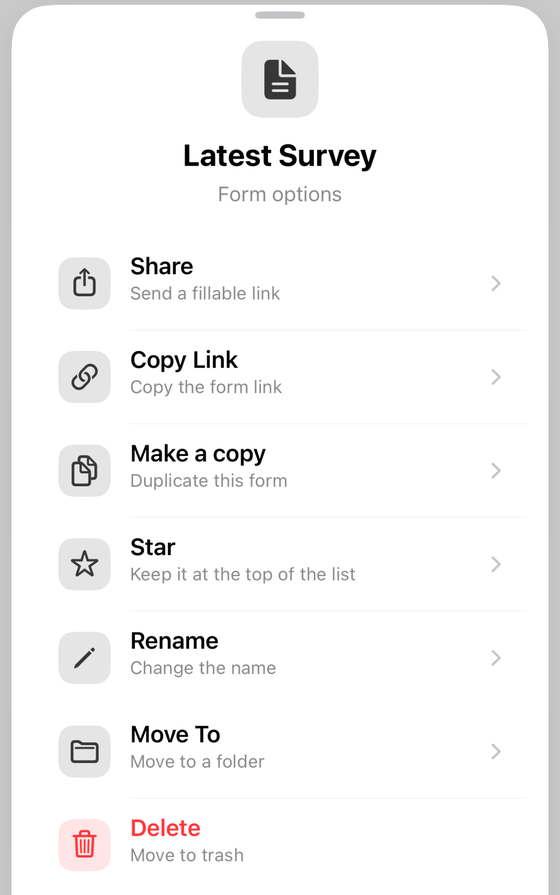
Two things worth being exact about, both checked against the app rather than assumed:
- Form+ cannot transfer ownership. There is no such action anywhere in the app. Manage access lists the owner and manages responders and editors; changing the owner is a browser job.
- Move To opens a folder picker whose Drive query asks for folders without any of the shared-drive parameters Drive expects for content outside My Drive. We have not tested it against a live shared drive, so do the move in a browser and use the app for everything after it.
Run your real Google Forms from your phone
Form+ opens the forms already in your Google account — build, brand, manage access and read responses on iPhone and iPad.
Get Form+ free on the App StoreIf you are on a personal Google account
Then none of this is available to you, and better to hear it now. Google Drive help states it without qualification: “Shared drives are only available for work or school accounts.” Google lists the feature for Business Starter, Business Standard and Business Plus; Enterprise Standard and Enterprise Plus; Education Fundamentals, Standard and Plus; Essentials, Enterprise Essentials and Enterprise Essentials Plus; Nonprofits; and G Suite Business — Business Starter marked “except as noted”, its note excluding it from the advanced sharing and retention settings rather than from shared drives.
On a gmail.com account the realistic options are transferring ownership to a second account you also control, or keeping exports elsewhere. Neither is a shared drive — and pretending otherwise is how a club's membership form leaves with a committee member.
Frequently asked questions
Can a Google Form live in a shared drive?
Yes. Google does not publish a page that announces it, but its Forms help documents the state directly as a restriction: the file upload question type cannot be used if “The form is stored in a shared drive.” A condition of that kind only exists because the arrangement does.
What happens to a form when the owner leaves the company?
Google's admin help is blunt about a deleted user's own files: “Drive files the user owns—These files are saved for 20 days but are only accessible if you restore the user.” Files in a shared drive are treated differently: “Files in shared drives—Your organization owns these files, not users.”
Why is file upload unavailable on a form in a shared drive?
Google states the rule but not the reason. Its question-types page says you cannot use file upload if the form is stored in a shared drive, or if your administrator turns on Data Loss Prevention. The same page says uploaded files are stored in a new folder on Google Drive belonging to the form owner, and a shared drive file has no individual owner — but Google never joins those two statements, so the connection is inference.
Should I move the form, or transfer ownership instead?
Transferring ownership hands the file to another person, who can also leave. Moving it into a shared drive hands it to the organization. Transfer is documented in Forms and in Drive, and it has hard limits — “You can't transfer a file from your personal Google account to someone with a work or school account” — while a work or school transfer does not require the new owner to accept.
Does the response spreadsheet move with the form?
No, and Google is explicit about why: “If you store responses in a spreadsheet, you have a separate file in Google Drive.” Two files, two locations. Move the spreadsheet into the shared drive yourself, and re-check its sharing, because “further changes to the permissions of the form won't synchronize automatically.”