Google Forms not working? Find your symptom
Last updated September 2026 · ~11 minute read
Short answer: it is usually not broken. Almost every “Google Forms not working” report turns out to be a documented restriction — a form that was never published, a setting that forces sign-in, a question type that does not exist, or a response count past a published limit. This page maps each symptom to the exact rule that causes it, and cites Google's own page for every one. Clearing your cache fixes none of them.
Form+ is a native iPhone and iPad client for your real Google Forms — your account, your Drive, with a visible last-fetch state and manual refresh on every response list. Get Form+ free on the App Store.
We wrote this the awkward way round. Instead of listing fixes, we started from Google's documentation and worked out which complaints it already explains. Everything below names the restriction and quotes the source. If a symptom is not here, that is because we could not find a citable cause for it — and inventing one is exactly how troubleshooting pages go wrong.
Symptom index
| Symptom | Documented cause |
|---|---|
| Nobody can open my form | Not published, or audience restricted |
| It stopped accepting responses on its own | Auto-close by date/time or response count |
| Respondents are asked to sign in | Limit to 1 response · file upload · Verified email |
| It collects emails and I never turned that on | Workspace-owned forms default to Verified |
| File upload is missing or greyed out | Shared drive, or Data Loss Prevention |
| A respondent's file is rejected as too big | Owner-set max file size and file count |
| The response summary won't load | More than 50,000 responses |
| I can't branch on this question | Branching is Multiple choice and Dropdown only |
| I can't set an answer key on this question | Answer keys cover six question types |
| There is no signature or drawing question | That question type does not exist |
“Nobody can open my form”
Documented cause: the form is not published, or its audience is restricted. Since the 2026 changes to Forms, sharing a link is no longer enough on its own. Google's help centre is blunt about it: “When you publish a form, responders can access it. If the form is unpublished, responders with the link can't access it.”
The second half of the same rule catches people who did publish: “Before owners publish a form, they can restrict the access to a domain, trusted audience, or group of users.” If the audience is set to your organisation and you send the link to a personal Gmail address, that person is locked out by design. Nothing on your side reports an error, and there is nothing in the form to repair.
Check both before anything else, and see how to share a Google Form for what the publish and audience controls actually do.
Source: support.google.com/docs/answer/2839588
“The form stopped accepting responses on its own”
Documented cause: automatic close by date/time or response count. This one is new enough that most articles on the web predate it. Google announced on 12 January 2026 that form owners and editors can “set a specific date and time to close the form, or set a certain number of responses that will trigger the form to close automatically.”
Critically, the same announcement says the feature “will be OFF by default and can be enabled by form creators after they publish a form.” So a form that closed itself did not do so spontaneously — somebody with edit access set one of those two triggers, quite possibly months ago and quite possibly not you. Open the response settings and look before you report an outage.
Both triggers have their own guide: scheduling a form to open or close and limiting responses.
Source: Google Workspace Updates, 12 January 2026
“Respondents are being asked to sign in”
Documented cause: one of three settings, each of which requires a Google account. This is the most common “Forms is broken” report we see, and it is always one of these three:
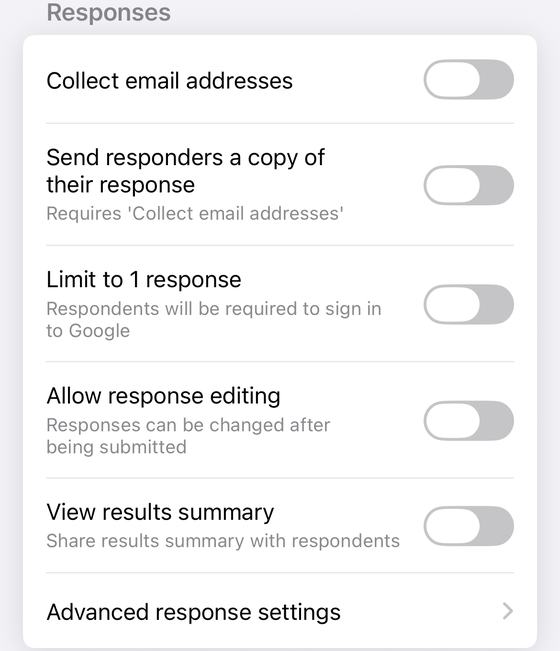
- Limit to 1 response. Google: “To access and fill out the form, users must sign in to their Google Account.” There is no way to enforce one response per person anonymously — the enforcement is the identity check.
- A file upload question. Google: “To answer this question, responders need to sign in to a Google Account.” One upload question anywhere in the form signs in the whole form.
- Email collection set to Verified. Verified collection reads the address from the signed-in account, so by definition it cannot work without a sign-in.
If you need genuinely anonymous responses, all three have to be off — see how to make a Google Form anonymous. If you need the uploads, sign-in is the price; see adding a file upload question. And if it is the response limit you are after, limiting responses covers the trade-off.
Sources: answer/2839588, answer/7322334
“My work form is collecting emails and I never turned that on”
Documented cause: Workspace-owned forms default to Verified collection. This one
genuinely surprises people, and it is written into the Forms API reference. The
EmailCollectionType enum documents its own defaults:
DO_NOT_COLLECT— “Default value if the form owner uses a Google account.”VERIFIED— “The form collects email addresses automatically based on the account of the signed-in user. Default value if the form owner uses a Google Workspace account.”RESPONDER_INPUT— the respondent types the address into a field on the form themselves.
So the same form, created by a personal Gmail account and by a work account, starts life in two different states. If you are on Workspace and never touched the setting, your form is collecting verified addresses — which is also the answer to the previous section, because verified collection is one of the three things that forces respondents to sign in. Turning it off is covered in the anonymous forms guide.
Source: Forms API — EmailCollectionType
“The file upload option is missing or greyed out”
Documented cause: a shared drive, or Data Loss Prevention. Google lists exactly two conditions under which you cannot use the question type: “The form is stored in a shared drive” and “Your administrator turns on Data Loss Prevention.”
Neither is a browser problem, and neither has a workaround inside the form. For the first, move the form to My Drive and the option returns. For the second, only your Workspace administrator can change it — there is nothing to do in the editor, and no amount of reloading will surface the option.
Full walkthrough: how to add a file upload question to Google Forms.
Source: support.google.com/docs/answer/7322334
“A respondent says their file is rejected as too big”
Documented cause: the limits set on the question itself. A file upload question carries two owner-configured caps. Google's own instructions are to “Set up the maximum number of files responders can upload” and “Choose the maximum file size responders can upload.”
A respondent hitting a wall is therefore usually hitting your limit rather than a platform one. Open the question and raise it. Worth knowing where the files land, too: “For the form owner, uploaded files are stored in a new folder on Google Drive” — so the uploads consume the form owner's Drive storage, not the respondent's.
Source: support.google.com/docs/answer/7322334
“The response summary won't load”
Documented cause: volume. Google publishes three separate thresholds, and a form past any of them behaves differently by design:
| Responses | Documented behaviour |
|---|---|
| More than 50,000 | “If you don't find the response summary, it can be because your form has more than 50,000 responses.” |
| More than 100,000 | “If your form's responses aren't synced with Sheets, it can be because your form has more than 100,000 responses.” |
| More than 10,000 | “If you download your responses in a CSV file and the responses aren't sorted by the timestamp when users submit them, it can be because your form has more than 10,000 responses.” |
The 10,000 threshold is the one that bites quietly: the CSV downloads fine, nobody notices the ordering is not chronological, and a report built on it is subtly wrong. If you are anywhere near these numbers, work from the linked spreadsheet or an export rather than the summary tab. Related: seeing responses on your phone and converting responses to PDF.
Source: support.google.com/docs/answer/139706
“I can't branch on this question”
Documented cause: branching supports two question types. Google states it plainly: “‘Go to section based on answer’ is only available for Multiple choice and Dropdown question types.”
That is the whole rule. Checkboxes cannot branch — which is the usual disappointment, because a respondent could tick two answers pointing at two different sections and there would be no defined outcome. Neither can grids, short answer, paragraph, linear scale, date or time. If you need branching, the question has to be Multiple choice or Dropdown; if you need multiple selections and branching, you need two questions.
Source: support.google.com/docs/answer/141062
“I can't set an answer key on this question”
Documented cause: answer keys cover six question types. Google's quiz documentation lists answer keys for Short answer, Multiple choice, Checkboxes, Dropdown, Multiple choice grid and Checkbox grid.
Everything else can still be scored — Google notes you “can assign points and add feedback on all question types” — but you do it by hand after the responses arrive. A paragraph question in a quiz is not misbehaving when it refuses an answer key; it was never auto-gradable. See how to make a quiz on Google Forms.
Source: support.google.com/docs/answer/7032287
“I can't find the signature or drawing question”
Documented cause: there isn't one. People hunt through the question menu assuming it is
hidden behind a setting. It is not there. The Forms API — the machine-readable definition of what a Google
Form can contain — exposes eight question kinds: choiceQuestion, textQuestion,
scaleQuestion, dateQuestion, timeQuestion,
fileUploadQuestion, rowQuestion and ratingQuestion. None of them is
a signature or a drawing.
Every “signature in Google Forms” tutorial is therefore describing a workaround — usually an add-on, or a file upload of a photographed signature, which brings the sign-in requirement above with it. We go through the honest options in adding a signature to Google Forms.
Source: Forms API — Question reference
General checks (the unsourced ones)
Being straight about this section: the items below are ordinary software advice, not documented Forms behaviour. They are worth thirty seconds and no more. If one of them fixes your problem, it was a transient, not the kind of cause the rest of this page is about.
- Confirm you are signed into the Google account that owns the form. The wrong account in a browser profile looks exactly like a permissions failure.
- Check your network connection before concluding the form is down.
- Check Google's Workspace Status Dashboard for a real Forms incident. This is the one general check with an authoritative answer.
If none of those apply and your symptom is not in the index above, the honest answer is that we do not have a documented cause for it — and we would rather say so than invent one.
“My responses aren't appearing”
This symptom is the one where the tool makes the difference, because the question underneath it is always am I looking at live data or a stale copy? — and a browser tab left open overnight gives you no way to tell.
Form+ answers that on the responses screen itself. A freshness line reads “Last fetch: just now” — or a relative time once it is older — and it is tappable to refresh, with pull-to-refresh as well; while a fetch runs it reads “Updating saved responses…”. A failed refresh is never shown as fresh data: the app falls back to the cached responses and replaces the line with an amber “Couldn't fetch latest — tap to refresh” warning. So either the fetch succeeded and there genuinely are no new responses — the causes above apply, starting with an unpublished or auto-closed form — or it failed, and the app says so.
Before reading a stale count as a bug: free-tier refreshes are rate-limited, and the app says so outright — “A free user can only refresh form responses after 30 minutes”. A count that has not moved may simply be inside that window. Unlimited refreshing is a PRO feature.
Stop guessing whether you are looking at live data
Form+ is a native iPhone and iPad client for your real Google Forms — your account, your Drive, with a visible last-fetch state and manual refresh on every response list.
Get Form+ free on the App StoreFrequently asked questions
Why can't anyone open my Google Form?
Most often the form is not published. Google's help centre states: “When you publish a form, responders can access it. If the form is unpublished, responders with the link can't access it.” The second cause is a restricted audience — before publishing, owners can restrict access to a domain, a trusted audience, or a specific group of users, and anyone outside that group cannot open the form even with the link.
Why is Google Forms asking my respondents to sign in?
Three documented settings force a sign-in. Limit to 1 response: “To access and fill out the form, users must sign in to their Google Account.” A file upload question: “To answer this question, responders need to sign in to a Google Account.” And email collection set to Verified, which collects the address automatically from the signed-in account. Turn off whichever of the three you do not need.
Why did my Google Form stop accepting responses on its own?
Since 12 January 2026 a form can close itself automatically. Google's announcement says owners and editors can “set a specific date and time to close the form, or set a certain number of responses that will trigger the form to close automatically.” It is OFF by default, so if your form closed itself, somebody with edit access set one of those two triggers. Check the form's response settings before assuming an outage.
Why is the file upload question greyed out?
Google documents exactly two reasons the file upload question type is unavailable: “The form is stored in a shared drive” and “Your administrator turns on Data Loss Prevention.” Neither is a bug and neither is fixed by a different browser. Move the form to My Drive for the first; the second needs your Workspace administrator.
Why won't my response summary load?
Volume. Google documents three thresholds: “If you don't find the response summary, it can be because your form has more than 50,000 responses.” Above 100,000 responses the form may not sync with Sheets, and above 10,000 responses a CSV download may not be sorted by submission timestamp. These are documented behaviours of large forms, not faults.