How to limit the number of responses on Google Forms
Last updated September 2026 · ~8 minute read
Short answer: Yes — since January 2026 Google Forms has a built-in setting that closes a form automatically after a set number of responses, or at a date and time. It is off by default and is enabled once the form is published. On a phone, Form+ sets the same kind of response limit directly in the editor, without the desktop web UI.
Form+ adds a native response limit, scheduled open/close, and live response analytics to your real Google Forms — on your own Google account. Get Form+ free on the App Store.
Whether you're capping event RSVPs, first-come-first-served signups, limited stock, or a class quiz, here are the two reliable ways to do it — pick the one that matches how you work.
First, decide which of the three limits you want
Almost every confused thread on this subject starts the same way: three unrelated settings share one phrase. They live in different places and none substitutes for the others, so decide which one you actually want before changing anything.
| What you want | What it is called | Where it lives |
|---|---|---|
| One answer per person — nobody submits twice | Limit to 1 response | Settings → Responses, on any form |
| A ceiling on the total — take 50, then stop | Response limit (automatic closing) | Publish settings, published forms only |
| A closing time — stop at 5pm on Friday | Close date and time | Publish settings, published forms only |
This page is about the middle row — the ceiling on the total. For the first, see duplicate responses in Google Forms; for the third, scheduling a form to open or close and setting a deadline.
Why “Limit to 1 response” is not a cap — and what it costs
The first row is the one people reach for by mistake. Limit to 1 response caps each respondent at one submission; it places no ceiling at all on the total. A hundred different people still produce a hundred responses.
It also cannot work anonymously, because it has to recognise the same person twice. The only identity Google Forms has is a Google Account, so turning the setting on requires every respondent to sign in to one — which means people without a Google Account cannot answer at all, and the form stops being anonymous in any ordinary sense. Form+ prints that trade-off directly under the switch: Respondents will be required to sign in to Google. If anonymity is the point of your form, see what anonymous really means in Google Forms before you enable it.
The scope is stated precisely in the developer reference. Apps Script’s
Form class
documents setLimitOneResponsePerUser(enabled) as setting “whether the form allows
only one response per respondent”, and warns that “If the value is set to true, the
script cannot submit form responses at all.” Per respondent — never per form.
This changed in January 2026
For years Google Forms could only toggle "Accepting responses" by hand, which is why add-ons like formLimiter existed. That gap is closed: Google announced automatic closing on 12 January 2026 (and 29 January for scheduled-release domains). It reached all account types, including personal Google accounts — not just Workspace.
The announcement is worth reading literally. The fix, in Google’s words, is that “form owners and editors will be able to set a specific date and time to close the form, or set a certain number of responses that will trigger the form to close automatically.” Two details in the same post decide whether you will find it on your own form: “This feature will be OFF by default and can be enabled by form creators after they publish a form”, and, for Workspace administrators, “There is no admin control for this feature.”
If you have read an older guide telling you Google Forms cannot cap responses, that guide predates this change. You probably do not need an add-on any more.
Method 1 — Google Forms' built-in response limit (on a computer)
- Open your form at forms.google.com and publish it — the setting only appears for a published form.
- In the published form's response settings, under Accepting responses, choose Set close date or response limit. It is off by default.
- Choose After a number of responses and enter the maximum number of responses the form should accept — or pick a date and time instead if you want a deadline.
- Save. Google closes the form itself once the trigger is met, and respondents see the standard "no longer accepting responses" message.
This is now the right answer for most people. The add-on route still exists and is only worth it for the cases Google's version does not cover — for example closing when a spreadsheet cell hits a value.
A cap is not a quota
A quota reserves capacity in advance and refuses the request that would exceed it. A response limit does not, and the difference matters at exactly one moment: the submission that touches the boundary.
Google answers half of that question and leaves the other half open. The announcement says a response count “will trigger the form to close automatically” — a consequence of the count, not a gate in front of it — and the help page View & manage form responses is explicit about the collision: “If multiple people respond at the exact same time, the form accepts responses regardless of the response limit.” A form capped at 100 can therefore finish with more than 100. What Google still does not state is whether the response that trips the trigger is itself kept, or how fast the close propagates. Treat a cap of 50 as “about 50”, and if the exact number is contractual — paid seats, limited stock — reconcile the responses list before you rely on it.
Where the mechanism is visible it confirms the shape. Form+ runs its limiter from a form-submit trigger: the response is recorded, the running total is compared against your maximum, and the form is closed afterwards if the total has reached or passed it. The response that hits the limit is therefore already in your responses list — the cap closes the door behind it, not in front of it. And a cap keeps no record of whoever arrives after it has shut: the form simply stops. If those people are the ones you actually wanted to hold on to, see using Google Forms for a waitlist.
What the Forms API can and cannot do here
If you were hoping to script this, the answer is short, and you can check it yourself. The
Forms API discovery
document — about 69 KB of JSON describing every field the API exposes — contains
no response cap, no close date, and no maximum or validation constraint of any kind:
maxItems, maxLength and validation are all zero hits.
FormSettings carries exactly two properties, quizSettings and
emailCollectionType. The January 2026 feature has no API surface at all.
What the API does expose is the underlying switch, and one rule about it. PublishState
documents isAcceptingResponses as “Required. Whether the form accepts responses. If
is_published is set to false, this field is forced to false.”
The same document adds that “setting is_accepting_responses to true and
is_published to false isn’t supported and returns an error.”
Google’s own code samples in
Publish
and manage responders on the form put it plainly in prose: “Unpublishing a form makes it
unavailable and automatically stops it from accepting responses”, while closing without
unpublishing means “Responders to your form will see the closed form page and message.”
So a script can close a form and watch a response count, but it cannot ask Google to do the closing. Anything automatic you build is your own trigger — which is exactly what the add-ons, and Form+, are. See published vs accepting responses for what those two booleans do to each other.
Method 2 — from your iPhone or iPad with Form+
Google's built-in setting lives in the desktop web editor. If you run your forms from a phone, Form+ puts the same control in the editor toolbar of any form your own account owns, so you never open a browser:
- Open the form in Form+ (import it first if it isn't in the app yet).
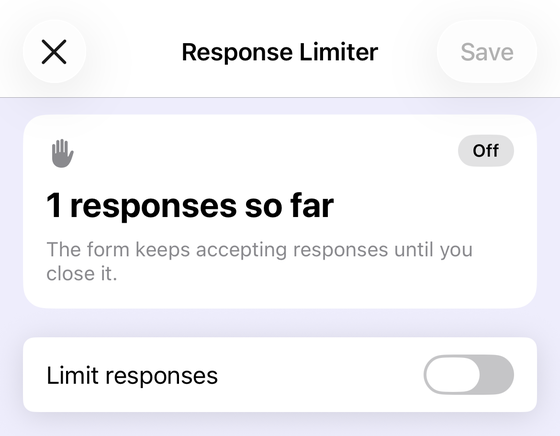
- Tap the Response Limiter button in the editor toolbar. If it is not there, the toolbar is not hiding it — see the condition below.
- Set the maximum number of responses, and optionally a custom message shown once the form closes.
- That's it — Form+ closes the form automatically the moment the limit is reached, and you can raise or remove the cap anytime.
One condition decides whether that button exists at all: who owns the form. On a form someone else shared with you, Form+ does not draw the Response Limiter, the Form Scheduler or the response-notifications bell — it removes all three from the editor toolbar rather than locking them, so no amount of scrolling sideways will bring them back. These are owner tools: open the form from the account that owns it, or ask the owner to set the cap. (A few long-standing accounts, still on the app’s previous scheduling backend, keep all three on shared forms too.) Each button can also be switched off remotely, so a missing one is not by itself proof that you are looking at someone else’s form.
Two things are worth knowing before you open that screen. The form has to be published first, exactly as in Google’s own version — Form+ says so and offers to publish it for you rather than sending you to a browser. And the Quick limits shortcuts hide any value at or below the responses you already have, because picking one would close the form instantly. A switch there can also notify you when the form’s status changes.
Which should you use?
| Google Forms (built in) | Form+ (iPhone/iPad) | |
|---|---|---|
| Where it runs | Desktop web editor | Natively on iOS |
| Setup | Publish first, then enable | Built in; publishes the form for you if needed |
| Limit by count | Yes | Yes |
| Limit by date/time | Yes | Yes (schedule open/close) |
| Works from your phone | Not practically | Yes |
| Cost | Free | Free app; the Response Limiter is a Pro feature |
If you are at a computer, use Google's built-in setting — it is free and needs nothing installed. Use Form+ if you would rather manage the whole thing from your phone, and want scheduling, QR codes, response charts and AI form building in the same place.
Cap responses in one tap, from your iPhone
Form+ adds a native response limit, scheduled open/close, and live response analytics to your real Google Forms — on your own Google account.
Get Form+ free on the App StoreFrequently asked questions
Can Google Forms limit the number of responses by itself?
Yes, since January 2026. Publish the form, then enable automatic closing and choose a response count or a date and time. It is off by default, so an unpublished or untouched form will not stop on its own. Older guides that say otherwise were written before this shipped.
How do I limit Google Forms responses on my iPhone?
Open a form your account owns in Form+, tap the Response Limiter button in the editor toolbar, set your maximum, and Form+ closes the form automatically when it's reached — no computer or add-on needed. On a form someone else shared with you that button is absent rather than locked, so only the owner can set the cap.
What happens when a Google Form reaches its response limit?
The form stops accepting submissions and shows a "closed" message. You can customize that message and re-open the form later by raising or removing the limit.
Does limiting responses stop the same person answering twice?
No — those are two different settings. A response limit caps the total and then closes the form; Limit to 1 response caps each respondent at one submission and places no ceiling on the total. Limit to 1 response also requires every respondent to sign in to a Google Account, so an anonymous form cannot use it.
Can the Google Forms API set a response limit?
No. The Forms API discovery document contains no field for a response cap or a close date, and FormSettings exposes only quiz settings and email collection. The API can publish a form and toggle whether it is accepting responses, but the automatic closing itself has no API surface.