How to add a header image to Google Forms
Last updated September 2026 · ~10 minute read
Short answer: the banner lives in the theme, not in the form's content. Open the form on a computer, click Customize Theme at the top right, and in the “Theme” side panel, under “Header,” click Choose Image. Six sources are documented. And the question everybody actually arrives with — what size? — has an uncomfortable answer: Google publishes no header image dimensions anywhere, so this page tells you what to do instead of inventing a number.
Form+ brings Customize Theme to iPhone and iPad — pick a header photo, crop it to the shape you want, and see the live preview before it goes anywhere near your respondents. Get Form+ free on the App Store.
Before anything else: “add an image to my form” means three unrelated jobs, and searching for one of them reliably lands you in instructions for another.
Three things people mean by “add an image”
- The header banner — the strip across the top of the form, above the title. Part of the theme. That is this page.
- An image beside or under a question — form content: a diagram to interpret, a photo to identify, or a picture attached to a single answer option. That is how to add an image to Google Forms.
- An image question — where the respondent sends you pictures. That is a file upload question, a completely different feature with its own limits.
The rest of this page is the banner only. If you want to change the colours and fonts around it, that is changing the form's theme.
Where the header image lives, in Google's words
Google's steps, from Change the theme or font of your form:
- “On your computer, open a form in Google Forms.”
- “At the top right, click Customize Theme.”
- “In the “Theme” side panel, under “Header,” click Choose Image.”
- “Select where to get your image.”
Two naming quirks are worth knowing, because both cost people time. First, the control is Customize Theme — there is no “header”, “banner” or “cover” item in any menu, which is why people hunt for one and conclude the feature was removed. Second, Google files these steps on its help page under a heading that reads “Customize a section header”, which has nothing to do with the section headers you add between questions. Same word, two features, one help page.
The six documented sources
Google names six places the picture can come from, and each finishes with a different click:
| Source | Google's steps |
|---|---|
| Themes | Select an image → Insert |
| Upload | Browse → choose the image file → Save |
| Photos | Select an image → Insert → Save |
| Google Drive | Select an image → Insert → Save |
| Google Images | Search → select an image → Insert → Save |
| By URL | Paste an image URL → Insert image → Save |
Three of those are recent. Google announced them on 14 May 2026: “Previously, creators could only use a pre-selected theme, upload an image, or choose an image from Google Photos. In addition to these options, they can now choose an image from Google Drive or Google Images or use a URL.” (Google Workspace Updates.) So if an older tutorial shows you three options and your panel shows six, the tutorial is simply out of date — and if a colleague still sees three, the same post explains that too: it rolled out gradually, to Rapid Release domains from 14 May and Scheduled Release domains from 1 June 2026.
Two more moves, both reached by clicking the header image itself once it is in place: Replace Header Image swaps the picture, and Reposition Header Image opens the crop box — “To crop the image, drag the corners of the box,” then Save.
Google’s own “Themes” gallery
Google does not say. The help page gives two steps for that source — select an image, click Insert — and enumerates nothing: no categories, no counts, no licensing note, no promise that the gallery is the same for every account. In practice it is the only source you can use with nothing prepared, which makes it the fastest way to get a form looking deliberate. Just do not plan around a specific stock image you saw in a screenshot somewhere; nothing about that gallery's contents is documented, and therefore nothing about it is promised.
The size question — and the honest answer
Google publishes no header image size. Not a pixel dimension, not a minimum, not a maximum, not
an aspect ratio. We checked the help page that covers adding, replacing and cropping the header,
the Workspace Learning Center's introduction to Forms, the May 2026 announcement that expanded the sources,
and the
Google
Forms API reference — whose Form resource has no theme, header or image field at all. Not
one of them names a number.
The numbers you have read elsewhere — 1600 × 400, 800 × 200, and the confident “4:1 ratio” — are blog and forum inventions that have been copied often enough to sound official. We are not going to add a sixteenth one. What we can tell you is what is actually true and useful about this banner:
- The crop is the thing to check, not the pixel count. Google's only documented control over how the picture sits is the crop box you drag the corners of. Whatever you upload, the decision that matters is which part of it survives.
- Detail at the edges is the first casualty. A logo in a corner, text near a margin, a face at the left edge — these are what a crop eats. Give the important part of the image room in the middle, and it will survive whatever shape the band ends up being.
- Send it big. Since no maximum is published and scaling a small image up is what makes a header look soft, start from a generously sized picture rather than one you have already shrunk for something else.
- A preview is the only reliable test. Google does not publish what the banner does at any particular window width, so the only way to know how yours looks is to look. Open the live form — the responder's link, not the editor — on a phone and on a laptop, and judge it there.
One measurement of our own, offered as our observation rather than as Google documentation: when Form+ hands Google a header photo by URL, Google re-hosts its own copy of the file, and the copy comes back downscaled but at the same aspect ratio as the file we sent. That is consistent with the advice above — the shape you crop is the shape you get — and it is why the app bakes the crop into the pixels instead of treating it as a display setting.
What the header does on a phone
Google documents nothing about this. There is no statement about how the banner reflows, how tall it becomes, whether it crops differently, or what it does in the Google Forms respondent view on a small screen. Every documented step for the header begins “On your computer”, and that is the whole of Google's published position on where this feature can be used.
Since the responder's experience is the one that matters and the documentation is silent, treat the live form on a phone as your source of truth. It is also worth remembering that the banner is the first thing a respondent sees and the last thing that helps them: it carries no information a form actually needs. If yours is doing real work — naming the form, stating a deadline — see the next section.
Accessibility: a banner cannot speak
A header image cannot carry alt text. Google documents no alt text control for images in a form, and its own accessibility conformance report states the exception outright, under WCAG 1.1.1 Non-text Content: “Form authors can not define alt text for uploaded images.”
For a banner, that has one very specific consequence, and it is the single most common accessibility mistake on themed forms. If your form's title is baked into the header graphic, your form has no title for anybody using a screen reader. The picture is decoration with no text alternative; the words inside it do not exist as words. The same goes for a date, a deadline, a department name or a “Required — complete by Friday” banner.
The fix costs nothing: keep the real form title, description and any deadline as actual text in the form, and let the banner repeat them visually rather than replace them. If the duplication looks redundant to you on screen, that is the point — one of the two copies is the only one some of your respondents will get. More on this in our guide to Google Forms accessibility.
Doing it from an iPhone or iPad
Google's steps assume a computer throughout. Form+ puts the same job in a native editor on iPhone and iPad, working on your real Google Forms and your own Google account.
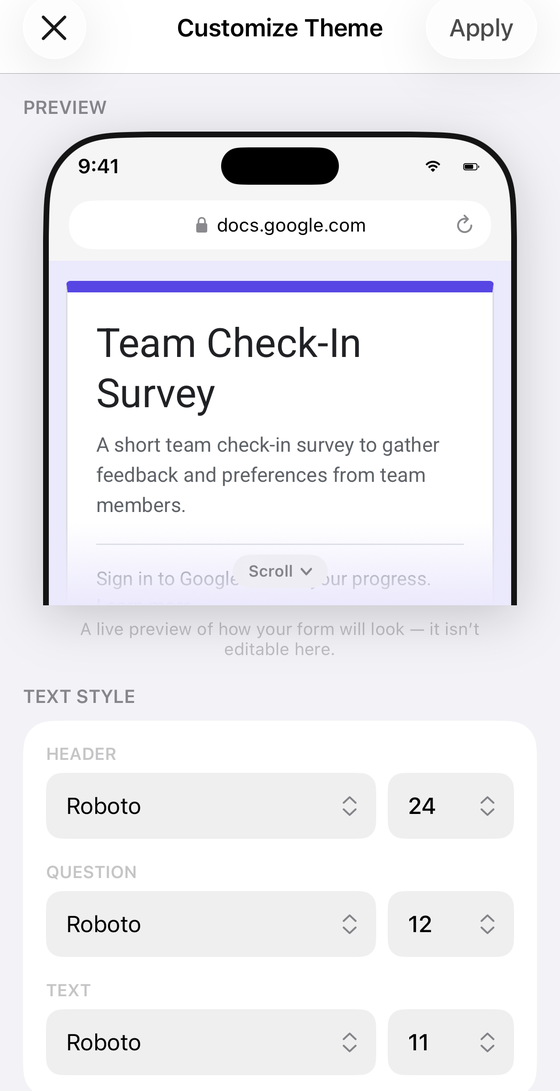
- Open the form and tap Customize Theme in the editor toolbar.
- In the Header card, choose Photo… — the alternatives there are a flat Color or a Gradient.
- Take a photo or choose one from your library.
- Crop it. The four shapes are Slim, Banner (the default), Standard and Tall — and because the crop's shape is the header's height, there is no separate height setting to disagree with it.
- Watch the preview at the top of the screen, then tap Apply.
Applying writes the header to your real Google Form. If Google refuses the photo, the app says so rather than showing you a banner your form does not have, and offers to open Google's own picker with the theme panel already in place so you can complete the one step by hand — then checks the live form to confirm it landed. Customize Theme is a PRO feature, with a live demo on a sample form so you can try the editor before deciding.
Set your form's banner from your phone
Form+ brings Customize Theme to iPhone and iPad — pick a header photo, crop it to the shape you want, and see the live preview before it goes anywhere near your respondents.
Get Form+ free on the App StoreFrequently asked questions
What are the Google Forms header image dimensions?
Google does not publish any. The help page that covers adding, replacing and cropping a header image names no pixel size, no minimum, no maximum and no aspect ratio, and neither does the May 2026 Workspace announcement that expanded the image sources. Every confident number you find for this — 1600 × 400, 800 × 200 and the rest — comes from a blog or a community post, not from Google.
How do I crop or reposition a Google Forms header image?
Google documents it in three steps: click the header image, then Reposition Header Image, then drag the corners of the box and click Save. The same click on the header also offers Replace Header Image, which swaps the picture without touching anything else in the theme.
Can a Google Forms header image have alt text?
No. Google documents no alt text control for images in a form, and its own accessibility conformance report states the exception plainly: form authors can not define alt text for uploaded images. The practical consequence for a banner is that any words baked into the picture — a form title, an event date, a deadline — are invisible to a screen reader, so they have to exist as real text as well.
Can I add a header image to a Google Form from my phone?
Google's own steps start with “On your computer”, and Google documents nothing about setting a header image from a phone. Form+ on iPhone and iPad has a Header control in its Customize Theme screen where you can pick a photo, crop it to one of four shapes, and apply it to your real form.
Is the header image the same as adding an image to a question?
No, and they are reached by different controls. The header image is part of the form's theme and sits above the title. An image beside or under a question is form content, added with Add image. A question that asks respondents for pictures is a file upload question. Three separate features that share one phrase.