How to make a Google Form public
Last updated September 2026 · ~8 minute read
Short answer: click Publish, then Manage, and under General access give access to anyone with a link. Google's wording is: “To select who can respond to the form, click Manage,” and “Under ‘General access,’ you can give access to anyone with a link or to target audiences” (Publish & share your form with responders). That makes the form open. It does not make it sign-in-free — three separate settings still force a Google login, and they are the real reason “public” forms keep bouncing people.
Form+ reads the live publish, accepting-responses and sharing state of your real Google Forms on your own Google account — so you can tell an open form from a closed one before it matters. Get Form+ free on the App Store.
Public and no-sign-in-required feel like one switch. They are two, they live in different parts of the interface, and the second one is not called anything. It is an emergent property of three settings you may have turned on for unrelated reasons.
Where the audience control actually is
It is not in Settings, and it is not on the Responses tab. Since Google put a publish step in front of sharing, responder access is part of publishing: the button is Manage, and the control inside it is headed General access. Google's help page gives one sentence for each — “To select who can respond to the form, click Manage” and “Under ‘General access,’ you can give access to anyone with a link or to target audiences.”
Two things worth knowing about that page. First, those are the only two audience shapes Google spells out by name there; it describes a target audience by reference rather than listing the exact strings the dialog shows, so we are not going to quote option labels Google has not published. Second, this is now universal: Google said on 29 January 2026 that it would “automatically upgrade all existing forms to have granular controls over who can respond,” and that the upgrade “will not change who can access or respond to the form.” So the control is there on old forms too, set to whatever your form already was.
- Open the form and click Publish at the top right.
- Click Manage.
- Under General access, give access to anyone with a link.
- Confirm, and copy the responder link from Share — the full set of routes is in sharing a Google Form.
- Open that link in a private window, signed out of every Google account. This is the only test that means anything.
The three settings that force a sign-in anyway
This is the part that costs people responses. Each of these is documented by Google as requiring a Google account, and none of them is described as an audience setting — so you can set the audience to “anyone” and still hand strangers a login screen.
1. Collect email addresses set to Verified
Google offers two modes here, and only one of them is compatible with a public form. Its own description of the first is blunt: “Verified: Collect verified email addresses. Users must be signed in to a Google account.” The alternative is Responder input — “Prompt users to manually input their email address in the form” — with the trade Google also states plainly: “there is no way to verify the email address that the users enters.”
So it is a genuine choice, not an oversight. Verified addresses, or open access; you cannot have both. The setting lives in Settings → next to “Responses”, the Down arrow → Collect email addresses. More on what each mode records: collecting email addresses in Google Forms.
2. A file upload question
This one is silent and total. Google's question-type help page states that for a file upload question, “To answer this question, responders need to sign in to a Google Account.” There is no setting to turn it off, and adding the question converts an open form into a sign-in-only one for everyone who already has your link. The quotas, the Drive folder it writes to and the rest of the consequences are in Google Forms file upload limits.
3. Limit to 1 response
Google states the condition in the same breath as the setting: “To access and fill out the form, users must sign in to their Google Account. Their usernames won't be recorded unless you turn on the ‘Responses’ setting to collect email addresses.” It sits under Settings → next to “Responses”, the Down arrow → Limit to 1 response.
Read that second sentence carefully, because it is the one people miss: forcing a sign-in is not the same as recording who signed in. One response per person and an anonymous response set are compatible. See making a Google Form anonymous and limiting responses.
| Setting | Forces a Google sign-in? | Where |
|---|---|---|
| General access → anyone with a link | No — this is the audience | Publish → Manage |
| Collect email addresses → Verified | Yes | Settings → Responses |
| Collect email addresses → Responder input | No | Settings → Responses |
| A file upload question | Yes, unavoidably | The question itself |
| Limit to 1 response | Yes | Settings → Responses |
| Restricting to a domain or audience | Yes — and to specific accounts | Its own guide |
Public form, private responses
Making the form public does nothing to the answers. Publishing governs who may submit; it does not open the Responses tab, the linked spreadsheet, or anything else to the people submitting. A responder sees the questions, and after submitting sees your confirmation message — nothing more.
There is exactly one documented exception, and you have to switch it on yourself. Under Settings → next to “Presentation”, the Down arrow → View results summary. Google's description: “After someone fills out your form, they get a link to the results. Response summaries show full text responses or charts for each question and are visible to anyone who can respond to the form.”
On a public form, “anyone who can respond” means anyone at all. If your form takes free-text answers — names, complaints, anything a person typed assuming privacy — leaving that setting on publishes them. It is the single most consequential checkbox on this page, and it is off by default for good reason.
Open to anyone means open to bots
Worth one honest paragraph rather than a reassuring one. A public form is a URL that accepts submissions from anybody who finds it, and links get scraped, forwarded and posted. Google's Forms help pages document no CAPTCHA, no bot detection and no spam filtering for the responses your form receives. We looked; there is no such setting and no such page. Guides that promise you one are describing a third-party add-on, or a trick question you wrote yourself.
What Google does publish runs the other way — protecting people from forms, not forms from people. Its abuse program policies prohibit phishing and spam in forms, and Report a violation is the flow for someone who receives an abusive one. Neither helps with junk arriving in your own Responses tab; stopping spam responses on Google Forms sets out the four levers that do exist and what each one costs you in real respondents.
Which leaves the tools on this page as the only levers you have. Requiring a sign-in raises the cost of automated submission considerably — that is the actual argument for Limit to 1 response on a form you would otherwise leave open. Closing the form the moment you stop needing it is the other: stop accepting responses covers the switch and how it differs from unpublishing.
Checking the state from your phone
Google's steps assume the desktop web editor. Form+ is a native iOS client for your real Google Forms, and its Manage access screen — “Choose who can respond to and co-edit your form” — is where the same state is readable on iPhone and iPad.
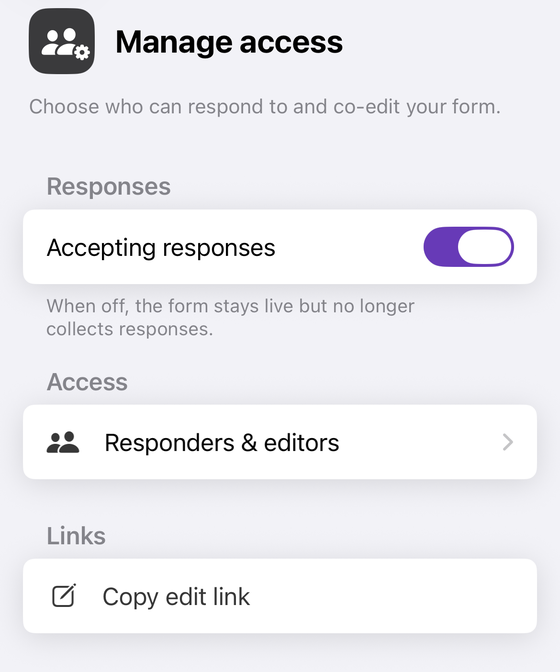
Open Responders & editors and the screen is careful about a distinction that trips up almost everyone, including a good deal of published advice. Its Drive file sharing rows read Restricted or Anyone with the link — and the footer under them says exactly what that means: “Who can open this form's file in Google Drive. This does not control who can answer the form.” A published form is answered through its responder link, which needs no Drive permission at all, so a form can read Restricted in Drive and still be answerable by the entire internet.
That is why the screen keeps a separate, read-only Who can respond section showing Accepting responses and Published as Yes or No. If you have ever looked at a sharing dialog, seen “Restricted”, and concluded your form was private, that section is the one that answers the question you were actually asking. People you have added appear under People with access as Editor or Responder, with the form's owner marked Owner; only the owner can change sharing, and the app says so rather than failing quietly.
See who can actually reach your form
Form+ reads the live publish, accepting-responses and sharing state of your real Google Forms on your own Google account — so you can tell an open form from a closed one before it matters.
Get Form+ free on the App StoreFrequently asked questions
Why does my public Google Form still ask people to sign in?
Three settings force it. Collect email addresses set to Verified, which Google's help states requires users to be signed in to a Google account. A file upload question, where Google states that responders need to sign in to a Google Account. And Limit to 1 response, where Google states that users must sign in to their Google Account to access and fill out the form. Audience and sign-in are separate switches.
Does making a Google Form public make the responses public?
No. Publishing controls who can answer, not who can read the answers. Responses stay with the form owner and editors. The one documented exception is the View results summary setting under Presentation, which Google says shows full text responses or charts for each question and is visible to anyone who can respond to the form.
Can anyone without a Google account fill in a Google Form?
Yes, provided the form is published to anyone with a link and none of the three sign-in triggers are on. Google offers Responder input for collecting an email address, which prompts people to type one in rather than reading it from a Google account, so it does not require signing in.
Does Google Forms have a CAPTCHA or spam filter?
Google's Forms help pages document no CAPTCHA, no bot detection and no spam filtering for the responses your form receives. What Google does publish is the other direction: abuse program policies covering phishing and spam in forms, and a Report a violation flow for people who receive an abusive form.
How do I make a public form stop taking responses?
Turn off Accepting responses behind the Published button. That closes the form to new submissions while the link stays live and shows a closed message. Unpublishing is the heavier action: responders with the link then cannot access it at all.