How to copy a Google Form to another account
Last updated September 2026 · ~10 minute read
Short answer: there are two operations here and they are not interchangeable. Transfer ownership hands over the same file — same link, same responses — and Google gates it behind editor access and, on a work or school account, your own organisation. Making a copy in the other account produces a new form: the questions come, the responses do not. Decide which one you mean before you click anything, because only one of them is reversible.
Form+ manages editors and responders on your real Google Forms, and copies a form from any Google Forms link into the account you are signed in to. Get Form+ free on the App Store.
Almost every confused thread about “moving a form to another account” is two people describing different operations with the same sentence. So: each route, what Google publishes about it, and — just as important — where Google publishes nothing at all.
Route 1 — Transfer ownership
Pick this when the form must keep working exactly as it is: same responder link, same responses, same spreadsheet still filling.
Google documents the path inside Forms itself, on Share your form with collaborators. There is a precondition you cannot skip: “Before you transfer ownership of your form to someone, you need to give them editor access.”
- Open the form and click Share.
- Enter the other account, click the Down arrow, select Editor, and click Send. (Its mechanics have their own page: sharing with collaborators.)
- Open Share again. “Under ‘People with access,’ next to the person's name, click Down arrow.”
- “Select Transfer ownership Yes.”
Google Drive documents the same operation from the file list — find the file, right-click, Share → Share, then next to the recipient's name click the Down arrow and choose Transfer ownership. Drive's “change owners inside the file” instructions name “a Google Docs, Sheets, Slides, or Vids file” — Forms is not in that list, which is why the Forms help page carries its own version of the step.
The restrictions, in Google's words:
- “You can only transfer ownership to someone you shared the file or folder with.” Share first, then transfer. This is the same rule the Forms page states as needing editor access.
- “You can't transfer a file from your personal Google account to someone with a work or school account.” And if a pending personal account later becomes a work or school one, “the pending owner can't accept the request”.
- On a work or school account, “you can only transfer ownership of files and folders to someone in your organization” — and, unlike the personal case, “the transfer doesn't require the new owner to accept”.
- Between personal accounts it is a request: “The pending owner is notified by email that if they accept the transfer request, they become the file owner. Until then, you remain the owner.”
- You do not stay in charge afterwards: “If the pending owner accepts, you're downgraded to Editor. The new owner can remove you.”
- The storage bill moves with it: “When you transfer ownership of a file, it's no longer in My Drive and doesn't count towards your storage. It'll count towards the storage of the new owner.”
Does the new owner get everything? Google never enumerates it. What it documents is the mechanism: transfer changes who owns an existing file. It does not create a second file, and nothing in the documentation describes content being dropped. So the reasonable reading — an inference, not a quoted rule — is that the form id, the responder link, the settings and every response already submitted stay put and simply answer to a different account.
Route 2 — Add the other account as an editor, then let it make its own copy
Pick this when the second account wants its own form to run its own way: next year's intake, another team's version, a client's copy of your questionnaire.
- Share the form with the other account as an Editor, exactly as in step 2 above.
- Sign in as that second account and open the form.
- In the top-right corner, click More ⋮ and then Make a copy.
- Name the copy, optionally change the Drive folder, optionally tick “Share it with the same people”, and click OK.
The copy is created by the account that clicked, so it lands in that account's Drive, owned by that account. Nothing about your original changes. The full click-path, and the longer list of what does and does not survive a duplicate, lives on how to duplicate a Google Form — this page is only about the crossing-accounts part.
It is also the route that works when Route 1 refuses — personal-to-Workspace, or outside your organisation. A copy carries no such restriction.
The fact people discover too late: a copy does not bring the responses
Be clear about the evidence here, because the internet is not. Google does not publish a statement that copying a form excludes its responses. Its copy-a-form instructions describe the six clicks and then stop: they say nothing about what the copy contains, nothing about responses, and nothing about a linked spreadsheet.
So the practical answer below is an inference, not a rule we can quote — but it is a firm one, built on two things Google does document. Responses are held by the form they were submitted to, and “if you store responses in a spreadsheet, you have a separate file in Google Drive”. Make a copy duplicates the form file. It does not reach into a separate file, and a brand-new form has received nothing. The copy starts empty; the original keeps everything.
If the responses are the point of the exercise, do not copy. Either transfer ownership, or leave the original where it is and send the other account the data — the spreadsheet, a CSV, or a PDF of the responses. Data and ownership are separable; treating them as one parcel is how forms end up half-handed-over.
What happens to the linked spreadsheet
On a transfer: Google is silent. No Google help page we can find states what happens to a response spreadsheet when its form changes owner. Do not assume it follows. Google does document that the sheet is “a separate file in Google Drive”, and that “you can delete the spreadsheet and not delete the form, or you can delete the form and not delete the spreadsheet”. Two files, two owners, two separate transfers. If the new owner needs the historic rows, transfer or share the spreadsheet as its own Drive file.
A related trap Google does document: “When you create a new response spreadsheet, form collaborators automatically get access to it. Further changes to the permissions of the form won't synchronize automatically.” Permissions flow into the sheet once, at creation, and never again — so tidying up access on the form after a handover leaves the sheet untouched.
On a copy: Google is silent again. It does not document what a copy's response destination is. Open the new form's Responses tab and look before anything real is submitted; a form quietly writing into a spreadsheet in the wrong account is a bad week-three discovery.
File upload questions
One more thing that does not travel in the obvious way. Google states that “for the form owner, uploaded files are stored in a new folder on Google Drive” — the owner's Drive, not the form's. Google does not document what becomes of that folder when the form changes hands, or whether a copy gets one of its own, so treat both as unanswered and check in Drive. The storage side has its own page: Google Forms file upload limits.
So which one do you want?
Transfer when the form must keep its responses and its live link — a running registration, a form printed on something, a survey whose history matters. Copy when you want a fresh start in the other account and the responses can stay behind. If you want both halves, you want a transfer plus an export, not a clever copy.
| Transfer ownership | Copy into the other account | |
|---|---|---|
| Responses already collected | Stay with the form | Do not come — inferred, not documented |
| The responder link | Unchanged | New form, new link |
| Who owns your original | Them — you become Editor | You, unchanged |
| Personal → work/school account | Blocked by Google | Works |
| Work/school → outside the organisation | Blocked by Google | Works |
| Needs editor access first | Yes, per Google | Yes, so they can open it |
| Linked spreadsheet | Not documented — move it yourself | Not documented — check the destination |
| Reversible | Only if the new owner transfers it back | Nothing to reverse |
Doing this from an iPhone
Google has no Forms app for iPhone or iPad, so every click-path above assumes a desktop browser. Form+ covers part of this, and is honest about the part it does not.
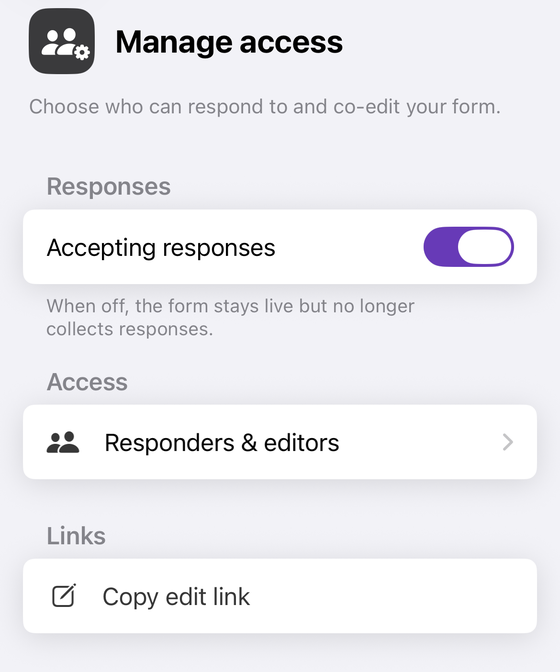
- Granting editor access — the precondition for a transfer, and the whole of Route 2 — is in Manage access → Responders & editors: add someone by email with Add as editor, or change an existing person with Make editor, Make responder or Remove access. The owner is listed and labelled Owner.
- Transferring ownership is not in the app. There is no transfer action on that screen, and if you are not the owner it tells you plainly: “Only the form's owner can change sharing. You can manage it in a browser from the edit link.”
- Copying a form from a link is: Copy a form from the web, a Pro feature,
takes a
docs.google.com/forms/…address or aforms.gleshort link and builds an editable copy in whichever account you are signed in to. It previews the form first and states its own limit: “Questions, options and settings are copied. The original's theme, fonts and text formatting are not.” It builds a new form, so like any copy it starts with no responses. - After you sign in as the second account, Import Existing Forms in Settings lists that account's Google Forms so you can pull them into the app's list.
Hand a form to another account, from your phone
Form+ manages editors and responders on your real Google Forms, and copies a form from any Google Forms link into the account you are signed in to.
Get Form+ free on the App StoreFrequently asked questions
How do I transfer a Google Form to another Google account?
Google documents it in the form's own Share dialog: “Before you transfer ownership of your form to someone, you need to give them editor access.” Then, “On a form, click Share. Under ‘People with access,’ next to the person's name, click Down arrow. Select Transfer ownership Yes.” Drive documents the same operation from the file list: right-click the file, Share, then next to the recipient's name choose Transfer ownership.
Does the new account get the responses?
If you transfer ownership, yes — it is the same file, so the form, its link and its responses change hands together, though Google does not state this in so many words. If the other account makes a copy instead, no. Google never says that a copy excludes responses either; it simply never claims a copy contains them, and its own documentation treats responses as belonging to the form that received them.
Can I transfer a Google Form to someone outside my organisation?
On a work or school account, no: “you can only transfer ownership of files and folders to someone in your organization.” From a personal account, Google is equally blunt in the other direction: “You can't transfer a file from your personal Google account to someone with a work or school account.” When the transfer is blocked, the copy route is the way across the boundary.
Does the linked spreadsheet move with the form?
Google does not document what happens to a linked spreadsheet when a form changes owner, so do not assume it follows. What Google does document is that “if you store responses in a spreadsheet, you have a separate file in Google Drive”, and that “you can delete the spreadsheet and not delete the form”. Treat the sheet as its own file and transfer or share it separately.
Can I copy a Google Form to another account from my iPhone?
Partly. Form+ has a Copy a form from the web tool — a Pro feature — that takes a
Google Forms link or a forms.gle short link and builds an editable copy in the account you
are signed in to; the app states that questions, options and settings are copied and that the
original's theme, fonts and text formatting are not. Transferring ownership is not in the app: Manage
access shows the owner but offers no transfer action, and says only the form's owner can change
sharing.