How to edit a Google Form response after submitting
Last updated September 2026 · ~9 minute read
Short answer: the form owner turns on Allow response editing. Google's steps are “Open a form in Google Forms”, “At the top of the form, click Settings”, “Next to “Responses,” click the Down arrow”, “Turn on Allow response editing”. Google defines what that does precisely: it “sets whether the form displays a link to edit a response after submitting it”. That link is on the confirmation page. It is not automatically emailed — emailing responders their answers is a separate setting.
Form+ edits the settings on your real Google Forms — response editing, response receipts, email collection — on your own Google account, without a laptop. Get Form+ free on the App Store.
Almost every article on this topic runs the two settings together, and that is where people get burned: the owner turns on response editing, the respondent closes the tab, and the link is gone forever. Below is what Google actually documents, what it conspicuously does not, and which of those gaps you should test on your own form before you trust it.
Turn it on
Google's own steps, from its Publish & share your form with responders help page, under the heading “Allow people to edit responses”:
- “Open a form in Google Forms.”
- “At the top of the form, click Settings.”
- “Next to “Responses,” click the Down arrow.”
- “Turn on Allow response editing.”
It is a form-wide switch, not a per-question one, and it does not live in the Publish dialog — Google reshuffled a lot of Forms around publishing, but this setting stayed in Settings → Responses. If you cannot see it, you have almost certainly collapsed the Responses group and are looking at the header row; the Down arrow in step 3 is the part people skip.
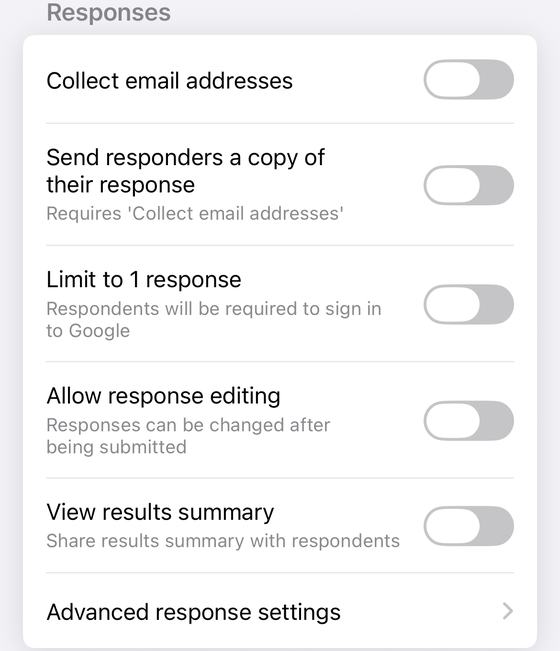
The two settings people confuse
These are different switches, in different places, doing different jobs. Conflating them is the single most common mistake in guides on this topic.
- Allow response editing — Google's developer reference is unambiguous about scope: it “sets whether the form displays a link to edit a response after submitting it.” Displays. On the page shown after you submit. Nothing about email.
- Send responders a copy of their response — documented separately, under the heading “Send response receipts”: “If you collect responder emails, you can choose whether respondents get a copy of their answers.” You set it to When requested or Always, and it requires Collect email addresses to be on first (either “Verified” or “Responder entry”).
So the practical rule: the on-page link is what response editing gives you; email is a second setting you must turn on deliberately. A respondent who submits, sees the confirmation page, and closes the tab has nothing left to click unless you also arranged for them to receive their response by email. Google also warns on the receipt setting that “in certain circumstances, responders may not receive expected response receipts due to spam filters or other counter-abuse measures” — so email is a best-effort channel, not a guarantee.
| Allow response editing | Send responders a copy of their response | |
|---|---|---|
| Where | Settings → Responses | Settings → Responses |
| Values | On / off | When requested / Always |
| Requires Collect email addresses | No | Yes |
| What the respondent gets | A link to edit their response, shown after submitting | An emailed copy of their answers |
| Survives closing the tab | Only if they kept the link | Yes — it is in their inbox |
| Turn it on when | People need to correct their own answers | People need a record, or need to find their way back later |
If you want a respondent to be able to come back next week and fix a typo, you very likely need both.
Who can edit the response
Google answers this directly, and more precisely than its help pages suggest — the answer is in the developer reference rather than the help centre, which is why it is so often reported as undocumented.
What Google documents. The Apps Script reference for FormResponse.getEditResponseUrl() states it in
full: “Generates a URL that can be used to edit a response that has already been submitted. If the
Form.setAllowResponseEdits(enabled) setting is disabled, the link leads to a page that
explains that editing form responses is disabled. Anyone who visits the link can edit the
response, although they need an account with access to the form if the
Form.setRequireLogin(requireLogin) setting is enabled. If the
Form.setCollectEmail(collect) setting is enabled, the form records the email address of the
user who edited the response instead of the email address of the original respondent.”
So the edit link is a bearer key, and that is Google's word for it, not ours. “Anyone who visits the link can edit the response” is as plain as it gets. If the URL is forwarded, pasted into a shared inbox, left in a browser history on a shared computer, or carried along in an email thread that gets forwarded on, whoever holds it can open and change those answers. Do not use response editing on a form collecting anything you would not want a link-holder to alter.
The one condition that narrows it is sign-in: with a login requirement on the form, a visitor still needs an account with access to the form. That is a real constraint, and it is the lever to reach for if you need identity-bound editing rather than link-bound editing.
The consequence people miss is the last sentence. With Collect email addresses on, an edit rewrites the recorded email to whoever did the editing — it does not keep the original respondent's address alongside it. If a colleague opens a forwarded edit link and fixes a typo, the response is now attributed to the colleague. On a form where the email address is the identity of the record, that is a data-integrity problem and not merely a privacy one.
What it does to your data
Two questions get asked constantly here, and the honest answer to both is the same shape.
- The linked spreadsheet row. Does an edit update the original row in place, or append a new one? Google's help pages on viewing and managing responses, and on publishing and sharing, do not document this. We are not going to state a behaviour Google has not published — this site had to publicly correct a guide once already for exactly that habit.
- The timestamp. Whether the timestamp column reflects the original submission or the edit is likewise undocumented in Google's help.
What to do instead of trusting an article: run it once on your own form. Submit a test response, note the row and the timestamp in the linked sheet, open the edit link, change one answer, resubmit, and look at the sheet again. That takes ninety seconds and gives you a fact about your form rather than a rumour about someone else's. Do it before any process of yours — payroll, attendance, an audit trail, a count of registrations — depends on the answer.
The same applies to the two edge cases people ask about. Google does not document what an edit does to a quiz whose grades have already been released, nor what happens when a respondent opens an edit link for a form that has since stopped accepting responses. The only related behaviour Google publishes is that when response editing is switched off, an edit link “leads to a page that explains that editing form responses is disabled” — which is a graceful refusal, not a broken link. Everything else in those two cases is worth ten seconds of testing rather than a guess.
When not to turn this on
- Anything where the first answer is the answer. Exams, timed quizzes, sealed-bid submissions, votes, contest entries. Editability defeats the point.
- Records you have already acted on. If a submission triggered an order, an invoice, a shift assignment or a graded result, letting the respondent silently rewrite it afterwards puts your downstream record out of step with the form.
- Forms whose links get forwarded. Sign-up sheets circulated through group chats and shared mailboxes are exactly where a bearer-key edit URL escapes.
- Anonymous forms where the confusion is expensive. Response editing does not identify the editor, so an edited response tells you nothing about who edited it. If you are running an anonymous form, read what anonymous actually means in Google Forms first.
Where it is genuinely good: long applications people fill in over several sittings, RSVP and headcount forms where plans change, address and contact-detail collection, and anything where a wrong answer costs you more than an edited one.
Doing it from your phone
Both settings above assume the desktop web editor. Form+ puts them on iPhone and iPad, writing to your real Google Form on your own Google account:
- Open the form and go to its Settings.
- In the responses group, switch on Allow response editing — the app describes it as “Responses can be changed after being submitted”.
- For the emailed copy, open Advanced response settings, where Google's own receipt setting is exposed with its three values: Never, When requested and Always. That row is one of the two conditional ones noted in the caption above, so it is not on every settings screen.
Change your form's response settings from your phone
Form+ edits the settings on your real Google Forms — response editing, response receipts, email collection — on your own Google account, without a laptop.
Get Form+ free on the App StoreFrequently asked questions
Where is the Allow response editing setting?
Google's steps are: open a form in Google Forms, at the top of the form click Settings, next to “Responses” click the Down arrow, and turn on Allow response editing. It is a form-wide setting, not a per-question one, and it is not in the Publish dialog.
Does Allow response editing email the edit link to respondents?
Not by itself. Google defines the setting on
Form.setAllowResponseEdits
as making the form “displays a link to edit a response after submitting it” — that is the
confirmation page — and adds that “the default for new forms is false”. Emailing responders their answers is a separate setting,
Send responders a copy of their response, which requires Collect email
addresses to be on.
Can someone edit a response without signing in to Google?
Yes, unless the form requires a login. Google's Apps Script reference for
FormResponse.getEditResponseUrl() states that “anyone who visits the link can edit the
response, although they need an account with access to the form if the
Form.setRequireLogin(requireLogin) setting is enabled”. So an edit link is a bearer key by
default: assume anyone holding it can change the answers, and require sign-in if you need identity-bound
editing rather than link-bound editing.
Does editing a response change the timestamp or add a new spreadsheet row?
Google does not document either behaviour on its response or publishing help pages, so we will not assert one. If your records depend on it, submit a test response, edit it, and watch your own linked sheet before you rely on the answer.
Can I turn on response editing from my phone?
Yes. Form+ for iPhone and iPad exposes Allow response editing in a form's Settings screen, described there as “Responses can be changed after being submitted”, and writes it to your real Google Form on your own Google account.