How to add a timer to Google Forms
Last updated September 2026 · ~11 minute read
Google Forms has no built-in timer. There is no setting anywhere in Forms that gives each respondent their own countdown, and nothing that auto-submits a quiz when an individual's time is up. What Google does provide is a close date and a response limit — one wall-clock moment that ends the form for everybody at once. That is a deadline, not a timer, and for a classroom quiz the difference is the whole problem.
Form+ is a native iPhone and iPad client for your real Google Forms — schedule a form's opening and closing, cap its responses, and manage your quizzes without the desktop site. Get Form+ free on the App Store.
Most articles answering this query quietly install an add-on in step two and never mention that the feature is not Google's. This page separates what Google actually documents from what someone else sells, so you can decide which trade you are making.
How we checked
Rather than assert it, these are the pages read for this guide:
- Google's quiz help page, Create & grade quizzes with Google Forms — it documents making a form a quiz, answer keys and point values, answer feedback, what respondents may see, restricting to a domain and releasing grades. No timer, no time limit, no countdown. A timed test is the single most common reason to make a quiz, so if Google had shipped one it would be here.
- Google's response-management help page, View & manage form responses — this is where Accepting responses, Set close date or response limit, On a date and After a number of responses are documented. All of them are form-level.
- The
Google Forms API reference
— the
Formresource, itssettingsand itsquizSettingscarry no time-limit, duration or countdown field of any kind. (TimeQuestionexists, but that is a question asking a respondent for a time, not a limit imposed on them.) - The
Apps Script
Formclass — it can turn response collection on and off withsetAcceptingResponses(), and nothing on the class expresses a time limit.
Four independent surfaces — help centre, quiz documentation, REST API, Apps Script API — and none of them has a timer. That is as close to a settled answer as this question gets.
A deadline is not a timer
This is the distinction the rest of the page turns on, so it is worth being concrete.
A deadline fires once, for everybody, at a fixed moment on the clock. You set 10:30 and at 10:30 the form stops accepting responses, whoever is mid-answer.
A timer fires per person, counted from when that person starts. Everyone gets the same number of minutes, but each person's minutes begin when they open the form.
Put a class through the first one and you have not run a timed quiz:
- A student who opens the form at 09:55 has 35 minutes.
- A student who opens it at 10:25 has five.
- A student who reloads at 10:29 and submits at 10:31 has nothing at all.
Both quizzes are limited in time. Only one of them gives every student the same test. Every honest answer to “how do I add a timer to Google Forms” starts by admitting that Google gives you the first kind and you wanted the second.
What actually exists
1. A close date or a response limit (Google, built in)
Since January 2026 every Google account — personal and Workspace — can have a form stop accepting responses automatically, either at a date and time or after a set number of responses. Google announced it in Set Google Forms to automatically stop accepting responses (rolling out from 12 January 2026 for Rapid Release and 29 January 2026 for Scheduled Release), and it is off by default. You set it after publishing the form, under Accepting responses → Set close date or response limit, choosing either On a date or After a number of responses.
This is genuinely useful — for registrations, sign-ups, event RSVPs and anything with a capacity it is exactly right. It is simply not a timer: it ends the form for everyone at once, and it does not know or care when any individual started.
2. Apps Script
Apps Script can close a form on a schedule, which is the same deadline in code rather than in settings.
Form.setAcceptingResponses(enabled)
sets whether the form is currently accepting responses, and an
installable time-driven trigger
can run a function at a particular time or on a recurring interval, as often as every minute. Put the two
together and you can open and close a form on a repeating weekly timetable, which the built-in setting
cannot do.
What Apps Script cannot do is give a respondent a countdown. The script runs on Google's servers on a clock of its own; it never sees a particular person open the form, and it cannot draw anything onto the page they are looking at. Scripting gets you a better deadline, not a timer.
3. Third-party timer add-ons
Timer add-ons for Google Forms exist and are easy to find on the Google Workspace Marketplace — listings such as Timer for Google Forms, Form Timer and Timer + Proctor for Google Forms (Extended Forms) are built around exactly this, typically with a countdown that auto-submits when it hits zero. They are named here as examples that exist, not as recommendations: they have not been tested for this guide, and no ranking, feature claim or price is implied.
The thing to understand before installing one is how they can do what Google does not. An
add-on cannot inject a countdown into the page Google serves at a docs.google.com or
forms.gle address. So these tools generally give you a different link — their own hosted copy
or wrapper of your form — and that is the link your class opens. Which means the questions worth asking
are: where do responses land and how do they get back into your Google Form, what account access does the
add-on request, what happens if their service is down at 09:00 on exam morning, and what does it cost per
teacher or per respondent once the free tier ends. Check those on the listing itself rather than on any
article, this one included.
4. Time the room instead of the form
The answer most teachers land on is that the timer does not have to live in the form at all.
- A platform that owns the clock. If your assessment runs inside a testing or lesson platform, that platform can time the session and Google Forms is just the question paper. The timer is enforced by the thing your students are logged into, which is also the thing that can prove they were there.
- Announce the window and close the form. “You have 30 minutes, starting now” on a projector, with a close date set a couple of minutes past the end, gets the fairness from the fact that everybody starts together and gets the hard stop from Google's own setting. For an invigilated room this is usually enough, and it adds no third-party software to a graded assessment.
- Release the link when the clock starts. Sending the link at the start of the window rather than the night before makes the shared start time real, which is the assumption the close date quietly depends on.
Where none of that is possible — an unsupervised, remote, individually-started test where each person genuinely must get their own N minutes — the honest answer is that it cannot be done with Google Forms alone.
For a timed classroom quiz, here is what actually works
- Everyone starts together. Share the link at the start of the window, not before. A shared start is what turns a close date into something resembling a fair time limit.
- Say the window out loud and put it in the form description. “Open 10:00, closes 10:32.” Two minutes of slack absorbs slow loads and shaky Wi-Fi.
- Set a close date on the published form — Accepting responses → Set close date or response limit → On a date. This is your hard stop, and it is Google's own, so nothing else has to stay up.
- Turn on Limit to 1 response if you are collecting email addresses, so a second attempt after the bell is not possible.
- Check the responses for start-to-submit spread afterwards. If people are starting twenty minutes apart, the close date is not doing the job you think it is, and you need either a supervised room or a platform that owns the clock.
If the quiz is high-stakes and unsupervised, stop trying to make Forms do it. Use an assessment tool that was built to time people.
The options side by side
| Per-respondent countdown | Auto-submits at zero | Whose software | |
|---|---|---|---|
| Close date / response limit | No — one moment for everybody | No; it stops accepting new responses | Google, built in |
| Apps Script | No — runs on a server clock | No | Google, your own script |
| Timer add-ons | Yes, that is what they sell | Typically yes | Third party, usually via their own link |
| Testing / lesson platform | Yes, the platform times the session | Depends on the platform | Third party, form is the paper |
| Announce the window | No — but everybody starts together | No; the close date is the stop | Nobody's, which is the appeal |
Where Form+ fits — and where it does not
Form+ does not put a timer on your Google Forms link either. If you
send a forms.gle link and thirty students open it in their browsers, that page is served by
Google, and no iOS app can count anyone down on it. Any article implying otherwise is selling something.
What Form+ does have is the deadline side, on your real Google Forms and your own account, from an iPhone or iPad:
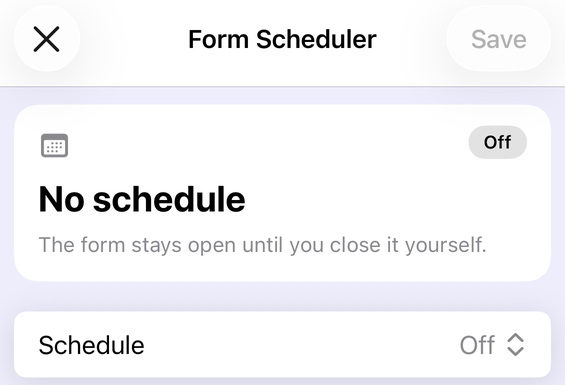
- Form Scheduler — opening and closing dates for a form, with a time zone, a message respondents see outside the window, and a repeating daily option. Covered in full in schedule a Google Form to open or close.
- Response Limiter — a cap on how many responses the form accepts. Covered in limit responses on Google Forms.
There is also a Quiz timer & proctoring tool in Form+, and its scope needs saying plainly, because it is narrower than the name suggests. It runs when a respondent fills the form inside the Form+ app itself — the app's own branded fill screen on that device — not when someone opens your form link in a browser. In that setting it shows a countdown, auto-submits when it reaches zero, can shuffle question order, can track app-switching and take front-camera checks, and shows a Trust Score report on the device afterwards. So it fits a handed-over iPad at a desk or a supervised station; it does not fit a link sent to a class on their own phones. Form Scheduler, Response Limiter and Quiz timer & proctoring are all Pro tools. For a class on school hardware, Google’s own locked mode for Chromebooks answers the same problem from the other direction — and an unmanaged device cannot open the quiz at all.
One more boundary, because it decides whether any of that is available to you at all. The branded fill screen is opened from a single Preview branded form… row in the editor's Share & Brand menu, and the current build switches that row off. The filter that hides it matches the row's translated title against an English list, so the row is still drawn on a device set to one of the app's 21 other languages; on an English-language device it is not drawn, and the countdown, the auto-submit, the app-switch tracking, the front-camera checks and the Trust Score report have nowhere to run. The settings screen itself still opens and still writes its settings to that device — it is the fill screen that reads them that you cannot reach. Form Scheduler and Response Limiter are unaffected: those act on the real Google Form.
The deadline half, on your phone
Form+ is a native iPhone and iPad client for your real Google Forms — schedule a form's opening and closing, cap its responses, and manage your quizzes without the desktop site.
Get Form+ free on the App StoreFrequently asked questions
Does Google Forms have a built-in timer?
No. Google's quiz documentation lists the quiz settings it supports — answer keys, points, feedback, what respondents may see, grade release — and a timer is not among them. The Forms API reference has no time-limit, duration or countdown field on a form, on its settings, or on its quiz settings. There is no setting to hide, because the feature does not exist.
Can I give each student 30 minutes from the moment they start?
Not with Google Forms on its own. Everything Google provides is a single wall-clock event for the whole form: it stops accepting responses at a date and time, or after a number of responses. Nothing in Google Forms starts a clock when an individual respondent opens the form. A per-respondent countdown requires something on top of Forms — a third-party add-on, or a testing or lesson platform that hosts the timer itself.
Is a close date the same as a timer?
No, and the difference matters in a classroom. A close date fires once, for everybody, at a fixed moment on the clock. A timer fires per person, counted from when that person starts. If a quiz closes at 10:30, a student who opens it at 09:55 has 35 minutes and a student who opens it at 10:25 has five. Both quizzes are limited in time; only one of them is fair.
Do timer add-ons for Google Forms work?
Timer add-ons for Google Forms do exist on the Google Workspace Marketplace, and several are built specifically around a countdown that auto-submits. They are third-party software: they generally work by serving respondents their own hosted copy or wrapper of the form rather than by adding a timer to Google's page, so check where the responses land, what account access is requested, and what the pricing is before a whole class depends on it.
Does Form+ add a timer to a Google Form?
Not to the Google Forms link. If you send a form link and a respondent opens it in a browser, that page is served by Google and Form+ cannot count anyone down on it. Form+ does have the deadline side — a Form Scheduler and a Response Limiter for your real Google Forms — and it has a quiz timer that runs only when someone fills the form inside the Form+ app itself, which suits a handed-over iPad rather than a link sent to thirty devices — and on an English-language device that in-app timer is not currently reachable either, because the fill screen it runs in is opened from one editor row that this build switches off.