How to change the theme of a Google Form
Last updated September 2026 · ~9 minute read
Short answer: everything you can restyle lives behind one control — Customize theme. Google's own steps are: open the form, click Customize theme, choose a theme colour and background colour under “Color”, add a header image under “Header” with Choose image, change the font under “Text”, then click Close. That is the whole surface. There is no stylesheet, no layout control, and — despite what half the internet asserts — no header image size published by Google.
Form+ brings Customize Theme to iPhone and iPad — colour, background, header photo and fonts, with a live preview, on your real Google Forms and your own Google account. Get Form+ free on the App Store.
This guide sticks to what Google actually documents, because this is a topic where the most-repeated advice is a number nobody at Google ever wrote down. Where Google is silent, this page says so rather than filling the gap.
The one control that does all of it
Google's help page Change the theme or font of your form gives these steps verbatim:
- “In Google Forms, open a form.”
- “Click Customize theme.”
- “Optional: Under “Color,” you can choose a theme color and background
color for your form.”
- “To add a custom color, click Add custom color.”
- “To add your own photo as a theme, under “Header,” click Choose image.”
- “Click Close.”
The panel that opens is what Google's header-image instructions call the “Theme” side panel. Four things live in it: the header image, the theme colour, the background colour and the font style. Nothing else about the form's appearance is adjustable, which is the single most useful fact on this page.
Images inside the form — standing on their own, attached to a question, or attached to an answer option — are a different job with a different control; that is covered in how to add an image to Google Forms.
The header image — and the size question
This is the banner across the top of the form. Google's steps:
- “On your computer, open a form in Google Forms.”
- “At the top right, click Customize Theme.”
- “In the “Theme” side panel, under “Header,” click Choose Image.”
- “Select where to get your image.”
Google documents six sources, and they behave slightly differently:
| Source | Google's steps |
|---|---|
| Themes (Google's own gallery) | Select an image → Insert |
| Upload (your own file) | Browse → choose the image file → Save |
| Photos | Select an image → Insert → Save |
| Google Drive | Select an image → Insert → Save |
| Google Images | Search → select an image → Insert → Save |
| By URL | Paste an image URL → Insert image → Save |
Two more documented moves, both reached by clicking the header image itself: Replace Header Image swaps it, and Reposition Header Image crops it — “To crop the image, drag the corners of the box,” then Save.
What size should the header image be?
Not published by Google. The help page that covers adding, replacing and cropping a header image names no pixel dimensions, no minimum, no maximum and no aspect ratio. The confident numbers you find elsewhere — 1600 × 400 and its many cousins — are blog inventions repeated until they sounded official. We will not add another one.
What follows from Google's own instructions instead: since the editor gives you a crop box you drag the corners of, the practical advice is to start with a wide, generously sized image and crop it in place. Anything with important detail near the edges will suffer, because the header is a wide band and your image is being fitted into it.
Theme colour, background colour and fonts
Colour
Under “Color” there are two settings, and they are not equals. The theme colour is the free choice — a row of presets plus Add custom color for anything outside it. Google's help page documents that control but does not document typing a hex code into it, so treat hex entry as undocumented rather than promised. The background colour is the constrained one: it is offered as shades that go with the theme colour you just chose, which is why you cannot pair an orange accent with a mint page.
Fonts
Google's wording is: “Below “Text,” you can change the font style for headers, questions, and text. Choose the text style you want to edit, then change the font and size.” So there are three text roles — headers, questions, text — each with its own font and size.
Google does not enumerate the fonts. Its help page names no typeface at all, and the set is not the Google Docs font menu, so a font you use in Docs is not guaranteed to be here. Open the panel and read the list rather than planning a brand around a font you have not seen in it.
What you cannot change
This is the part most guides skip, and it is usually the answer people actually needed. Google documents controls for the header image, theme colour, background colour, and font and size for three text roles. It documents no control for any of the following:
- A background image. The background setting is a colour. The only image the theme panel places is the header.
- Per-question styling. Fonts and sizes are set for headers, questions and text as classes — not one question at a time, and not one word at a time.
- Layout. No column widths, no page width, no card spacing, no repositioning of the title block.
- Custom CSS or an uploaded font. There is no stylesheet to reach and no font upload.
- Button and control styling. The submit button, progress bar and form controls take their appearance from the theme colour; they are not separately styleable.
- A stored theme. Nothing in the panel saves a look under a name for later.
If the brief you have been handed requires any of those, Google Forms is not going to get you there, and no setting hidden in a submenu will change that. The honest routes are: get as close as the theme panel allows, or generate the branded output downstream of the form — a branded PDF, certificate or document built from the responses.
Reusing a look across forms
There is no “save this theme” and no “apply this theme to another form” in Google's documentation. The documented way to get a second form that looks like the first is to copy the whole form: open it, click More, then Make a copy, name the copy, and optionally change its Drive location or share it with the same collaborators. You get the theme, and you also get the questions, which you then edit or delete. Crude, but documented and reliable.
Google Workspace accounts have one extra route: under “Themes” in the same panel there can be organisation-branded themes. Google's note is explicit about the catch — “Organization-branded themes appear only if your administrator makes them available.” If you do not see them, that is an admin setting, not something you can enable from the form.
Doing it from an iPhone or iPad
Every step above describes the desktop web editor. Form+ puts the same job in a native editor: Customize Theme in the editor toolbar (the palette icon).
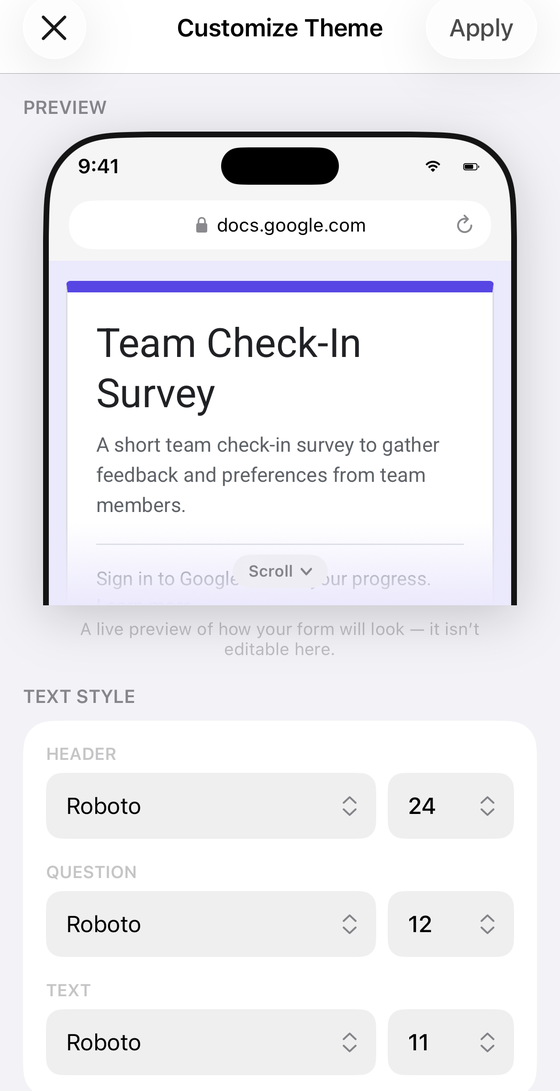
What the screen offers:
- Theme color — a row of presets plus a Custom color picker.
- Background color — four swatches, captioned in the app as “Shades of your theme color.”
- Header — Color, Gradient or Photo…. Choosing a photo opens a Header photo cropper with four shapes — Slim, Banner, Standard and Tall — where the crop itself sets the header's height.
- Text style — font and size for Header, Question and Text, matching Google's three roles.
- Preview — a live preview of the form, labelled in the app as not editable there.
Tapping Apply writes the theme to your real Google Form on your own account; where something has to go through Google's own panel, the app hands you that panel and you tap Done. Customize Theme is a PRO feature, with a live demo on a sample form so you can see the editor before deciding. Separately, Form+ has a Branding & White-label PRO setting, but note what it covers: your logo and the removal of the default footer on generated certificates and the branded form — not the Google Form's own theme.
Where each change lives
| You want to change… | Where |
|---|---|
| The banner at the top | Customize theme → “Header” → Choose image |
| The accent colour | Customize theme → “Color” → theme colour, or Add custom color |
| The page colour | Customize theme → “Color” → background colour (shades of the theme colour) |
| The typeface or text size | Customize theme → “Text” → pick the role, then font and size |
| An image beside a question | Not the theme — add an image to the form body |
| The same look on a second form | More → Make a copy |
| Any of it from a phone | Form+ → editor toolbar → Customize Theme |
| Layout, CSS, per-question fonts | Not possible in Google Forms |
Theme your forms from your phone
Form+ brings Customize Theme to iPhone and iPad — colour, background, header photo and fonts, with a live preview, on your real Google Forms and your own Google account.
Get Form+ free on the App StoreFrequently asked questions
Where is Customize theme in Google Forms?
In the form editor, at the top right — Google's help page says simply “Click Customize theme” and calls what opens the “Theme” side panel. That one control holds the header image, the theme colour, the background colour and the fonts.
What size should a Google Forms header image be?
Google does not publish one. Its help page for header images lists where the image can come from and how to reposition and crop it, and names no pixel dimensions and no aspect ratio. Any specific number you see quoted for this — 1600 × 400 and similar — comes from a blog, not from Google. Upload something wide and generously sized, then use Reposition Header Image to crop it.
Can I use a custom colour in Google Forms?
Yes. Beyond the preset row, Google documents an Add custom color control under “Color”. Its help page does not document typing a hex code, so treat hex entry as undocumented rather than promised. The background colour is the more limited of the two — it is offered as shades that go with the theme colour you picked.
Which fonts does Google Forms offer?
Google does not name a single one. The help page says only that you can choose the text style you want to edit and then change the font and size, and it enumerates no font list. The set is also not the same as the Google Docs font menu, so do not assume a font you use in Docs is available here — open the panel and look.
Can I save a theme and reuse it on another form?
Google documents no save-this-theme control and no apply-to-another-form control. The documented way to get a second form that looks the same is to copy the whole form: open it, click More, then Make a copy. Workspace users may also see organisation-branded themes under “Themes”, but Google notes those appear only if your administrator makes them available.
Can I change the theme of a Google Form on my phone?
Google's steps all describe the desktop web editor. Form+ on iPhone and iPad has a Customize Theme item in the editor toolbar that sets the theme colour, background, header and text style on a real form, with a live preview; it is a PRO feature with a live demo on a sample form.