How to stop accepting responses in Google Forms
Last updated September 2026 · ~9 minute read
Short answer: the switch is still called Accepting responses — it just is not on the Responses tab any more. Google's current instruction is: “In a published form, at the top right, click Published. Turn off Accepting responses.” (View & manage form responses). Nothing you have already collected is touched, and turning it back on reopens the same link. On a phone, Form+ has the same switch on its Manage access screen.
Form+ puts Accepting responses, publishing and unpublishing on iPhone and iPad — on your real Google Forms, in your own Google account. Get Form+ free on the App Store.
If you went looking on the Responses tab and found nothing, you are not imagining it, and your form is not broken. The control moved when Google put publishing in front of sharing — and the two things it moved between, closing and unpublishing, are not the same action.
Where the control actually lives now
Google Forms now has a publish step: “Before responders can access your form, you need to publish it,” and “Once your form is published, at the top right, it shows ‘Published.’ To change publishing options, click Published” (Publish & share your form with responders). That Published button is the door. Behind it sits the same accepting-responses switch people remember from the Responses tab, under the same name.
Google documents it in two places, and the second one is the more precise of the two. The Workspace Learning Center's Publish your form and get responses spells the whole thing out under the heading “Stop collecting responses”: “When you create a new form, response collection is automatically turned on. You can pause or stop it. For example, if you find a mistake after sending out a form, you can pause response collection until the error is fixed.” Its steps are: open the form, “at the top right, click Published,” “Turn Accepting responses from On to Off,” then “Click Save.”
So: the label did not change, the location did. And the old Responses tab is not empty afterwards — Google says that once you have switched it off, “you'll see a message in the ‘Responses’ tab that says ‘This form isn't accepting responses.’” That banner is what the Responses tab shows you now instead of the toggle.
Is the old toggle still there for anyone? Google's own answer is that the publishing model is being applied to everything. In its 29 January 2026 announcement it wrote that it will “automatically upgrade all existing forms to have granular controls over who can respond,” that “this automatic upgrade will not change who can access or respond to the form,” and that “the form will remain available to receive new responses while it is being upgraded.” The Forms API still recognises a “legacy form” — one that returns no publish settings at all — so an un-upgraded form can still exist in the wild. But there is no current Google help page describing a Responses-tab toggle, and none of them document a transition period with two different UIs. If your form has a Published badge in the top right, that badge is where your switch is.
Close the form, step by step
- Open the form in the Google Forms editor. It has to be published — the switch is a publishing option, and Google notes plainly that “you can't accept responses in unpublished forms.”
- Click Published at the top right.
- Turn Accepting responses off. The Learning Center's wording is “from On to Off”.
- Click Save.
- Check the Responses tab. Your confirmation that it took is the banner there: “This form isn't accepting responses.”
The message late arrivals will read
This is the part worth thirty extra seconds, because it is the only thing anyone who was too slow will ever see. Google's default is bare — respondents “get a message ‘The form is no longer accepting response’ or a custom message” (that is Google's own phrasing, singular “response” and all).
To replace it, Google's steps are: “Under ‘Responders will see this message when the form is closed for responses,’ click Edit,” then “Enter a message. For example, ‘This form is no longer receiving responses. Thanks!’” and Save. Note where that instruction sits in Google's help page: inside the Set close date or response limit flow, reached from under “Accepting responses”. Google does not document a separate message editor for the plain manual switch, so that is the path to it.
Write something that answers the question the reader actually has. “Applications closed on 14 March — the next round opens in June” saves you an inbox full of emails. The default saves you nothing.
What closing does to links, embeds and QR codes
A closed form keeps its address. Google does not document any change to the responder link when you switch off Accepting responses — the link still resolves, and what loads is the closed message rather than your questions. That is the whole behaviour the help pages describe.
On embedded forms and QR codes, Google's help pages are silent. They tell you how to embed a form and how to close one, and never connect the two. We are not going to reason about it in public and present the result as documentation: if you have a form in a page or on a printed poster and the exact wording matters to you, close the form and load the embed or scan the code yourself before you rely on it.
What is worth saying out loud is the thing people get wrong in the other direction: closing a form does not recall anything. Every link you have sent, every poster you have printed, every QR sticker on a table stays exactly as valid as it was. You have changed what those things lead to, not whether they exist.
Responses, reversibility, and who can still get in
- Responses already collected are untouched. Google describes closing purely as a control over collection — “stop collecting responses”, “pause response collection” — and documents no effect on the data already in the form. Your Responses tab, your charts and your linked spreadsheet are where you left them. Losing responses takes a different, explicit action; see delete a Google Form for what that one costs.
- It is reversible. The switch is a switch. Google's own framing is that you can “pause” collection “until the error is fixed”, which is a round trip, not a one-way door. Turn it back on and the same link starts accepting again.
- You keep full access to the form. Closing is a responder-side control, and Google's steps have you sitting in the editor the entire time — you cannot turn the switch off from anywhere else. Editing a closed form, and editing it with collaborators, is not something Google's help pages flag as restricted, and they describe no change to editor access at all when a form closes.
Closing is not unpublishing
These sit one row apart in the interface and are constantly confused. Google's developer documentation draws the line cleanly: “Unpublishing a form makes it unavailable and automatically stops it from accepting responses.” Unpublish is the superset. The help centre's half of it: “If the form is unpublished, responders with the link can't access it.”
| Accepting responses off | Unpublished | |
|---|---|---|
| Link still opens | Yes — shows your closed message | No — “responders with the link can't access it” |
| Accepts submissions | No | No — “you can't accept responses in unpublished forms” |
| Your custom message shows | Yes | Not documented |
| Responses you already have | Kept | Kept |
| Reversible | Yes — switch it back on | Yes — publish again |
Pick closing when the form has finished its job and you want late arrivals to understand why. Pick unpublishing when you would rather the thing simply not be there.
Three ways to stop responses — pick the right page
A form stops accepting responses for exactly three reasons: you closed it by hand, which is this page; it hit a cap you set on the number of responses, which is limiting the number of responses; or a deadline passed, which is scheduling a form to open or close. Google's built-in automatic version of the last two lives under the same “Accepting responses” heading, as Set close date or response limit; in Form+ they are the Response Limiter and the Form Scheduler. Closing by hand is the one to use when the moment has already arrived. The other two are for when it has not.
Closing a form from your iPhone
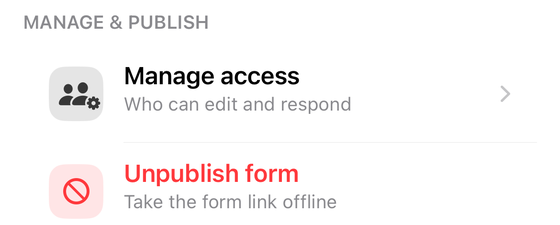
Google's steps assume the desktop web editor. Form+ puts the same switch in reach on iPhone and iPad, working on your real Google Forms in your own Google account. Open the form, tap Share & Distribute, and look at the Manage & Publish group at the bottom of the sheet:
- Open the form in Form+ and tap Share & Distribute.
- Under Manage & Publish, tap Manage access.
- In the Responses section at the top, switch Accepting responses off. The screen spells out what that means underneath: “When off, the form stays live but no longer collects responses.”
One detail that exists because the mistake is so easy to make: if you later share a link, QR code or poster for a form that is closed, Form+ stops and tells you — “This form isn't accepting responses, so anyone opening the link will be told it's closed. Share it anyway?” You can still go ahead, because sharing ahead of reopening is a real thing people do. You just do not do it by accident.
Open and close your forms from your phone
Form+ puts Accepting responses, publishing and unpublishing on iPhone and iPad — on your real Google Forms, in your own Google account.
Get Form+ free on the App StoreFrequently asked questions
Where is the Accepting responses toggle in Google Forms now?
Behind the Published button at the top right of a published form, not on the Responses tab. Google's current step is: “In a published form, at the top right, click Published. Turn off Accepting responses.” The label survived the redesign; only its location changed.
What do people see when a Google Form is closed?
Google says responders “get a message ‘The form is no longer accepting response’ or a custom message.” You can replace it under “Responders will see this message when the form is closed for responses.”
Does closing a Google Form delete the responses I already have?
No. Google documents closing as a control over new submissions only, and describes no effect on responses already collected. Deleting responses is a separate action on the Responses tab.
Is unpublishing the same as turning off Accepting responses?
No, and unpublishing is the stronger one. Google's developer documentation states that “unpublishing a form makes it unavailable and automatically stops it from accepting responses,” and the help centre adds that “if the form is unpublished, responders with the link can't access it.”
Can I stop responses from my phone?
Google's steps assume the desktop web editor. Form+ on iPhone and iPad has the same switch in Share & Distribute under Manage & Publish, on the Manage access screen, labelled Accepting responses.