Google Forms locked mode
Last updated September 2026 · ~9 minute read
Short answer: it is a Chromebook setting, not a Google Forms setting. Locked mode is enforced by ChromeOS on Chromebooks your school manages, and the form is only the thing being displayed. That matters far more than it sounds, because of one line in Google's documentation: “Unmanaged devices can't access the Forms quiz.” A locked quiz is not merely unproctored on a phone or a home laptop — it does not open on one.
Form+ is a native iPhone and iPad client for the real Google Forms in your own Drive — build quizzes, read responses, no migration. Get Form+ free on the App Store.
Most write-ups treat locked mode as a switch you flip to stop cheating. It is better understood as an eligibility rule for who can sit the quiz at all, and that framing changes what you do with it.
How we checked
Every quotation below comes from a Google page and is linked to it. Two pages carry the substance: the Workspace Learning Center's Tips to customize your forms, which documents the switch inside Google Forms, and Classroom Help's Create a quiz assignment, which documents the requirement and the behaviour. For the question of whether any app can reach the setting, we read Google's machine-readable Forms API v1 discovery document (revision 20260909) and the Apps Script Form class rather than repeating what other sites say about them.
What locked mode actually locks
It locks the device. Google's Learning Center describes the effect from the student's side: when students take a quiz in locked mode, “they won't be able to browse other websites or open any other apps.” Classroom Help puts the same thing more narrowly — “When the Chromebook is locked, students can't open other browser tabs.”
There is a second, quieter behaviour that is easy to miss and worth knowing before you rely on it. Classroom Help states: “You'll get an email if a student exits the Forms quiz and then reopens it.” So the lock is not absolute containment — leaving is possible, and what you get is a notification that it happened. Treat it as a tripwire with a log, not a sealed room.
The two places it is turned on
This is where people get lost, because the setting has two homes and the help pages document one each.
In Google Forms. The Learning Center's route is: open a quiz in Google Forms, click Settings, Make this a quiz, and then — in its words — “Under ‘Chromebook settings,’ turn on Locked mode.” Note the group name. It is not filed under Responses or Presentation with the rest of the form settings; it sits in its own Chromebook-specific group, which is the first hint that it is not really a Forms feature.
In Google Classroom. The other route is on the assignment rather than the form. Classroom Help's step reads: “To prevent students who use Chromebooks managed by your school from opening other webpages when taking the Forms quiz” — next to Locked mode on Chromebooks, click Turn on. Same enforcement, set on the quiz assignment you are handing out.
The requirement that decides everything
Both routes carry the same precondition, and Classroom Help is unusually blunt about it. The page opens by scoping itself — “This article is for teachers with a Google Workspace for Education account” — and under its locking section says “You can also lock a quiz on Chromebooks managed by your school.” Then comes the sentence that this whole guide turns on:
“Unmanaged devices can't access the Forms quiz.” — Google Classroom Help, Create a quiz assignment
Read that as an access rule and the consequences fall out immediately. A student on a personal laptop is locked out. A student on an iPad is locked out. A student on a school-issued device that is not a managed Chromebook is locked out. A student whose Chromebook is at home charging is locked out. You have not weakened your quiz for those people — you have removed them from it.
That makes locked mode a poor fit for anything other than a supervised, single-device-type sitting. If your respondents are the general public, a mixed-device classroom, or anyone at all on their own hardware, this setting is the wrong tool, and the failure mode is silent exclusion rather than a warning.
Google does publish a dedicated help article on it, called “Use locked mode for quizzes”. It is worth knowing where that article is surfaced: it appears as item 6 of the seven-entry Tools & troubleshooting list carried on Fix common errors while you respond to a Google Form, among the advanced and troubleshooting material rather than beside the everyday question-and-answer settings. If a student tells you the quiz “won't open”, that article is the one to reach for.
What students keep during a locked quiz
The lock does not strip everything. Classroom Help says “Students can use the following accessibility features when a Chromebook is locked” and names three: ChromeVox (text-to-speech), High-contrast mode, and Full-screen and docked magnifier. That list is Google's, reproduced as published.
Whether those three are adequate for a particular student, or for whatever obligations your institution operates under, is a judgement for your school and not something a guide can settle. The useful takeaway is narrower: check the list against the students who will sit the quiz before the day, because a locked Chromebook is a bad place to discover a missing tool.
Why no app can add locked mode
People reasonably ask whether a third-party Forms client could offer this. It cannot, and the reason is checkable rather than a matter of opinion.
Google's Forms REST API v1
discovery document
(revision 20260909) is the machine-readable list of every field the API has. Searched for
Chromebook, locked and proctor, it returns nothing at all. The
relevant schemas are tiny: FormSettings has two properties — quizSettings and
emailCollectionType — and QuizSettings has exactly one, isQuiz,
described as “Whether this form is a quiz or not.” There is no third thing to set. The Apps Script
Form class has no
locked-mode method either.
That absence is not an oversight to be routed around. Locked mode is enforced by managed ChromeOS on the device; a form-editing API has nothing to enforce it with. An app that claimed to switch it on would be claiming something the platform does not offer.
On iPhone and iPad
In Form+, the native client for the real forms in your own Google account, the same absence shows up in the interface, and its shape is worth stating precisely rather than in general terms.
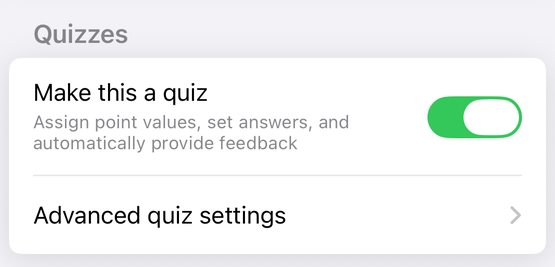
The form's settings screen has a Quizzes section whose row count is conditional, and the condition is worth naming rather than glossing. It draws two rows — Make this a quiz and Advanced quiz settings — when the form is already a quiz and the account is on the app's current feature set; otherwise it draws one, the Make this a quiz switch alone. Those are the only two states the section has, and neither contains a Chromebook group. That is not an omission: it matches the API exactly, because there is no such field for the app to show.
Form+ does have a separate tool called Quiz timer & proctoring, and the difference between it and locked mode needs saying clearly, because the names invite a confusion. It is offered on the form's Automate menu only when the form is already a quiz, and it is a PRO tool. Crucially, it applies to the app's own branded fill screen — the app's words in its own upgrade prompt are that it works “when respondents fill this form in the branded form.” It does not attach to your form's real public Google Forms link, so a respondent who opens that link in a browser is unaffected by it. Its configuration is also stored on the device, in the app's own preferences, rather than on the form in Drive — so it does not travel with the form to another device or to the web editor.
There is a further catch, and in practice it is the one that decides the matter. That branded fill screen has exactly one door — a Preview branded form… row on the same Share & Brand menu — and the current build switches that row off. The filter that hides it matches the row's displayed title, which is translated, against an English list of switched-off features, so the row is still drawn on a device set to one of the app's 21 other languages. On an English-language device it is not drawn at all, and the screen behind it therefore cannot be opened. The Quiz timer & proctoring settings screen still opens and still saves; on an English device nothing reads what it saved.
If you need this and do not have managed Chromebooks
None of these is equivalent, and it is worth being honest that Google Forms has no general-purpose lockdown for arbitrary devices. What is available is a set of partial measures:
| Measure | What it buys you | What it does not |
|---|---|---|
| A time limit | Pressure, and less opportunity to look things up | Any control over what else is open |
| Shuffled question order | A slower glance at a neighbour's screen | Prevention; both screens still show the same questions |
| Restricting to your domain | Only signed-in people in your organisation can open it | Anything about the device they use |
| One response per person | No second attempt from the same account | Stopping a first attempt taken with help |
Used together these raise effort. They are not proctoring, and describing them as such to students or colleagues would be overselling them.
Run your quizzes from your phone
Form+ is a native iPhone and iPad client for the real Google Forms in your own Drive — build quizzes, read responses, no migration.
Get Form+ free on the App StoreFrequently asked questions
What does locked mode do in Google Forms?
It locks the Chromebook, not the form. Google's Workspace Learning Center says that when students take a quiz in locked mode, “they won't be able to browse other websites or open any other apps.” The Classroom help centre adds that “When the Chromebook is locked, students can't open other browser tabs,” and that “You'll get an email if a student exits the Forms quiz and then reopens it.”
Can students take a locked-mode quiz on an iPad or a personal laptop?
No. This is the single fact the setting turns on. Google's Classroom help page states plainly: “Unmanaged devices can't access the Forms quiz.” It is not that the lock quietly fails to apply elsewhere — the quiz does not open at all. Anyone without a school-managed Chromebook is excluded, not merely unproctored.
Where is the locked mode setting?
There are two entry points. In Google Forms, open a quiz, click Settings, make it a quiz, and under “Chromebook settings,” turn on Locked mode. In Google Classroom, it is set on the quiz assignment itself: next to “Locked mode on Chromebooks,” click Turn on.
Why can't a Google Forms app add locked mode?
Because Google does not expose it. The Forms REST API v1
discovery document
(revision 20260909) contains no Chromebook or locked-mode field anywhere: FormSettings carries
two properties, quizSettings and emailCollectionType, and QuizSettings
carries exactly one, isQuiz. The Apps Script Form class has no locked-mode method either. Locked
mode is enforced by managed ChromeOS, so no client on either API can switch it on.
Do accessibility tools still work during a locked quiz?
Google lists three that remain available. The Classroom help page says “Students can use the following accessibility features when a Chromebook is locked” and names ChromeVox (text-to-speech), High-contrast mode, and Full-screen and docked magnifier. Whether that set is sufficient for a given student is a decision for the school, not something this page can answer.
Does Form+ have a locked mode?
No, and no third-party client does. Form+ has a separate PRO tool called Quiz timer & proctoring, which is a different thing: it runs only inside the app's own branded fill screen, not on your form's real public link, and its settings are stored on the device in that app's own preferences rather than on the form in Drive. On an English-language device that screen is also not reachable in the current build — its only entry point, a Preview branded form… row in the editor, is switched off, and the filter that hides it matches the translated title, so the row survives only on a device set to another language.