How to print a Google Form
Last updated September 2026 · ~6 minute read
Short answer: Google Forms does have a Print command, and it lives in the editor's More menu — the same menu as Make a copy, Move to trash, Pre-fill form, Embed HTML and Unpublish form. Choosing it prints the blank questionnaire: the form as a respondent would meet it, with nothing filled in. On iPhone and iPad, Form+ has a Print Form button in the editor toolbar that does the same job.
Form+ puts a Print Form button right in the editor — a print preview of the blank questionnaire, ready to AirPrint or save as a PDF. On your real Google Forms, in your own Google account. Get Form+ free on the App Store.
This guide is about printing the form — the empty sheet you hand out for people to fill in with a pen. It is a surprisingly common need, and a surprisingly under-documented one: Google tells you the command exists, and almost nothing about what comes out of the printer.
Route 1 — The Print command in the editor
This is the documented route. Google's accessibility guide for Forms has a section titled “Use the More menu”, which tells screen reader users to press Alt + s (Command + Option + s on a Mac) and then the Down arrow key “for options like:” — followed by a list that reads, in order: Make a copy, Move to trash, Pre-fill form, Embed HTML, Print, Unpublish form.
- Open the form in the Google Forms editor — not the responder view, and not the Responses tab.
- Open the More menu. By keyboard that is Alt + s (Command + Option + s on a Mac); in the visual editor it is the three-dot button in the toolbar at the top right.
- Choose Print.
- Your browser's print dialog opens. Pick a printer, or set the destination to Save as PDF if you want a file to email or reprint later.
A note on what is and is not documented: the menu and the label above are Google's own words, from the page linked at the end of this section. The location of the three-dot button, and everything below about what the printed page contains, is our practical description rather than something Google states. Google publishes no article describing the printed output of a form — not whether images are included, not how multi-section forms are paginated, not how branching is represented. We have deliberately not filled that gap with guesses.
Route 2 — Print the live form from your browser
The practical fallback, and useful when you want the form exactly as respondents see it — your theme, header image and all. This one is not a Google-documented path; it is just a web page being printed.
- Open the form's live link — the one you would send to a respondent.
- Press Ctrl + P (Command + P on a Mac).
- Print, or choose Save as PDF as the destination.
Two things to watch. A form split into sections shows one section per screen, so a browser print of the live view captures only the section on screen — you would repeat this per section. And do not submit the form afterwards out of habit; you would be filing a blank response against your own data.
Route 3 — Print a form from your iPhone
Both routes above assume a desktop browser. Form+ puts the same job in the form editor on iPhone and iPad: a Print Form button sits in the editor toolbar, next to the other form tools.
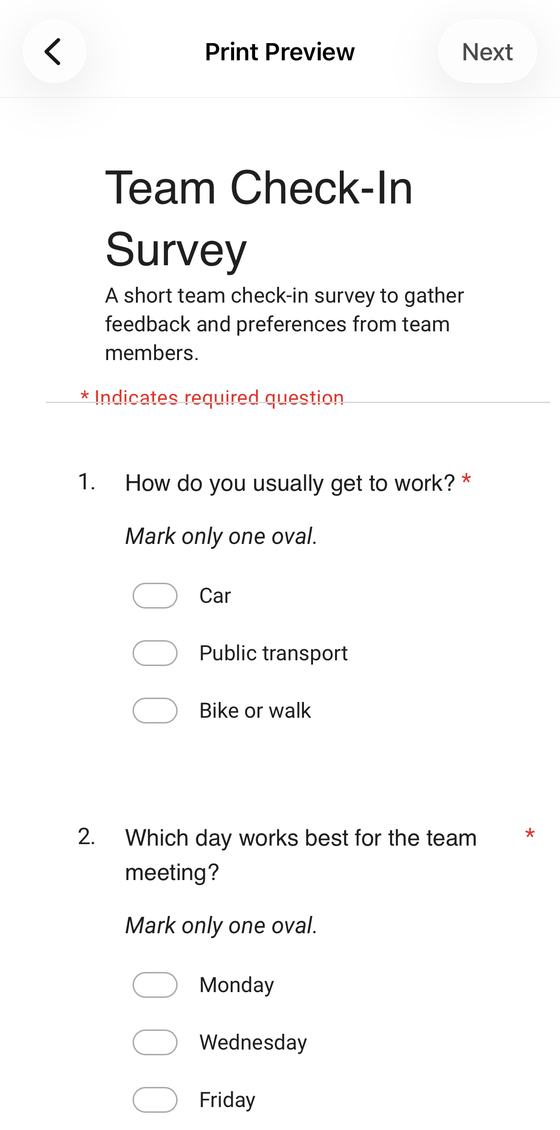
- Open the form in Form+ and stay on the editor.
- Tap Print in the toolbar — its accessibility label is Print Form, so VoiceOver announces it in full and does not confuse it with Print all.
- A print preview of the blank form opens. Tap Print at the top right to AirPrint it, or use Save to Files to keep it as a PDF.
Two details worth stating plainly. Print Form is a PRO feature — tapping it without a subscription shows an upgrade card that reads “This feature allows you to print this form.” And it is a different feature from Print all, which lives in the Responses tab and prints the answers. The names are close; the outputs are opposites.
What a paper form loses
A Google Form is not really a document — it is a small program that runs when someone answers it. Printing it keeps the words and drops the program. Four things stop working the moment the ink dries, and all four follow from what the live form does rather than from anything Google says about printing:
- Conditional branching becomes meaningless. “Go to section based on answer” is a rule the live form applies after a choice is made. On paper there is nobody to apply it — every reader sees every section, including the ones the logic was meant to hide from them.
- Required questions stop being required. The asterisk is enforced by a submit button that refuses to proceed. A printed form has no submit button, so a required question is a request.
- Answer validation disappears. Response validation — a number in a range, a valid email address, a regular expression — is checked at submission. Nothing checks a pen.
- File upload questions cannot work at all. A file upload question asks a respondent to attach a file to a Drive folder. There is no paper equivalent, and no sensible way to answer one by hand.
None of this makes printing wrong — it makes it a different artefact. If the form's value is in its logic, paper is the wrong medium and you want the live link. If its value is in its questions, paper is often the better one, and the answers can be typed back in afterwards.
Printing the responses instead
Everything above is about the blank form. If what you actually want is the answers on paper or in a PDF, that is a different job with different routes — Google documents only two export options for responses, Link to Sheets and Download responses (.csv), neither of which is a PDF. Our guide to converting Google Forms responses to PDF walks through the three routes that do work and which one suits a report, raw data, or one document per response.
Which route do you want?
| You want… | Use |
|---|---|
| A blank form to hand out | Editor → More → Print |
| The form exactly as respondents see it | Open the live link, then Ctrl/Cmd + P |
| A PDF of the blank form to email round | Either route, with Save as PDF as the destination |
| To print without a computer | Form+ → editor → Print Form (PRO) |
| The answers, not the form | Responses to PDF |
| Paper answers back into the form | Scan a paper form into Google Forms |
Print a Google Form from your phone
Form+ puts a Print Form button right in the editor — a print preview of the blank questionnaire, ready to AirPrint or save as a PDF. On your real Google Forms, in your own Google account.
Get Form+ free on the App StoreFrequently asked questions
Does Google Forms have a print option?
Yes. Google's own accessibility guide for Forms lists Print among the editor's More menu items, next to Make a copy, Move to trash, Pre-fill form, Embed HTML and Unpublish form. What Google does not document anywhere is what the printed page actually contains.
How do I print a blank Google Form to hand out?
Use Print from the editor's More menu while the form is open. That prints the questionnaire itself rather than anyone's answers, which is what you want for a form people will fill in by hand.
Does conditional branching work on a printed Google Form?
No, and it cannot. Branching, required-answer validation, response limits and file upload questions are all enforced by the live form at submission time. A sheet of paper has nothing to enforce them with, so on paper they become instructions at best.
Can I print a Google Form from my iPhone?
Google's documented Print command sits in the desktop web editor. Form+ on iPhone and iPad puts a Print Form button in the form editor's toolbar, which opens a print preview of the blank questionnaire that you can AirPrint or save as a PDF. It is a PRO feature.
Google's Forms accessibility guide is the source for the More menu list quoted above.