How to add a rating question in Google Forms
Last updated September 2026 · ~8 minute read
Short answer: add a question and pick Rating from the type menu. Google's question type page describes it in three sentences: “You can ask responders to provide a rating,” “You can represent your rating with a: Star, Heart, Thumbs up,” and “Your rating can be a whole number from 3 to 10.” That is the whole published specification. Rating is the newest of the twelve types — Google announced it in October 2024.
Form+ adds star, heart and thumbs-up ratings, and charts the results with an average — on your real Google Forms and your own Google account. Get Form+ free on the App Store.
Because it arrived late, Rating is missing from most older guides, and it is routinely confused with the type immediately above it in the menu. They are not the same control, and only one of them can carry words.
Add a Rating question, step by step
- Open the form in Google Forms and click Add.
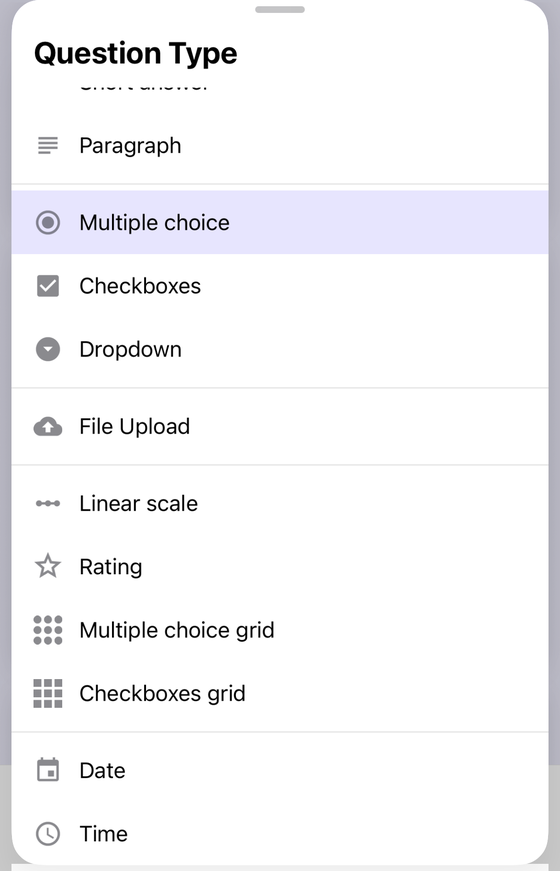
- To the right of the question title, choose the question type and pick Rating. It sits between Linear scale and Multiple choice grid in Google's own list.
- Choose the icon. Google documents exactly three: “Star, Heart, Thumbs up.” The
Forms API names the
same set —
STAR,HEART,THUMB_UP— which is a useful independent confirmation that the list is closed. You cannot supply your own image. - Set the scale length: “Your rating can be a whole number from 3 to 10.” Note the floor is 3, not 1 or 2, so Rating cannot be bent into a yes/no or a three-way thumbs control with two icons.
- Turn on Required if the question must be answered. Google documents Required as a plain per-question setting — “To prevent people from not answering, turn on Required” — with no carve-out for any type, Rating included.
What Google actually publishes about Rating
Less than you would expect for a question type, which is worth knowing before you plan around it. The entire published description is the three sentences quoted above. The launch post adds two things the help page does not. First, the dates: gradual rollout from 7 October 2024 for Rapid Release domains and 21 October 2024 for Scheduled Release domains, “available to all Google Workspace customers, Workspace Individual Subscribers, and users with personal Google accounts.” There is no paid tier gate. Second, what the Responses tab does with it: you can analyse ratings “(e.g. average rating of responses and visual distributions of ratings) using the summary tab of the responses section.” That average is the one genuine analysis feature Google ships for this type, and it is not offered for any other.
One small documentation oddity, in case you go to the API: the reference's description of the
THUMB_UP value reads “A thumbs down icon.” That is a typo in Google's docs rather than a third
icon — the help page and the editor both offer thumbs up only.
Rating or Linear scale?
Google publishes the properties of each type but never compares them. The recommendation below is therefore ours, derived only from what each type documents. If you want the Linear scale side in full — its start values, its end values, and how the end labels behave — that is covered in how to add a linear scale to Google Forms, and the ten-point case, where the two types look most alike, in Google Forms scale 1 to 10; this page will not repeat either.
| If you need… | Pick | Because |
|---|---|---|
| Words at the ends of the scale | Linear scale | It is the only one of the two for which Google documents end labels. |
| A single, instant satisfaction score | Rating | Icons are read and tapped without parsing a number line. |
| A scale shorter than three points | Linear scale | Rating's documented floor is 3; a linear scale can end at 2. |
| A scale that starts at zero — Net Promoter Score, for example | Linear scale | Google documents a start of zero or one for it; Rating publishes no start value at all. |
| An average and a distribution in the summary tab | Rating | The average rating is documented only for this type. |
The honest summary is that Rating is a presentation choice. It has no capability Linear scale lacks except the summary average, and it gives up end labels to get there. That trade is usually worth it for one question — “How was your visit?” — and usually wrong for a battery of agreement statements, where the wording at each end is doing the work.
What lands in the spreadsheet
This is the question we get asked most about Rating, and Google does not answer it. Neither the question-type page nor the page on seeing and sharing responses states what value a chosen star becomes in the linked sheet. The same silence covers Linear scale. We are not going to guess on your behalf, and you should be wary of any guide that does.
The fix takes a minute: submit one test response, link the form to a sheet, and look at the cell. Do that before you write a formula, a pivot, or an import that depends on the format — and do it again if you later change the icon or the scale length, since neither change is documented as format-preserving either. See responses in Google Sheets for the linking step.
Four things a Rating question cannot do
Each of these is established by omission from a list Google publishes, not by trial and error — which makes them stable answers rather than observations that might age badly.
- No response validation. Google's validation rules page covers exactly five question types: short answer, paragraph, checkboxes, multiple choice grid and checkbox grid. Rating is not among them. In practice this costs nothing — a rating can only return a value that is already on the scale — but if you were planning to require a minimum score, you cannot. See Google Forms data validation for the types that can.
- No answer key. Google names six auto-gradable types — short answer, multiple choice, checkboxes, dropdown, multiple choice grid and checkbox grid. Rating is not one, so a quiz cannot mark it automatically. Google does add that “you can assign points and add feedback on all question types,” so you can still score a rating by hand in the Responses tab. If a score has to be graded, ask it as multiple choice in a quiz instead.
- No branching. Google's branching documentation is explicit: “Go to section based on answer” is “only available for Multiple choice and Dropdown question types.” A one-star rating therefore cannot route someone to a “what went wrong?” section. Ask the routing question as multiple choice and put the rating after it — see conditional logic in Google Forms.
- No shuffled options. Google documents shuffling answers for “multiple choice, checkbox, and drop-down questions” only. This one is a non-issue by nature — a scale whose points were shuffled would be meaningless — but it does mean Rating is untouched by that setting. The form-wide Shuffle question order setting still moves the question itself, since it acts on questions rather than on answers.
Rating questions on iPhone and iPad
Form+ edits your real Google Forms through your own Google account, and Rating is a full type in it rather than a read-only placeholder. In the Question Type sheet it sits in the same group as Linear scale and the two grids — the position shown in the screenshot above. A new rating question is created as a five-star one, and two taps change that: Choose Icon offers the heart, star and thumbs up, and the level picker offers 3 through 10, exactly the range Google documents and no wider. The Responses summary draws the distribution and the average.
One limit worth stating plainly, because it is ours rather than Google's: Import questions from CSV cannot rebuild a Rating question. The CSV exporter writes the true type into the file, so a round-trip tells you honestly what it could not carry rather than quietly demoting the question to a short answer. Linear scale does survive the round-trip. If you are bulk-building a survey of scales, that is a reason to reach for Linear scale — or to add the rating question by hand afterwards.
Add rating questions from your phone
Form+ adds star, heart and thumbs-up ratings, and charts the results with an average — on your real Google Forms and your own Google account.
Get Form+ free on the App StoreFrequently asked questions
When did Google Forms add the Rating question type?
October 2024. Google's Workspace Updates blog announced it on 7 October 2024 for Rapid Release domains and 21 October 2024 for Scheduled Release domains, available to all Google Workspace customers, Workspace Individual subscribers, and users with personal Google accounts. It is the most recent addition to the twelve question types Google lists.
What icons can a Google Forms Rating question use?
Three, and only three. Google documents that you can represent your rating with a star, a heart, or a
thumbs up. The Forms API names the same set as STAR, HEART and
THUMB_UP. Custom icons are not offered.
What is the difference between Rating and Linear scale?
They are two separate question types with different documented properties. Rating shows icons and runs from 3 to 10. Linear scale shows numbers, starts at zero or one, ends on a whole number from 2 to 10, and takes a label at each end. Google publishes those properties but does not publish a comparison, so choosing between them is your call, not Google's advice.
Can a Rating question be required, validated, or graded?
Required, yes. Validated or auto-graded, no. Google's response-validation page carries rules for exactly five types, and its answer-key list names six; Rating is on neither list. Google does state that you can assign points and add feedback on all question types, so a rating can be marked by hand.
What does a Rating question write to the linked spreadsheet?
Google does not publish this for Rating or for Linear scale. Neither the question-type page nor the response pages state what a chosen star becomes in the linked sheet. Submit one test response and read the cell before you build any analysis on top of it.