How to clear Google Form responses
Last updated September 2026 · ~10 minute read
Short answer: Google gives you two actions, both on the Responses tab. For everything at once: Responses → Summary → More → Delete all responses → OK. For a single submission: Responses → Individual → Delete → YES. Google's warning is one sentence long and it means it — “If you delete any responses in a form, it can't be undone.” There is no bin for responses, no version history for Forms, and — the part that catches people out — no delete method in the Forms API at all.
Form+ puts Delete all, per-response deletion and a duplicate finder on the Responses tab — on your real Google Forms and your own Google account. Get Form+ free on the App Store.
The click-path takes ten seconds. Everything worth reading on this page is about what Google prints next to that button, and the two things it never prints anywhere.
Google's two delete actions, word for word
Both live on the same help page, Choose where to save form responses, under the heading “Delete a form or responses”.
Delete all responses from a form
- Open a form in Google Forms.
- At the top, click Responses → Summary.
- At the top right, click More → Delete all responses.
- Click OK.
Google attaches a tip that explains a very common “the menu item isn't there” complaint: “The ‘Summary’ tab displays on a form only when there's one or more responses.” No responses, no Summary tab, no Delete all responses.
Delete individual responses
- Open a form in Google Forms.
- At the top, click Responses → Individual.
- To find the response you want to delete, click Previous or Next.
- Click Delete → YES.
Note what is not in that list: no multi-select, no “delete everything before March”, no filter. Google's interface offers one response at a time, or all of them. Anything in between is manual paging.
“It can't be undone” is the entire safety net
Google's sentence, in full: “If you delete any responses in a form, it can't be undone.” It is worth being clear about how that differs from deleting the form itself, because the two get confused constantly. Deleting a form is Move to trash — the file lands in your Drive bin and can be restored for a limited window. Clearing responses does not go through the bin at all, because a response is not a file.
Nor is there a rollback. Google's version history page describes the feature as “You can see changes that have been made to a document in Google Docs, Sheets, Slides, or Vids” — Forms is simply not in that list, and the Forms editor has no File → Version history menu to reach for.
The Forms API cannot delete a response — at all
This is the asymmetry that turns a routine cleanup script into a dead end, and it is easy to verify. The forms.responses resource in the Forms REST API v1 lists exactly two methods:
get— “Get one response from the form.”list— “List a form's responses.”
That is the whole table. No delete, no batchDelete. It is not that the API shies
away from destructive verbs in general —
forms.watches,
one resource over, has create, delete, list and renew.
Deletion is specifically absent for responses.
So if you are scripting against the REST API, you can read every submission, score it, diff it, flag it — and then you have nothing to call. The API can identify the rows that should go and cannot remove a single one of them.
The route that does exist is Apps Script, not REST. The Forms service's
Form class documents
deleteAllResponses() — “Deletes all submitted responses from the form's response store”,
with “Beware: this method is irreversible.” — and deleteResponse(responseId), carrying
the matching “Warning: This method is irreversible.” Scripted cleanup is therefore possible, but it
has to run as Apps Script against forms your own account can open, rather than through the REST API and a
service account. That is a meaningfully different deployment story, and it is the bit most “automate your
Google Forms” posts skip.
The linked spreadsheet does not follow — and Google barely says so
This is the single most dangerous assumption on the topic, so here is exactly what is and is not published.
The Help Center does not answer it. The “Delete a form or responses” section only addresses deleting files: “If you store responses in a spreadsheet, you have a separate file in Google Drive. You can delete the spreadsheet and not delete the form, or you can delete the form and not delete the spreadsheet.” Nowhere does it say what Delete all responses does to the rows already sitting in that sheet. On the web interface, Google is silent.
The Apps Script reference does answer it, for the scripted equivalent of the same action.
deleteAllResponses() “does not delete copies of responses stored in an external response
destination (like a spreadsheet), but does clear the form's summary view.”
deleteResponse(responseId) says the same thing and “does remove the response from the form's
summary view.”
The reason is structural, and Google spells it out under removeDestination():
“All forms, including those that do not have a destination set explicitly, save a copy of responses in
the form's response store,” and “The unlinked former destination still retains a copy of all
previous responses.” A form with a linked sheet is two stores, not one. Unlinking behaves the same way
in the interface, where Google puts it as “New responses won't be sent to the spreadsheet, but your
current data remains intact.”
The practical upshot: if you are clearing responses to satisfy a deletion request or to scrub a test run, clearing them in Forms is half the job. Open the linked sheet and delete the rows there too — and bear in mind that Sheets does have version history, which is exactly the feature that will still be holding them afterwards.
Uploaded files: Google does not say
Google documents where file-upload answers go —
“For the form owner, uploaded files are stored in a new folder on Google Drive” — and the API agrees
that the answer is a pointer rather than the thing itself: a FileUploadAnswer carries a
fileId, described as “Output only. The ID of the Google Drive file.”
What no Google page states is what happens to that Drive file when you delete the response that pointed at it. The file-upload help page does not mention deletion at all, and the Apps Script note is scoped to “an external response destination (like a spreadsheet)”. We are not going to guess on your behalf: treat the uploads as still sitting in that Drive folder until you have opened it and looked. The storage and quota side of upload questions is covered separately in Google Forms file upload limits.
What survives afterwards
| Where you might look | What Google publishes |
|---|---|
| Drive bin | Holds deleted files. A response is not a file, so it never arrives there. |
| Version history | Documented for “Google Docs, Sheets, Slides, or Vids”. Forms is absent from that list. |
| Admin restore (Workspace) | Documented for a user's deleted Drive items, not for responses cleared from inside a form. |
| Linked spreadsheet | A separate file. The Apps Script reference says the scripted delete does not touch it. |
| Your own exports | A CSV, a Sheets copy, a saved PDF, a notification email — all untouched, and all yours. |
In short: the only copies that survive a clear-out are the ones you made before you clicked.
Clearing responses from your phone
Both of Google's paths assume the desktop web editor. Form+ keeps both on the Responses tab on iPhone and iPad, working on your real Google Forms in your own Google account.
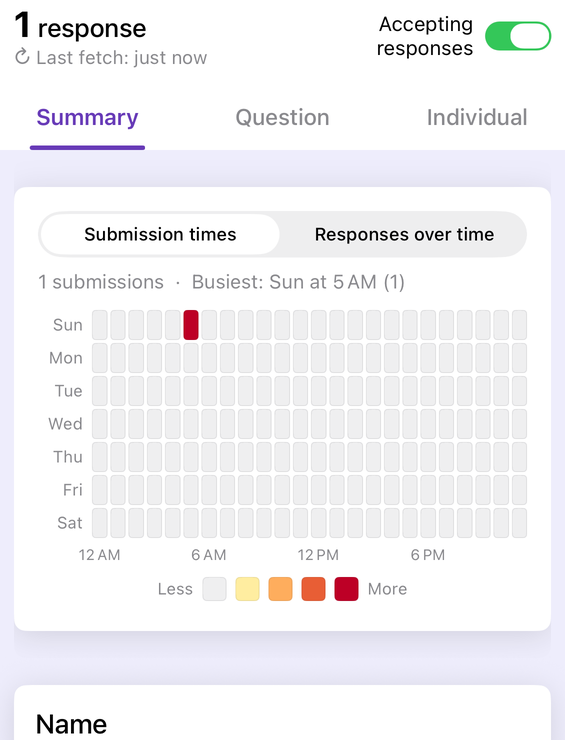
- Open the form and switch to Responses.
- For everything: Tools → Manage → Delete all, described in the sheet as “Permanently delete every response.” The confirmation is titled Warning and reads “Are you sure you want to delete all form responses? This action cannot be undone.”
- For one: open the Individual tab and delete the response you are looking at.
Per-response deletion is staged, which is the difference worth knowing. Tapping delete only removes the response from the screen; nothing is sent to Google until you tap Save, and the alert at that point says “1 response will be permanently deleted. This action cannot be undone.” Back out before then — navigate away, or refresh — and the deletion is dropped. The refresh prompt says so in as many words: “You deleted 1 response but haven't saved yet. Refreshing will bring it back.”
Duplicates & spam (a PRO feature, under Tools → Clean up) is a suggestion list, not an auto-cleaner. It surfaces likely duplicate, repeat-submitter, rapid-fire and spam responses; Remove only marks the ones you tick — “Mark 2 responses for deletion? They'll be permanently removed from Google when you tap Save on the responses screen.” It never deletes anything by itself. If you are chasing repeat submissions, duplicate responses in Google Forms covers why they happen in the first place.
One honest note on mechanism, because it decides what happens to your sheet: Form+ performs both
deletions through Apps Script's form.deleteAllResponses() and
form.deleteResponse(). The documented caveats above therefore apply to it word for word — the
form's response store is cleared, and a linked spreadsheet is not touched.
Delete responses without reaching for a laptop
Form+ puts Delete all, per-response deletion and a duplicate finder on the Responses tab — on your real Google Forms and your own Google account.
Get Form+ free on the App StoreExport first — it is the only step you cannot add later
- Download responses (.csv) from the Responses tab, for a copy that lives outside Google entirely. Exporting Google Forms to Excel walks through it.
- Link to Sheets, if you want the data to stay in Drive and keep updating.
- A readable copy for filing or sending on — responses to PDF.
- Open the export and check it before you delete anything. An export you have not opened is a hypothesis, and hypotheses are a poor thing to bet irreversible data on.
If “export first” is the step that keeps slipping, Form+ can put it on a timer instead of your memory. Back up responses to Drive… sits in the editor's tools menu under Automate, is PRO, and is off until you switch it on, form by form. It writes the responses into a “<form> — Backups” folder on your own Drive on a schedule — Daily, Every 3 days or Weekly — as JSON or CSV, and each run writes a fresh complete copy rather than only what has arrived since the last one, so any single file in that folder is a whole snapshot. Read “restore” as download, though — the app says so on the screen itself, because Google Forms cannot re-import responses: a backup is a record, not an undo button — and the app's Redact personal info on export setting does not apply to these backups, which the screen says outright, precisely because they are complete copies. It is one row from a menu that holds many more, not a list of what the app can automate.
Frequently asked questions
How do I delete all responses in a Google Form?
Google's path is: open a form in Google Forms, at the top click Responses → Summary, at the top right click More → Delete all responses, then click OK. If the Summary tab is missing, the form has no responses yet — Google notes it “displays on a form only when there's one or more responses.”
Can deleted Google Forms responses be recovered?
No. Google states plainly that “if you delete any responses in a form, it can't be undone.” Responses are not files, so they never reach the Drive bin, and Forms has no version history. Only copies you exported yourself survive.
Does deleting responses in Google Forms delete the spreadsheet rows?
Google's Help Center never answers this for the web interface. The Apps Script reference answers it for the
scripted equivalent: deleteAllResponses() “does not delete copies of responses stored in an
external response destination (like a spreadsheet), but does clear the form's summary view.” Assume the
sheet still holds every row until you have opened it and checked.
Can I delete Google Forms responses with the API?
Not with the Forms REST API — its forms.responses resource lists exactly two methods,
get and list. Apps Script is the documented programmatic route instead, via
deleteAllResponses() and deleteResponse(), both flagged irreversible.
What happens to uploaded files when I delete a response?
Google does not publish an answer. It documents that “for the form owner, uploaded files are stored in a new folder on Google Drive,” and the API returns each upload as a Drive file ID rather than file content — but no page states what deleting the response does to that file. Check the folder rather than assuming.