How to add a date question in Google Forms
Last updated September 2026 · ~10 minute read
Short answer: add a question, then choose Date from the type menu. Google describes it as “Responders can fill out a date in mm/dd/yyyy format,” and adds: “To include the year or time, at the bottom right of the question, click More.” Time is a separate type. Three limits to know first: you cannot restrict a date question to a range, the format a responder types follows their own account or browser language, and on the iPhone & iPad tab of its own help page Google says the date and time picker is not currently supported for iPhone and iPad.
Form+ adds and edits Date and Time questions on your own Google account, on the official Forms API. Get Form+ free on the App Store.
The date picker is one of the simplest controls in Google Forms and one of the most misunderstood, because almost everything people want from it — a range, a locked format, a booking slot — lives outside the question.
Add the question
- Open your form in Google Forms.
- Click Add. Google's instruction is: “To the right of the question title, choose the type of question you want.”
- Choose Date.
- Type the question text — this is where the range goes, for reasons below.
- Turn Required on if an empty date would break what you do with the answers.
The year and the time are optional
Both live behind the same menu. Google's wording: “To include the year or time, at the bottom right of the question, click More.”
- Without the year — a day and a month. Right for a birthday or any recurring annual date, where the year is noise that ages badly.
- With a time — one question captures a date and a clock time as a single answer. Use it when the two belong to one moment: an arrival, a delivery window, an appointment.
Date and Time are two different question types
Google's question-type list names them separately, and not just cosmetically: Time has no calendar in it at all, and it doubles as a way to collect a length of time. It has its own guide — how to add a time question.
| Date | Time | |
|---|---|---|
| Google's description | “Responders can fill out a date in mm/dd/yyyy format.” | Responders can fill out the “Time in hh:mm AM/PM format” or a “Duration in Hrs Min Sec format”. |
| Response validation | None documented. | None documented. |
You cannot restrict the range
This is the biggest gap between what people expect and what the question does. There is no setting for
“no dates in the past”, “weekdays only” or “between 1 and 30 June”.
Google's page on setting rules for a form documents response validation for
three question types — Short answer, Paragraph and
Checkboxes. Count the headings on that page yourself and you will get five, so the
discrepancy is worth stating: it also has “Rules for Multiple choice grid questions” and “Rules for
Checkbox grid questions”, but neither of those sections uses the phrase Response validation. They
explain how to build a grid and then list three boxes to tick — “Require a response in each row”, “Limit to
one response per column” and “Shuffle row order” — reached by clicking More and checking a
box, not by opening Response validation. Google's developer docs agree: a Short answer question's
TextValidationBuilder has eighteen
require-methods, while
GridValidationBuilder has exactly one,
requireLimitOneResponsePerColumn() — the checkbox above. Either way the answer for this page is
the same: Date and Time appear in none of the five sections, and a Date question accepts whatever the
responder picks, including 1904 and next century. Our
data validation guide counts it the same way.
The API agrees by omission: in Google's schema, quoted below, a date question carries two boolean fields and no validation object at all. If your rule is really no answers after Friday rather than no dates after Friday, that belongs to the form — scheduling a form to open or close and Google Forms deadlines cover it.
Two workarounds, and they are the only honest ones:
- Say the range in the question. Put it in the title or the description — “Preferred delivery date (weekdays, 1–14 October only)”. It does not stop a wrong answer, but it removes the excuse and makes wrong ones obvious on review.
- Offer a Dropdown of allowed dates instead. If the acceptable set is small — five appointment slots, three workshop days — list them as options: a closed list is what “restrict the range” means in practice. The cost is that the answers arrive as text, so sorting them needs the options written in a sortable order.
If your rule is about text or numbers rather than calendars, the guides on data validation and number validation cover what the supported types enforce.
Whose date format?
The question that bites international forms: if a responder types 03/04, is that 3 April or 4 March?
Google's help page for question types publishes one sentence about it: “Responders can fill out a date in mm/dd/yyyy format.” That is the US order, month first, and it is easy to read as the rule. It is not.
The answer sits on the page written for people filling in forms rather than building them, which is why owners rarely find it. Google's page on common errors while you respond to a form explains its “Invalid date.” message this way: “You can get different required date formats for date questions based on your Google Account or browser language. For example, MM/DD/YYYY or DD/MM/YYYY.”
So mm/dd/yyyy is one possible shape, not the shape, and what decides it belongs to the responder — not to you, not to the form, not to any setting in the question. Send a form to more than one country and you cannot say in advance which order each person will see, or prove afterwards which order the one who answered was looking at. Any date whose day is 12 or lower is ambiguous evidence.
So do not fight the format. Defuse it:
- Write the month in words in your own text. “Arrival date (e.g. 4 March 2026)” in the description costs nothing and settles the reading — and for a short list, dropdown options like “Fri 3 Apr” cannot be misread by anybody.
- Never treat an exported date column as self-explanatory. Re-format it explicitly before anyone acts on it.
What a Date question actually stores
The help centre describes what a responder types; the API describes what is kept, far more precisely. In the discovery document for the Google Forms API (revision 20260909) the whole type reads: “A date question. Date questions default to just month + day.” It has exactly two fields — “includeYear” and “includeTime”, both booleans — and nothing else: two switches, no format, no bounds.
The answer comes back in one of four shapes. Google's reference for a submitted answer lists them for a date question: “Without time or year: MM-DD e.g. 05-19”, “With year: YYYY-MM-DD e.g. 1986-05-19”, “With time: MM-DD HH:MM e.g. 05-19 14:51”, and “With year and time: YYYY-MM-DD HH:MM e.g. 1986-05-19 14:51”.
Two things follow. The stored value is year-first on a 24-hour clock — the reverse of the mm/dd/yyyy a responder is shown — so the ambiguity above lives in the input, not in what Google keeps. And a year-less date is stored without a year: “05-19” is not 19 May of any particular year, which is what you want for a birthday and what breaks sorting it against dated answers.
Apps Script splits the same question into classes rather than booleans — DATE and DATETIME are separate item types there, alongside TIME and DURATION — and its DateItem reference spells out the trimming: “The time fields of the Date object are ignored; by default, only the year, month, and day fields are used. If setIncludesYear(enabled) is set to false, the year is ignored as well.” Google's own code sample is three lines: open the form, addDateItem(), set a title.
None of this describes the column in a linked Google Sheet — Google publishes the API's representation of an answer, not the spreadsheet's. So the thirty-second check still earns its keep: submit one test response, look at the column that appears, and set the sheet's formatting deliberately. It also tells you whether the dates arrive as dates or as text, which decides whether you can sort them.
Google's own iPhone and iPad limitation
Google's “How to use Google Forms” article carries one tab per platform, and the tabs do not say the same thing. On the iPhone & iPad tab, under Step 2: Edit and format a form or quiz, sits a line that appears nowhere else: “Important: Date and time picker is not currently supported for iPhone and iPad.” Open the same article on the Computer tab and the sentence is absent, which is why it is so rarely quoted.
Read it against the step above. Step 1 on that tab tells you to “open a mobile web browser, like Safari” and go to forms.google.com — that mobile editor is what Google offers iPhone and iPad owners instead of an app, and the limitation belongs to it: building a date-and-time question in mobile Safari is what Google says is unsupported.
What Google leaves unanswered matters as much:
- It never says what happens instead — whether Date is missing from the menu, present but uneditable, or simply unable to open its picker.
- It says nothing about responders. The line lives in the article for people who build forms; Google's page for people answering them never mentions a platform, and nothing says a Date question already in your form stops working on an iPhone.
- It does not date the claim. “Not currently supported” carries no version and no review date — a reason to build dated questions elsewhere, not a permanent verdict.
Adding a date question from an iPhone
Every step above assumes the desktop web editor, which is what the section before this one is about. Form+ edits your real Google Forms on your own account through the official Forms API rather than the mobile web editor, so a Date question added on your phone is the same question in the same form — including the Include year and Include time switches, and the time-or-Duration choice on a Time question.
Neither type is a PRO feature here: Date and Time sit in the question-type picker with no upgrade prompt in front of them, unlike File Upload, which opens the locked-features screen when picked. So does Math Equation — but that row only exists when you are adding a question, among the extra content and import rows the sheet appends below the twelve types. That is this picker's list, not a full inventory of what is free elsewhere in the app.
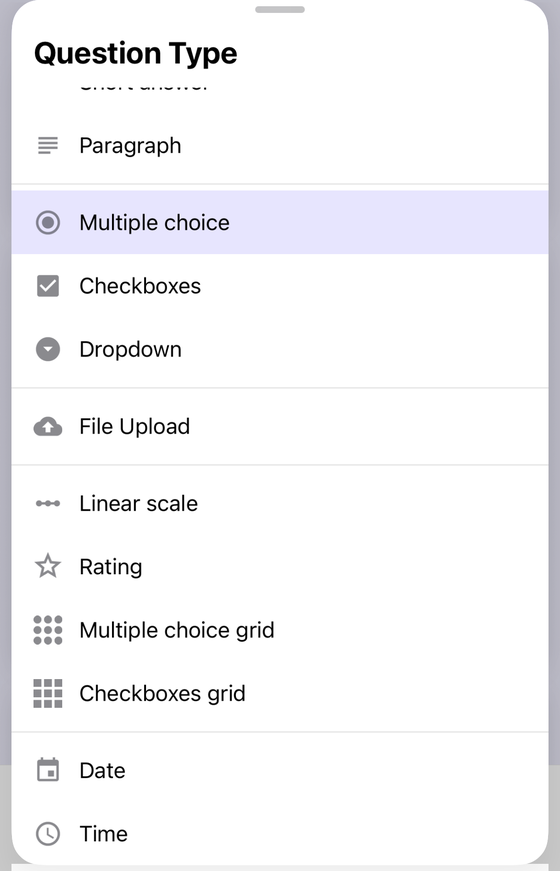
- Open the form and go to the editor.
- Add a question and set its type to Date.
- Set Include year and Include time to suit the answer you want.
Because the range lives in your wording, phone editing earns its place: you can fix an ambiguous question title the moment a confused response arrives.
One boundary worth stating plainly. Form+ previews a Date question with the native iOS picker, but that is not what your responders get: anyone opening your form's Google link sees Google's web form, rendered by Google. The limitation above is Google's to lift, and no client app changes it.
Edit your real Google Forms from your phone
Form+ adds and edits Date and Time questions on your own Google account, on the official Forms API.
Get Form+ free on the App StoreFrequently asked questions
Can a Google Forms date question hide the year?
Yes — the year is an option, not a fixture. Google's instruction is: “To include the year or time, at the bottom right of the question, click More.” Turn it off for a birthday, where the day and month are the whole answer.
Can I limit a Google Forms date question to a range of dates?
No. Google's page on setting rules documents response validation for three question types — Short answer, Paragraph and Checkboxes. It carries five “Rules for…” sections, so a heading count gives five, but the two grid sections describe grid options such as “Limit to one response per column” rather than response validation. Neither Date nor Time appears in any of the five. State the range in the question text, or offer a Dropdown of the dates you will accept.
What date format do responders see?
It depends on the responder, and Google says so on its page for people filling in forms: “You can get different required date formats for date questions based on your Google Account or browser language. For example, MM/DD/YYYY or DD/MM/YYYY.” The mm/dd/yyyy on the question-type page is one possible shape, not the rule, and you cannot choose it for them — so label ambiguous dates in words.
Why does Google say the date picker is not supported on iPhone and iPad?
That line sits on the iPhone & iPad tab of “How to use Google Forms”, in the step about editing a form in a mobile web browser: “Date and time picker is not currently supported for iPhone and iPad.” It is about building the question in mobile Safari, not about responders, and Google does not say what appears instead. Form+ works through the Forms API, not that editor.
What is the difference between Date and Time in Google Forms?
They are two separate types in Google's list. Date collects a calendar date, optionally with the year and a time. Time collects a time of day in “hh:mm AM/PM format” or a duration in “Hrs Min Sec format”, and has no calendar at all.