How to add a signature to Google Forms
Last updated September 2026 · ~8 minute read
Short answer: You cannot. Google Forms has no signature question type and no drawing field — Google's own help page on choosing a question type lists twelve, and none of them is a signature. Google's eSignature feature exists, but it works in Google Docs and on PDFs in Google Drive; its help page never mentions Forms. So your real choices are a File upload question, a typed-name attestation, or moving the whole thing out of Forms into a Doc. Form+ does have a per-form Consent gate with an Also require a signature option, but the pad appears in the app's own fill screen — which on an English-language device the current build gives you no way to open. Route 4 describes it rather than telling you to set it up.
Form+ opens the forms already on your Google account — build and edit questions, brand them, and read responses from your phone, without a browser. Get Form+ free on the App Store.
This is one of those questions where the honest answer is an absence, so it is worth being precise about what was checked — a lot of pages on this topic describe a signature field that does not exist.
What Google actually offers (and what it does not)
Google's help page Choose a type of question for your form lists the complete set:
- Short answer, Paragraph
- Multiple choice, Checkboxes, Dropdown
- File upload
- Linear scale, Rating
- Multiple choice grid, Checkbox grid
- Date, Time
There is no signature type, no drawing type, and no canvas. The
Google Forms API agrees: its question object supports choiceQuestion, textQuestion, scaleQuestion,
dateQuestion, timeQuestion, fileUploadQuestion,
rowQuestion and ratingQuestion — eight kinds, none of them a signature. If the
API cannot express it, no add-on can add it to the form itself either.
Google's eSignature is real, and people find it while searching for this — but it is a Docs and Drive feature. Its help page covers requesting signatures in Google Docs, on PDFs in Google Drive, and on Microsoft Word files opened in Docs, and it requires a Workspace Individual subscription or one of the paid Workspace editions (Business Standard and Plus, Enterprise Starter, Standard and Plus, Enterprise Essentials and Essentials Plus, Education Plus). Google Forms is not mentioned. The Workspace Updates blog posts that launched it (August 2023 for Docs, December 2024 for PDFs in Drive) do not mention Forms either.
Route 1 — A File upload question (stays inside Google Forms)
The closest thing to a native answer. The respondent signs on paper, photographs it, and attaches it.
- Open a form in Google Forms.
- On the right, click Add.
- To the right of the question title, choose File upload as the question type.
- Mark the question Required if the signature is mandatory.
Three constraints from Google's own page, all of which have bitten people: File upload cannot be used if the form is stored in a shared drive, it cannot be used if your administrator has enabled Data Loss Prevention, and responders must sign in to a Google Account. That last one rules this route out entirely for anonymous public forms, which is often exactly the case where a signature was wanted.
Route 2 — A typed attestation (works for everyone, no sign-in)
Unglamorous, and more often than not the correct answer:
- Add a Short answer question: “Type your full name.”
- Add a Checkboxes question with one option carrying the statement they are agreeing to, and mark it Required.
- Rely on the form's own timestamp for the date, or add a Date question if you want the respondent to state it.
This captures a name, a statement, and a moment, with no uploads and no Google account required. If you also turn on email collection in the form's settings, you have an identity to attach it to.
Route 3 — Use a Doc or PDF instead of a form
Worth saying plainly: if the thing you need signed is a contract, a waiver or a policy acknowledgement — a document — then a questionnaire is the wrong container, and the workarounds above are you fighting the tool. Send it as a Google Doc or a PDF in Drive and use Google's Request signature flow, or a dedicated e-signature service. You get signer tracking and an audit trail that no Forms workaround will give you.
Use a form when you are collecting answers and the signature is a sign-off on those answers. That is the case Route 4 describes.
Route 4 — The drawn signature in Form+, and why this build cannot show it
For someone to actually draw, something other than Google has to draw the form. Form+ renders your real Google Form as native controls and posts a real response back to it, which leaves room for a signature step that Google's own page has nowhere to put. That step is built and finished — and on an English-language device this build gives you no way to open the screen it appears in. So what follows is a description of a capability, not a procedure to go and run.
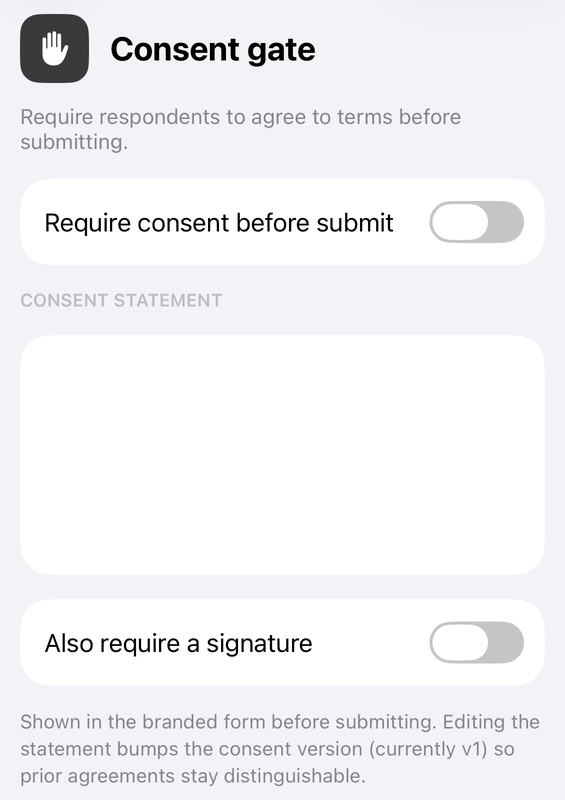
Where the settings live. The owner's half is one screen, reached from the form editor's tools as Consent gate…: a Require consent before submit switch, the Consent statement box, an Also require a signature switch, and Save. That screen opens and saves today. What it writes is stored by the app against that form on the device, not inside the Google Form.
What the respondent would see. Before submitting: the statement on a scrollable Consent screen, a Sign below pad with Clear signature under it, and I agree or Decline. Declining cancels the submission. The statement is versioned — editing it bumps the consent version, so agreements to the old wording stay distinguishable from agreements to the new one, which is the part that actually matters for intake, research and GDPR records. Each agreement is written to the form's Activity log in the form “Respondent agreed to consent v1 (signed)”.
What stops it. The screen that reads those settings is the app's own branded fill, and it is opened from a single Preview branded form… row in the editor's Share & Brand menu, which the current build switches off. The filter that hides the row matches its translated title against an English list, so the row is still drawn on a device set to one of the app's 21 other languages; on an English-language device it is not drawn, and the consent gate has no screen in which to appear. Our consent form guide goes through the same gate in more detail.
The limits — read this part
- The signature is not a Google Forms answer. Your respondent's answers go to the real form as a normal response, but the drawn image is not one of the fields, because Google Forms has no field that could hold it. It goes onto a branded PDF receipt you can save, and into the Activity log instead. If you need the signature sitting in the response spreadsheet next to the answers, use Route 1's File upload.
- It was never part of your form's link. Anyone who opens your Google Forms link gets Google's form, with no consent screen and no signature pad — including in Form+, which opens a filler link as Google's own page in a web view. The gate only ever appeared in the app's own branded fill screen, on a device you control: your own team, your own clients, sign-off in the room.
- It is not a cryptographic signature. The PDF receipt carries a checksum over its own contents, so accidental corruption or a casual edit is detectable. It is not keyed, so it does not prove non-repudiation against a motivated forger, and we will not claim it does. For genuinely high-stakes signing, Route 3.
- Legal weight is a separate question. Whether any of these counts as a signature depends on your jurisdiction and what is being signed. A drawn squiggle is not automatically stronger evidence than a typed name and a ticked box. Ask your own counsel.
Which route do you want?
| Your situation | Use |
|---|---|
| Signature must land in the responses spreadsheet | File upload question — respondents must sign in to a Google Account |
| Public, anonymous form; no sign-in possible | Typed name + required checkbox attestation |
| Form lives in a shared drive, or DLP is on | Typed attestation — File upload is unavailable |
| It is really a contract or waiver | Google Docs / Drive PDF + Request signature, or an e-signature service |
| Your own staff or clients sign on an iPhone or iPad | Typed attestation, or a Doc/PDF signature request — the Form+ signature pad has no way in on an English-language device (Route 4) |
Your real Google Forms, on your iPhone
Form+ opens the forms already on your Google account — build and edit questions, brand them, and read responses from your phone, without a browser.
Get Form+ free on the App StoreFrequently asked questions
Does Google Forms have a signature question type?
No. Google's help page on choosing a question type lists twelve types — Short answer, Paragraph, Multiple choice, Checkboxes, Dropdown, File upload, Linear scale, Rating, Multiple choice grid, Checkbox grid, Date and Time. None is a signature or drawing field, and the Google Forms API has no signature question kind either.
Can I use Google's eSignature feature with a Google Form?
No. Google's eSignature help page describes requesting signatures in Google Docs and on PDFs in Google Drive, and does not mention Google Forms. It also requires a Workspace Individual subscription or one of several paid Workspace editions.
How do I collect a signature in Google Forms without an add-on?
Add a File upload question and ask respondents to attach a photo or PDF of their signature, or ask them to type their full name into a Short answer question alongside a required checkbox attestation. Both stay entirely inside Google Forms. File upload requires respondents to sign in to a Google Account.
Is a drawn signature on a form legally binding?
That depends on your jurisdiction and on what is being signed, and it is not something a drawing pad decides. A drawn squiggle is not automatically stronger evidence than a typed name and a ticked box — what usually matters is a clear record of who agreed, to what wording, and when. If the document carries real legal weight, ask your own counsel rather than relying on any form tool's marketing.
Does a signature captured in Form+ appear in my Google Forms responses?
The answers are submitted as a real response to your Google Form, but the drawn signature image is not one of the response fields, because Google Forms has no field that can hold it. In Form+ the signature is placed on a branded PDF receipt and the agreement is recorded in the form's Activity log as, for example, “Respondent agreed to consent v1 (signed)”. That is what happens once the fill screen opens — which on an English-language device the current build gives you no route to.