How to see Google Forms responses in Google Sheets
Last updated September 2026 · ~10 minute read
Short answer: open the form, click Responses, and at the top right click Link to Sheets. Choose Create a new spreadsheet or Select existing spreadsheet, then click Create or Select. Every response so far is copied in, and new ones arrive as rows. The thing to understand before you rely on it: that spreadsheet is a separate file in Google Drive — not the form's responses, but a live copy of them.
Form+ links, switches and unlinks the response spreadsheet from the Responses tab on iPhone and iPad — on your real Google Forms and your own Google account. Get Form+ free on the App Store.
Almost every problem people hit with the linked spreadsheet — a deleted row that came back, a colleague who could still read the data after being removed from the form, a sheet that quietly stopped updating — comes from mistaking the copy for the original.
Link the form to a spreadsheet
Google documents the route in View & manage form responses, under “View all responses in a spreadsheet”:
- Open a form in Google Forms.
- At the top of the form, click Responses.
- At the top right, click Link to Sheets.
That opens the destination chooser. The same chooser is reachable at any time from Responses › Summary › More (top right) › Select destination for responses, which is the wording Google uses in Choose where to save form responses. Both doors lead to the same room; the second is the one you want later, when a spreadsheet already exists and you are changing it. Neither door is the one that starts in Sheets — Tools ▸ Create a new form in a spreadsheet is a different job with a different outcome, and it has its own guide: creating a Google Form from a spreadsheet.
Choosing the destination
Google gives two options, quoted exactly:
- “Create a new spreadsheet: Creates a spreadsheet in Google Sheets.”
- “Select existing spreadsheet: Select the existing spreadsheet that you want to store the responses in.”
Then: “Click Create or Select.”
A new spreadsheet is the right choice most of the time — it lands in Drive named after your form, with one row per response and one column per question. Pick an existing spreadsheet when the responses need to sit beside work you already keep in that file: a roster, a budget, formulas that reference the data. They arrive as their own tab; Google does not overwrite the sheets already there.
Either way the link is retroactive. Responses collected before you linked anything are written in as soon as the spreadsheet is created, so there is no penalty for linking late — a form that has been running for months will hand you its full history the moment you connect it.
Two files, not one
This is the sentence that governs everything else on this page. From Google's own help:
“If you store responses in a spreadsheet, you have a separate file in Google Drive. You can delete the spreadsheet and not delete the form, or you can delete the form and not delete the spreadsheet.”
Deleting. Dragging the spreadsheet to the bin does not touch the form or the responses the form holds. Relink a destination and the data comes back. The reverse is also true and rather more useful: you can delete the form and keep the spreadsheet as the surviving record of what was collected. If the form is finished and you only want the numbers, that is a legitimate archive strategy rather than a mistake.
Sharing. Two files means two sharing dialogs. Sending someone the spreadsheet link gives them the data without giving them the form; adding a form collaborator is a different act with a different audience. This trips people up constantly, and the next section is entirely about it.
Backing up. Because the spreadsheet is an ordinary Drive file, it has ordinary Drive version history. Every edit is recoverable through File › Version history, which the responses inside the form do not offer. Making a dated copy of the spreadsheet at the end of a collection period is the cheapest response backup there is.
Who can see the spreadsheet
When Google creates the spreadsheet, it seeds the permissions from the form:
“When you create a new response spreadsheet, form collaborators automatically get access to it.”
Reasonable. The surprise is the very next line:
“Further changes to the permissions of the form won't synchronize automatically.”
The seeding happens once, at creation, and never again. Remove a collaborator from the form six months later and their access to the spreadsheet — and therefore to every response in it — is untouched. Google spells out the remedy: “To change or remove access, update permissions on both the form and the linked sheet separately.” The companion page puts it more bluntly still: “If you've shared a form with a collaborator, they may also have access to the form's linked spreadsheet. If you want to remove a collaborator, you'll have to remove them from the form and the spreadsheet separately.”
If your form collects anything sensitive — email addresses, grades, medical or HR details — make auditing the spreadsheet's share list part of offboarding. Removing someone from the form feels like revoking access. It is not.
Unlinking, and what survives it
Unlinking stops the flow without destroying what has already arrived. Google's wording:
“To stop the collection of responses in a spreadsheet, you can unlink it from your form. New responses won't be sent to the spreadsheet, but your current data remains intact.”
The click path is:
- Open a form in Google Forms.
- At the top, click Responses › Summary.
- At the top right, click More › Unlink form.
- Click Unlink.
Nothing is lost. The spreadsheet stays in Drive with all its rows, the form keeps collecting responses internally, and the two simply stop talking. Google notes that the link is not one-way: “You can use ‘Select destination for responses’ to reconnect a spreadsheet later.” Unlinking is a pause, not a demolition — which makes it the correct move when you want to freeze a spreadsheet for reporting while the form keeps running. What the form can still do for you once nothing is linked is a subject of its own — see Google Forms responses without a spreadsheet.
One other reason a sheet stops updating has nothing to do with unlinking: sheer volume. Google notes that responses stop syncing to Sheets past a certain count, which is covered along with the other thresholds in our guide to Google Forms response limits.
Editing the sheet does not edit the form
Here is where the “two files” fact bites hardest, and where Google's documentation goes quiet.
Neither help page describes any effect on the form from editing, sorting, or deleting rows in the linked spreadsheet. Nothing states that removing a row deletes the response; nothing states that it does not. What Google does document is that the spreadsheet is a separate Drive file, and that deleting inside the form is one-way — “If you delete any responses in a form, it can't be undone.”
The safe reading, and the one consistent with everything Google does say, is that the spreadsheet receives responses rather than being them. Deleting a row cleans up your copy; it does not purge the record the form holds, and the response will still appear in the form's own views and in any later export. Going the other way, deleting a response inside the form does not reach back into rows already written to the sheet. If you are deleting data for a real reason — a duplicate submission, a privacy request, a test entry — do it in both places, and do the form last, since that is the deletion Google calls permanent.
Two habits follow. Do not sort or restructure the response tab in place — new rows are appended in arrival order regardless; build your working view on a separate tab and leave the raw one alone. And do not hand-edit the sheet to correct answers: the form's copy still holds the original, so the two records disagree the moment anyone checks.
A live sheet, or a one-off download?
Linking a spreadsheet is not the same job as exporting a file, and picking the wrong one is the other common mistake.
| Linked spreadsheet | One-off download | |
|---|---|---|
| Stays current | Yes — new responses append as rows | No — a snapshot of the moment you downloaded it |
| Lives in | Google Drive, as its own file | Your computer or phone |
| Shared how | Drive permissions, seeded from the form once | However you send the file |
| Formulas & pivots | Yes, and they recalculate as responses land | Only after you open it in a spreadsheet app |
| Works offline | Only with Drive offline access | Yes |
| Best for | Ongoing collection someone is watching | Handing a fixed dataset to someone else |
If it is the fixed file you actually want, the route is a download rather than a link — see exporting Google Forms to Excel. And if you only want to look at the shape of the answers rather than work with the rows, you may not need a spreadsheet at all; the built-in charts are covered in Google Forms response charts.
Doing it from an iPhone or iPad
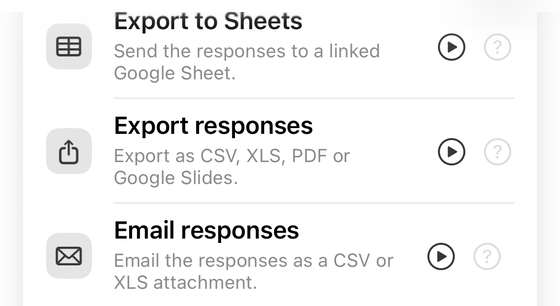
Google's instructions above assume the desktop web editor. Form+ puts the same destination controls in the Responses tab on iOS, in Google's own vocabulary: open the form, switch to Responses, tap Tools, and choose Export to Sheets — a Pro feature, and the upgrade prompt appears before the menu does. What that menu then offers depends on whether a spreadsheet is already linked. If none is, which is the situation this guide is written for, it holds a single row: Select response destination. Once a sheet exists it also offers View responses in Sheets and Unlink form. The file is created on your own Drive under your own account.
The app carries a second route to a spreadsheet that is not this one, and the two are easy to confuse. Sync to a sheet… — a PRO tool in the editor's tools menu under Automate, off until you switch it on, per form — never touches Google's destination chooser. It creates an app-managed Google Sheet of its own in your Drive on the first response that arrives while it is on, then appends a row per submission: Timestamp, Email, then one column per question, with room for Status or Score columns of your own beside them. Google's linked response spreadsheet stays exactly where it was, so running both leaves you with two files rather than one shared between them. Two limits before you lean on it. It does not backfill — submissions made before you switched it on are never written, which is the opposite of the retroactive behaviour described above — and the app's Redact personal info on export setting does not apply to the synced Sheet, which that screen says in as many words. It is one row from a menu that holds many more, not a list of what the app can automate.
Link a spreadsheet without opening a laptop
Form+ links, switches and unlinks the response spreadsheet from the Responses tab on iPhone and iPad — on your real Google Forms and your own Google account.
Get Form+ free on the App StoreFrequently asked questions
Where is Link to Sheets in Google Forms?
Open the form, click Responses at the top, and look at the top right of that tab. Google's instructions are: open a form in Google Forms, at the top of the form click Responses, at the top right click Link to Sheets.
Does deleting the spreadsheet delete my form responses?
No. Google documents that if you store responses in a spreadsheet, you have a separate file in Google Drive, and that you can delete the spreadsheet and not delete the form, or delete the form and not delete the spreadsheet. The responses stored in the form itself are unaffected by deleting the sheet.
If I delete a row in the linked spreadsheet, is the response gone from the form?
Google's help pages do not document any effect on the form from editing or deleting rows in the linked spreadsheet. Treat the two stores as independent: a row removed from the sheet is not a response deleted from the form, and a response deleted in the form is not automatically removed from the sheet. Only deletion inside the form is described as permanent, since Google states that if you delete any responses in a form, it can't be undone.
Can I link an existing spreadsheet instead of a new one?
Yes. The destination chooser offers Select existing spreadsheet, described as selecting the existing spreadsheet that you want to store the responses in. Google adds the responses as a new tab in that file rather than taking over the sheets already in it.
Why have new responses stopped appearing in my sheet?
Either the spreadsheet has been unlinked, in which case new responses are not sent to it while the existing data remains intact, or the form has crossed a volume threshold: Google states that if your form's responses aren't synced with Sheets, it can be because your form has more than 100,000 responses.