Google Forms for nonprofits
Last updated September 2026 · ~8 minute read
If you came here to take donations: a Google Form cannot take a payment. There is no payment question, no price field and no checkout step. Google's help centre documents twelve question types and the Forms API exposes eight question kinds — none of them moves money, and that is identical on a free Google Account and on every paid Workspace tier, Workspace for Nonprofits included. Read collect payments with Google Forms before you build anything, because the money always moves somewhere else.
Form+ edits your real Google Forms on iPhone and iPad — per-option choice limits, response limits, QR codes and exports, on your own Google account. Get Form+ free on the App Store.
That out of the way, Forms is genuinely good at the other four jobs a small charity has — volunteer sign-ups, event registration, document collection and feedback — and it is free. This page routes each job to the guide that covers it, and says where the job runs out of road first.
How we checked
Every limit below is from Google's own documentation, not from a round-up post: the question types help page, the Google Forms API reference, the view and manage responses page, and Google's own Accessibility Conformance Report for Google Forms Web. Where Google publishes nothing, this page says so rather than filling the gap.
What Google Forms will not do for a charity
1. Take a donation. The API reference is the decisive source, because it is the
machine-readable list of everything a form is allowed to contain: choiceQuestion,
textQuestion, scaleQuestion, dateQuestion, timeQuestion,
fileUploadQuestion, rowQuestion, ratingQuestion. There is no payment
kind to leave out. A form can carry a link to a payment page you host elsewhere, and that is a handoff, not
a checkout — the
payments guide sets out the four honest
approaches and what each one fails to do.
2. Cap places on one option. Google Forms can stop accepting responses after a number of responses, but that number applies to the whole form. There is no per-option capacity, so “Saturday shift: 10 places” cannot be capped separately — a form-wide cap of 20 lets all 20 people choose Saturday and leaves Sunday empty. This is the single most common way a volunteer rota built in Forms goes wrong.
3. Collect a document from someone without a Google account. Google's question types page states it plainly: to answer a File upload question, “responders need to sign in to a Google Account.” There is no setting that turns this off. For a volunteer who does not have one, that is not an inconvenience — it is an exclusion from the form.
Volunteer sign-up
A sign-up sheet is the easiest thing on this list to build and the easiest to oversell. Use Multiple choice or Dropdown for the shift, and set the response limit on the published form — it is off by default, so a rota with places to fill stays open until you turn it on. Then accept that the cap is form-wide and soft: Google notes that if several people respond at the same moment, the form accepts them regardless of the limit. If your shifts genuinely have separate capacities, the documented route is one form per shift, each with its own limit. See limit responses on Google Forms for the setting itself.
Events and registration
Fundraisers, open days and AGMs are the same shape as a volunteer rota with a venue attached, and the capacity problem bites harder because a seat you cannot honour is worse than an untidy spreadsheet. The event guide covers the build order — questions first, cap and closing date last, because both are properties of the published form — and the two caveats Google publishes about the response limit. Google Forms for event registration is the longer read; treat it as the companion to this section rather than a repeat of it.
Collecting documents
Charities collect a lot of paper: disclosure certificates, ID, proof of address, photo consent. The File upload question does this, with two costs worth naming before you send the link. The first is the sign-in requirement above. The second is storage: the files land in the form owner's Drive and consume the owner's quota, which Google states is shared across Drive, Gmail and Photos. Responders give up none of their own. A busy upload form is therefore a running cost against one person's account, and if that person leaves the organisation, the documents are in their Drive. The file upload guide covers the shared-drive restriction and where the files actually land.
Since this is the section where personal information turns up, one practical note and no more: decide in advance what you are collecting, whose account it lands in, and who else can open it. Those three answers are mechanical and you can check them yourself. Anything beyond that is a question for your own advisor, and this page will not pretend otherwise.
Contactability
Whether you can reach a respondent afterwards is a setting, and it may not be the setting you assume.
Google Workspace for Nonprofits is a Google Workspace edition, and the Forms API reference calls
VERIFIED the “Default value if the form owner uses a Google Workspace account”. Verified
collects the signed-in account's address automatically and requires respondents to sign in — excellent for
staff, quietly exclusionary for a form on a poster. The alternative, Responder input, imposes no sign-in but
the address is whatever was typed. Check which one your form is on before you share it publicly:
collect email addresses in Google
Forms.
Feedback and reporting
Beneficiary feedback, post-event surveys and the numbers a funder asks for all end up in the same place: the linked spreadsheet. That is where Forms stops being a form and starts being data you can actually work with — filter it, chart it, or hand a tidy sheet to a trustee. Seeing responses in Google Sheets covers the Responses tab and the linked sheet; for the file a funder or accountant will ask for, see export Google Forms to Excel.
Accessibility
If your audience includes disabled people — and for most charities it does — one gap is worth knowing before you design anything. Google's own conformance report states, under WCAG 1.1.1, that “Form authors can not define alt text for uploaded images.” The consequence is concrete: any information carried only by a picture is unavailable to someone using a screen reader, so a poster image with the dates in it, or an eligibility notice as a graphic, has to be repeated in the question text or its description. Google Forms accessibility goes through what Google does and does not document.
The free tier is genuinely the point
Most of this page is about limits, so it is worth being just as plain about the other side. Google Forms is free with any Google Account. There is no per-form charge, no per-response charge, no seat count and no cap on how many forms you create. Google publishes no maximum number of responses either — what it publishes is a set of thresholds where individual features degrade, and its own framing is that “your form continues to receive responses, which you can download in a CSV file.” For an organisation running on grants and goodwill, that is a real advantage over every paid form builder, and it is the reason to start here rather than shopping for a subscription. Google Workspace for Nonprofits is separately available to qualifying organisations “at no charge”, but Forms itself never required it.
Doing it from a phone
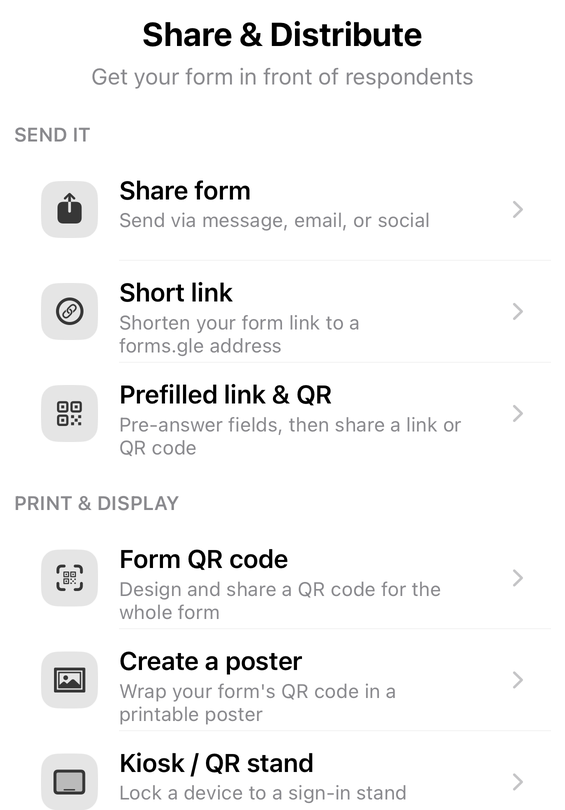
Form+ is a native iPhone and iPad client for your real Google Forms — your account, your Drive, no migration. For the jobs on this page it adds a few things Forms itself does not have — all of them Pro except the check-in scanner: Choice limits (eliminator), which caps how many times each individual option can be picked and removes it once full — the per-option capacity a volunteer rota needs; Response Limiter for the form-wide cap; QR Studio, Prefilled link & QR and Kiosk / QR stand for sign-ups at a stall or front desk; an Event check-in scanner for the day itself; and Export responses as CSV and Excel, or Export to Sheets, without a laptop.
Run your sign-ups from the phone in your pocket
Form+ edits your real Google Forms on iPhone and iPad — per-option choice limits, response limits, QR codes and exports, on your own Google account.
Get Form+ free on the App StoreFrequently asked questions
Can a nonprofit collect donations with Google Forms?
No. Google Forms has no payment, price or checkout question. Google's help centre documents twelve question types and the Forms API exposes eight question kinds, and none of them moves money. Paying for a higher Workspace tier does not change it, because the Workspace comparison lists Forms identically at every tier. A form can carry a link to a payment page you host elsewhere, but the form itself never charges anything.
Can I cap places on each volunteer shift?
Not in Google Forms. The built-in response limit closes the whole form after a number of responses, so a cap of 30 lets all 30 people pick Saturday. Nothing in Google's documentation caps how many respondents may choose a particular answer option. The route that uses only documented features is one form per shift, each with its own response limit. Form+ has a Choice limits (eliminator) tool that caps each option separately and removes an option once it is full.
Do volunteers need a Google account to upload a document?
Yes. Google's question types page states that to answer a File upload question, responders need to sign in to a Google Account. There is no setting that turns this off, so any volunteer without a Google account is excluded from that form. The uploaded files also land in the form owner's Drive and consume the owner's storage, not the responder's.
Is Google Forms free for a charity?
Yes. Google Forms is free with any Google Account, with no per-form or per-response charge and no cap on how many forms you create. Google publishes no maximum number of responses either — what it publishes is a set of thresholds where individual features degrade, while the form keeps accepting responses. Google Workspace for Nonprofits is separately available to qualifying organisations at no charge.
Is our Workspace for Nonprofits account already collecting email addresses?
Probably. Google Workspace for Nonprofits is a Google Workspace edition, and the Forms API reference calls VERIFIED the default value if the form owner uses a Google Workspace account. Verified collects the signed-in account's address and requires respondents to sign in, which excludes anyone without a Google account. Check the setting before you share a form with the public rather than assuming it is off.