Google Forms question numbering
Last updated September 2026 · ~8 minute read
Short answer: there isn't any. Google Forms has no numbering control, no numbering setting, and no field anywhere in its API that holds a question's number. The only number Google gives a question is its position in a flat list of items — and that list counts your section breaks, images, videos and text blocks too, so it is not the number you had in mind. If you want “1.”, “2.”, “3.” in front of your questions, you type them, and from then on you own them.
Form+ opens your real Google Forms on iPhone and iPad, with a scoped find-and-replace across question titles — your account, your Drive, no copies. Get Form+ on the App Store.
This page is about the gap between what you mean by “question 7” and what the form actually stores. It matters because every workaround for the missing feature — numbers typed into titles, a number quoted in an email, a marking key written against “Q3” — is a promise the form itself never made and will not keep for you.
What Google documents, and what it doesn't
We went looking for a numbering feature across every surface Google publishes: four help-centre articles, the Apps Script Forms reference, the REST reference, the v1 discovery document that generates that reference, and the code samples Google ships alongside both APIs. None of them contains a numbering control, a numbering setting, or a field that holds a question's number. Not one. The discovery document is the flattest proof: it lists every field the REST API has, and the only integer in it that describes where a question sits is called an index.
The closest Google gets is a numbered list inside a block of text. Format text in your form opens with “You can add links, numbered lists, and bulleted lists to the text in your form,” and it is precise about where that is allowed: “You can only format the text in titles, questions, and descriptions. You can't format answer options.” The step for building one reads “Click the description where you want to add a list.” That is a list living inside one description. It does not number the questions around it, and nothing else on that page does either.
The accessibility documentation gives the clearest statement of what a question actually leads with. Use Google Forms with a screen reader describes the editor as follows: “Each item in the form starts with an edit field with the text of the title, question, or section.” Text — not a number. The same page adds that on a published form “each title, question, and section displays as a heading,” so a respondent using assistive technology is handed your wording as the landmark and nothing else. If your wording is the only label a question has, it needs to survive being read on its own.
The one number a question really has
Both of Google's developer APIs model a form the same way: a single flat array of items. The REST
batchUpdate
reference defines a Location as “A specific location in a form” whose only field is
“The index of an item in the form. This must be in the range [0..N), where N is the number of items in
the form.” Despite the name, a location is not a place — it is an array subscript. Apps Script says
the same thing in its own vocabulary: every item type — including
PageBreakItem —
exposes getIndex(), documented as “Gets the index of the item among all the items in the
form.”
Read those two phrases closely, because three things follow that catch people out.
- It counts from zero. The first question on your form is index 0. Google's own
code sample for
moveItemmakes the off-by-one explicit:form.moveItem(0, form.getItems().length - 1);, commented “Moves the first item to be the last item.” - It counts things that are not questions. “Among all the items” means exactly that.
In the forms
reference an
Itemcan be a question, a question group, a page break, an image, a video or a title-and-description block, and each one occupies an index. Add a section header above question 3 and every index below it shifts by one, while the questions people can see have not moved at all. - It is not an identity. The stable handle is
itemId— “The item ID. On creation, it can be provided but the ID must not be already used in the form” — and a submitted response carries “The actual answers to the questions, keyed by questionId,” never by position. Index is where a question is sitting today; the ID is which question it is.
That last distinction is why a response you pull from the API can never be “answer number four.” Google hands you a map from question ID to answer, and you resolve it back to a question yourself.
A grid is one item and several questions
If you are counting questions in order to number them, grids will throw your total out. The REST
reference's QuestionGroupItem
“Defines a question that comprises multiple questions grouped together,” and its
questions field is “A list of questions that belong in this question group.” One item, one index,
one card on screen — and several questions inside it, each with its own ID. A ten-row multiple choice grid is a single entry in the array you are numbering. Whether
you call that one question or ten is a decision you have to make and then apply consistently, because
Google does not make it for you.
If you number them by hand, four things go stale
Typing “1.” at the front of a title is a perfectly reasonable thing to do — it is what most numbered Google Forms in the world are. The cost is that the numbers are now ordinary words in a title, and words do not update themselves.
| What changes | What happens to your numbers |
|---|---|
| You move a question, or insert one in the middle | Every number after it is wrong, and nothing warns you. See reorder questions. |
| Shuffle question order is on | Respondents meet your numbers out of sequence. See shuffle question order. |
| Branching skips a section | A respondent legitimately jumps from 4 to 11 and assumes something is broken. See conditional logic. |
| The linked spreadsheet | Google documents nothing about how the header row is built or what it does when the form changes. Open the sheet and read it. |
The branching row is the one worth dwelling on, because it is the only failure here that your respondents see rather than you. Hand-typed numbers assert a sequence to someone who may never be shown all of it. On a branched form, numbering the questions inside each section (“2a, 2b”) or not numbering at all is kinder than a global count that quietly skips.
The spreadsheet row is where to stop reasoning and go and look. Google's Choose where to save form responses covers creating, selecting and unlinking a response spreadsheet and says nothing whatsoever about the header row — not how it is built, not what it contains, not what it does when the questions change. So do not predict what renumbering does to your columns in either direction. Open the sheet, read the header row, and make every formula and export match on header text rather than on a column letter. Our responses in Google Sheets guide covers the linked-sheet relationship itself.
One practical ceiling, since hand numbering scales badly: Edit your form states that “you can add and edit up to 300 pieces of content, like questions, descriptions, images, and videos.” Renumbering a form anywhere near that size by hand is not a five-minute job.
Renumbering from an iPhone
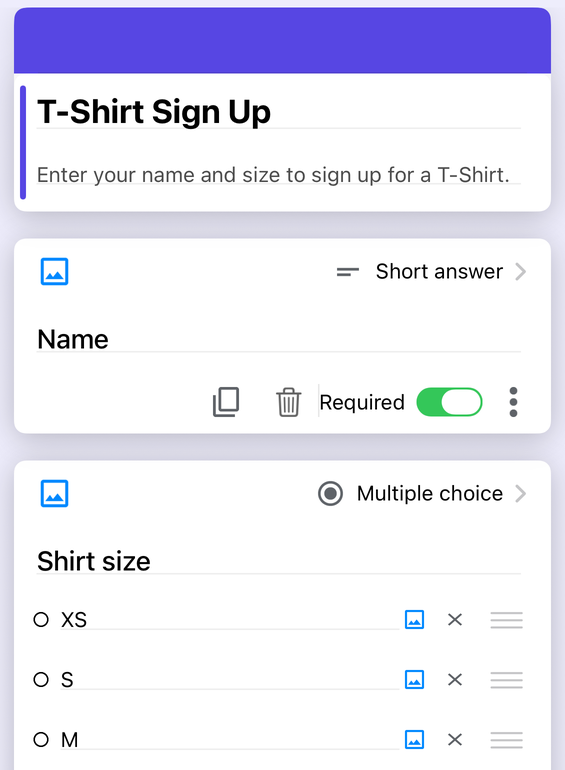
Google Forms has no iPhone or iPad app, so the editor described above is a desktop browser. Form+ edits your real Google Forms on your own account, and its editor shows the form as the same flat list of cards — with no numbers on them, because the form has none:
For the renumbering job itself the relevant tool is Find & replace, in the editor's Tools sheet under Build. It opens an inline bar with a Find in questions field, a Replace with field, and Replace and All buttons, plus scope chips for Titles, Descriptions, Options and case sensitivity. Scoping a replace to titles only is what keeps a renumber from rewriting the body of your questions at the same time.
In that same Build list, Find & replace and Bulk Edit are free. The PRO rows beside them are Question Bank, Templates, Import questions from CSV, Export questions as CSV, Dictate question, Create A/B variant, Translate to a new form, and Conditional logic. That is the complete split for this one list — elsewhere in the app the free and PRO line falls in other places.
Edit and renumber your questions from your phone
Form+ opens your real Google Forms on iPhone and iPad, with a scoped find-and-replace across question titles — your account, your Drive, no copies.
Get Form+ on the App StoreFrequently asked questions
Does Google Forms number questions automatically?
No. There is no numbering control or setting in the editor, and no field for a question number in either of Google's APIs. The screen reader documentation describes an item as starting with “the text of the title, question, or section” — the wording is the label, and there is nothing in front of it.
How do I add question numbers in Google Forms?
You type them into the question titles yourself. That is the only method, and Google publishes no alternative. The numbers are then ordinary text: reordering, inserting a question, shuffling and branching will all put them out of step, and nothing in Forms will tell you.
What is a question's number in the Google Forms API?
It does not have one. It has an index — the REST reference defines Location as “The index of an item in the form. This must be in the range [0..N), where N is the number of items in the form,” and Apps Script's getIndex() returns “the index of the item among all the items in the form.” That index is zero-based and counts page breaks, images, videos and text blocks alongside questions.
Does a grid count as one question or several?
Both, depending on which layer you ask. The API's question group is “a question that comprises multiple questions grouped together”: it is one item at one index, holding a list of questions that each carry their own question ID. If you are numbering by card you count it once; if you are counting answers you count every row.
Do typed-in question numbers change the spreadsheet columns?
Google does not say. Its page on choosing where to save form responses covers creating, selecting and unlinking a spreadsheet and never describes the header row at all. Treat both the wording and the order of those columns as something to verify rather than predict: open the sheet after any renumber, read the header row, and match on header text rather than on a column letter.