How to print Google Forms responses
Last updated September 2026 · ~6 minute read
Short answer: open the form's Responses tab, click More, and choose Print all responses. Google's own Forms cheat sheet lists that option there, in the same group as Download responses (.csv). Printing a single response is not a documented Google command at all — for that you open the Individual tab and use your browser's print command.
Form+ prints every response, or just the one in front of you, straight from the Responses tab on iPhone and iPad — on your real Google Forms and your own Google account. Get Form+ free on the App Store.
Three genuinely different jobs share the word “printing” here, and nearly all the bad advice on this question comes from answering the wrong one.
Three different things called “printing”
- The blank questionnaire — the empty form on paper, to hand out and fill in by hand. Different command, different menu, and its own guide: how to print a Google Form.
- All the responses — everyone's answers in one print job. This is Print all responses, and it is what most people mean.
- One response — a single submission on its own: one consent form, one order, one student's quiz.
The last two are what this page covers. If you want a file rather than paper, the routes to a PDF are a separate question with a separate answer — converting responses to PDF.
The collision is real enough that it bites developers too. In the Form+ source, the blank-form print feature carries a comment marking it “deliberately distinct from Print all, which is the ANSWERS — the two are different features with confusingly similar names.” If you have ever chosen a print command and got the opposite document to the one you expected, that is the reason.
Printing all responses
- Open the form in the Google Forms editor.
- Click Responses at the top.
- Click More — the three-dot menu.
- Choose Print all responses.
This is documented. Google's Workspace Learning Center Google Forms cheat sheet lists Print all responses under Analyze responses, in the same More menu as Get email notifications for new responses, Select response destination, Unlink form, Download responses (.csv) and Delete all responses. One menu, one click, everything at once.
Note what that implies: it is a desktop route. Google's response documentation assumes the web editor, which is why this question is so much harder to answer on a phone.
Printing one response
This route is ours, not Google's. Google's help pages document the Individual tab for reading one response at a time, but say nothing anywhere about printing from it — no menu item, no shortcut, no described output. So you use the browser:
- Open the form's Responses tab.
- Switch to the Individual tab.
- Use the arrows to page to the response you want.
- Use your browser's own print command on that view.
You get the response as the page lays it out on screen — which is fine for one consent form and tedious for forty. There is no “print each response separately” switch hiding in the Forms menus; if you need one document per submission on a schedule, that is a job for tooling rather than a Google command.
What actually comes out
Here is the question everyone actually has, answered honestly: Google names the command and says where it lives, and does not document what it produces. The cheat sheet gives you the label Print all responses and its place in the More menu. It does not say whether the output is the summary with its charts, every individual response one after another, or some third thing; it states no page count and describes no layout. We looked for that description in Google's response documentation and in the cheat sheet itself, and it is not there.
So treat confident claims about the output — including ours — with suspicion, and use the one authoritative source you already have: the print preview. Trigger the command, read the preview your browser shows before anything reaches the printer, and you have a description of the output for your form, which is the only form that matters to you. It costs one click and settles the question that articles guess at.
The same gap covers quizzes. Google's documentation on building quizzes, answer keys, grading and releasing grades does not mention printing at any point, so there is no documented print-with-scores output to promise you. Whatever the grading view shows on screen is what a browser print of that view will capture — again, check the preview.
If you have thousands of responses
Google publishes no printing threshold, but it does publish two thresholds that change what is on the screen you are about to print: a point past which the summary view stops behaving as usual, and a point past which downloaded responses are no longer ordered the way you expect. The numbers, and where Google states them, are in Google Forms response limits.
Practically: a form with thousands of responses is a very large print job. Check the page count in the preview before you commit a ream of paper to it.
Printing responses from an iPhone
Both halves exist in Form+, and — as in Google Forms — they are two separate features rather than one command with two modes:
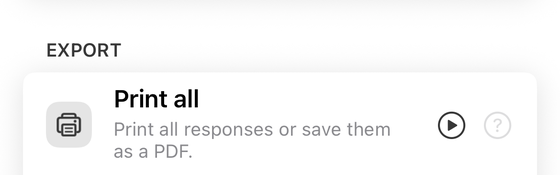
- Print all, in the Responses tab's tools. The app describes it in its own words as “Print all responses or save them as a PDF.”
- Print response, a print control on an individual response in the Individual view — the half Google never documented.
Both are PRO features in the app. They work on your real Google Forms in your own Google account, not on a copy.
Which one do you want?
| You want… | Use |
|---|---|
| The blank questionnaire to hand out | The editor's print command — see printing a blank form |
| Every response, in one job | Responses › More › Print all responses (documented) |
| One response on its own | Individual tab + your browser's print command (undocumented; ours) |
| To know what the print will contain | The print preview — Google does not describe the output |
| Either of these, from a phone | Form+ → Responses → Print all, or the print control on one response (PRO) |
Print responses without a computer
Form+ prints every response, or just the one in front of you, straight from the Responses tab on iPhone and iPad — on your real Google Forms and your own Google account.
Get Form+ free on the App StoreFrequently asked questions
Where is the Print all responses option?
In the Responses tab's More menu. Google's Forms cheat sheet lists Print all responses in the same group as Download responses (.csv), Select response destination, Unlink form and Delete all responses.
Can I print just one Google Forms response?
Google does not document a command for it. The practical route is to open the Individual tab, page to the response you want, and use your browser's print command. Form+ on iPhone and iPad has a print control on the individual response itself.
Does Print all responses print the summary charts?
Google names the command but does not document what it produces — not the summary, not the individual responses one after another, not the page count. The honest answer is to open the print preview and look: that preview is the only authoritative description of what your form will output.
Can I print Google Forms responses with quiz scores?
Nothing in Google's quiz documentation mentions printing, so there is no documented print-with-scores output. Whatever the grading view shows on screen is what a browser print of that view will capture.