How to use Google Forms for a waitlist
Last updated September 2026 · ~10 minute read
Short answer: a Google Form can collect a waitlist; it cannot run one. Google documents a whole-form response limit and a close date — and nothing else about capacity. There is no waitlisted state, no position shown to the responder, and nothing that promotes the next person when someone drops out. What Google does give you is a submission timestamp on every response, and that single fact is what an honest waitlist is built on.
Form+ caps, schedules and cleans up your real Google Forms on your own Google account — so the intake side of a waitlist does not need a computer. Get Form+ free on the App Store.
So this guide is about the gap rather than the settings. Every part of a waitlist that Forms genuinely supports takes about ten minutes; everything else is you, a spreadsheet, and a decision about how much you are willing to promise people.
What Google actually publishes about capacity
Start with what exists, because a lot of waitlist advice online is older than the feature. Google announced automatic closing in January 2026: form owners can “set a specific date and time to close the form, or set a certain number of responses that will trigger the form to close automatically.” It is available to “all Google Workspace customers, Workspace Individual subscribers, and users with personal Google accounts”, and “will be OFF by default and can be enabled by form creators after they publish a form.” The step-by-step is in limiting responses on Google Forms; there is no point repeating it here.
Two sentences from Google's own help page matter more to a waitlist than the feature itself. “If the form already has responses, the number you enter must be greater than the number of responses received.” And: “If multiple people respond at the exact same time, the form accepts responses regardless of the response limit.” The cap is a door that swings shut shortly after capacity, not a turnstile that counts people through it.
The four things Google does not document
A waitlist is not a cap. It is the ordered list of people standing behind the cap, and every part of that idea is missing:
- A place in line. Nothing in Google's documentation shows a responder a queue number, a position, or how many people submitted before them.
- A waitlisted state. A response is a response. There is no confirmed-versus-waiting distinction anywhere in the form, the summary, or the linked sheet.
- Promotion. When somebody withdraws, nothing moves the next person up. Because the cap simply counts submissions, raising it by one reopens the form to whoever clicks next — which is almost never the person who was next in line.
- Notification. Google documents no reminder or “a place has opened” message to responders. The event registration guide goes through the same gap from the organiser's side.
These are absences in the documentation, not settings buried in an advanced menu. Where Google is silent, it is silent, and building a plan on a behaviour Google has never published is how waitlists end up double-booked.
Order is the load-bearing fact
Everything you can honestly promise a waitlist rests on being able to say who was first. Google publishes exactly one thing that answers that, in the Forms API reference: every response carries a createTime, “Timestamp for the first time the response was submitted”, alongside a lastSubmittedTime, “Timestamp for the most recent time the response was submitted.”
Read those two definitions together and a genuinely useful property falls out. If someone comes back and edits their answer, only lastSubmittedTime moves; createTime still records the moment they first joined. Order your list by the first submission and an edit neither costs someone their place nor sneaks them forward. Order it by the most recent submission and every correction reshuffles your queue. Pick deliberately.
Three cautions, all of them about not over-trusting order:
- Google is silent on the linked sheet's row order. Its page on where responses are stored says responses go into a spreadsheet and says nothing about the order rows appear in or whether that order is guaranteed. So sort by the Timestamp column yourself before you read anything off the list, rather than treating row 12 as the twelfth person.
- Large forms lose the sort on export. Google states it plainly: “If you download your responses in a CSV file and the responses aren't sorted by the timestamp when users submit them, it can be because your form has more than 10,000 responses.” If your waitlist is that big, sort after you export.
- The API documents no ordering for listing responses. If you build anything on top of the API, sort on createTime rather than assuming the order you are handed.
A waitlist that uses only documented features
- Decide whether the form is the door or the list. A response limit stops the form at capacity — which means the waitlist never forms, because the people you wanted to capture are the ones turned away. For a genuine waitlist, leave the form open and let the spreadsheet decide who is in.
- Ask for one contact detail you will use. A waitlist you cannot contact is just a list of disappointed people. Turn on Collect email addresses in Settings, or ask for it as a question — but do not collect a phone number you will never dial.
- Consider Limit to 1 response, and price what it costs. It is the only thing in Forms that stops one person taking three places, and Google attaches the condition in the same breath: “To access and fill out the form, users must sign in to their Google Account.” For staff or students that is free. For a public waitlist it quietly excludes everyone without a Google account, and it still does not stop one person using two addresses.
- Link the form to Sheets, and sort by Timestamp. That column is your queue. See responses in Google Sheets for the link-up itself.
- Add your own status column. Beside the response columns, add one of your own — In, Waiting, Withdrawn, Offered. Forms will never write it and never read it. That column is the waitlist; the form was only the intake.
- Close the form on a date, or by hand. Both are documented: scheduling a form to open or close and stopping accepting responses cover the two routes.
- Write the confirmation message as a promise you can keep. Everyone sees the same words, so they cannot include a position. “You are on the list — we will email you if a place opens” is true for the first person and the four-hundredth. “Your place is confirmed” is a lie for most of them.
Telling people where they stand
This is the part people underestimate. Since Forms shows no position, every waitlist has exactly three honest options, and each has a real cost.
| Approach | What it costs |
|---|---|
| Say nothing beyond the confirmation message | Free, and fine for a short list — but you will answer “where am I?” emails one at a time |
| Email from the sheet by hand | Your time, per person, every time the list moves |
| An Apps Script that mails from the sheet | Setup, maintenance, and a hard daily quota |
That quota is the one to check before you commit to the scripted route. Google's Apps Script quotas put email recipients per day at 100 on a consumer account and 1,500 on Google Workspace. A 300-person waitlist cannot be mailed in one pass from a personal Gmail account.
One more honesty check: a position emailed at submission time is stale the instant anyone ahead withdraws. If you are going to quote numbers, quote them from a sheet you have just re-sorted, and say when you counted.
A waitlist is a list of people who want something
It is worth naming plainly: a waitlist is a file in your Drive containing names, email addresses and the fact that each of these people wanted something and did not get it. That is more sensitive than a survey, and it lives wherever the form's sheet lives. Collect the minimum that lets you contact someone, tell people at sign-up what you will use it for, be careful who you share the sheet with, and delete it when the list has served its purpose. If you are unsure who is actually identifiable in your responses, see who responded to a Google Form explains what Forms records and what it does not.
Running the intake from an iPhone
Google's closing controls live in the desktop web editor. Form+ puts equivalents in the app, as PRO tools on your real Google Forms: a Response Limiter that caps a form and closes it at the maximum, a Form Scheduler that opens and closes the form at times you set, and a Duplicates & spam review in the Responses tab that flags likely repeat submissions and lets you decide which to remove — useful when the same person joined the list three times.
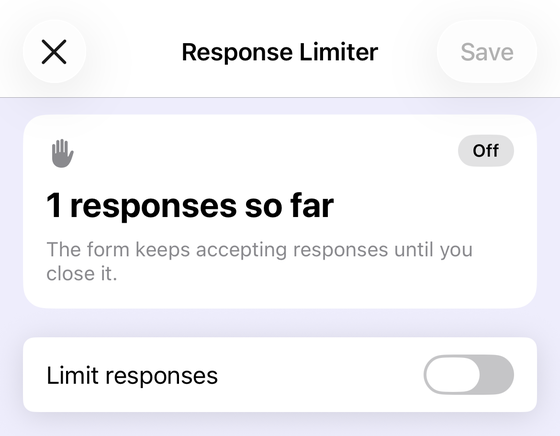
None of these invents a queue, because there is no queue to expose. They handle the intake; the ordering and the promoting stay with you and your sheet.
Manage the form from your phone
Form+ caps, schedules and cleans up your real Google Forms on your own Google account — so the intake side of a waitlist does not need a computer.
Get Form+ free on the App StoreWhen a form is the right waitlist — and when it is not
A Google Form is a good waitlist when the list is short enough to read, the order is decided once, and the people on it are content to hear from you by email. A class trip, a workshop with twelve places, a product batch going out to the first fifty who asked: the form collects them in order, the sheet ranks them, and you send four emails.
It is the wrong tool the moment the list has to answer for itself. If people need to see their position, withdraw themselves, be promoted automatically, or hold a place per session rather than per form, you are describing a booking system, and every step toward it on Forms is another script you have to maintain. Reaching that point is not a failure of the form — it just means the job outgrew the intake sheet.
Frequently asked questions
Can Google Forms run a waitlist?
It can collect one, but it cannot run one. Google Forms documents a whole-form response limit and a close date, and nothing else about capacity. There is no waitlisted state, no position, and no promotion when someone drops out. The form gathers the names in order; a person and a spreadsheet do the rest.
Does Google Forms show people their position on a waitlist?
No. Google documents nothing that shows a responder a position, a queue number, or how many people have already submitted. The confirmation message is fixed text that everyone sees identically, so it cannot say “you are number 37”.
What order are Google Forms responses in?
Each response carries a submission timestamp, and that is the only ordering Google publishes. The Forms API documents createTime as “Timestamp for the first time the response was submitted”. Google's documentation says nothing about the row order of the linked spreadsheet, so sort by the Timestamp column rather than assuming rows arrive in order. Google also notes that a CSV download from a form with more than 10,000 responses may not be sorted by timestamp.
Does editing a response change its place in the queue?
Not by createTime. The Forms API documents createTime as the first time the response was submitted and lastSubmittedTime as the most recent time, so an edited response keeps its original createTime. If you order your list by the moment someone first joined, an edit neither costs nor gains them a place.
How do I tell waitlisted people when a place opens up?
By emailing them, because Google Forms will not. There is no notification to responders when a place frees up and no way to promote anyone. Either send the mail by hand from the linked sheet, or write an Apps Script that does it, bearing in mind Apps Script's documented quota of 100 email recipients a day on a consumer account and 1,500 a day on Google Workspace.