How to add an image to Google Forms
Last updated September 2026 · ~7 minute read
Short answer: there are three different places an image can go, and each is a different click. On its own — click Add image in the toolbar. On a question — click the question, then Add image to its right. On a single answer option — click the option, then Add image to the right of that option. Google documents the last one only for multiple choice and checkbox questions.
Form+ gives you an Add image control on the toolbar, on every question and on every answer option — on your real Google Forms and your own Google account. Get Form+ free on the App Store.
Almost every article about this treats “add an image to a Google Form” as one action. It is not. Where you click first decides where the picture lands, and the three results behave completely differently for the person filling in your form.
Three places an image can live
- Its own item — a block sitting between questions. Decorative, or context for the questions that follow. Nobody answers it.
- Attached to a question — the picture is the question. “Which of these is a fire exit?” with a photo under the question text.
- Attached to one answer option — the picture is the choice. Four product photos, pick one. This is the one most people are actually searching for, and the one competing articles usually skip.
There is a fourth image slot — the header or banner image at the top of the form — but that belongs to the form's theme rather than its content, and it is covered separately in how to change the theme of a Google Form.
1. Add an image as its own item
Google's wording: “You can add an image or YouTube video to your form. You can't add videos to questions, but you can place them before or after a question.”
- In Google Forms, open a form.
- Click Add image in the floating toolbar beside the form. (Google also documents the keyboard shortcut: hold Ctrl, press i then p — ⌘ on a Mac.)
- Choose your image and click Select.
- Drag the block to sit before or after whichever question it belongs with.
The same toolbar has Add video next to it, and Google's note above is worth reading twice: a video can only ever be its own item. It can never be attached to a question the way an image can.
2. Attach an image to a question
Google's wording: “You can add an image to a question or an answer for multiple choice or checkbox questions.”
- In Google Forms, open a form.
- Click the question.
- To the right, click Add image.
- Upload or choose an image.
- Click Select.
The image lands under the question text and above the answer options, so it reads as part of the question. Use this when the picture is what you are asking about — a diagram to interpret, a photo to identify, a screenshot to critique.
3. Attach an image to a single answer option
This is the same sentence in Google's help, and the difference is only what you click first: the answer option, not the question. Google's steps say to click “a question or answer”, then use the Add image control “to the right”.
- In Google Forms, open a form.
- Click the answer option you want the picture on — not the question above it.
- To the right of that option, click Add image.
- Upload or choose an image, then click Select.
- Repeat for each option you want to illustrate.
Which question types? Google names exactly two: multiple choice and checkbox. It does not document image options on dropdowns, grids, or any other type. If you need picture choices, build the question as multiple choice or checkbox before you start adding images.
Each option carries its own image, so a picture-picker question is just an ordinary multiple choice question with the step above repeated once per option. You can keep the text labels, or leave them empty and let the pictures speak.
Doing all three from a phone
Google's steps describe the desktop web editor throughout. Form+ puts the same three placements on iPhone and iPad, on your real form and your own Google account:
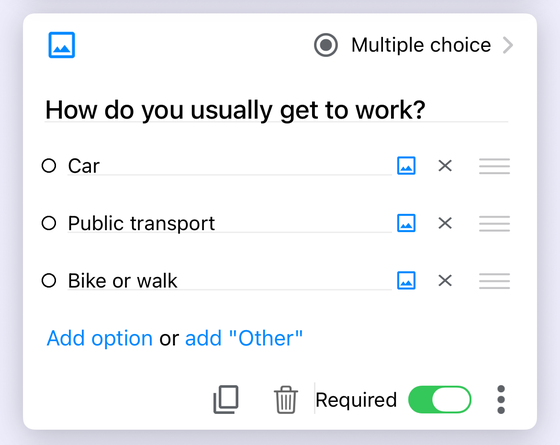
- Its own item — tap Add image in the editing toolbar, alongside Add question, Add title and description, Add video and Add section.
- On a question — tap Add image on the question card.
- On an answer option — tap Add image on that option's row. It disappears once that option has a picture, and it is not offered on the automatic “Other…” row.
Pictures can come from your photo library, your camera, Google Drive or the web, and the app can crop and edit one before it goes on the form. All four sources are PRO features, as is the built-in image editor — the photo library is not an exception, which is the one most people assume. The app itself is free to download and use.
File formats and size limits — what Google actually publishes
Nothing. Google publishes no supported-format list and no file size limit for images placed in a form. Its “Edit your form” help page gives the click path and stops there.
Be careful with the numbers other articles quote here. They are almost always borrowed from somewhere adjacent and presented as though they applied:
- Google Docs and Drive publish their own limits. Those are different products.
- The Forms file upload question has a per-file size limit you set yourself — but that governs what respondents send you, not what you put on the form.
The one content limit Google does publish for forms: “you can add and edit up to 300 pieces of content, like questions, descriptions, images, and videos”, plus “up to 75 sections”. Every image you add counts against that 300, wherever you put it.
Practically: use an ordinary JPEG or PNG, and resize a large photo before uploading rather than after. Because no dimension is published either, the reliable way to check how a picture renders is to open the live form on a phone and look.
Accessibility: there is no alt text field
Google's help pages for editing a form and for using Google Forms with a screen reader do not document an alt text field for images in a form. Do not assume one exists because it does in Docs and Slides.
The consequence matters if your form is going to a class, a workplace or the public: any information carried only by the picture may not reach a screen reader user at all. Repeat it in text — in the question, in the question's description, or in the answer option's label next to the image. A picture-choice question with empty text labels is the worst case; give every option a written label even when the image makes it obvious to everyone else.
Which one do you want?
| You want… | Click first | Google documents |
|---|---|---|
| A picture between questions, for context or decoration | Add image in the toolbar | Yes — its own item, placed before or after a question |
| A picture that is the question | The question, then Add image to its right | Yes — “an image to a question” |
| Pictures as the choices people pick from | The answer option, then Add image to its right | Yes — multiple choice and checkbox only |
| A banner across the top of the form | The form's theme | Covered in the theme guide |
| Respondents to send you a picture | A file upload question | A different feature entirely |
Add images to a form from your phone
Form+ gives you an Add image control on the toolbar, on every question and on every answer option — on your real Google Forms and your own Google account.
Get Form+ free on the App StoreFrequently asked questions
Can you add an image as an answer option in Google Forms?
Yes. Google documents it: “You can add an image to a question or an answer for multiple choice or checkbox questions.” You click the answer option itself rather than the question, then click Add image to the right of that option. Google names only multiple choice and checkbox question types here.
What image file types and sizes does Google Forms allow?
Google does not publish a file format list or a size limit for images placed in a form. Numbers you see quoted elsewhere are usually borrowed from Google Docs, Google Drive or the Forms file-upload question, which are different limits. The one limit Google does publish for form content is 300 pieces of content per form, counting questions, descriptions, images and videos, and up to 75 sections.
Can you add alt text to an image in Google Forms?
Google's help pages for editing a form and for using Google Forms with a screen reader do not document an alt text field for images in a form. Because of that, treat any information carried only by the picture as unavailable to a screen reader user and repeat it in the question text or the description.
Can I add an image to a Google Form on my phone?
Google's own steps describe the desktop web editor. Form+ on iPhone and iPad puts the same three placements on a touch screen: an Add image button in the editing toolbar for a standalone image, one on the question card, and one on each answer option row.