How to shuffle question order in Google Forms
Last updated September 2026 · ~8 minute read
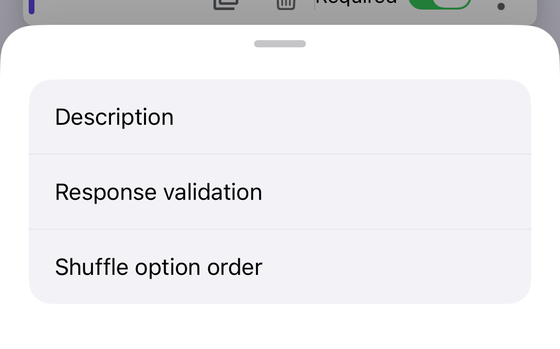
Short answer: Google Forms has two different shuffle controls, and most articles run them together. Shuffle option order is per question — click the question, click More in the bottom right, click Shuffle option order. Shuffle question order is form-wide — Settings → Presentation → under Form presentation, turn on Shuffle question order. One randomises the choices inside a question; the other randomises the questions.
Form+ puts Shuffle option order in the question menu and Shuffle question order in Form settings — plus a bulk edit that turns answer shuffling on across every choice question at once, instead of one overflow menu at a time. Your real Google Forms, on your own Google account. Get Form+ free on the App Store.
The two controls are not variants of one setting. They live in different places, they are worded differently by Google, and only one of them can quietly wreck a form you have already written.
Control 1 — Shuffle option order (one question at a time)
This randomises the answer choices inside a single question, leaving the question where it is. Google's
help page is explicit about which question types it covers: “You can shuffle answers to multiple choice,
checkbox, and drop-down questions.” Three types, named. That help page does not mention grids —
but Google does answer the grid question elsewhere, in the Forms API reference: the
Grid schema's shuffleQuestions field reads “If true, the
questions are randomly ordered. In other words, the rows appear in a different order for every
respondent.” So a grid shuffles its rows, not the choices along the top — a different
operation from the one this control performs, under a similar name.
Google's steps, verbatim:
- “Click the question you want to shuffle answers for.”
- “In the bottom right, click More.”
- “Click Shuffle option order.”
It is a per-question toggle, which is the part people miss. Turning it on for question 4 does nothing to questions 1, 2 and 3 — on a 30-question quiz you are opening thirty overflow menus. That is tedious rather than difficult, but it is worth knowing before you start.
Control 2 — Shuffle question order (the whole form)
This is a form-level setting, not a question one. Google's path, verbatim: “At the top of the form, click Settings. Next to ‘Presentation,’ click the Down arrow. Under ‘Form presentation,’ turn on Shuffle question order.”
Google attaches its own warning to the feature: “Important: If you want your questions to appear in a specific order, you should not shuffle your questions.” That sentence is doing more work than it looks like it is — see the next section.
The scope on a sectioned form: documented, but not where anyone looks
This is the reason so much advice about this feature is unreliable, and the answer sits in a stranger place than people expect. Google's help pages never state whether Shuffle question order randomises questions across the entire form or only within each section. They give the label, they give the path, they give the warning above — and they stop. There is no sentence anywhere in the shuffle instructions that mentions sections, section boundaries, or page breaks.
Google does answer it — once, in the developer reference, in vocabulary the help centre never uses. The Apps
Script Form class documents
setShuffleQuestions(shuffle) as “Sets whether the order of the questions on each page of the
form is randomized”, and getShuffleQuestions() repeats the same phrase. A page, in
Apps Script, is what the help pages call a section. Read literally, that confines the shuffle to within a section.
Treat it as strong evidence rather than a guarantee: it describes what a setter does, not what a respondent sees, and it is the only sentence Google has published on the question anywhere. If the distinction matters to you — and on a sectioned quiz it matters a great deal — duplicate your form, turn the setting on, and open the live form several times to confirm it on your own copy.
Branching, spreadsheets, and other things people ask
The linked spreadsheet. Google's shuffle documentation says nothing about Sheets or column order — the pages that describe both controls never mention the linked spreadsheet at all. Undocumented is not the same as unaffected, so if your workflow depends on a stable column layout, submit one test response after turning shuffling on and compare the sheet against what you expect.
Branching. Google does not document how shuffling interacts with conditional logic either, so what follows is reasoning, not documentation. Branching in Google Forms works by sending a respondent from a section to another section based on an answer, which means the logic is attached to section order rather than to question order. Reasoning from that structure, a shuffle that reorders questions on a page has no obvious way to break a rule that jumps between pages — but a rule can only fire after its question has been answered, and Google's own warning about questions appearing in a specific order is a caution against assuming any particular sequence. If you have branching, test the shuffle on a duplicate before it goes anywhere near respondents.
What shuffling breaks
Turning either control on is one click. Noticing what it invalidated is the part that takes attention.
- A printed copy. Paper has one fixed order — whichever order the form happened to be in when you printed it. A shuffled form and its printed version are two different documents, and marking one against the other will not line up. If you need a paper copy, print first and understand that it is a snapshot.
- Any question that refers to the previous one. “Following on from the last question…”, “using the figure above”, “if you answered yes below” — every one of these assumes a sequence that no longer exists. So do numbers you typed into the titles, since Forms has no numbering of its own. This is what Google's warning is really about.
- Instructions that name an option by position. “Pick the third one”, “choose the last option”, “the correct answer is B”. Shuffle option order deletes the meaning of those phrases while leaving the words in place, which is the worst possible failure: the form still looks fine.
- Answer keys written by position. If you or a colleague keep a marking key that records “Q7: option 2”, that key is now wrong. Keys must record the answer text, not its slot.
Before you publish a shuffled form, re-read every question looking specifically for order-dependent wording. It is a five-minute pass and it catches nearly all of this.
Does it actually stop copying?
This is why most people turn shuffling on, so it deserves a straight answer: it raises the effort, and it is not a proctoring measure.
Shuffling means two people sitting next to each other are not looking at the same screen at the same moment, so a glance sideways no longer yields a usable answer. That is a genuine benefit and it costs you nothing. But everyone still receives the same questions with the same choices, just dealt in a different order — so anyone willing to spend a few extra seconds matching the question text can still copy, and anyone who shares a screenshot or a link outside the room is entirely unaffected. Shuffling is friction, not security. If the stakes are high enough that copying would matter, the shuffle is a supplement to supervision, not a replacement for it.
Worth being clear about one more thing, because it is easy to over-promise here: Form+ does include a quiz timer and proctoring feature — and it can shuffle question order itself as part of that — but all of it runs only inside the app's own branded fill screen. A respondent who opens your ordinary Google Forms link in a browser never reaches it. Nor, on an English-language device, does anyone else: that fill screen is opened from a single Preview branded form… row in the editor's Share & Brand menu, and the current build switches that row off. The filter that hides it matches the row's translated title against an English list, so the row is still drawn on a device set to one of the app's 21 other languages. Google's own Shuffle question order setting, the subject of this guide, is unaffected by any of that — it is a setting on the form itself and it applies to your public link. For a link you send out publicly, shuffling is what you have.
The two controls side by side
| Question | Shuffle option order | Shuffle question order |
|---|---|---|
| What it randomises | The answer choices inside one question | The questions themselves |
| Where it lives | The question's More menu, bottom right | Settings → Presentation → Form presentation |
| Scope | One question, set individually | Form-level — Google does not state how it treats sections |
| Applies to | Multiple choice, checkbox, drop-down (Google's wording) | The form |
| Main risk | “Pick the third one” stops meaning anything | “The previous question” stops meaning anything |
Both shuffle controls, from your phone
Form+ puts Shuffle option order in the question menu and Shuffle question order in Form settings — plus a bulk edit that turns answer shuffling on across every choice question at once, instead of one overflow menu at a time. Your real Google Forms, on your own Google account.
Get Form+ free on the App StoreFrequently asked questions
Does Google say whether question shuffling stays inside a section?
Google's help pages never state its scope on a form that has sections, but the Apps Script reference does:
setShuffleQuestions is documented as setting whether “the order of the questions on each page
of the form is randomized”, and a page in Apps Script is what the help pages call a section. That
documents a setter rather than the responder experience, so confirm it on a copy of your own form.
Which question types can have their options shuffled?
Google states: “You can shuffle answers to multiple choice, checkbox, and drop-down questions.” Its
help page names those three and does not mention grids. The Forms API reference does, though: a
Grid's shuffleQuestions randomly orders its rows, which is a different
operation under a similar name.
Does shuffling change the column order in the linked spreadsheet?
Google does not document any effect on the linked spreadsheet. Its shuffle instructions never mention Sheets or column order, so treat the answer as unstated rather than confirmed, and check one real submission against your own sheet.
Does shuffling stop people copying each other?
It raises the effort rather than preventing it. Two people sitting together still see the same questions, only in a different order, so a shuffle slows a glance at a neighbour's screen but is not a proctoring measure.